
Are you struggling with giving your WordPress website a fresh look? Importing theme data might just be the solution you need.
Imagine transforming your site’s appearance with just a few clicks, unlocking a world of design possibilities. It’s easier than you think, and in this guide, you’ll learn exactly how to do it. Whether you’re a beginner eager to enhance your website’s aesthetics or a seasoned developer looking to streamline your process, this step-by-step tutorial will help you efficiently import theme data in WordPress.
Stick around, and you’ll discover the secrets to making your website look stunning without the hassle. Ready to dive in? Let’s get started!
Preparing For Theme Import
Backing up your data is important. It keeps your site safe. Data loss is bad. Use backup plugins. Store backups on your computer. Save them on cloud too. This way, your site is safe.
Not all themes work on every site. Check if your theme matches your WordPress version. Some themes need special plugins. Make sure your plugins are ready. Review theme reviews. Good reviews mean good themes.
Files are needed for theme import. Download the theme files from trusted sites. Get the documentation too. It helps in setting up. Store these files in a safe folder. Keep them organized for easy access.
Accessing The WordPress Dashboard
Click on your browser and type your website URL. Add /wp-admin at the end. Press Enter. A login page will show up. Enter your username and password. Click on the “Log In” button. You will see the WordPress Dashboard.
Find the sidebar on the left. Look for the “Appearance” tab. Click on it. A menu will drop down. Select “Themes” from the list. Here, you can see all your themes. Choose the one you want. Click on “Customize” if needed. To import data, look for Theme Options. It may be under “Appearance” or “Tools”. Click on it to proceed.
Installing The New Theme
To import theme data in WordPress, start by navigating to ‘Appearance’ and select ‘Themes’. Use the ‘Import Demo Data’ option to integrate new design elements seamlessly. Ensure the theme is compatible with your WordPress version for smooth installation.
Upload Theme Files
First, navigate to the WordPress dashboard. Click on Appearance, then Themes. Select Add New at the top. Choose Upload Theme and click Choose File. Find the theme zip file on your computer. Click Install Now. Wait for the upload to finish. Your theme files are now uploaded.
Activate The Theme
Once the theme is installed, find it on the Themes page. Hover over the new theme. Click on the Activate button. Your website now uses the new theme. Check your site to see the changes. Ensure everything looks right. If there are problems, try activating another theme. Then, activate your new theme again.
Using The WordPress Import Tool
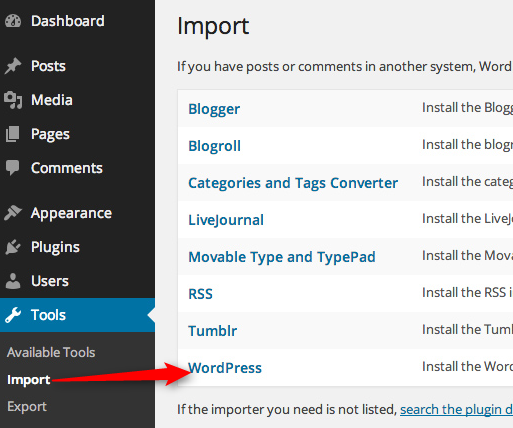
Start by opening your WordPress dashboard. Look for the Tools menu. Click on it. You will see several options. Choose Import. This is where you find the import tool. You will see a list of import options. Each option lets you import different types of data. It’s important to know what type of data you want to import.
Different formats are available for importing. Common ones include WordPress, RSS, and CSV. Choose the format that matches your data. If you have WordPress data, select WordPress format. For RSS data, choose the RSS option. Each format needs specific steps. Follow the steps carefully. Make sure your file is ready for import. Your file must be in the right format.
Importing Theme Data
Start by finding the data file you want. It usually ends with .xml. This file has all the theme data you need. Download it to your computer. Make sure you know where it is saved. You will need it soon.
Open WordPress and go to your dashboard. Look for Tools in the menu. Click on it. Then select Import. Choose the option for WordPress. Follow the steps. You will be asked to upload the data file. Find the file and click upload. Wait for it to finish. Your theme data is now imported.

Credit: harutheme.com
Customizing Imported Theme
Start by checking the layout options. Choose what fits your site. Change the colors to match your brand. Rearrange the widgets on the sidebar. These changes make the site look different. Check the font style. Make sure it is easy to read. Adjust the font size for better visibility. Try different header styles. Pick one that looks nice.
Begin with the text content. Remove any placeholder text. Write your own words. Use clear sentences. Replace old images. Add pictures that relate to your content. Make sure they are high quality. Check image sizes. They should not be too big. This helps the site load fast. Add links to your content. They help users find more information.
Troubleshooting Common Issues
Importing theme data in WordPress often faces hurdles like failed uploads or missing content. Check file format and server settings. Ensure compatibility with your WordPress version. Try resetting the import process if issues persist.
Resolve Import Errors
Importing theme data can sometimes cause errors. These might be due to file compatibility issues. Ensure your files are in the correct format. Check if the file size is too large. A small file size is ideal. If an error persists, try re-uploading the file. Sometimes, server settings need adjustments. You may need to increase the upload limit. This can be done in the php.ini file. Always have a backup before making changes.
Fix Display Problems
Display issues can occur after importing. Themes may not show correctly. This could be due to missing files. Verify all theme files are uploaded. Missing files cause incomplete displays. Adjust the theme settings if needed. Sometimes plugins cause conflicts. Deactivate unnecessary plugins. This can solve display issues. Check browser compatibility. Browsers may render themes differently. Test your theme across different browsers. Ensure updates are installed regularly. Updates fix many display problems.

Credit: wordpress.org
Verifying The Imported Theme
Checking the imported theme ensures that every feature works smoothly in WordPress. Examine layout, widgets, and plugins for proper functioning. Verify settings match the demo content to maintain consistency and visual appeal.
Check Functionality
Ensure every feature works correctly. Test menus and widgets. Click buttons and links. Check for broken parts. A working theme boosts user experience.
Test Responsiveness
View your site on different devices. Make sure it looks good on phones and tablets. Resize your browser window and see if everything adjusts. Responsive design is crucial for all users.
Credit: motopress.com
Frequently Asked Questions
How Do I Import Theme Data In WordPress?
To import theme data, go to your WordPress dashboard. Navigate to “Tools” and then “Import. ” Choose the appropriate import tool, often “WordPress Importer. ” Upload the theme’s demo content file, usually an XML file. Follow the prompts to complete the import process, ensuring your theme’s data is fully loaded.
Can I Import Theme Data Without Plugins?
Yes, you can manually import theme data via the WordPress dashboard. Navigate to “Tools” then “Import,” and select “WordPress. ” Upload your demo content XML file. If the theme supports it, this method allows you to import data without additional plugins, streamlining the process.
What Happens After Importing Theme Data?
After importing, your website will mirror the theme’s demo layout. It includes menus, pages, and posts. You might need to configure widgets and menus manually. Check for any missing elements and customize the content to match your brand, ensuring a consistent appearance across your site.
Why Is My Theme Data Not Importing Correctly?
If theme data isn’t importing, ensure your XML file is correct. Check for plugin dependencies and install them. Verify server configurations, like file upload limits. Sometimes, data import can fail due to incorrect file formats or missing plugins. Resolving these issues usually fixes the import process.
Conclusion
Importing theme data in WordPress is straightforward and beneficial. It enhances your site’s look and functionality quickly. Follow the steps carefully to avoid errors. Always back up your site before making changes. This ensures you can restore it if needed.
Enjoy exploring new themes and customizing your website. With practice, you’ll feel more confident. Remember, each theme offers unique features. Experiment and find what suits your needs best. Your website’s design can significantly impact user experience. So, take your time and choose wisely.
Happy designing with WordPress!


