
Are you ready to give your WordPress site a fresh new look with a theme from Envato? Importing a theme might seem like a daunting task, especially if you’re not tech-savvy.
But don’t worry; you’re not alone. Many people want to enhance their website’s design without hassle, and you’re about to learn how easy it can be. Imagine the satisfaction of seeing your website transform right before your eyes, all with a few simple steps.
By the end of this guide, you’ll feel empowered and ready to make your site stand out. Let’s dive in and unlock the potential of your WordPress site with an Envato theme!

Credit: www.youtube.com
Preparing For Theme Import
Select a theme that matches your site’s purpose. Consider the design and features you need. Check user reviews and ratings. Make sure the theme is compatible with your WordPress version. Look for themes that are updated regularly. This ensures security and functionality. Ask yourself, does this theme fit your brand? Choose wisely.
Visit the Envato Market website. Browse or search for your chosen theme. Click on the theme to view details. Check the price and license options. Decide on a regular or extended license. Click buy now or add to cart. Complete the purchase using a secure payment method. Save your purchase confirmation email. You might need it later.
Log into your Envato account. Go to the downloads section. Locate your purchased theme. Click download to get the theme files. Choose the installable WordPress file. Save it in a safe location. You will need this file for installation. Double-check that the download is complete. Now, you are ready to import the theme.
Setting Up Your WordPress Site
Start by downloading the WordPress files. Visit the WordPress website and click the download button. Save the file on your computer. Next, open your website’s hosting panel. Look for the File Manager option. Then, upload the WordPress file to your website’s directory. Extract the files to make them ready for use. Go to your domain name in a web browser. Follow the steps shown on the screen. WordPress will guide you through the process. Create a username and password for your site. These will help you log in later.
Log in to your new WordPress site. Look for the Settings option on the dashboard. Click on it to open. Set your site’s title and tagline. Choose a time zone that matches your location. It’s important for correct post timing. Decide if you want comments on your posts. Turn them on or off as you like. Remember to save your changes. These settings help make your site unique.
Uploading The Theme
Easily import a WordPress theme from Envato by navigating to your WordPress dashboard. Select “Appearance” and then “Themes. ” Click “Add New” and choose “Upload Theme. ” After selecting the downloaded Envato theme file, hit “Install Now” to complete the process.
Using The WordPress Dashboard
Start by logging into your WordPress dashboard. Find the Appearance menu on the left side. Click on Themes. Look for the Upload Theme button at the top. Now, click it. A new page will appear. Choose the theme file from your computer. It should be a .zip file. Click Install Now. Wait a few seconds. Once done, click Activate to use the theme. That’s it!
Uploading Via Ftp
First, open your FTP client. Connect to your website’s server. Navigate to the wp-content/themes folder. Extract your theme zip file on your computer. Upload the extracted folder to the themes folder. Wait for the upload to complete. Go to your WordPress dashboard. Click on Appearance. You will see your new theme. Click Activate. Your theme is now live!
Activating The Theme
Discover how to easily import a WordPress theme from Envato. Begin by downloading your chosen theme file and logging into your WordPress dashboard. Navigate to ‘Appearance,’ select ‘Themes,’ and click ‘Add New’ to upload your theme file.
Theme Activation Process
First, locate the theme file in your computer. Open WordPress and go to the dashboard. Select “Appearance” and then “Themes”. Click “Add New” and choose “Upload Theme”. Find the theme file you saved. Select it and click “Install Now”. Wait for the upload to finish. Click “Activate” to use the theme.
Verifying Theme Installation
Check if the theme appears on your site. Go to the WordPress dashboard. Look for the theme name under “Themes”. Click “Live Preview” to see it in action. Ensure all features are working. If issues arise, recheck the installation steps. Sometimes themes need plugins to work. Verify that all required plugins are active. If you see errors, contact support for help.
Installing Required Plugins
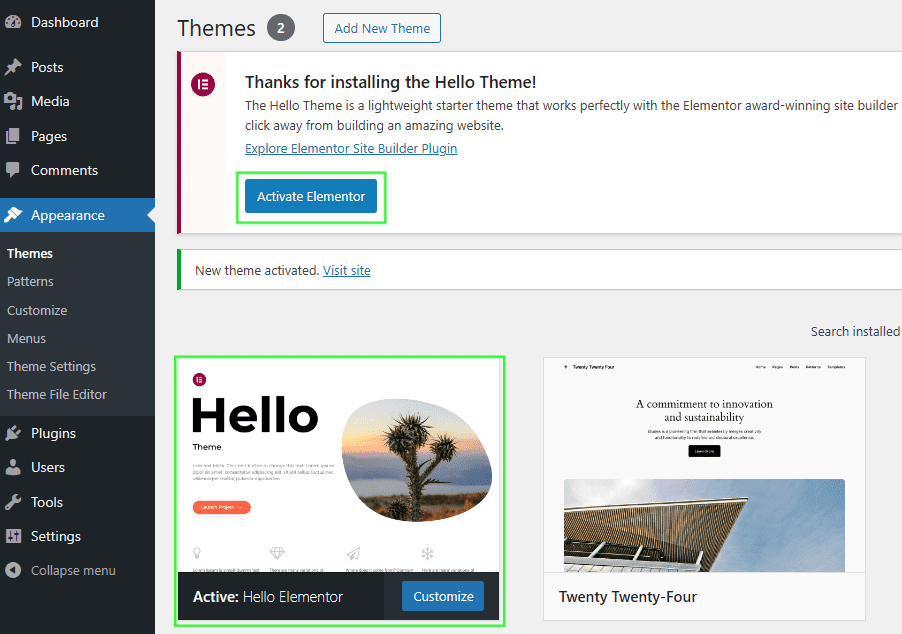
Some themes need special plugins. These plugins help the theme work well. Check the theme’s documentation. List the plugins it needs. This makes the theme look and work right. You might find names like Elementor or WooCommerce. Don’t skip this step. It is very important.
Open your WordPress dashboard. Go to the Plugins section. Click on Add New. Use the search bar to find your plugin. Click on Install Now. After installation, click Activate. Follow the same steps for each plugin. Your theme needs all these plugins. Check if they are working fine.
Credit: help.elements.envato.com
Importing Demo Content
Importing demo content helps you see the theme’s full potential. It’s like a preview of your site with all features. You can understand the layout and design better. It saves time and effort in setting up. Also, it gives you a starting point for your own content.
First, go to your WordPress dashboard. Find the “Appearance” tab. Click on it. Then, choose “Themes”. Select the theme you want to use. Look for the “Import Demo” option. Click to start the process. Follow the on-screen instructions. Wait for the import to complete. Check your site to see the changes. Make sure everything looks good. Adjust as needed.
Customizing The Theme
Importing a WordPress theme from Envato is straightforward. Access your Envato account and download the theme files. Use WordPress admin to upload and activate the theme, then customize it to fit your style.
Using The Theme Customizer
The theme customizer lets you change your theme. You can adjust colors, fonts, and layout. Click on Appearance and then Customize. Explore each section. See how it affects your site. Changes appear in real-time. Save changes by clicking Publish. You can test different styles. Make your site unique. Experimenting is fun.
Adding Custom Css
CSS changes your site’s look. Add custom CSS for more control. Go to Appearance and then Customize. Find the Additional CSS section. Enter your CSS code here. CSS can adjust margins, borders, and backgrounds. Preview your changes instantly. Use simple CSS codes. Be careful with complex codes. Save your changes. CSS helps you make your site special.
Troubleshooting Common Issues
Sometimes, a theme won’t install. It might be a zip file error. Ensure the zip file is not corrupted. Use a reliable extractor tool. Another problem is the upload limit. WordPress has a size limit for uploads. Check your server’s PHP settings. Increase the limit if needed. The theme must also be compatible with your WordPress version. Always check for version updates. Install the latest WordPress version. This often solves the issue.
Plugins can conflict with themes. This causes errors. Deactivate all plugins first. Then, activate the theme. Reactivate plugins one by one. Identify which plugin causes the problem. Some plugins don’t work well with certain themes. Consider replacing the problematic plugin. Always keep plugins updated. This ensures fewer conflicts. Use trusted plugins only.
Final Checks And Launch
Check all links on your site. They should work. Ensure the menu opens and closes. Test buttons to see if they do what they say. Visit your site on a phone and a computer. It should look good on both. Ask a friend to visit. They might see what you miss. Fix any problem found.
Make sure your site loads fast. No one likes to wait. Check images are clear and not blurry. All text should be easy to read. Remove extra plugins you do not need. They can slow your site. Set up a backup for your site. This keeps your work safe.
Credit: help.market.envato.com
Frequently Asked Questions
What Is Envato Market?
Envato Market is a digital marketplace for creative assets. It offers WordPress themes, plugins, and more. Users can browse a wide range of themes to suit various needs. Envato provides high-quality options from different authors. It’s popular for those looking to enhance their WordPress site.
How Do I Download A Theme From Envato?
To download a theme from Envato, first create an account. Browse the marketplace and select your desired theme. Click on the purchase button and complete payment. After purchase, access the download link in your account’s “Downloads” section. Save the theme file to your computer.
Can I Import An Envato Theme To WordPress?
Yes, you can easily import an Envato theme to WordPress. Download the theme file from Envato. In your WordPress dashboard, go to Appearance > Themes. Click “Add New,” then “Upload Theme. ” Choose the downloaded theme file and click “Install Now.
” Activate the theme after installation.
Are Envato Themes Customizable?
Envato themes are highly customizable, offering various options. They often come with built-in settings for layout and design. Many themes support page builders for easy customization. You can adjust colors, fonts, and features. Always check theme documentation for specific customization options available.
Conclusion
Importing a WordPress theme from Envato is simple with guidance. Follow the steps, and your site gets a fresh look quickly. Remember to check compatibility and backup your site. This ensures a smooth transition without losing data. Themes enhance your site’s appearance and functionality.
So, take your time choosing the right one. With practice, theme imports become easier. Soon, you’ll customize your site like a pro. Enjoy your new WordPress journey and explore its possibilities. Your website’s new look awaits!


