
Are you ready to give your website a fresh look without spending a dime? Installing a free WordPress theme on Bluehost might just be the solution you’re searching for.
Imagine transforming your site with just a few clicks, unleashing a world of creative possibilities and professional designs right at your fingertips. If you’ve been feeling overwhelmed by the technicalities or unsure about where to start, don’t worry. You’re not alone, and you’ve come to the right place.
This guide is tailored to help you seamlessly install a free WordPress theme on Bluehost, ensuring that your website not only looks fantastic but also functions smoothly. Dive in, and let’s turn your vision into reality with ease and confidence.
Credit: www.bluehost.com
Setting Up A Bluehost Account
Pick the right hosting plan. Basic is good for starters. It costs less. Plus plan gives more features. You can host many websites. Choice Plus adds more security. It is best for businesses.
Get a domain name. This is your website’s name. Bluehost gives a free domain for one year. You need to check if the name is available. If it is, you can register it. Choose a name that is easy to remember.
Login to your Bluehost account. Go to the dashboard. You will see your hosting plan. Find the WordPress install button. Click it to start. Follow the steps. It is simple and fast.

Credit: www.bluehost.com
Installing WordPress On Bluehost
Bluehost makes installing WordPress easy. Use the One-Click Install feature. Find it in your Bluehost dashboard. Click it. Follow the steps shown. Choose the domain name where you want WordPress. Press Install Now. Wait a few minutes. WordPress will install quickly.
Open your new WordPress site. Go to the settings menu. Set the site title and tagline. Choose a timezone. Save changes. Visit the permalink settings. Select Post name. This helps with SEO. Save changes again. Explore other settings. Customize your site as you like.
Exploring Free WordPress Themes
Picking a WordPress theme is fun. Each theme has its own look. Some themes are simple. Others have many features. Themes can change colors and fonts. They can add sliders or galleries. Some themes have special layouts. These layouts work well for blogs or shops. You can find many free themes online. Always check the theme’s reviews. This helps you know if it’s good.
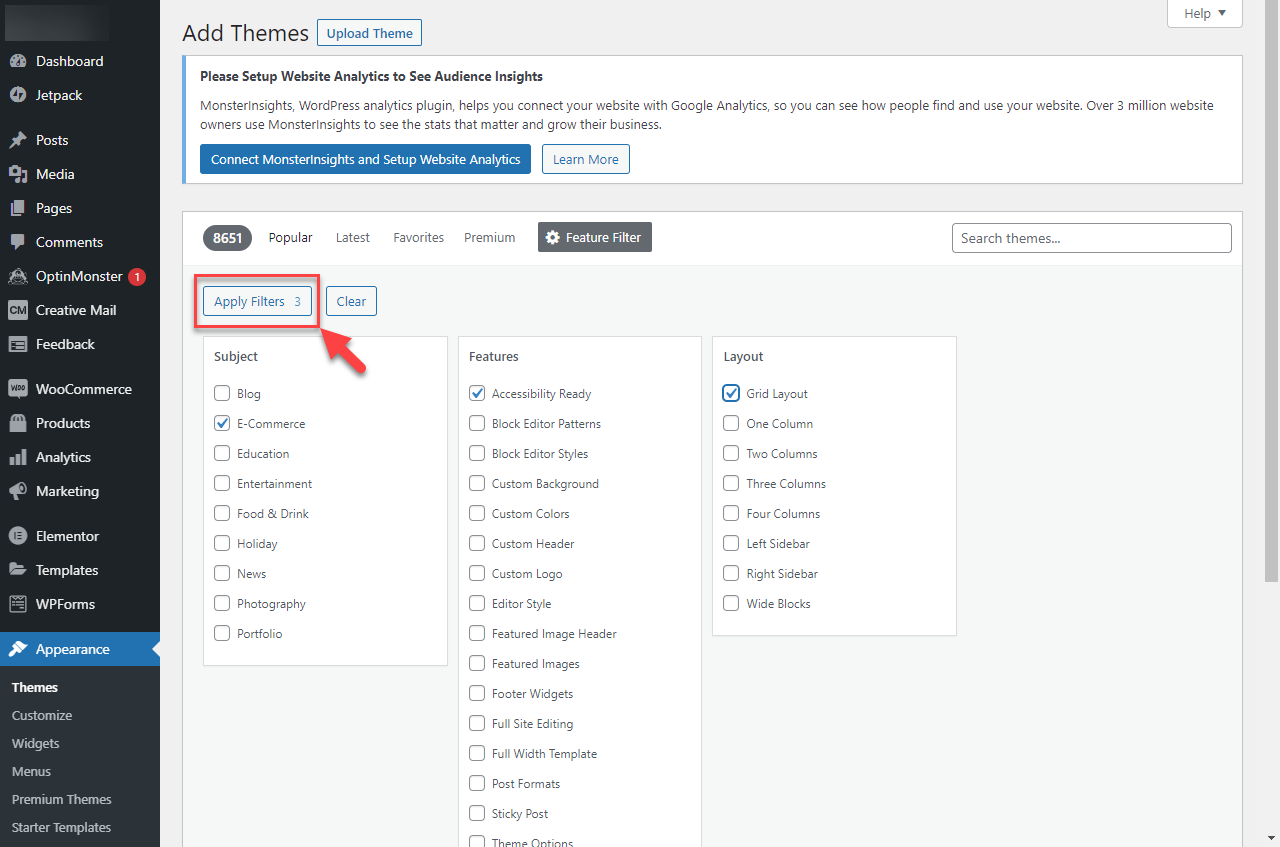
The WordPress repository is huge. It has many free themes. Start by going to your WordPress dashboard. Look for the Appearance menu. Click on Themes. Here, you can search for new themes. Use the search bar to find themes you like. You can also filter by features. Filters help you find the perfect theme. Remember to preview the theme first. Make sure it looks good on your site. Once you find the right one, click Install. Then, activate it to make it live.
Installing A Free WordPress Theme
Start by logging into your WordPress dashboard. On the left, find Appearance. Click on it and choose Themes. You will see many themes here. These are ready to use. To find more, click Add New. This opens the WordPress theme directory. You can search by name or feature. Explore until you find the perfect theme. Choose wisely! Themes change your site’s look.
Once you find a theme, click Install. Wait as it downloads. After the installation is done, click Activate. Your site now uses the new theme. Check your site to see the changes. If you don’t like it, you can change it. Repeat the steps to try another theme. Always pick a theme that suits your site. Good themes attract more visitors.
Customizing Your WordPress Theme
Installing a free WordPress theme on Bluehost is straightforward. Begin by accessing your Bluehost dashboard, then navigate to WordPress themes. Select a theme, click install, and activate. Customize your theme to match your style using the built-in WordPress editor.
Using The Customizer Tool
The Customizer Tool helps change your site’s look. Use it to modify colors, fonts, and more. It’s found in the Appearance menu. Click on Customize to start. You’ll see live changes on your site. It’s easy and fun to use. You can play with different styles. Make your site look just the way you want. Try different options to see what fits best.
Adding Widgets And Menus
Widgets add extra features to your site. They can go in sidebars or footers. Add them through the Widgets section. Menus help users find pages easily. You can create menus from the Menus section. Drag and drop to organize links. Make sure it’s simple for visitors to use. Test your menus to ensure they work well. Happy customizing!

Credit: m.youtube.com
Testing And Launching Your Site
Discover the ease of installing a free WordPress theme on Bluehost. Start by navigating to the WordPress dashboard. Select “Themes” and click “Add New. ” Choose your desired theme, then click “Install. ” Finally, activate it to give your site a fresh look.
Previewing Your Theme
Before going live, it’s good to preview your theme. This helps you see how your site looks. Go to your WordPress dashboard. Click on “Appearance,” then “Themes.” Find your chosen theme and click “Live Preview.” Check your site’s layout and colors. Make sure everything fits well. Look for any mistakes or adjustments needed.
Publishing Your Website
Once you’re happy with your site’s look, it’s time to publish. Go back to your WordPress dashboard. Find the “Publish” button. Click on it to make your site live. This means everyone can see your website now. Remember, you can still make changes later. Keep your content fresh and updated. This keeps visitors coming back.
Troubleshooting Common Issues
Installing a free WordPress theme on Bluehost can present some common issues. Ensure your theme is compatible and update your WordPress version. Check file permissions if the theme fails to upload.
Resolving Installation Errors
Errors happen sometimes during theme installation. First, check your internet connection. A slow or broken connection can stop the process. Then, ensure you have the latest version of WordPress. An old version might cause problems. Next, verify your file permissions. Incorrect permissions can block installation. Finally, clear your browser cache and try again.
Fixing Theme Compatibility Problems
A theme might not work with your plugins. Disable all plugins first. Activate them one by one. This will help find which one causes issues. Sometimes, a theme needs a specific WordPress version. Make sure you have it. If the theme still doesn’t work, contact theme support. They can offer help and solutions.
Frequently Asked Questions
How Do I Find Free WordPress Themes?
To find free WordPress themes, visit the official WordPress. org theme repository. You can browse, search, and filter themes based on your preferences. Alternatively, you can access free themes directly through your WordPress dashboard by navigating to Appearance > Themes > Add New.
Are Free WordPress Themes Safe To Use?
Yes, free WordPress themes from reputable sources like WordPress. org are generally safe. They are reviewed for quality and security. However, always ensure themes are updated regularly and check user reviews. Avoid downloading themes from untrusted websites to prevent security risks.
Can I Customize A Free WordPress Theme?
Yes, free WordPress themes are customizable. Most themes offer options for changing colors, fonts, and layouts. You can use the WordPress Customizer to make visual changes. For advanced customization, consider using custom CSS or child themes to modify the design without altering core files.
How Do I Install A WordPress Theme On Bluehost?
To install a WordPress theme on Bluehost, log into your WordPress dashboard. Go to Appearance > Themes > Add New. Search for a theme, click Install, and then Activate. Your new theme will be applied to your site instantly.
Conclusion
Installing a free WordPress theme on Bluehost is simple. Follow the steps carefully. Start by selecting a theme that suits your needs. Download the theme and upload it to your Bluehost site. Activate the theme to see it in action.
Customize it to match your style. Check your site to ensure everything looks good. Remember, a good theme enhances your site’s appearance. It can also improve user experience. Take your time to explore different features. Enjoy the process of making your site unique.
Happy blogging!


