
Are you ready to give your WordPress site a fresh new look? Installing a theme is one of the easiest ways to transform your website’s appearance and make it stand out.
But if you’re new to WordPress or haven’t explored this feature yet, you might be wondering where to start. Don’t worry, you’re in the right place! This guide on “How to Install a Theme on WordPress 2017” will walk you through each step, ensuring a smooth and stress-free experience.
Imagine your website with a stunning design that captivates your visitors from the moment they arrive. Let’s dive in and unlock the potential of your website with just a few clicks. Stay with us, and you’ll soon discover how simple it is to install and customize a theme, making your site uniquely yours.

Credit: www.youtube.com
Choosing The Right Theme
Selecting the perfect theme for WordPress 2017 enhances your site’s appearance and functionality. Explore different themes that match your style and needs. Ensure compatibility with your site’s purpose before installation to achieve a seamless look.
Understanding Your Needs
Pick a theme that fits your blog’s purpose. A simple design works well for a personal blog. Business sites need a more professional look. Consider if you need special features like galleries or contact forms. Think about your audience’s needs. Will they find the theme easy to use?
Exploring Theme Options
WordPress offers many themes. Free themes are good for beginners. Premium themes offer more features and support. Look at the theme’s reviews. Are other users happy with it? Check the ratings. High ratings mean people like it. Try a few themes. See which one you like best.
Considering Compatibility And Support
Make sure the theme works with your WordPress version. Some themes update often for better compatibility. Check if the theme has support options. Can you contact the maker for help? A theme with good support is easier to manage. Look for themes that work well on phones and tablets. Mobile-friendly themes are important.
Preparing Your WordPress Site
Always create a backup before changes. This keeps your data safe. Use plugins like UpdraftPlus for easy backups. Save the backup on your computer. You can also use cloud storage. This helps you restore your site if needed.
Check your WordPress version in the dashboard. Click on “Updates” to see the current version. Ensure it is updated. New versions have important fixes. They also offer better features. Keeping your WordPress updated is crucial.
Plugins should work with your WordPress version. Check each plugin’s compatibility. Look at the plugin details for this info. Incompatible plugins may cause problems. Always update your plugins. This ensures smooth operation.
Installing A Theme Via WordPress Dashboard
Open your WordPress dashboard. Find the Appearance tab. Click on it. A menu will appear. Select Themes from this menu. You will now see the themes page. This is where you manage themes.
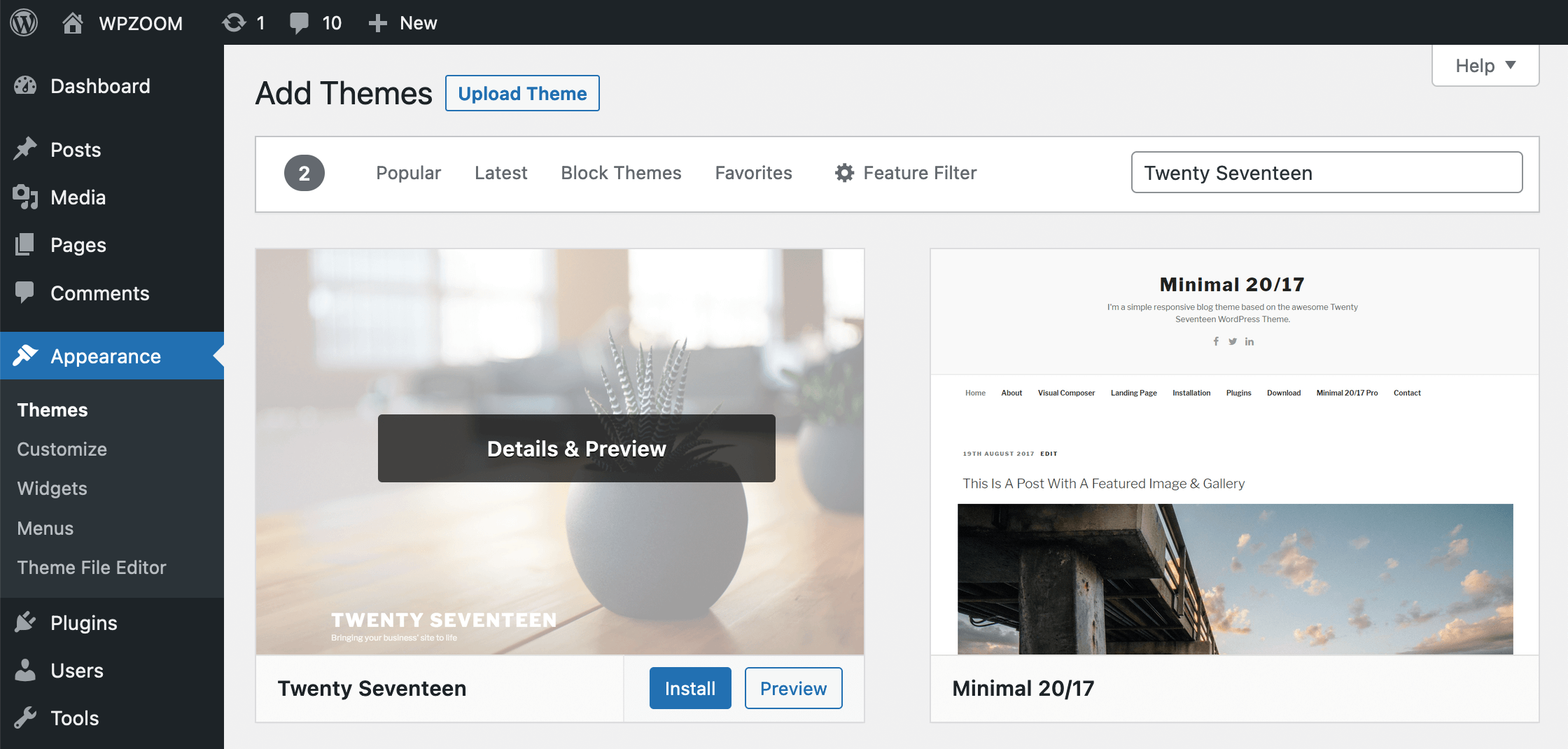
On the themes page, click Add New. A new screen will appear. Here, you can browse or search for themes. Type the theme name in the search bar. Press Enter. You will see a list of themes. Choose the one you like.
Found a theme you like? Click on the Install button. Wait for the theme to download. Once done, click Activate. Your new theme is now live. Enjoy your fresh WordPress look!
Uploading A Theme Via WordPress Dashboard
First, find the theme you want. Download the theme file to your computer. Save it in a place you can find easily. It is usually a .zip file.
Go to your WordPress Dashboard. Click on Appearance. Choose Themes. You will see an Add New button. Click it. Then, click Upload Theme. Find your downloaded theme file. Select it and hit Install Now.
After installation, WordPress will show a success message. Look for the Activate button. Click it to use your new theme. Your website will now have a fresh look!
Installing A Theme Via Ftp
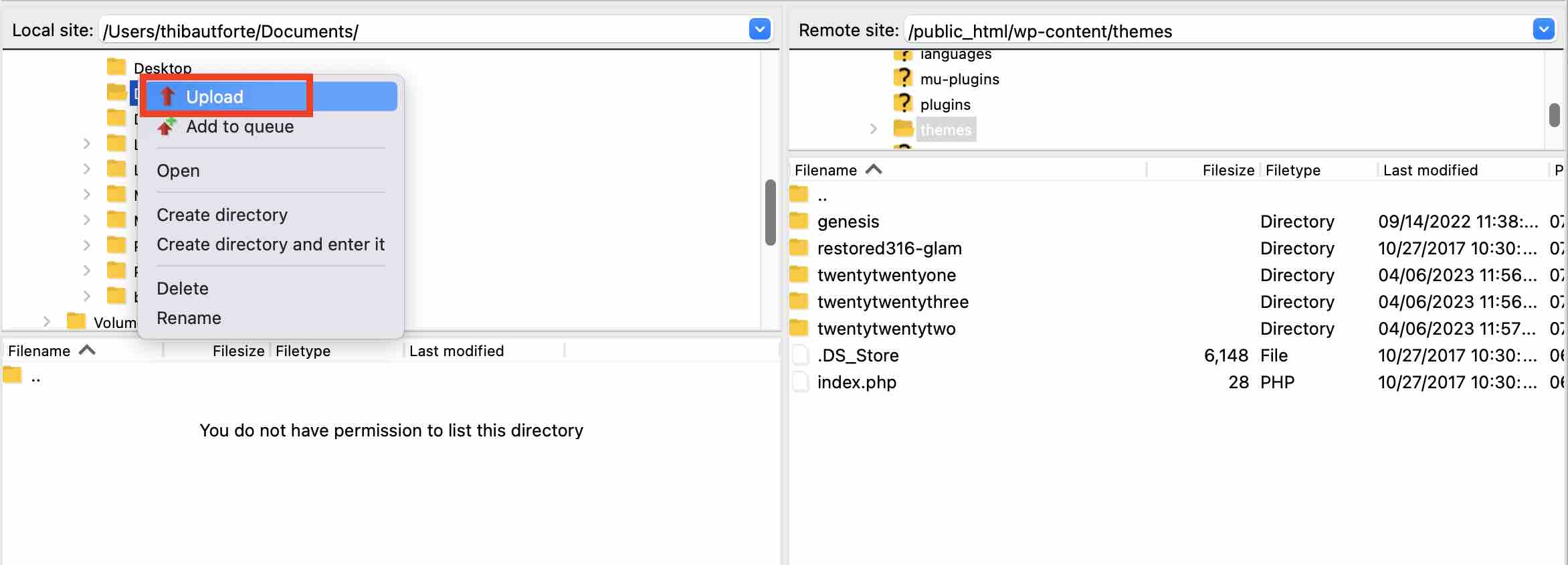
Start by downloading an FTP client like FileZilla. Install it on your computer. Enter your FTP login details. These are found in your hosting account. Now, connect to your site. Look for the ‘public_html’ or ‘www’ folder. This is where your website files are kept.
Download the theme zip file to your computer. Unzip it to see the theme folder. In your FTP client, navigate to ‘wp-content/themes’ in your site directory. Drag and drop the unzipped theme folder here. Wait for the upload to complete. It might take a few minutes.
Open your WordPress dashboard. Go to ‘Appearance’ and then ‘Themes’. You should see the new theme listed. Click on ‘Activate’ to set it as your website theme. Check your website to make sure the theme works. If you face issues, you can switch back to the old theme.
Customizing Your Theme
Discover the steps to install a theme on WordPress 2017 effortlessly. First, navigate to the dashboard, then select “Appearance” and “Themes. ” Find the perfect theme by searching or uploading, and click “Activate” to apply it. Your website’s look can be changed quickly with these simple steps.
Using The WordPress Customizer
The WordPress Customizer is a powerful tool. It helps change your theme easily. You can see changes live. First, go to your dashboard. Then, click on “Appearance”. Next, choose “Customize”. A menu will appear. You can adjust many settings here. Change colors, fonts, and layouts. Make your site look unique. Explore options to find what suits you best.
Adjusting Theme Settings
Each theme has its own settings. These settings let you change the site’s look. Go to the “Customize” menu. Find the “Theme Options” section. Here, adjust headers, footers, and more. You can also change the homepage layout. Always save changes after adjusting. This ensures your site looks just right.
Adding Custom Css
Custom CSS lets you style your site further. Add your own styles easily. In the Customizer, find “Additional CSS”. Here, type your custom styles. Want bigger text? Use CSS to change it. Need different colors? CSS can do that too. Always check your changes. Make sure the site looks good on all devices.
Troubleshooting Common Issues
Installing a theme on WordPress 2017 can sometimes lead to common issues. These may include compatibility problems, missing files, or upload errors. Follow simple troubleshooting steps to resolve these challenges swiftly and enhance your site’s appearance.
Theme Installation Errors
Facing errors during theme installation is common. Sometimes, the theme may not upload. This can happen due to file size limits. Ensure the theme file is not too big. If it is, use FTP to upload it. Check if the theme is compatible with your WordPress version. Always download themes from trusted sources. This ensures safety and reliability.
Compatibility Issues
Some themes may not work well with plugins. This can cause site problems. Always check theme compatibility. Update plugins and themes regularly. This keeps your site running smoothly. If problems continue, contact the theme developer. They can offer guidance and support. Keeping everything updated is crucial.
Restoring From Backup
Sometimes, things go wrong. Restoring a backup is necessary. Backups save you from data loss. Always keep a recent backup of your site. Use plugins like UpdraftPlus for easy backups. Restoring from a backup is simple. Follow the plugin instructions carefully. This helps bring your site back to normal.
Credit: wpmarmite.com
Credit: www.wpzoom.com
Frequently Asked Questions
How Do I Install A Theme In WordPress?
To install a theme in WordPress, go to your dashboard. Navigate to Appearance > Themes > Add New. Browse available themes or upload your own. Click ‘Install’ and then ‘Activate’ to apply the theme to your site. Ensure compatibility with your WordPress version before installation.
Can I Change My WordPress Theme Easily?
Yes, changing your WordPress theme is straightforward. Go to Appearance > Themes in your dashboard. Choose ‘Activate’ on your desired theme. Ensure to preview changes as your site’s layout might be affected. Backup your site before switching themes to avoid data loss or layout issues.
What Is The Best Way To Preview A Theme?
Preview a theme by clicking ‘Live Preview’ in the WordPress dashboard. This shows how your site looks with the new theme. Check layout, colors, and functionality. Ensure your content displays correctly. This helps avoid surprises once the theme is activated on your live site.
Is It Safe To Install Free Themes?
Yes, but choose themes from reputable sources. Free themes from the WordPress repository are generally safe. They undergo security checks and updates. Avoid downloading themes from unverified websites. These might contain malicious code. Read reviews and check ratings for reliability before installation.
Conclusion
Installing a WordPress theme is simple and rewarding. Follow the steps outlined, and your website will look fresh and attractive. Explore different themes to find the one that fits your needs. Remember to check your site’s appearance on different devices.
Always update your theme to keep it secure. A well-chosen theme enhances user experience. Stay creative, and have fun customizing your site. Your unique touch makes your website stand out. Happy theming!


