
Are you ready to give your WordPress site a fresh, exciting look? Importing a new theme can transform your website’s appearance and functionality, making it more appealing and user-friendly.
Whether you’re a seasoned blogger or just starting out, learning how to import a WordPress theme into WordPress is a crucial skill. Imagine the possibilities: a sleek design, enhanced navigation, and a professional vibe—all just a few clicks away. In this guide, we’ll break down the process into easy-to-follow steps, ensuring you can confidently update your site.
Stick around to discover how you can effortlessly elevate your website’s aesthetic and functionality without any technical headaches.

Credit: www.elegantthemes.com
Choosing The Right Theme
Themes come with many features. Look for easy navigation. Check if it supports responsive design. Ensure it has SEO-friendly elements. Some themes offer customization options. Others provide pre-built templates. Make sure the theme suits your needs.
Free themes are good for beginners. They offer basic features. Premium themes have advanced options. They often include support and updates. Free themes are cost-effective. Premium ones can be worth the investment. Decide based on your budget.
Ensure the theme is compatible with your plugins. Check if it works with the latest WordPress version. Some themes may require specific PHP versions. Compatibility is key for smooth operation. Avoid themes with frequent errors.
Credit: www.greengeeks.com
Downloading The Theme
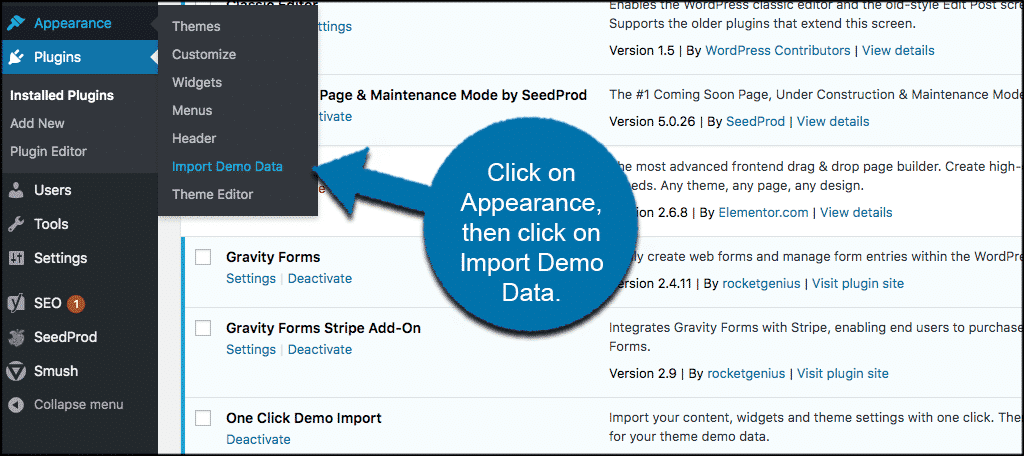
The WordPress Repository is a safe place to find themes. Open your WordPress dashboard. Click on “Appearance”, then “Themes”. You will see a button “Add New”. Click it. There are many free themes here. Use the search bar. Find the theme you like. Click “Install”. Wait for it to download. After that, click “Activate” to use it.
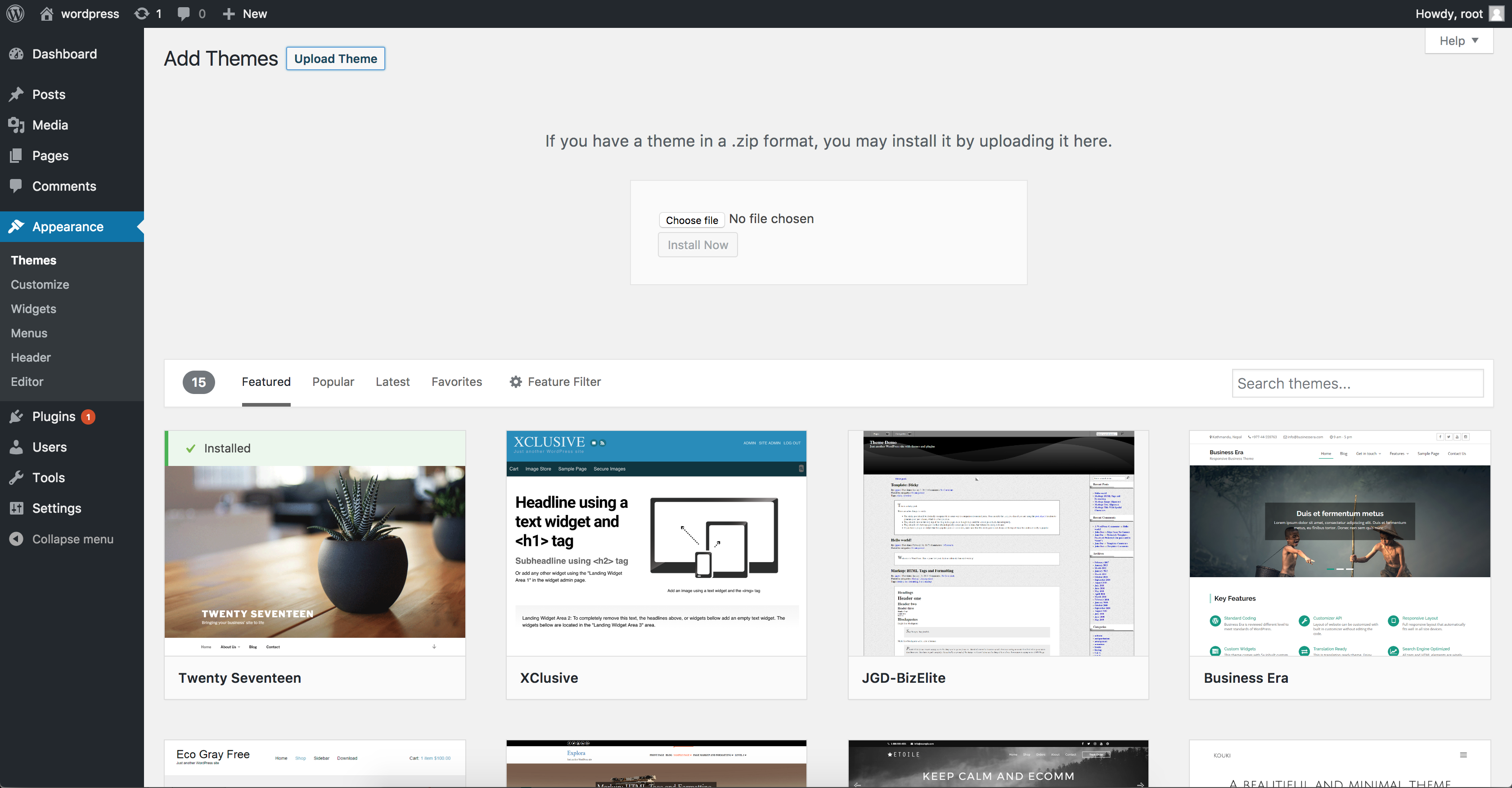
Some themes come from other websites. Make sure the site is safe. Download the theme as a .zip file. Go to your WordPress dashboard. Click on “Appearance”, then “Themes”. Click “Add New”. There is an “Upload Theme” button. Click it. Choose your .zip file. Click “Install Now”. Wait for it to upload. Click “Activate” to use it.
Preparing For Import
Before making changes, it’s essential to backup your current theme. This ensures you don’t lose any important settings or designs. Use a plugin for backing up. It’s simple and quick. You can restore your theme if something goes wrong. It’s like saving a copy of your work. This keeps your website safe. Always backup before big changes.
Ensure your system meets the theme requirements. Some themes need special features. Check your WordPress version. Make sure it is up-to-date. Review the theme documentation. See what is needed for smooth installation. Check your server settings too. This ensures the theme works well. Without meeting these needs, the theme might not work properly.
Uploading The Theme
First, log into your WordPress dashboard. Look for the Appearance option on the left. Click on it. Now find and click Themes. On this page, click Add New. Then click Upload Theme. Choose your theme file from your computer. Click Install Now to start the upload. After uploading, activate the theme. Your new theme is ready to use.
Open your FTP client. Connect to your website server. Find the wp-content folder. Inside it, open the themes folder. Drag and drop your theme folder here. Wait for the upload to finish. Go to your WordPress dashboard. Click on Appearance, then Themes. Find your uploaded theme. Click Activate. Your theme is now live.
Activating The Theme
Explore the simple process of importing a WordPress theme. Navigate to your dashboard, select ‘Themes’, and upload your chosen design. Ensure proper activation to enhance your site’s appearance. This straightforward method helps bring a fresh look to your website effortlessly.
Navigating To Appearance Menu
First, find the Dashboard in your WordPress. Look on the left side. Click on Appearance in the menu. This is where you find your themes. It is important to do this step to see all your options. The Appearance menu helps manage your site’s look.
Selecting And Activating The Theme
Choose a theme from the list. Click on the Activate button. This makes the theme live on your site. Check your website to see the new look. A different theme can make your site special. Remember, you can change it anytime. Enjoy your new theme!
Credit: www.namecheap.com
Customizing The Theme
Importing a WordPress theme is simple. First, download the theme file. Next, go to your WordPress dashboard. Click on “Appearance”, then “Themes”, and select “Add New”. Upload the theme file and activate it. Now your theme is ready for customization.
Using WordPress Customizer
The WordPress Customizer helps you change how your site looks. Choose colors, fonts, and layouts easily. First, open the Customizer from your dashboard. Then, click on “Appearance” and “Customize.”
You’ll see different options to adjust. Pick a section to change. You can adjust the header, menus, or footer. Save your changes when done. Preview how your site looks before publishing.
Adjusting Theme Options
Explore the theme options to make your site unique. Theme options let you change settings like logo and background. You can add a custom logo by clicking on “Site Identity.”
Change the background under “Background Image.” Some themes offer layout choices. Select a layout that fits your content. Save your changes to see updates instantly. Always check your site on different devices.
Resolving Common Issues
Easily import a WordPress theme by navigating to the “Appearance” section in your dashboard. Click “Themes,” then “Add New,” and upload your theme file. Activate it for a fresh look on your website. This simple process helps resolve common issues with theme integration, ensuring a seamless website experience.
Troubleshooting Activation Errors
Activation errors can be frustrating. Check if the theme is compatible with your WordPress version. Ensure all required plugins are installed. Sometimes, themes need specific plugins to work well. If the error persists, re-download the theme. Corrupted files can cause issues. Also, check for any missing files in the theme folder. This can be a simple fix. Always keep your WordPress updated. Updates can fix many issues.
Fixing Layout And Design Problems
Layout issues can happen after activation. First, clear your browser cache. This can solve many display problems. If the layout is still wrong, check the theme settings. Sometimes a minor adjustment is all it needs. Look at the customizer options. It allows easy changes. Review your content alignment. Ensure proper placement of images and text. Finally, verify your screen resolution. Different devices may show layouts differently.
Frequently Asked Questions
How Do I Import A WordPress Theme?
To import a WordPress theme, go to your WordPress dashboard, navigate to “Appearance” and select “Themes. ” Click “Add New,” then “Upload Theme. ” Choose the theme file from your computer and click “Install Now. ” Once installed, activate the theme to start using it.
Can I Import Themes From External Sources?
Yes, you can import themes from external sources. Download the theme’s ZIP file from the source. In your WordPress dashboard, go to “Appearance” > “Themes” > “Add New. ” Click “Upload Theme,” choose the file, and install it. Ensure the theme is compatible with your WordPress version.
Why Can’t I Upload My WordPress Theme?
If you can’t upload your theme, check file format and size. The theme file should be in ZIP format. Also, verify your server’s file upload limits. Incorrect permissions on your WordPress installation might cause issues. Contact your hosting provider for assistance if needed.
Is Importing A Theme Free?
Importing a theme can be free or paid. Free themes are available in the WordPress repository. Paid themes require purchasing from third-party sources. Always check for hidden costs like additional plugins or premium features. Ensure the theme meets your site’s requirements before purchasing.
Conclusion
Importing a WordPress theme can seem tricky. But now, it’s simpler. Follow the steps outlined. Choose the theme you love. Upload it to your WordPress dashboard. Activate it with just a click. Check your website for any changes. Customize the theme to suit your style.
Remember, practice makes perfect. Experiment with different themes. Enjoy the process of design. Soon, your site will look professional. Keep exploring new themes regularly. Stay updated with WordPress trends. Happy blogging and designing!


