
Imagine this: you’ve recently switched to a new WordPress theme, hoping it would bring a fresh look to your website. But instead, you find that it’s just not working for you.
Maybe the design isn’t as appealing as you thought, or perhaps it’s causing unexpected issues with your site’s functionality. Whatever the reason, you want to go back to your previous theme, the one you know and love. But how do you do that without losing all the hard work you’ve put into your site?
Here’s where this guide comes in handy. By the end of this article, you’ll know exactly how to revert to your old WordPress theme safely and efficiently. You’ll also discover tips to ensure a smooth transition, avoiding common pitfalls that could disrupt your site. Don’t let technical hurdles stop you from having the website you envision. Stay with us, and let’s get your site back to looking just the way you like it!
Reasons To Revert Themes
New themes can slow down your website. Speed is crucial for users. Visitors might leave if pages load too slow. Your old theme might be faster. Switching back can improve load times. Faster websites are easier to use. They rank better in search results.
You might not like the new look. Your old theme might suit your taste better. Familiar designs are easier to manage. Comfort matters. Your audience might prefer the old design. Changing back can make visitors happier. Happy visitors stay longer on your site.
Some plugins might not work with new themes. Old themes might be more compatible. Websites need plugins for extra features. Issues with plugins can break your site. Reverting can solve these problems. It ensures everything works smoothly. Smooth sites give users a better experience.

Credit: docs.themeisle.com
Pre-backup Steps
Make sure to backup your current theme. Use a reliable plugin for this. You will need this if something goes wrong. Save your files on your computer or cloud.
Custom settings are important. Write them down. Save them in a file. This helps to restore settings later.
Export your site content. Use WordPress tools for this. Save posts and pages. This ensures you won’t lose any data. It is easy to import the content back.
Locating Your Previous Theme
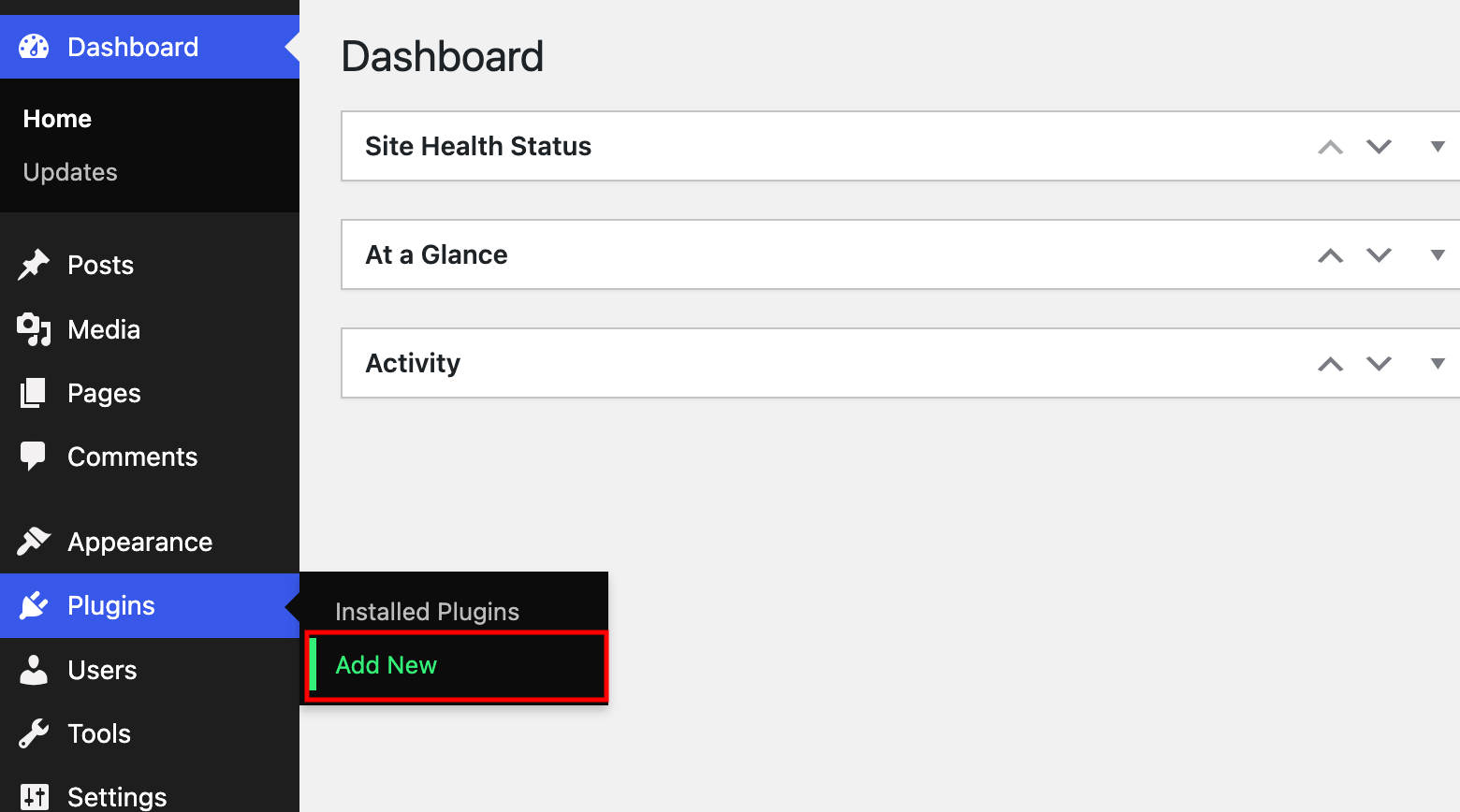
The WordPress dashboard is a powerful tool. It helps you switch themes easily. First, log in to your WordPress account. Go to the Appearance section. Click on Themes. Here, you see a list of themes. Your previous theme might be there. If it’s not, you need to upload it again.
Theme files are stored on your server. Use an FTP client to access them. Look in the wp-content/themes folder. Here, you can find all installed themes. Search for your old theme’s folder. If found, you can easily activate it. If not, you may need to download it again.
Credit: gutenberghub.com
Reinstalling The Previous Theme
It’s easy to go back to an old theme. First, log in to your WordPress dashboard. Then, click on Appearance. Next, choose Themes. You will see your past themes here. Find the theme you want to use again. Click Activate next to it. Your old theme is now active again. Check your site to make sure everything looks right.
FTP helps you move files on your site. Use it if the theme is not on WordPress. First, open your FTP client. Log in using your website details. Find the wp-content folder. Open the themes folder inside it. Now, upload your old theme. Drag the theme folder into the FTP window. After uploading, go back to your WordPress dashboard. Activate the theme from the Appearance section. Check your site to make sure it looks okay.
Restoring Customizations
Widgets add special features to your site. They can show text, images, or links. To bring them back, go to your WordPress dashboard. Click on “Appearance”, then “Widgets”. Find the widgets you had before. Drag and drop them to the right place. Make sure they work as they did before.
Menus help users find pages on your site. Go to “Appearance” and click on “Menus”. Check if your old menu is there. If not, you may need to create it again. Add the pages you want. Arrange them in the right order. Save the menu when done.
Plugins add extra features to your site. Visit the “Plugins” section in your dashboard. Check which plugins you used before. Activate them if needed. Some plugins may need settings updated. Follow the plugin instructions to set them up. Check your site to see if everything works.
Testing The Reverted Theme
Make sure the website loads fast. Slow websites can lose visitors. Test the site on different browsers. Use tools like Google PageSpeed to check speed. Improve images if needed. Make sure they are not too big.
Check the site on a phone. Make sure it looks good. Mobile users are many. They need a friendly site. Buttons must be big enough to click. Text should not be too small.
Ensure all plugins work well. Some plugins can break with a new theme. Check contact forms and galleries. Test each plugin feature. If any plugin fails, update it. Or try a different one.
Preventing Future Theme Issues
Switching back to an old WordPress theme prevents future issues and maintains site stability. Access the WordPress dashboard, navigate to ‘Appearance,’ select ‘Themes,’ and activate the previous theme. This ensures consistency in design and functionality without much hassle.
Regular Backups
Backup your website often. This keeps your data safe. Use plugins for easy backups. Store these backups securely. You can use cloud services. This helps recover your site fast.
Testing In Staging Environment
Use a staging environment. Test changes here first. This avoids errors on your live site. Many hosts offer staging setups. You can experiment safely. It protects your main site.
Keeping Themes Updated
Update themes regularly. This fixes bugs and adds features. Old themes might break. Keep them up-to-date. Check theme updates often. It keeps your site running smoothly.
Credit: www.greengeeks.com
Frequently Asked Questions
How Can I Revert To A Previous WordPress Theme?
To revert, go to your WordPress dashboard. Navigate to Appearance > Themes. Find your previous theme in the list. Click “Activate” to switch back. Ensure your previous theme is still installed before attempting this.
Will Switching Themes Affect My Site’s Content?
Switching themes won’t delete your content. Pages, posts, and media remain intact. However, theme-specific settings or features might change. Always backup your site before changing themes to prevent data loss.
Can I Preview My Old Theme Before Activation?
Yes, you can preview your old theme. Go to Appearance > Themes. Hover over your theme and click “Live Preview. ” This allows you to view your site with the old theme without activating it.
What Happens To Widgets After Switching Themes?
Widgets might move or disappear when switching themes. Different themes have different widget areas. Check Appearance > Widgets after switching. You may need to reassign widgets to the correct areas.
Conclusion
Switching back to a previous WordPress theme can be easy. Follow these steps carefully. Ensure you have a backup for safety. Themes affect your site’s look and feel. Choosing the right one matters. Sometimes, old themes suit your needs best.
Check compatibility with plugins. Avoid losing functionality. Test your site after changing themes. Confirm everything works smoothly. A good theme enhances user experience. It helps your site stand out. Remember, your theme choice impacts engagement. So choose wisely. Stay informed about theme updates.
Keep your site looking fresh. Optimize your WordPress theme for better performance.


