
Unlocking the power of a beautifully designed website is easier than you might think. If you’re looking to give your WordPress site a fresh, professional look without spending a dime, you’re in the right place.
TemplateMonster offers a wealth of free themes that can instantly elevate your website’s appearance. But how do you get one of these stunning themes up and running on your site? In this guide, you’ll discover exactly how to import a free TemplateMonster theme into WordPress.
Imagine the possibilities: a visually striking website that captures attention and engages visitors. You don’t need to be a tech wizard to achieve this transformation. We’ll walk you through each step, ensuring you feel confident and capable. Ready to make your website stand out? Let’s dive in and unlock the potential of your WordPress site with a free TemplateMonster theme.
Prerequisites For Importing
Begin with a working WordPress site. Ensure it is properly installed. A stable internet connection is a must. Check for updated plugins. Regular updates keep your site secure. Make sure you have admin access. This allows theme installation. Without admin rights, changes are impossible.
Create a ThemeMonster account. Access free themes easily. Sign up using a valid email. Confirm your email for access. Explore the theme library. Find a theme that suits your needs. Download the theme to your computer. Keep login details secure. They protect your account. Use strong passwords for safety.
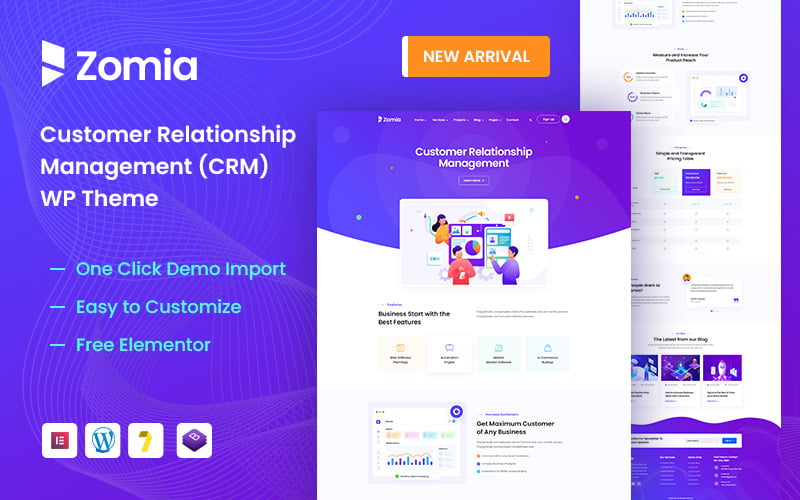
Credit: www.templatemonster.com
Downloading The Theme
Importing a free TemplateMonster theme into WordPress is simple. Start by downloading the theme file from TemplateMonster. Use the WordPress dashboard to upload and activate the theme under ‘Appearance’ then ‘Themes’.
Selecting A Free Theme
First, go to the TemplateMonster website. There, you will find many free themes. Choose a theme you like. Look at the pictures and read the details. Make sure it fits your needs. Click on the theme to see more information. Decide if this is the one you want.
Downloading Theme Files
Click the download button. This will start downloading the theme files. They are usually in a ZIP file. Save the file on your computer. Remember where you saved it. You will need it later. Make sure the download is complete before you close the site.
Preparing WordPress For Theme Installation
Begin by downloading your chosen Templatemonster theme. Next, access your WordPress dashboard and navigate to ‘Appearance’ > ‘Themes’. Click ‘Add New’, then ‘Upload Theme’, select your downloaded file, and hit ‘Install Now’. Once installed, activate the theme to apply it to your site.
Enjoy the new look!
Backing Up Your Site
Always back up your site before making changes. Use a plugin like UpdraftPlus. It helps create copies of your site. This step protects your data from loss. Mistakes can happen during theme installation. A backup makes recovery easy. Avoid stress by having a backup ready.
Checking Compatibility
Ensure the theme is compatible with your WordPress version. Check WordPress version in your dashboard. Compare it with the theme requirements. Download only themes that match your version. Compatibility prevents errors and conflicts. Verify plugins also match the theme.
Installing The Theme
Start by logging into your WordPress dashboard. Look for the Appearance tab. Click on it, then choose Themes. Here, you can see your current themes. Click Add New to start. Use the search bar to find themes. Enter the theme name or keyword. When you find the theme, click Install. Wait a few seconds for the installation. Once done, click Activate to use the theme. Now your site has a new look!
Open your FTP client and connect to your server. Navigate to the wp-content/themes directory. Here, you will upload your theme files. Unzip the theme folder on your computer. Drag and drop the unzipped folder into the themes directory. Wait for the upload to finish. Go to your WordPress dashboard. Navigate to Appearance > Themes. Find your uploaded theme and click Activate. Your theme is now live!
Activating The Theme
After installing, go to the Appearance menu. Click on Themes. Find the new theme. Click Activate to use it. Now your website will look different. Make sure everything works well. Sometimes, small tweaks are needed. Check each page. Look for any errors. Fix them if you find any. Enjoy your new look!
Open the Theme Options panel. Look for settings you can change. Adjust the layout and colors to match your style. You can also change fonts. Make sure your website is easy to read. Check the header and footer settings. Add your logo if you have one. Save changes. Visit your site to see the updates.
Go to the Customizer in the Appearance menu. Here, you can change many things. Upload a new header image. Choose different backgrounds. Add widgets to your sidebar. Customize your menu items. Try different settings. See what looks best. Preview changes before saving. This makes sure you like the look.

Credit: www.templatemonster.com
Troubleshooting Common Issues
Importing a free TemplateMonster theme into WordPress can be simple with the right steps. Start by downloading the theme file to your computer. Upload it through the WordPress dashboard under “Appearance” and “Themes. ” Activate the theme and customize it to fit your website’s style.
Theme Installation Errors
Sometimes, themes do not install properly. This can be frustrating. First, check your WordPress version. It must be up-to-date. Next, ensure the theme is compatible with your version. Always download themes from trusted sources. This avoids corrupted files. If errors persist, try uploading the theme via FTP. This can bypass some issues. Remember to unzip the file before uploading.
Resolving Compatibility Problems
Compatibility issues can cause themes to break. Check if plugins are causing conflicts. Deactivate all plugins first. Then, reactivate them one by one. This helps identify the problematic plugin. Ensure your PHP version is compatible with the theme. Older PHP versions might cause problems. Always backup your site before making changes. This keeps your data safe. If issues continue, reach out to theme support.
Maintaining Your Theme
Keeping your theme updated is very important. Updates fix bugs and add new features. To update, visit the theme section in WordPress. Click on the update button if it is available. Always back up your site before an update. This keeps your data safe. Regular updates ensure your website runs smoothly.
Security is key to protecting your site. Use strong passwords and change them often. Install a security plugin to block bad traffic. Keep your plugins updated as well. This helps in reducing vulnerabilities. For performance, use caching plugins. They make your site load faster. A fast site keeps visitors happy.
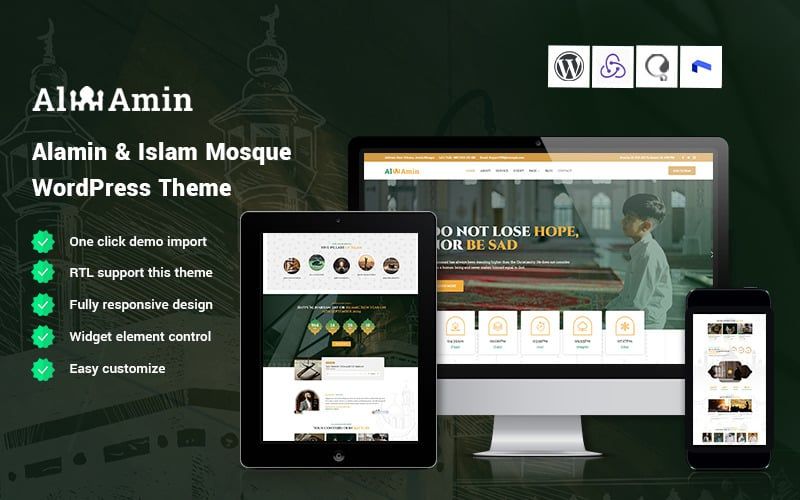
Credit: code.market
Frequently Asked Questions
How To Download A Templatemonster Theme?
Visit TemplateMonster’s website and browse the free themes. Select your desired theme and click the download button. You may need to create a free account. Once downloaded, you can proceed to import the theme into WordPress following the specific steps.
Can I Import A Theme Directly Into WordPress?
Yes, you can import a theme directly. Log in to your WordPress dashboard, go to Appearance > Themes, and click “Add New. ” Upload the downloaded theme file and activate it. This process is quick and straightforward, allowing you to customize your site promptly.
Is It Safe To Use Free Templatemonster Themes?
Yes, free TemplateMonster themes are safe. They are professionally designed and regularly updated for security and functionality. Always ensure you’re downloading from the official TemplateMonster site. This reduces the risk of encountering malicious code or outdated software, keeping your website secure.
What If The Theme Doesn’t Work Properly?
If the theme doesn’t work, check compatibility with your WordPress version. Ensure all plugins are updated and compatible. If issues persist, consult TemplateMonster’s support or forums. They offer resources and community help to resolve common issues swiftly.
Conclusion
Importing a free Templatemonster theme into WordPress is simple. Follow the steps carefully. First, download your chosen theme. Next, upload it to WordPress. Activate it through your dashboard. Customize your theme to fit your style. Remember to save changes regularly.
This process enhances your site’s design effortlessly. Enjoy a fresh look without heavy costs. Make your website stand out with ease. Happy blogging and designing!


