
Struggling with importing a WordPress theme onto HostGator? You’re not alone.
Many find this task daunting, but it doesn’t have to be. Imagine transforming your website into a stunning, fully functional platform with just a few clicks. Sounds exciting, right? In this guide, we’ll simplify the process, breaking it down step-by-step so you can confidently import your dream theme.
Whether you’re launching a new site or revamping an existing one, this guide is tailored to help you achieve a seamless transition. Stay with us, and let’s unlock the potential of your website together!
Choosing The Right Theme
Importing a WordPress theme onto Hostgator is straightforward. First, access your Hostgator dashboard and navigate to WordPress. Then, upload your theme file under the ‘Themes’ section and activate it. Ensure your theme suits your site’s purpose for optimal functionality and appearance.
Identify Your Website’s Purpose
Your website needs a clear purpose. Is it for blogging, selling, or sharing photos? Knowing the goal helps in picking the right theme. A blog theme differs from a store theme. Each theme suits a different need. Think about what you want your visitors to see and do. A theme must fit your website’s main purpose.
Consider Design And Functionality
Design makes your site look nice. Functionality makes it work well. Bold colors can attract attention. Easy navigation helps users find things fast. Good design and functionality keep visitors happy. Choose a theme that balances both. Test different themes to see which works best.
Check Theme Compatibility
Not all themes work with every plugin. Some may cause problems. Check if the theme is compatible with important plugins. Compatibility ensures everything runs smoothly. Read reviews to see if others had issues. Update themes to avoid bugs. A compatible theme saves time and trouble.
Preparing Your Hostgator Account
First, log into your Hostgator account. Find the cPanel link. Click it to open. cPanel helps manage your website. You can find many tools here. Explore a bit if you wish.
Always create a backup before changes. Go to the Backup Wizard in cPanel. Follow the steps to back up your data. This keeps your website safe. Don’t skip this step. It’s important.
Use the QuickInstall tool to set up WordPress. Find it in cPanel. Click on it to begin. Choose WordPress from the list. Fill in the needed details. Click ‘Install’ to finish. Your WordPress is now ready.
Downloading The WordPress Theme
Find the theme creator’s website. Look for a download link. Usually, themes are under the “themes” tab. Some websites might ask for your email. Check your email inbox for a download link.
Click the download link. Wait for the zip file to save. It may take a few minutes. Check your downloads folder. Locate the theme zip file. It should be there.
Open the zip file. You will see many folders. Main folder is usually named after the theme. Inside, find style.css and other files. These files are important for your theme. Remember their names. You will need them soon.

Credit: www.youtube.com
Uploading Theme To Hostgator
Open cPanel and find the File Manager tool. Click it to see your website files. Look for the public_html folder. This is where the theme should go. Upload the theme’s zip file there. Right-click the zip file and choose Extract. This will unzip the files. Ensure everything is in the right place.
Use an FTP client like FileZilla. Connect to your Hostgator account. Navigate to the public_html folder. Drag the theme files from your computer to this folder. Wait for the upload to finish. Check to see if all files are there.
After uploading, files might be zipped. Use cPanel to unzip them. Click the zip file and choose Extract. Ensure the files are in the theme folder. Check for any missing files. Proper organization is crucial for the theme to work.
Activating The Theme In WordPress
Logging into WordPress Dashboard is the first step. Enter your username and password. You will reach the dashboard. The dashboard is the main control panel. It is your tool to manage the site.
Navigating to Appearance Section is easy. Find the menu on the left side. Look for the “Appearance” option. Click it. This leads you to themes.
Activating the New Theme is simple. Browse through the themes. Find the one you uploaded. Click “Activate” under it. Your new theme will now be live.
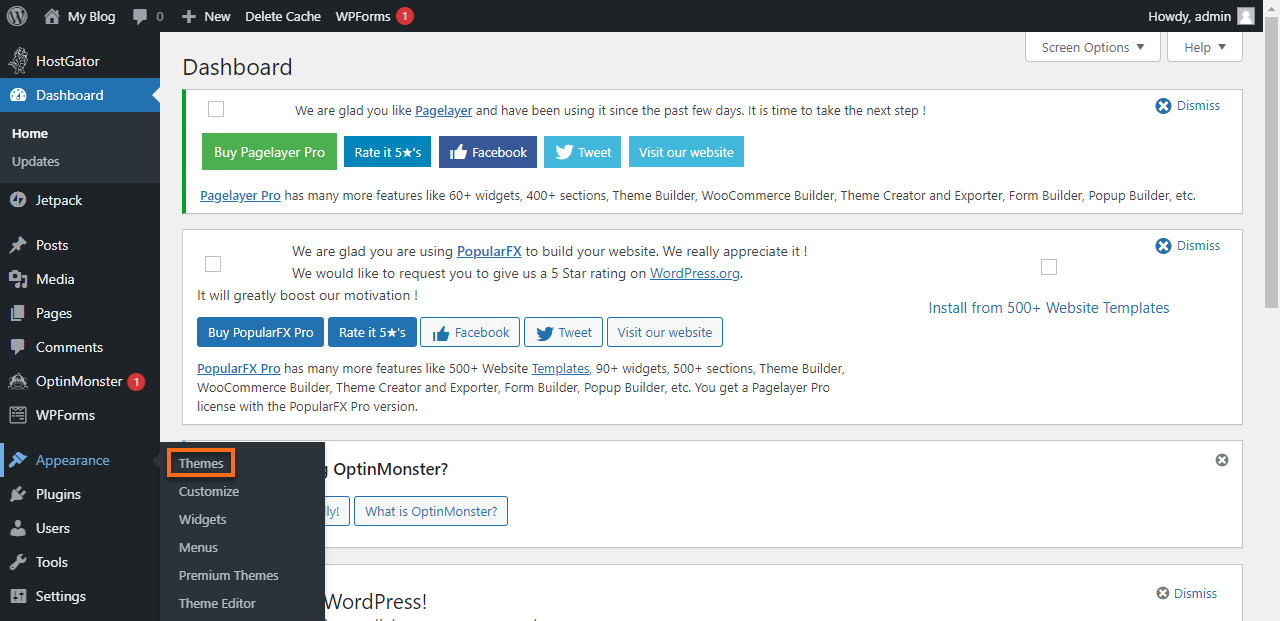
Credit: www.hostgator.com
Customizing Your Theme
Easily import your WordPress theme onto HostGator by accessing the control panel. Upload the theme file under the ‘Appearance’ section. Customize settings to match your website’s style, enhancing user experience and functionality.
Using The WordPress Customizer
The WordPress Customizer helps you change your theme easily. It lets you edit colors, fonts, and other design parts. You can see your changes live before saving them. This tool is very helpful for beginners. No coding is needed to make the theme look nice. Just click and adjust.
Installing Required Plugins
Some themes need special plugins to work well. These plugins add extra features to your site. Installing them is simple. Go to the plugin section in WordPress. Search for the plugin name. Click install and activate. Plugins make your theme more powerful.
Adjusting Theme Settings
Theme settings let you control how your site looks. You can adjust layout and menus. Also, change header and footer styles. Explore the settings to make your site unique. It is fun to try different options. You can always go back and change them later.
Testing And Troubleshooting
Discovering how to import a WordPress theme onto Hostgator can enhance your website’s appearance. Start by downloading the theme files and accessing your Hostgator control panel. Upload the theme using the WordPress dashboard, then activate it to transform your site effortlessly.
Checking Theme Responsiveness
The theme must look good on all devices. Open your site on a phone. Check each page and element. Make sure text is readable. Images should not be stretched. Buttons must be easy to click. Verify menus open correctly. Responsive design is key for user experience.
Resolving Common Issues
Sometimes themes have bugs. Check if widgets work. Look for broken links or missing images. Check the site speed. Slow sites need fixing. Ensure plugins are updated. Conflicts can cause issues. Disable plugins to find problems. Fix theme settings if needed.
Seeking Support And Updates
Read theme documentation for help. Many themes have support forums. Ask for help if stuck. Keep your theme updated. Updates fix bugs and add features. Follow support advice for troubleshooting. Good support can fix many issues.

Credit: www.hostgator.com
Frequently Asked Questions
How Do I Upload A WordPress Theme To Hostgator?
To upload a WordPress theme to Hostgator, first log into your Hostgator cPanel. Navigate to the ‘File Manager’ and open the ‘wp-content/themes’ directory. Click ‘Upload’ to add your theme file. Once uploaded, go to your WordPress dashboard, and activate the theme under ‘Appearance’.
Can I Import A Theme From WordPress.org?
Yes, you can import a theme from WordPress. org directly. In your WordPress dashboard, click ‘Appearance’ then ‘Themes’. Select ‘Add New’ and search for your desired theme. Click ‘Install’ and then ‘Activate’ to make it live on your Hostgator-hosted site.
What Are The Steps To Install A Downloaded Theme?
To install a downloaded theme, access your WordPress dashboard. Click ‘Appearance’, then ‘Themes’, followed by ‘Add New’. Use the ‘Upload Theme’ button to upload your theme’s ZIP file. After uploading, click ‘Activate’ to apply it to your site.
Is Ftp Necessary For Theme Upload On Hostgator?
Using FTP is not necessary for uploading themes on Hostgator. You can use the cPanel’s ‘File Manager’ for theme uploads. It’s a straightforward process that avoids FTP complexities, making theme uploads quick and easy directly from your hosting account.
Conclusion
Importing a WordPress theme onto HostGator is straightforward. Start by selecting the right theme. Download and save it on your computer. Use the HostGator file manager to upload the theme. Activate it in your WordPress dashboard. Customize the theme to fit your needs.
Follow each step carefully to avoid issues. Remember, each theme has unique features. Explore them to enhance your website. Practice makes perfect, so don’t hesitate to try. With patience, your WordPress site will look great. Stay updated with new themes for fresh ideas.
Enjoy your improved website design!


