
Are you looking to enhance your WordPress website with custom PHP functionality? Importing PHP into your WordPress theme can open up a world of possibilities, allowing you to integrate unique features, improve performance, and tailor your site to better meet your visitors’ needs.
But if you’re unsure where to start, you’re not alone. Many WordPress users hesitate to dive into PHP, fearing complexity and potential errors. Yet, with the right guidance, you can seamlessly incorporate PHP into your theme, transforming your site into a powerhouse of creativity and functionality.
In this guide, you’ll discover simple, step-by-step instructions that will empower you to confidently import PHP to your WordPress theme. Don’t let your website’s potential go untapped—unlock new capabilities and create a more dynamic online presence today.

Credit: www.youtube.com
Setting Up Your Environment
Text editors help you write clean code. Choose one that you find easy. Popular editors include Notepad++, Sublime Text, and Visual Studio Code. These editors highlight syntax. They make code easy to read. Make sure to pick a text editor that supports PHP. A good editor will make your work smooth and fast.
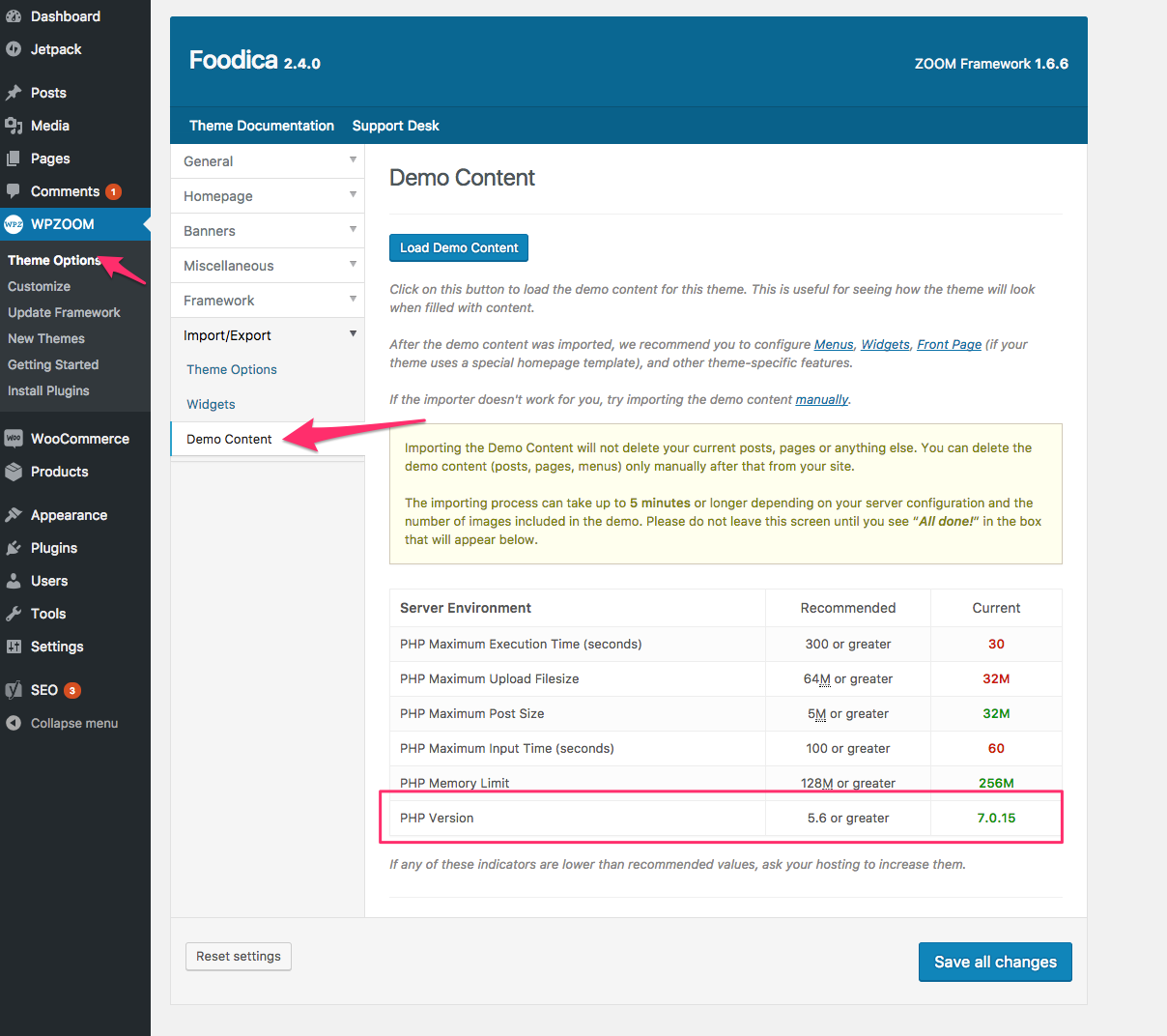
Tools are needed to run PHP files. Install XAMPP or MAMP for local servers. This helps test your code. These tools are free and easy to install. After installing, start the server. You can now run and test PHP files. Make sure all settings are correct. This will ensure smooth operation.
Credit: www.wpzoom.com
Understanding WordPress Theme Structure
Every WordPress theme has some important files. These files help in displaying your site. The main file is style.css. It controls the look of your site. Another key file is index.php. This file displays your content. To manage your site, functions.php is used. It adds custom features. The header.php file shows the top part of your site.
The footer.php file handles the bottom of the page. sidebar.php is for side sections. Each part of your site has its own file. All these files work together. They create a complete theme. Understanding these files helps in editing themes.
WordPress uses a template hierarchy. It decides which template file to use. The hierarchy is like a set of rules. It picks the right file for each page. For example, single.php is for single posts. page.php is for pages. The hierarchy starts from specific to general. If a file is missing, it moves to the next one. This system helps in customizing themes.
Creating A Child Theme
A child theme keeps your changes safe. Main theme updates will not affect it. You can customize without worries. Main theme stays untouched. Easy to switch back if needed. Mistakes are easy to fix. Your work remains safe and organized. Reuse code for other projects. Perfect for learning and experimenting.
First, create a new folder. Name it after your theme. Inside, make a new file. Call it style.css. Add important details like theme name. Next, create a file called functions.php. This will hold extra code. Link your child theme with the parent. Add code to include parent styles. Now, activate your child theme. Go to the WordPress dashboard. Your child theme is ready to use!
Integrating Php Code
WordPress allows you to add PHP code in themes. PHP helps make your site dynamic. Themes often have template files. These files have HTML and PHP mixed together. Use PHP tags like php ? to add code. This tag is important. It tells WordPress to run PHP code.
Always use clean and simple PHP code. Test code for errors. Errors can break your site. Never add too much code in one place. This helps keep your site fast. Use comments in your code. Comments explain what your code does. They help others understand your work. Use functions and loops smartly. They make code neat and tidy.
Using WordPress Hooks And Filters
WordPress hooks let you add or change code. Actions and filters are types of hooks. Actions let you add code at specific points. Filters allow you to change data before it is shown. Hooks help make themes flexible. Learn how they work to use them well. It helps a lot in custom development.
Custom hooks let you create your own actions and filters. First, think about where you need them. Then, use add_action() or add_filter() functions. These functions connect your code to WordPress. Always name your hooks clearly. This helps you remember their purpose. Custom hooks make your code cleaner. They help you work smarter. Try using them in your projects.
Credit: www.greengeeks.com
Testing And Debugging
Incorporating PHP into a WordPress theme simplifies theme customization. Begin by accessing your theme’s functions. php file. Then, carefully add the PHP code, ensuring it’s correctly placed to avoid errors.
Common Errors And Solutions
Many people face common errors when importing PHP to WordPress. The most frequent error is the syntax error. This happens if there is a mistake in the code. Check for missing semicolons or brackets. Another error is the undefined function error. This occurs if a function is not defined or misnamed. Ensure all functions are correctly named and included.
The white screen of death is another issue. This means there is a critical error. Enable WordPress debugging mode to find the problem. Check the error logs for more details.
Tools For Debugging Php In WordPress
Using the right tools can make debugging easier. One popular tool is WP_DEBUG. It helps find and fix errors by showing warnings. Another useful tool is Query Monitor. It shows database queries, hooks, and PHP errors. Debug Bar is also helpful. It adds a debug menu to your admin bar. This shows PHP warnings, errors, and other useful information.
Enhancing Security
Integrating PHP into a WordPress theme enhances security by allowing developers to implement customized security measures. Essential steps include ensuring proper code validation and sanitization to safeguard against vulnerabilities. This practice helps maintain a secure website environment, reducing the risk of unauthorized access and data breaches.
Protecting Php Code
Keep PHP code safe by using secure methods. Never expose sensitive data in your code. Use encryption for sensitive information. Always validate user input. This stops harmful attacks. Use secure passwords for database access. Change them often. Limit access to important files. Only trusted people should see them. Always keep your server software updated. This prevents known vulnerabilities.
Regular Security Audits
Check your website’s security often. Regular audits can find weak spots. Fix these quickly to avoid problems. Use tools that scan for security issues. Many are free and easy to use. Make a schedule for audits. Stick to it. Document your findings. This helps track improvements. Work with experts if needed. Their help can be valuable.
Frequently Asked Questions
How Do I Add Php To WordPress?
To add PHP to a WordPress theme, you need to edit the theme’s files. Locate the file where you want to insert PHP. Use WordPress functions to ensure compatibility. Always back up your theme before making changes. This ensures you can recover if something goes wrong.
Can I Use Php In WordPress Widgets?
Yes, you can use PHP in WordPress widgets. You need to edit your theme’s `functions. php` file. Register a new widget area and add your PHP code. Ensure your code is secure and error-free to avoid issues. Widgets enhance functionality and customization options for your site.
How To Safely Modify WordPress Theme With Php?
To safely modify a WordPress theme with PHP, use a child theme. Child themes prevent losing changes during updates. Add PHP code to `functions. php` in the child theme. Test your code on a staging site before applying it live.
Regular backups are crucial for safety.
Why Use Php In WordPress Themes?
Using PHP in WordPress themes allows dynamic content and functionality. PHP can interact with databases, process forms, and create custom features. It’s essential for advanced theme customization. PHP enhances user experience and site performance by enabling complex functions and integrations.
Conclusion
Importing PHP into a WordPress theme is simpler than it seems. Follow the steps carefully. Double-check every line of code. Mistakes can cause errors. Keep your files organized. Use clear naming conventions. This helps you find files easily. Stay updated on WordPress changes.
New versions might affect your code. Regularly back up your site. Backups protect your hard work. Experiment and learn new techniques. Practice makes perfect. Soon, you’ll handle PHP with confidence. Enjoy customizing your WordPress theme!


