
Are you ready to give your WordPress site a fresh, dynamic look without the hassle of complicated processes? Installing a compressed theme might just be the perfect solution.
It’s quick, efficient, and can instantly transform your website’s appearance, catching the eye of your visitors and keeping them engaged. You might think it’s a daunting task, but with a few simple steps, you’ll be able to seamlessly install your chosen theme and bring your vision to life.
Imagine the satisfaction of seeing your site evolve right before your eyes! Curious about how to make this happen? Keep reading to discover how easy it is to install a compressed theme in WordPress and elevate your website to the next level.

Credit: visualmodo.com
Preparation Steps
Ensure your theme works with your WordPress version. Compatibility is key. A mismatched theme can cause problems. Visit the theme’s page. Look for version information. Read user reviews. They can help you. Check for any reported issues. Compatibility is vital for a smooth process.
Create a backup before installing a new theme. Protect your content. Use a plugin like UpdraftPlus. Save your files and database. Check if your hosting service offers backup options. Ensure everything is secure. Restore your site easily if needed. Backing up is a safety step you should never skip.
Credit: www.scalahosting.com
Download Theme File
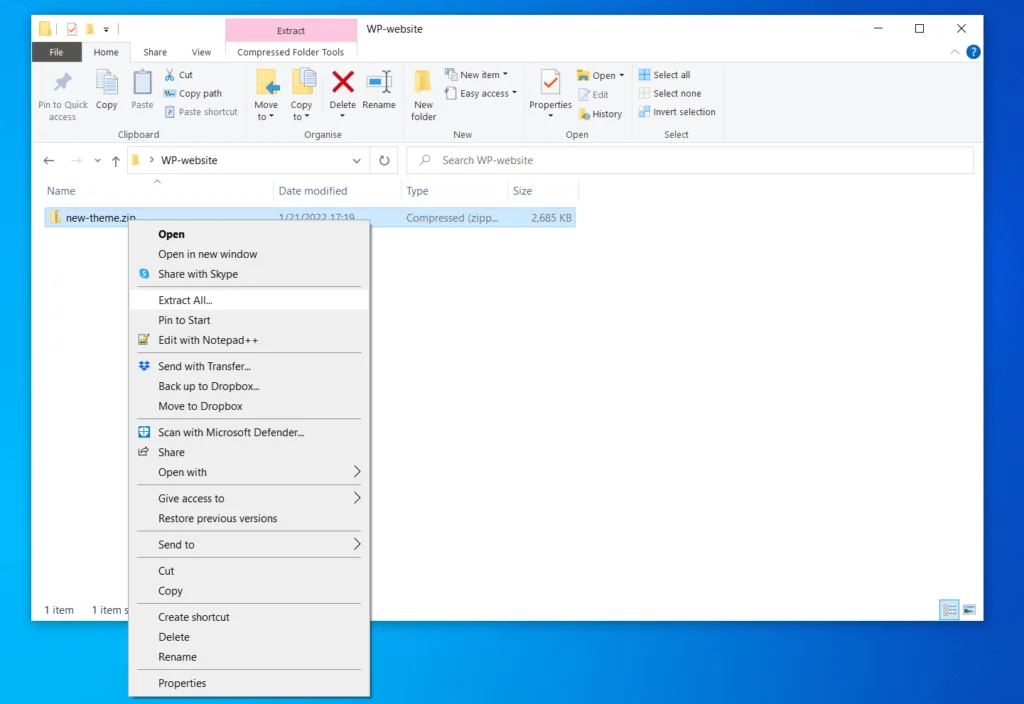
Find a trusted source for your theme. Websites like WordPress.org are safe. Check if the theme is compatible with your WordPress version. Read reviews and ratings. They help know if a theme is reliable. Avoid sites that look unprofessional or have too many ads.
After downloading, make sure the file is safe. Use antivirus software to scan the file. This protects your computer. Check the file size. It should match the size on the download page. Corrupted files might be smaller or bigger. Always keep a backup of important files before installing a new theme.
Access WordPress Dashboard
Log into Admin Panel is easy. Open your browser. Type your website URL. Add “/wp-admin” at the end. Press Enter. You will see the login screen. Enter your username. Type your password. Click the “Log In” button.
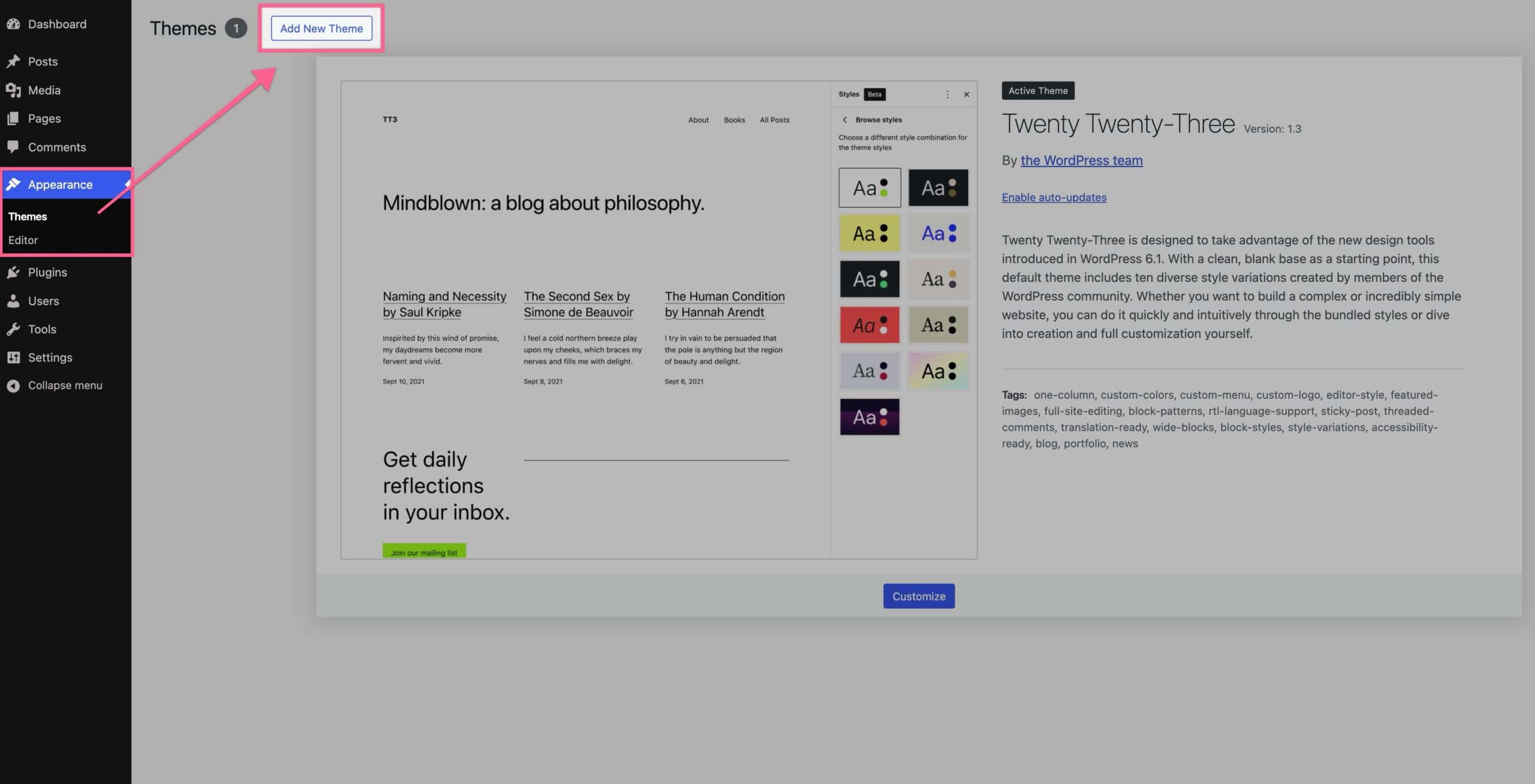
Navigate to Appearance is the next step. You are now inside the dashboard. Look on the left side. Find the menu list. Click on “Appearance”. This will open options for themes. You can choose a new theme from here.
Credit: www.kadencewp.com
Upload Theme
To upload a theme, first locate the Theme Upload Option in WordPress. This option is found under the ‘Appearance’ tab. Click on ‘Themes’. On the top, you will see ‘Add New’. Click it to proceed.
Select Theme Upload Option
After clicking ‘Add New’, find the ‘Upload Theme’ button. It’s at the top of the page. Click ‘Upload Theme’ to open the upload section. This will allow you to add a new theme.
Choose Compressed File
Make sure your theme file is compressed in .zip format. Click ‘Choose File’. Find the .zip file on your computer. Select it and click ‘Install Now’. WordPress will upload the theme. Wait for the process to finish. After installation, click ‘Activate’ to use your new theme.
Activate Theme
Seeing your theme before using it is smart. Click on “Appearance” in your WordPress dashboard. Then choose “Themes”. Here, find your new theme. Click “Live Preview”. Now you can see how your site will look. If you like it, go ahead and activate it. This way, you ensure your site’s new look is just right.
Previewing helps avoid surprises. It lets you check the layout, colors, and style. You can make changes if needed. This step saves time and effort. Always preview before final activation. Your site will look great and work well.
Customize Theme Settings
Adjust layout options to make your site look great. You can change the width of your content. Play with different colors. Choose fonts you like. Try different styles. Save your changes. See how your site looks. Make sure it matches your brand. This is how you make your site unique.
Next, set up widgets for extra features. Add a search bar. Include a calendar or recent posts. Drag and drop widgets into place. You can add social media links too. Look at your site. Make sure everything is easy to find. These tools help visitors. They make your site more useful.
Troubleshoot Common Issues
Many times, themes fail to install correctly. This can frustrate users. First, check the theme file. Is it compressed correctly? The file should be a .zip file. Next, ensure your WordPress version is up to date. Sometimes, old versions cause issues. If still stuck, deactivate all plugins. Plugins can conflict with theme installations. After deactivating, try installing the theme again. If it works, reactivate plugins one by one. This helps find the conflicting plugin.
Broken layouts occur after installation. This makes the site look odd. First, check the theme settings. Ensure they match your needs. Next, clear the browser cache. Old cache can display incorrect layouts. If problems persist, check for missing files. Sometimes, theme files do not upload completely. Re-upload the theme to fix this. Lastly, consider reaching out to theme support. They can provide specific solutions.
Ensure Theme Updates
Automatic updates keep your theme fresh. They save you time. Go to your WordPress dashboard. Find the “Updates” section. Click “Enable Automatic Updates.” Your theme updates without your help. This makes your site safer.
Keep an eye on new theme versions. This is important. Check the theme developer’s site often. They post updates there. You can also subscribe to their newsletter. This way, you get alerts for new versions. Always update when a new version comes out. It fixes bugs and adds new features. Your site will run smoother.
Frequently Asked Questions
How Do I Upload A Theme In WordPress?
To upload a theme, go to the WordPress dashboard. Navigate to ‘Appearance’ and then ‘Themes. ‘ Click ‘Add New’ and select ‘Upload Theme. ‘ Choose the compressed theme file from your computer and click ‘Install Now. ‘ After installation, activate the theme to make it live on your site.
Can I Install Themes Manually In WordPress?
Yes, you can manually install themes. Download the theme’s compressed file to your computer. Go to your WordPress dashboard, click ‘Appearance,’ then ‘Themes,’ and select ‘Add New. ‘ Click ‘Upload Theme’ and choose the file. Press ‘Install Now’ and activate the theme once installed.
Why Use Compressed Themes In WordPress?
Compressed themes are faster to upload and install. They help in saving server space and bandwidth. Compressed files are easier to manage and transfer. Using them ensures you have all theme files intact. They also minimize errors during installation, ensuring seamless integration with WordPress.
What If A Theme Fails To Install?
If a theme fails, check file permissions and ensure it’s compatible with WordPress. Verify you have enough server space. Try re-uploading the theme file again. Check for any error messages to troubleshoot. Contact theme support if issues persist for further assistance.
Conclusion
Installing a compressed theme in WordPress enhances your website’s performance. Following the steps ensures a smooth process. Remember to back up your site before changes. Choose themes that fit your site’s needs and style. Regularly update themes for security and new features.
Explore different designs to keep your site fresh and engaging. Troubleshooting is part of the learning process. Don’t hesitate to seek help from online forums. Keep practicing, and you’ll become more comfortable with WordPress. Your efforts will lead to a well-designed, functional website that attracts visitors.
Enjoy the journey of creating your unique online presence.


