
Are you struggling to import an XML file into your WordPress theme? You’re not alone.
Many WordPress users find this task a bit daunting, but it doesn’t have to be. Imagine being able to seamlessly integrate all your content, settings, and more with just a few clicks. Sounds great, right? In this guide, you’ll discover the simple steps to import XML files into your WordPress theme effortlessly.
No more headaches or wasted time. Unlock the potential of your theme by ensuring every piece of content is right where it belongs. Stay with us, and you’ll gain the confidence to handle XML imports like a pro. Ready to dive in? Let’s get started!
Importance Of Xml Files
XML files hold data in a structured way. They help organize content. WordPress uses XML for easy data transfer. Themes often include XML files. These files are vital for importing content.
XML is both human-readable and machine-readable. This makes it versatile. Developers and users benefit from XML’s simplicity. Content gets imported accurately with XML. It saves time and avoids errors.
XML ensures smooth data exchange. It supports various languages. This is helpful for websites. XML files allow easy modifications. They are flexible for different needs.
Credit: www.wpallimport.com
Preparing The Xml File
Always ensure the XML file is compatible with your WordPress theme. Check the file size. It should not be too large. Small files are easier to manage. Verify the XML format. It must match WordPress standards. Incompatible files can cause errors. Always keep a backup. This prevents data loss.
Edit the XML file using a simple text editor. Avoid using complex software. Ensure the content is correct and properly formatted. Incorrect tags can break your site. Always double-check the XML structure. It should be neat and organized. Editing helps in removing unwanted data. This makes the import process smoother.
Accessing WordPress Dashboard
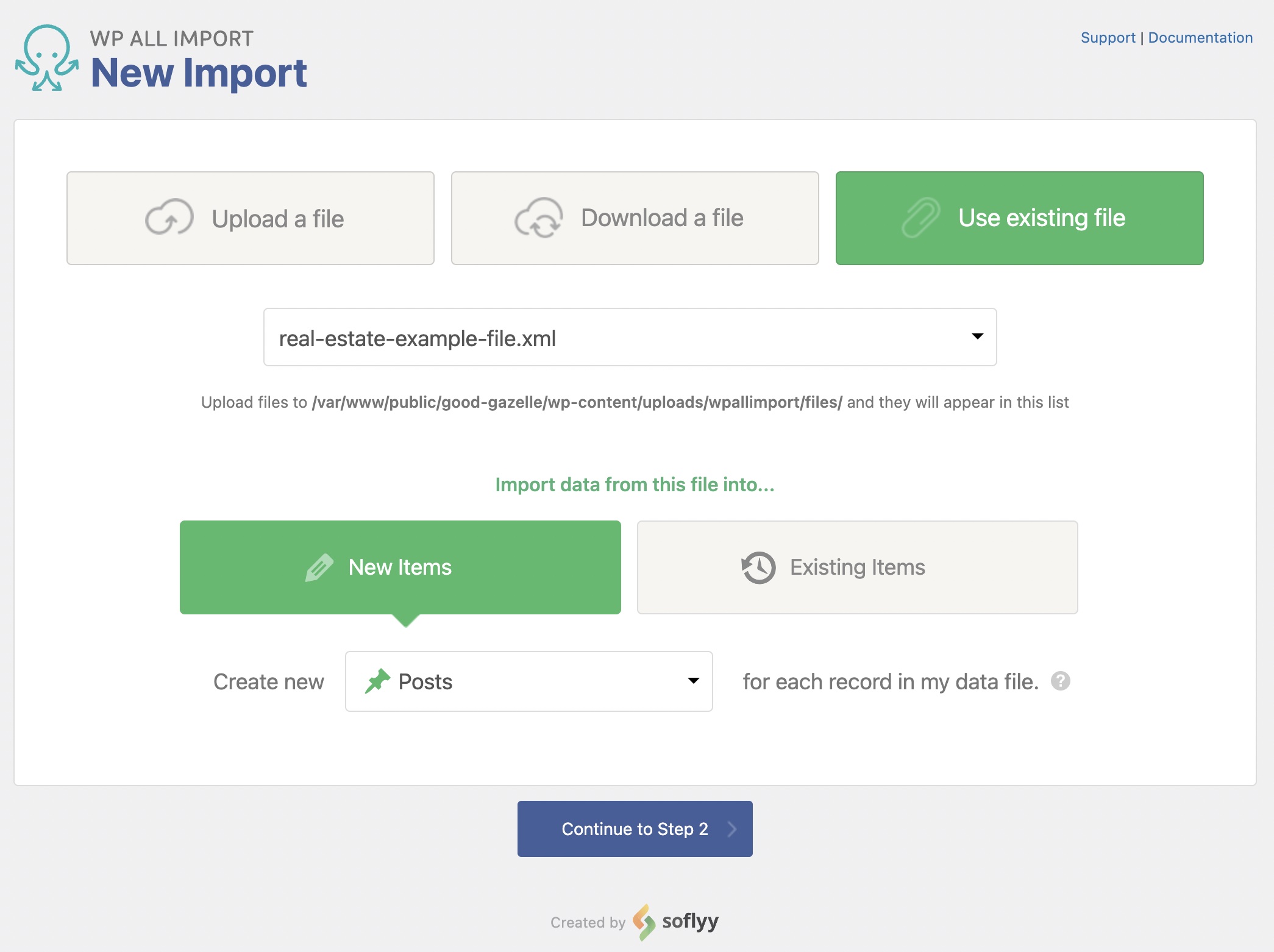
Open your browser. Enter your site URL. Add “/wp-admin” to the URL. This takes you to the WordPress login page. Use your username and password. Once logged in, you see the dashboard. The dashboard is the control center. You can manage everything here. Click on Tools in the left menu. Select Import. This is where you import files. Choose WordPress from the list. Follow the instructions. Import your XML file easily.
Using The Import Tool
Locating the Import Option is easy. Log in to your WordPress dashboard. Find the Tools menu. Click on it. Choose the Import option. A list will appear. These are different import tools. You will see a WordPress option.
Installing the WordPress Importer is the next step. Click on the WordPress link. You may need to install the importer. Click the “Install Now” button. Wait a few seconds. Once done, click “Run Importer”. You are ready to import your XML file.
Uploading The Xml File
First, locate the XML file you want to upload. Ensure it is the right file for your WordPress theme. Check the file name. It should match your theme’s name or description. Sometimes, files may have similar names. Double-check to avoid mistakes. If unsure, ask for help. It’s better to be sure than sorry.
Errors can happen during uploads. Stay calm. First, read the error message. It often gives clues. Common issues include file size limits or corrupted files. Try reducing the file size. Or, re-download the file. If the problem persists, contact your hosting support. They can provide assistance. Remember, errors are part of learning. Each error teaches something new.
Assigning Content To Authors
Authors need the right content. Importing an XML file helps. Each post can be assigned easily. First, check the author list. See who fits best for each post. Match topics with their interests. This ensures quality and relevance. Keeping authors engaged is important. Happy authors write better. Always update the author list. New authors may join. Old authors may leave. Use the XML file for efficiency. It saves time and effort. WordPress makes it simple. Just import and assign. Authors will have clear roles. This leads to better content.
Importing Attachments
Attachments are important in WordPress themes. They include images, videos, and files. Importing them is easy. First, go to your WordPress dashboard. Then, click on “Tools.” Next, select “Import.” Choose the XML file you want. Enable attachment imports by checking the box. This will bring all media files. Make sure your server has enough space. You don’t want it to be full.
Enabling Attachment Imports
Enabling attachment imports allows you to bring in media. Images, videos, and audio files are included. It helps keep your theme complete. Go to the import settings. Find the option to import attachments. Check the box. This will ensure your media is imported. Your site will look just right. Always check your media after importing. Make sure everything is there.
Resolving Missing Media
Sometimes, media may not appear after import. This can happen if files are missing. Check the XML file for errors. Look for broken links. Make sure paths are correct. Missing media affects your site look. It can make your theme incomplete. Always double-check attachments. Ask your hosting provider for help. They can assist with server issues.
Credit: www.wpallimport.com
Verifying Imported Content
Checking Pages and Posts is important after importing an XML file. Each page should look as expected. They must contain the correct information. Check each post for accuracy. Ensure titles match the original content. Validate the content of each post. Double-check categories and tags. Make sure they align with your theme. This helps maintain consistency. Incorrect categorization can lead to confusion.
Ensuring Media Accuracy involves verifying images and videos. Check if all media files are visible. Ensure they are in the correct places. Sometimes files don’t import properly. This can cause broken links or missing visuals. Re-upload any missing files. Validate the media URLs. Ensure they are working correctly. Accurate media helps enhance user experience. It makes your site appealing and professional.
Troubleshooting Common Issues
Importing an XML file into a WordPress theme can sometimes pose challenges. Ensure the file size is within limits. Also, double-check the format and try again.
Dealing With Import Failures
Import failures can be frustrating. First, check your XML file size. It should not be too big. Large files cause problems. Try splitting the file into parts. Import each part separately. Also, ensure your internet connection is stable. Unstable connections disrupt imports. Use a wired connection if possible. Check your server settings too. They might need adjustments. Some servers have strict rules. Contact your hosting provider for help.
Fixing Incomplete Imports
Sometimes, imports stop halfway. This means incomplete data. Verify your XML file is not corrupt. Corrupt files cause issues. Use a tool to validate the file. Correct any errors found. Also, check your WordPress memory limit. It might be too low. Increase it if needed. This allows the import to finish. Clear your cache as well. Old cache can interfere with imports. Refresh and try again.

Credit: www.youtube.com
Frequently Asked Questions
What Is An Xml File In WordPress?
An XML file is a structured data format used in WordPress. It enables easy import and export of content, including posts, pages, and media. XML files help transfer content between WordPress sites, ensuring seamless migration or backup. Understanding XML is crucial for managing WordPress themes efficiently.
Why Import Xml Files In WordPress Themes?
Importing XML files in WordPress themes helps populate content quickly. It simplifies theme setup by importing demo content, saving time and effort. XML files also allow for easy migration of content between sites, ensuring consistency and reducing manual data entry.
It’s a vital step for efficient theme customization.
How Do I Upload Xml To WordPress?
To upload an XML file in WordPress, navigate to Tools > Import. Install the WordPress Importer plugin if needed. Choose the XML file, then click ‘Upload file and import. ‘ Follow prompts to map authors and import attachments. Your content will be added to your WordPress site seamlessly.
Can Xml Files Affect Theme Performance?
XML files themselves don’t directly affect theme performance. However, importing large XML files may slow down your site temporarily. Ensure your server can handle the import process efficiently. Regularly optimize your database and media library to maintain site speed and performance after importing XML files.
Conclusion
Importing an XML file in WordPress is straightforward. Follow the steps carefully. First, access your WordPress dashboard. Then, navigate to the Tools section. Select Import, and install the WordPress Importer plugin. Upload your XML file. Click the Import button. Assign authors and update import settings.
Finally, click Submit. Your content appears in the theme. Simple and effective. Remember, backup your data first. This ensures safety. A smooth process boosts your site’s functionality. Practice makes perfect. The more you try, the easier it gets. Enjoy your improved WordPress experience.


