
Are you struggling to add a menu to your WordPress theme? You’re not alone.
Many find themselves puzzled when it comes to customizing their site’s navigation. A well-structured menu can significantly enhance user experience, guiding your visitors effortlessly through your content. Imagine your website as a well-organized store; a clear menu acts like helpful signage, ensuring your visitors find exactly what they need without frustration.
In this post, we’ll break down the process into simple steps, ensuring you can integrate a menu with ease. By the end, you’ll have the confidence to create an intuitive navigation system that not only looks good but also serves your audience effectively. Ready to transform your WordPress site into a user-friendly haven? Let’s dive in.
Understanding WordPress Menus
WordPress menus are important for website navigation. They help users move around the site easily. Menus are usually at the top or side of a webpage. They show links to different pages or sections. Menus can be customized in WordPress themes. You can change the order of links. You can add or remove links. This makes the site more user-friendly. Every theme can have different menu styles. Some themes offer more menu options. Understanding how menus work is vital for a good site layout.
Benefits Of Custom Menus
Custom menus make websites user-friendly. Visitors find what they need fast. This keeps them on your site longer. Custom menus add a unique touch. Your site looks different from others. They help with navigation. People can find sections easily. This is important for big websites.
Custom menus improve SEO. Search engines like clear structure. This helps your site rank higher. You can add links to important pages. This boosts visibility. Visitors can go to the pages you want them to see. Custom menus are easy to change. You can update them anytime.
Registering A Navigation Menu
Open the functions.php file in your theme. Add code to register the menu. Use the register_nav_menus function. This function helps to create a menu location. Give the menu a name and description. Save the changes in the file. Now, your menu is ready to use in the theme.
Hooks are important for adding menus. Use the init hook to register menus. This hook loads when WordPress starts. Place your code inside a function. Attach the function to the init hook. This ensures the menu registers correctly. Remember to save and refresh your site. The menu should now appear in your theme.
Adding Menu Locations
To include a menu, you need to change the theme files. First, open the functions.php file. Add a code snippet to register the menu location. Use the register_nav_menus() function. This tells WordPress where the menu goes. Save the file after making changes. Now, the new menu location is ready.
Open the WordPress Customizer. Find the Menus section. Click to add a new menu. Choose the menu location from the list. Add items to the menu like pages or links. Save and publish the changes. Your menu will appear on the website. It’s easy to update anytime. Use the customizer for quick edits.
Creating And Managing Menus
Using WordPress Dashboard is simple. First, go to the dashboard. Next, find the “Appearance” option. Click on it. Then select “Menus.” You will see the menu page. Now you can create a new menu. Type a name for your menu. Click “Create Menu.” Your new menu is ready. You can add pages to it. Choose pages from the list. Click “Add to Menu.” Your pages will appear in the menu list. Arrange them as you like. Save your menu when done.
Organizing Menu Items is easy. Drag items to change their order. Place them where you want. You can make submenus. Just drag items a little to the right. This will create a submenu. Submenus help organize your site. Save changes often. Your menu is now organized. Check it on your site. Make sure it looks good.
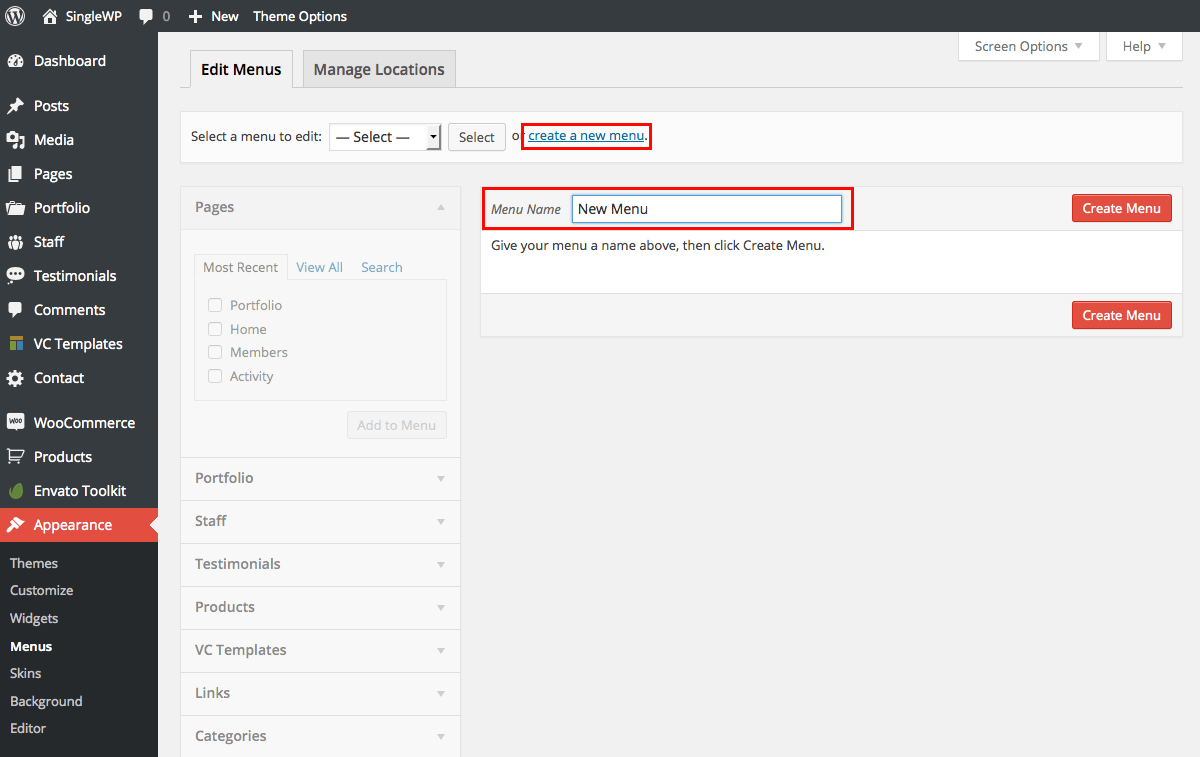
Credit: totalwptheme.com
Styling The Menu
CSS helps you style your menu. It can make the menu look nice. Use colors and fonts to change the look. You can add a hover effect. This makes the menu items change when you point the mouse.
Add padding to make space around the text. This helps with readability. Use margins to keep items apart. It makes the menu neat. Experiment with different styles. Find what looks best for your website.
Menus need to work on all devices. Use media queries in CSS. They change styles for small screens. Make sure the menu fits on phones and tablets. A simple layout is best.
Use a hamburger icon for mobile. It hides the menu. Tap the icon to see the menu. This keeps the screen clean. People will find it easy to use.
Incorporating Menu In Theme
Menus make navigation easy. Themes must have a menu. Use PHP templates for this. They help include menus in themes. Add code in the template files. These files are in theme folders. It’s simple to locate them. Use wp_nav_menu function. It shows the menu. The function needs parameters. Parameters define menu settings. Choose menu location. Set menu class. Add menu items. This creates a basic menu. PHP templates work well. They are powerful tools.
Using Php Templates
PHP templates manage the website layout. They handle design elements. They ensure menus fit perfectly. Add menu code in header.php. This shows the menu at the top. Use footer.php for bottom menus. Side menus need sidebar.php. These templates hold the menu code. They keep menus in place. PHP templates control the website’s look. They are vital for menus. They make themes complete.
Integrating With Theme Layout
Theme layout needs careful planning. Menus should match the design. They must not clash. Place menus wisely. Choose a good spot. Align them with content. Make sure they look nice. Use CSS for styling. It beautifies the menu. Try different styles. Use colors and fonts. They enhance the menu appearance. Keep the layout clean. Users love neat designs. Menus improve user experience. They make navigation smooth.
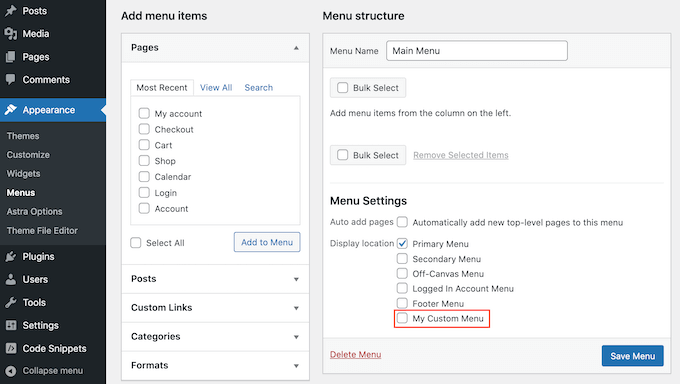
Credit: www.wpbeginner.com
Testing Menu Functionality
Menus must work on all browsers. Test on Chrome, Firefox, and Safari. Each browser might show menus differently. Check for any errors or missing parts. Fix problems quickly to ensure good user experience. Use tools to test browser compatibility. Users prefer sites that work everywhere.
Menus need to look good on phones. Many users browse on mobile. Check menu layout on different devices. Make sure buttons are easy to click. Test on tablets and different phone sizes. Adjust menus for small screens. This helps users find things easily. Responsive design is key for happy visitors.
Troubleshooting Common Issues
Adding a menu to your WordPress theme can be tricky. Check your theme’s functions. php file for menu support. Use the WordPress admin dashboard to create and assign menus easily.
Missing Menu Items
Menus not showing? Check your menu settings in the WordPress dashboard. Ensure items are properly added. Save changes after adding items. Sometimes, a simple save can fix it. Look at your menu location settings. Make sure the menu is assigned to the correct location. If items still miss, check for conflicts with plugins. Deactivate plugins one by one. See if a plugin caused the problem.
Theme Compatibility Problems
Some themes might not support all menu features. Check the theme’s documentation first. Look for known issues with your theme. Update the theme to the latest version. This can solve compatibility issues. If problems persist, consider using a child theme. It helps customize without affecting the original theme. Remember to backup your site before making changes.

Credit: cyberchimps.com
Frequently Asked Questions
How Do I Add A Menu In WordPress?
To add a menu, go to your WordPress dashboard. Click on “Appearance” and then “Menus. ” From there, you can create a new menu, add pages, categories, and custom links. Drag and drop items to rearrange them and customize your menu’s structure as needed.
Can I Customize The Menu Style?
Yes, you can customize the menu style using WordPress’s built-in Customizer. Navigate to “Appearance” and then “Customize. ” From there, you can adjust colors, fonts, and other design elements. For advanced customizations, you might need to edit the theme’s CSS or use a page builder plugin.
How To Make A Mobile-friendly Menu?
To make a menu mobile-friendly, use a responsive WordPress theme. Most modern themes automatically adjust the menu for mobile devices. You can also use plugins like “Responsive Menu” to enhance mobile usability. Test your menu on various devices to ensure it displays correctly and is easy to navigate.
Can I Add A Menu To Any Theme?
Yes, you can add a menu to any WordPress theme. Most themes support menus, offering at least one location for display. If your theme doesn’t support menus, you can manually add them by editing the theme’s code. Use the WordPress documentation for guidance on modifying theme files.
Conclusion
Adding a menu to your WordPress theme is simple and rewarding. It enhances user experience. A well-structured menu guides visitors easily. Start by accessing the WordPress dashboard. Use the Appearance tab to find Menus. Create your menu and add items.
Don’t forget to save your changes. Test the menu on different devices. Ensure it’s responsive. A clear menu boosts navigation and keeps users engaged. Practice makes perfect. Experiment with different styles. Soon, you’ll have a menu that fits your site’s needs.
Enjoy the process and watch your site improve!


