
Are you ready to give your WordPress site a fresh, new look? Installing a theme on GoDaddy’s WordPress cPanel might seem daunting at first, but it’s a straightforward process that can transform your website in just a few clicks.
Whether you’re looking to enhance your site’s aesthetics or improve its functionality, choosing the right theme is crucial. Imagine capturing your audience’s attention from the moment they land on your page. That’s the power of a well-chosen theme. In this guide, we’ll walk you through each step, ensuring you feel confident and excited to customize your website.
Let’s dive in and unlock the potential of your online presence together.

Credit: www.youtube.com
Preparation Steps
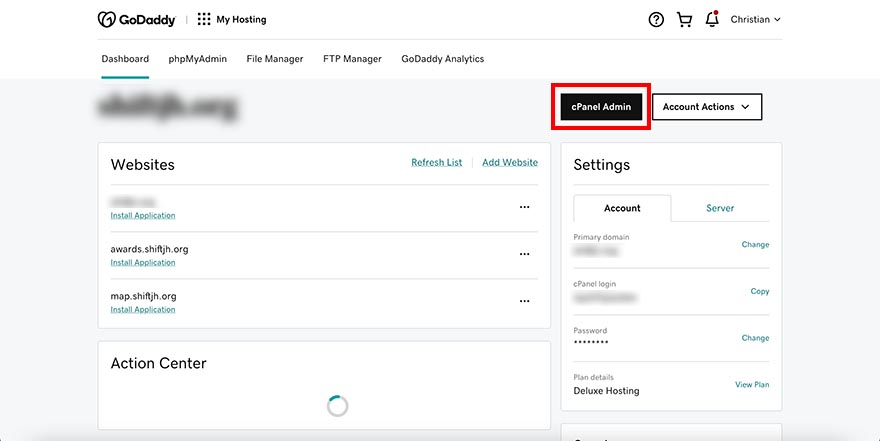
Start by logging into your Godaddy account. Make sure you have your username and password ready. It’s important to check that your subscription is active. Verify your account details before moving ahead.
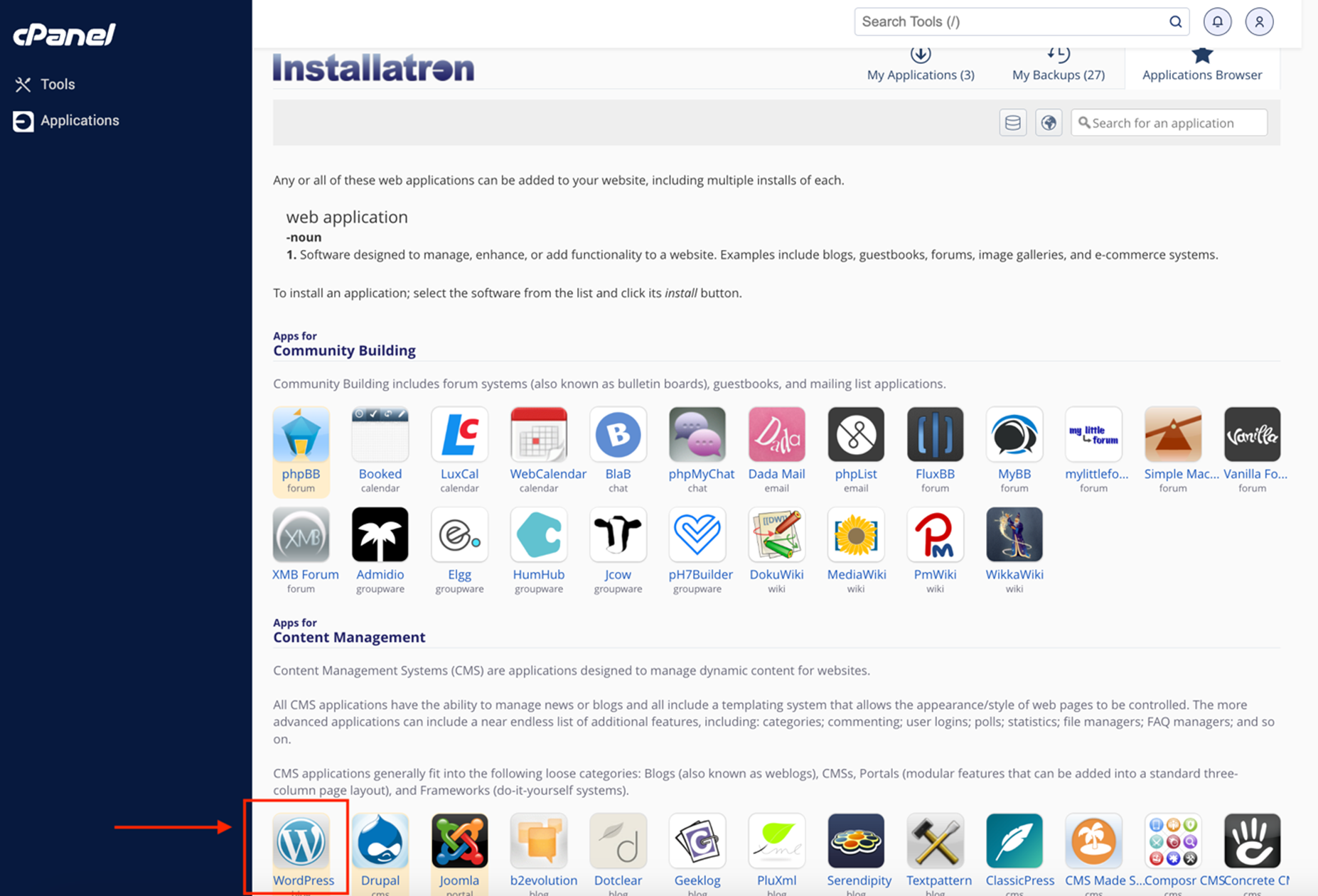
Find the cPanel option in your account dashboard. Click on it. This will open a new page. Look for the WordPress icon. This is where you manage your themes. The interface is user-friendly, so follow the prompts.
Backing up your site is crucial. Use the backup tool in cPanel. Save a copy of your site data. This ensures safety if something goes wrong. Double-check that the backup is complete. Store it in a secure location.
Finding The Right Theme
Choose a theme that suits your website’s purpose. Browse themes in the WordPress repository. It’s free and easy to access. Check out the theme’s features. Are they what you need? Look at the theme’s design. Is it pleasing to the eye? A well-chosen theme can make your site look professional.
Ensure the theme works with your WordPress version. Check theme updates. An updated theme is more secure. Look for user reviews. Positive reviews mean others like it. See if it works on mobiles. A mobile-friendly theme is a must. Avoid themes with too many plugins. They can slow down your site.
Download the theme from the WordPress site. Click the download button. Save the file to your computer. Remember where you saved it. You’ll need it later. A quick download saves time. Avoid third-party sites. They might have unsafe themes. Stick to trusted sources.
Uploading The Theme
First, log in to your WordPress dashboard. Use your username and password. Look for the menu on the left side. This is your control center.
Click on Appearance. Then choose Themes. This will open the themes page. You can see all your themes here. Ready to add a new one?
On the Themes page, find the Upload Theme button. Click it. You will see an option to choose a file. Select the theme file from your computer. Make sure it is in .zip format. Click Install Now. Wait for the upload to finish.
Credit: www.hotjoomlatemplates.com
Installing The Theme Via Cpanel
First, log into your cPanel account. Look for the File Manager option. Click on it. You will see many folders. Find the public_html folder. This is where your website files live. Open this folder. You are ready to upload your theme files.
Inside the public_html folder, locate the wp-content folder. Click on it. Inside, find the themes folder. Open it. Now, click on the Upload button at the top. Select your theme file from your computer. Wait until the upload is complete. The file will appear in the themes folder.
After uploading, you see a zipped file. Click on it. Look for the Extract option. Click on extract. The theme files will now show up. You have successfully installed your theme. Go back to your WordPress dashboard. Activate the theme from there.
Activating The Theme
First, go to your WordPress dashboard. Look for the Appearance option. Click on it, then choose Themes. You will see many themes there. Choose the one you like. Click Activate to set it as your current theme.
After activating, find the Customize button. It’s near the theme name. Click it to open settings. You can change colors, fonts, and more. Make your site look the way you want. Save changes when done.
Before making it live, check how it looks. Click on Preview. This shows your site with the new theme. Happy with the look? Great! If not, go back and adjust settings. You can change as many times as needed.
Credit: www.godaddy.com
Troubleshooting Common Issues
Installing a theme on Godaddy WordPress cPanel can sometimes be tricky. Check your theme file format; it should be. zip. Verify permissions in the file manager and try uploading again.
Dealing With Upload Errors
Upload errors can happen with big theme files. Check your file size. It should be within the limit. Use an FTP client if needed. It helps in uploading large files. Sometimes the internet connection is slow. Try to check your connection speed. Make sure the theme file is not corrupted. Download it again if needed.
Fixing Compatibility Problems
Compatibility problems can cause theme issues. First, check if your WordPress version is up-to-date. Old versions can cause conflicts. Look at the theme’s requirements. Some themes need special plugins. Install them to avoid problems. Disable all plugins if the theme is not working. Then, enable them one by one. This helps find the problem plugin.
Restoring From Backup
Always keep a backup of your site. It is helpful if things go wrong. Use the cPanel backup feature. Or use a backup plugin. Restoring is easy with a backup. Go to your cPanel. Find the backup and restore option. Follow the steps to get your site back. Backups save time and stress.
Frequently Asked Questions
How Do I Upload A WordPress Theme On Godaddy?
To upload a WordPress theme on GoDaddy, log in to your cPanel, navigate to the WordPress dashboard, click on “Appearance,” then “Themes,” and select “Add New. ” Click “Upload Theme,” choose your theme file, and hit “Install Now. ” Finally, activate the theme to apply it.
Can I Install Free Themes On Godaddy WordPress?
Yes, you can install free themes on GoDaddy WordPress. In the WordPress dashboard, go to “Appearance,” then “Themes,” and click “Add New. ” Search for free themes in the WordPress repository, choose your preferred theme, click “Install,” and then activate it to use it on your site.
What Is Cpanel In Godaddy WordPress?
CPanel is a web hosting control panel in GoDaddy WordPress. It allows users to manage their website files, databases, domains, and email accounts. It provides an intuitive interface for easy administration tasks, helping you install software, create backups, manage security settings, and much more efficiently.
How Can I Activate A Theme In WordPress?
To activate a theme in WordPress, navigate to the WordPress dashboard, click “Appearance,” then “Themes. ” Find the theme you want to activate, and click “Activate. ” The theme will be applied to your site instantly, changing its design and layout according to the theme’s settings.
Conclusion
Installing a theme on GoDaddy WordPress Cpanel is simple. Follow the steps carefully for success. First, choose a theme that fits your site. Download the theme to your computer. Next, log in to your WordPress Cpanel. Navigate to the themes section.
Upload the theme file you downloaded. Activate the theme once uploaded. Check your website for changes. Make adjustments if needed. Keep your theme updated for security. Enjoy your new website look. Now your site is ready to impress visitors. Feel free to explore more features.
Your website journey has just begun.


