
Are you finding your WordPress dashboard cluttered with theme options you rarely use? You’re not alone.
Many WordPress users like you feel overwhelmed by the vast array of settings, often wishing for a simpler, more streamlined experience. Imagine logging into your WordPress site and seeing only the options that truly matter to you. With fewer distractions, you can focus on what you do best—creating engaging content and managing your site efficiently.
This article will guide you step-by-step on how to hide those unnecessary theme options, allowing you to customize your WordPress dashboard to fit your specific needs. Stick around, and by the end of this read, you’ll have a cleaner, more organized workspace that enhances your productivity and peace of mind.
Reasons To Hide Theme Options
Hiding theme options can protect your website’s design integrity. It prevents unauthorized changes to the look and feel of your site. Security is another reason. Limiting access to theme settings helps keep your site safe from harmful edits.
It also keeps your branding consistent. Only trusted users can make design changes. This ensures your site matches your brand’s vision. Beginners might find theme options confusing. Hiding them reduces complexity for new users.
Some themes offer advanced features not needed by every user. Removing unnecessary options keeps the interface clean. It helps users focus on important tasks. Hiding options can also prevent accidental changes. This can save time fixing mistakes.

Credit: themegrill.com
Choosing The Right Method
Picking the right way to hide theme options is vital. Different methods work for different needs. Some people like to use plugins. Plugins are easy to use. They help hide options without coding. Others prefer custom code. This method is for those who know coding well. Custom code gives more control. But, it can be tricky for beginners. It’s important to backup your site first. This keeps your site safe. Look at your needs and skills. Choose the best method for you.
Using Custom Code
Custom code helps hide WordPress theme options, offering a cleaner interface. This method enhances user experience by simplifying the dashboard view. Tailor your website’s backend without altering core files.
Creating A Child Theme
A child theme lets you change WordPress themes safely. It prevents losing changes during updates. Create a folder in wp-content/themes. Name it after your theme with -child at the end. Add a style.css file inside. Write a comment at the top. Say the name of the parent theme. This makes it work. Then, add a functions.php file. This file will hold your custom code.
Adding Code To Functions.php
Open the functions.php file in your child theme. You will add code here. Use code to hide theme options. Start with a function. Name it whatever you like. Inside the function, write the code to hide options. Use remove_action or remove_menu_page. These commands help you remove items. Ensure to hook your function. Use add_action to make it work. Save changes and refresh your site. Options should now be hidden.
Plugin Solutions
Easily hide theme options in WordPress with plugin solutions. This approach ensures a clean and user-friendly dashboard. Users can manage settings effortlessly without clutter, enhancing overall site management.
Popular Plugins For Hiding Options
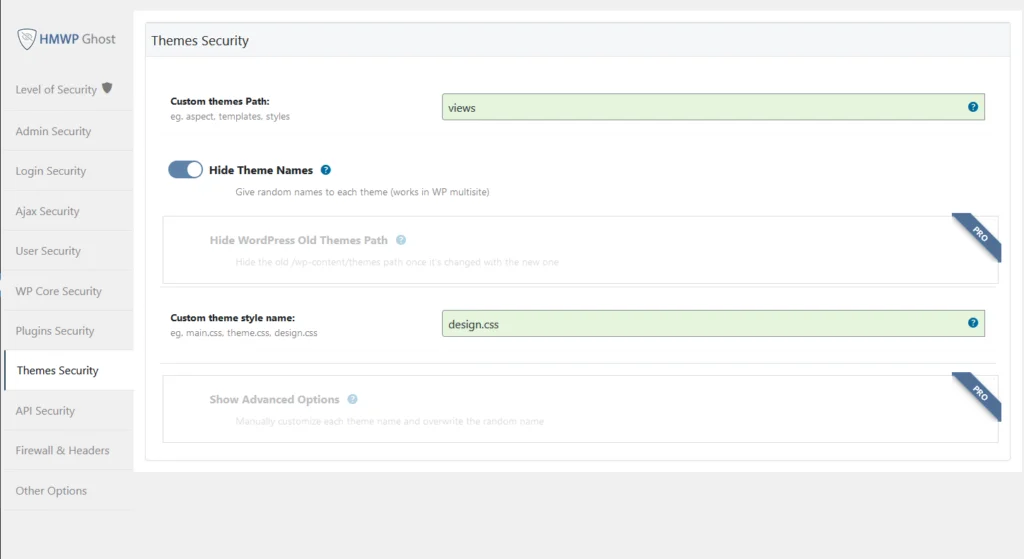
Many plugins help hide WordPress theme options. These plugins are easy to use. Adminimize is one popular choice. It hides different admin sections. Another plugin is WP Hide & Security Enhancer. This plugin offers many hiding features. It helps secure your website.
Installing And Configuring Plugins
First, search for the plugin in the WordPress dashboard. Click “Install Now” to begin. Once installed, activate the plugin. Next, go to the plugin settings. Adjust options as needed. Make sure to save changes.
Role-based Access Control
Role-based access control helps manage who sees what. It’s important to set user permissions carefully. You can decide what each user can do. Some users can edit, others can only view. This keeps your site safe. It’s like giving keys to a house. Only trusted people get access. Admins have all the keys. Others have fewer keys.
Testing is important to ensure everything works. Pretend you are a new user. Try accessing different parts of the site. Make sure users see only what they should. Fix any problems found. This keeps your site safe and running well. It’s like checking if doors are locked. Regular checks help keep things secure. Always remember to test after changes.
Credit: www.scalahosting.com
Css Tricks For Hiding
Discovering effective CSS tricks can simplify the process of hiding theme options in WordPress. Utilizing CSS selectors allows for seamless customization, ensuring unwanted elements are hidden without altering core files. This approach is efficient for maintaining clean and streamlined site design.
Using Display None
To hide elements in WordPress, use CSS. It’s simple and effective. The display: none property is useful. It makes elements disappear. They don’t take up space on the page. Add the code in your theme’s custom CSS area. This will ensure quick changes. Always remember to save your changes. This hides the element from view. But it is still present in the code.
Ensuring Responsiveness
Websites must look good on all devices. Responsive design matters. Hidden elements should not break layouts. Use media queries in CSS. This helps manage element visibility. Different screens need different rules. Test your site on phones and tablets. Make sure everything works well. Always check for any layout issues. Fix them promptly.
Potential Drawbacks
Hiding theme options can confuse users. They may struggle to find needed settings. It can lead to frustration. Users want easy access to features. This can affect their site management. Clear options help users feel in control.
Customization becomes limited. Users might not use all features. They might miss important updates. Users prefer simple navigation. Hidden options make it hard to explore. User satisfaction can drop. Frustrated users might leave the site.
Hidden options can create compatibility problems. Not all plugins work with hidden settings. Some features might not function well. Users may face technical issues. Support becomes difficult. Troubleshooting takes more time. Users expect smooth operation. Hidden options can cause errors.
Themes may not update properly. Old settings may conflict with new ones. Users might need extra help. It can lead to unnecessary costs. Compatibility is crucial for a stable site. Hidden options can make it unpredictable.
Best Practices
Backing up your WordPress site is very important. It saves your files and settings. If something breaks, backups help you. Use plugins for automatic backups. Store them in safe places. Cloud storage is a good option. This keeps your site safe and ready. You can restore it anytime you need.
Clean code is easy to read. It makes your site run fast. Remove extra spaces in your code. Do not use unused code. It helps in keeping the site light. Always check for errors. Fix them quickly. Use tools to check your code. This keeps it neat and tidy.
Credit: wpmanageninja.com
Frequently Asked Questions
How To Access Theme Options In WordPress?
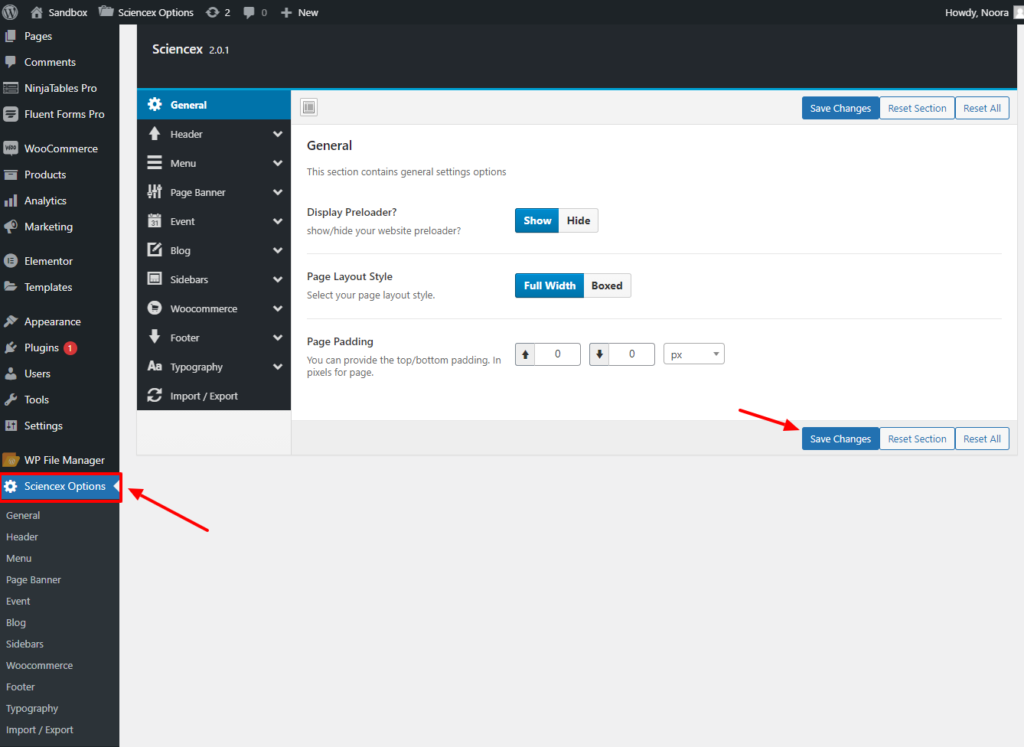
To access theme options in WordPress, navigate to the dashboard. Click on ‘Appearance’ and then select ‘Customize’. Here, you’ll find various customization settings for your theme, including layout, colors, and widgets. This is where you can modify theme options to suit your needs.
Can Theme Options Be Hidden In WordPress?
Yes, you can hide theme options in WordPress using custom code or plugins. Plugins like ‘Theme Options Hide’ can help with this. Hiding options may be necessary to prevent unwanted changes. Always ensure to backup your site before making significant changes.
Why Hide Theme Options In WordPress?
Hiding theme options can prevent accidental modifications by users. It secures your design settings from unauthorized changes. This is particularly useful for developers managing client sites. It helps maintain the integrity and consistency of your website’s appearance.
What Plugins Hide Theme Options?
Plugins like ‘Theme Options Hide’ and ‘Adminimize’ can hide theme options. These plugins offer easy-to-use interfaces for managing visibility. They allow you to control which settings are accessible to different user roles, enhancing security and customization.
Conclusion
Hiding theme options in WordPress can streamline your site management. It keeps your dashboard clean and organized. This process helps focus on important tasks. You can customize the visibility of options. This ensures only necessary elements are accessible. Implementing these changes enhances user experience.
Your site will appear more professional. A simpler dashboard reduces distractions. This leads to better productivity. Always test changes before finalizing them. This way, everything works smoothly. Proper management of theme options is essential. It benefits both you and your visitors.


