
Are you ready to give your WordPress website a fresh look but feeling a bit stuck on how to get started? Importing WordPress theme data can seem daunting, but it doesn’t have to be.
Imagine effortlessly transforming your site’s appearance in just a few clicks and watching your vision come to life. You can achieve this with the right guidance and a bit of know-how. This blog post will walk you through the process step-by-step, ensuring you have all the tools you need to make your website stand out.
Get ready to unlock the full potential of your WordPress theme and captivate your audience with a stunning, professional design. Let’s dive in and simplify the process of importing WordPress theme data, ensuring your site shines like never before.
Preparing For Theme Data Import
Always backup your website before making changes. It keeps your data safe. Use plugins like UpdraftPlus or BackupBuddy. These tools make it easy. Save copies on your computer or cloud. This way, you can restore your site if needed. Backing up is very important. Never skip this step.
Read the theme’s documentation carefully. It tells you what the theme needs. Check for the right WordPress version. Make sure your server settings match. Some themes need special plugins. Install those plugins first. Ensure your site meets all requirements. This prevents future problems. Follow instructions exactly for best results.

Credit: wordpress.org
Downloading Theme Data Files
Finding theme files is simple. First, open the WordPress dashboard. Then, go to Appearance and click on Themes. Here, you can see all installed themes. Next, choose the theme you want. Look for a button or link called Download or Export. This will allow you to save the theme files to your computer.
Sample content helps you see the theme in action. Often, theme developers include this in their package. Check the theme’s website for a Sample Content or Demo link. Once found, click to download the sample content file. Save this file in a known location on your computer. You will use it to import the data later.
Installing WordPress Importer
Open your WordPress dashboard. Click on Plugins. Choose Add New. Search for the WordPress Importer plugin. Click Install Now next to the plugin. Wait for installation to finish. It’s quick and easy.
Once installed, click Activate Plugin. The importer is now active. You can find it under Tools. It’s ready for use. You can import theme data now. This helps set up your site. Follow prompts to import data.
Importing Theme Data
To start, locate the sample content file on your computer. This file often comes with your theme package. Open WordPress and navigate to the Tools section. Select Import. Choose the option for WordPress. You may need to install the import plugin if it’s your first time. Once installed, activate it. Click Run Importer. Choose your sample file from your computer. Click Upload file and import. Now, the content will begin to upload.
Ensure content has the right author. Assign an existing author or create a new one. Check the box to download and import file attachments. This ensures images and files are imported. Click Submit to finalize. Your theme data will now appear on your site. Check everything is in place. If something is missing, repeat the steps. Make sure to follow each step carefully.
Customizing Imported Content
Update Site Identity to match your brand. Change the site title and tagline. Add a logo if needed. This will make your site look unique. It helps visitors know they are in the right place. Check the site icon too. It’s the small image in the browser tab. Make sure it fits your brand.
Configure Menus and Widgets to improve site navigation. Place important links in the main menu. This helps visitors find what they need. Use widgets for extra content. Add recent posts, categories, or tags. They can show in the sidebar or footer. Arrange them neatly. Keep the site easy to use.

Credit: harutheme.com
Troubleshooting Common Issues
Missing images can confuse site visitors. Check image paths in your theme settings. Sometimes, paths are incorrect. Update URLs to point to the right location. Another tip is to re-upload images. This refreshes the library. Finally, clear your browser cache. This helps to see changes.
Layout issues can break your design. Ensure all plugins are updated. Outdated plugins cause problems. Next, check your theme settings. Settings might be wrong. Switch to a default theme to test. This isolates the problem. Lastly, try disabling plugins one by one. This finds the culprit.
Ensuring Theme Compatibility
Always check the theme on different browsers. Each browser can show the theme differently. Chrome, Firefox, and Safari are common choices. Testing helps find any display issues. Make sure the theme looks good everywhere. This ensures a better user experience. Happy users stay longer on your site.
Plugins can cause conflicts with themes. Disable all plugins first. Then enable them one by one. Watch for any errors or broken parts. Some plugins may not work well with your theme. Be careful when choosing plugins. Pick ones that are compatible. This keeps your site running smoothly. No one likes a broken site.
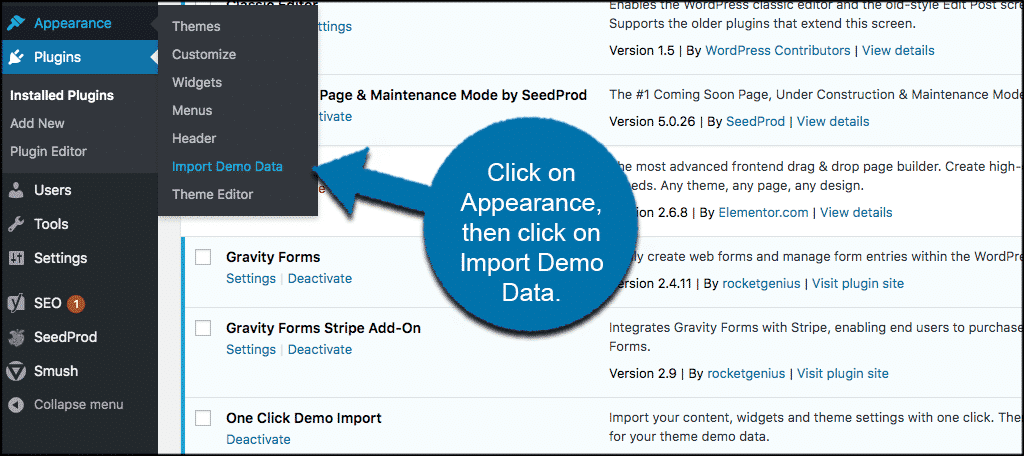
Credit: www.greengeeks.com
Frequently Asked Questions
How Do I Import WordPress Theme Demo Data?
To import WordPress theme demo data, first, navigate to your theme’s settings panel. Look for an “Import Demo Data” option. Click it and follow the on-screen instructions. Ensure you have a backup of your site before proceeding to avoid data loss.
Why Is My WordPress Theme Data Not Importing?
If your WordPress theme data isn’t importing, check for PHP memory limits or execution time restrictions. Ensure your server meets the theme’s requirements. Also, check for plugin conflicts by deactivating unnecessary plugins temporarily. Finally, consult your theme’s documentation for specific troubleshooting steps.
Can I Import Theme Data Without Plugins?
Yes, you can import theme data without plugins using the WordPress Importer tool. Navigate to Tools > Import in your WordPress dashboard. Choose the WordPress option and follow the prompts. However, using a plugin may offer additional features and ease of use.
Is Importing Theme Data Safe For My Website?
Importing theme data is generally safe, but it can overwrite existing content. Always back up your website before importing. This ensures you can restore your site if something goes wrong. Ensure you trust the source of the theme data to avoid potential security risks.
Conclusion
Importing WordPress theme data can enhance your site. It offers a fresh look. Your content gets structured. Visitors find it easy to navigate. They stay longer. You can follow simple steps. Use tools provided by WordPress. Import demos. Customize as needed.
Optimize your site’s speed. Improve user experience. Remember to back up your data. Avoid losing important information. Keep your site secure. Regular updates help. Maintain functionality. Let your site shine with new theme data. Engage your audience effectively. Enjoy a seamless online presence.


