
Are you ready to give your WordPress blog a fresh, eye-catching look? Installing a new theme can completely transform your site, making it more appealing to your readers and enhancing their experience.
But if you’re feeling a bit overwhelmed about where to start, don’t worry—you’re not alone. Many bloggers face this challenge, and with the right guidance, it can be a smooth and rewarding process. In this guide, you’ll discover the simple steps to install a WordPress theme that fits your style and brand perfectly.
By the end, you’ll not only know how to revamp your blog’s design but also understand how a well-chosen theme can captivate your audience and keep them coming back for more. Ready to dive in? Let’s get started!
Choosing The Right Theme
Your blog needs are unique. First, think about your blog’s purpose. Is it a travel blog? Or maybe a food blog? Knowing this will help you choose a fitting theme. Consider your audience. Who are they? What do they like? Themes should match their taste. Also, check if the theme is mobile-friendly. Many people use phones to read blogs. A responsive theme is important. Look for themes with good support and updates. This ensures your blog runs smoothly.
WordPress has many themes. Some are free, others cost money. Free themes are a good start. They are easy to use and save money. Paid themes offer more features. These can include advanced designs and extra support. Read reviews before choosing a theme. Reviews help you know if a theme is reliable. Test different themes. Try live demos to see how they look. This helps you make the best choice for your blog.

Credit: www.namecheap.com
Preparing Your WordPress Site
Select a theme from the WordPress dashboard. Click ‘Install’ to add it to your site. Activate the theme to make it live. Customize it to fit your blog’s style. Adjust colors, fonts, and layout easily. Save changes to keep your design updated.
Backing Up Current Data
Creating a backup keeps your blog safe. Use a plugin to save your data. Backups protect your posts, images, and settings. Regular backups are important. You can use tools like UpdraftPlus or BackupBuddy. These tools help you save your blog data. They offer easy steps to follow. Secure your site by storing backups in cloud services. Cloud services like Google Drive are safe. If your site faces problems, backups restore everything quickly. Peace of mind comes with knowing your data is safe.
Updating WordPress Version
Always keep WordPress updated. Updates fix bugs and add features. Check the dashboard for new updates. Click “Update Now” to start updating. Updates are important for security. New updates protect your site from threats. Ensure plugins and themes match the latest version. An updated site runs smoothly. It’s easy to update by following simple steps. Regular updates make your site safe and fast. Keep your site healthy by updating often.
Installing The Theme
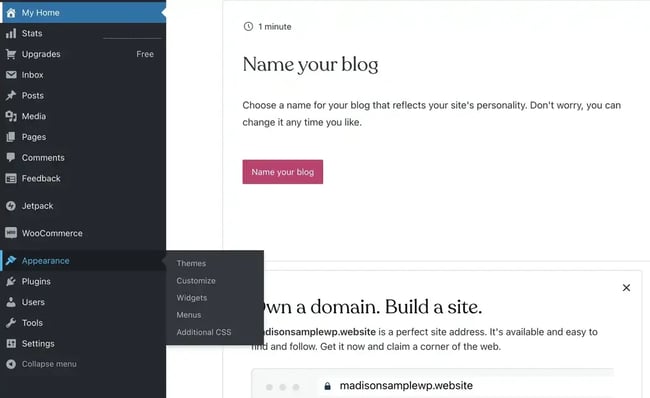
Go to your WordPress dashboard. Click on Appearance, then Themes. Click the Add New button at the top. You will see many themes. Use the search bar to find a theme you like. Once you find one, click Install. After the theme installs, click Activate. Your site will now use this new theme.
First, download a theme to your computer. It should be a .zip file. Go to your WordPress dashboard. Click Appearance, then Themes. Click the Add New button. Next, click Upload Theme. Click Choose File and select the theme .zip file. Click Install Now. After it installs, click Activate. Your new theme is now live on your site.
Customizing Your Theme
Easily install a blog theme on WordPress by navigating to the dashboard. Select “Appearance” and then “Themes. ” Browse, choose, and activate your preferred theme. Customize settings to match your style. Enjoy a personalized blog look in no time.
Navigating The Theme Customizer
The Theme Customizer is an easy tool. It helps change the look of your blog. Access it from your WordPress dashboard. Click on Appearance, then Customize. A new window will open. You can see live changes here.
Make your blog unique. Adjust colors and fonts. Change the header and footer. Add widgets to the sidebar. Explore each option. Some themes have extra settings. Try all the features.
Adjusting Layout And Design
Changing the layout can be fun. Choose a full-width or boxed layout. Move elements around. Drag and drop widgets to new places. This makes your blog look different.
Remember to save changes. Click the Publish button. This makes your changes go live. Always preview before publishing. Check if everything looks good. Make sure it’s easy to read.
Testing Theme Functionality
Ensure the theme works with your WordPress version. Themes should fit all devices. Check if images and buttons look right. Compatibility is key for a smooth experience. Adjust settings if something seems off.
Errors happen sometimes. Plugins can cause issues. Deactivate them one by one. See if the theme works fine. If the problem stays, contact theme support. Help is often quick and effective.
Credit: blog.hubspot.com
Enhancing With Plugins
Plugins add extra features to your blog. Choose plugins wisely. Essential plugins include security, backup, and SEO tools. Security plugins protect your site from threats. Backup plugins save your data. SEO plugins help your site rank better. Pick lightweight plugins. They make your site load fast. Choose plugins that work well together. Avoid plugins with bad reviews. Always update your plugins. This keeps your site safe.
Ensure your theme supports the plugins. Some plugins need specific themes. Check compatibility before installing. Test plugins after adding them. Make sure they work smoothly. If a plugin breaks your theme, deactivate it. Try another one. Customizing plugins can be easy. Use theme options to adjust plugin settings. This ensures a seamless look. Always back up your site before major changes.
Maintaining Your Theme
Discover easy steps to install a blog theme on WordPress. Navigate to the dashboard and select ‘Appearance’ then ‘Themes’. Choose ‘Add New’, find your theme, and click ‘Install’. Finish with ‘Activate’ to make it live.
Updating For Security
Keeping your WordPress theme updated is crucial. Updates fix security holes. Hackers can’t exploit them. Regular updates make your site safe. Check for updates often. Use the WordPress dashboard. It’s easy to find updates there. Never ignore update alerts. They protect your site from threats. Updates also fix bugs. Your site runs smoother after updates. Always back up before updating. This prevents data loss.
Regular Backups
Backing up your site is like saving a game. It keeps your data safe. Mistakes can happen when you update. Regular backups prevent data loss. Use plugins for backups. They make the process simple. Set backups weekly or monthly. Store backups in different places. Online and offline are good options. Check your backups often. Make sure they work. Restoring data from backups is easy. Your site can be fixed quickly.
Credit: elements.envato.com
Frequently Asked Questions
How To Choose A WordPress Blog Theme?
Selecting a WordPress theme involves considering your blog’s niche and audience. Look for responsive design, speed, and customization options. Reviews and ratings can provide additional insights. Ensure the theme is updated regularly for security. A demo preview helps visualize the layout and functionality.
Can I Install A Free WordPress Theme?
Yes, WordPress offers numerous free themes in its repository. Navigate to “Appearance” > “Themes” in your dashboard. Click “Add New” and explore the available free options. Ensure to check reviews and ratings. Free themes are a great starting point for beginners.
What Is A Child Theme In WordPress?
A child theme inherits the functionality of another theme, called the parent theme. It allows you to modify or add to the design without altering the parent theme. This ensures updates to the parent theme won’t override your customizations. It’s essential for safe theme customization.
How To Install A Theme From A .zip File?
To install a theme via a. zip file, go to your WordPress dashboard. Click on “Appearance” > “Themes” > “Add New”. Then, select “Upload Theme”. Choose your. zip file and click “Install Now”. Once uploaded, activate the theme to apply it to your site.
Conclusion
You’ve now learned to install a WordPress blog theme easily. Practice makes perfect, so try setting up different themes. Explore the customization options. Make your blog unique with your style. Remember, a good theme attracts more readers. Keep it simple and user-friendly.
Engage with your audience through comments. Share your blog on social media. Keep learning and experimenting with new ideas. This journey is exciting and full of possibilities. Happy blogging!


