
Struggling with unwanted elements cluttering your WordPress Bridge theme? You’re not alone.
Many users find themselves searching for ways to clean up their website’s appearance for a more polished and professional look. Whether it’s an unnecessary widget, a redundant sidebar, or a distracting menu item, knowing how to hide these elements can transform your site and elevate your brand’s image.
Imagine a sleek, streamlined website where every element serves a purpose and every page feels like a breath of fresh air to your visitors. You can achieve this effortlessly with the right tips and tricks. In this guide, we’ll walk you through the straightforward steps to hide elements on your WordPress Bridge theme. You’ll discover how simple tweaks can lead to a cleaner layout, ensuring that your content stands out and captivates your audience. Ready to declutter and enhance your site’s user experience? Let’s dive in!

Credit: themeforest.net
Customizing Visibility Settings
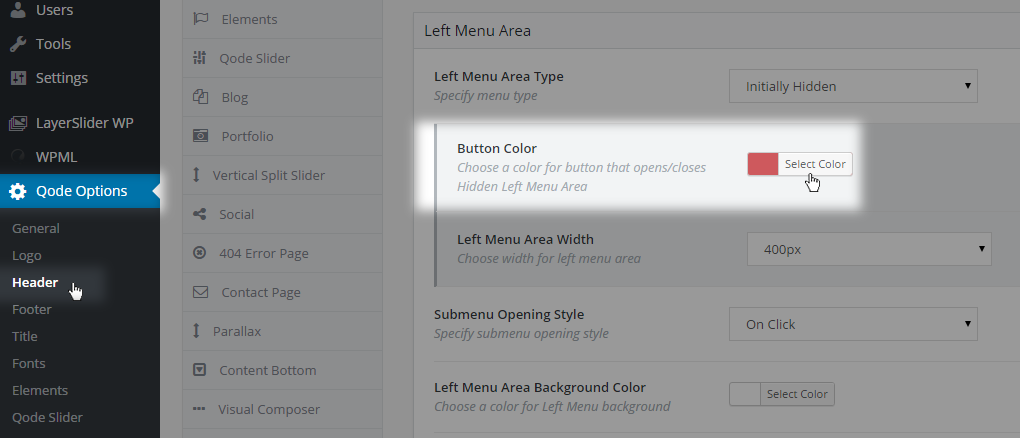
The Bridge theme offers simple options to hide elements. Navigate to the theme dashboard. Select the elements you want to hide. Use the visibility settings to toggle them off. This method is quick and doesn’t need coding. Ensure to save your changes. Check the preview for confirmation. The settings are user-friendly. Even beginners can manage.
For more control, use CSS techniques. Access the custom CSS area in the theme settings. Write CSS code to hide specific elements. Example: use `display: none;` to hide items. This method is flexible. It allows creative customization. Test your code before applying. Errors may affect site appearance. Use a backup to prevent issues.
Credit: bridge.qodeinteractive.com
Using WordPress Plugins
WordPress plugins make it simple to hide elements on the Bridge theme. Select a plugin, install it, then choose which elements to hide. This method customizes your site without altering the theme’s core code.
Popular Plugins For Element Hiding
Elementor and WPBakery are popular plugins for hiding elements. They are easy to use. Many people like them because they work well.
Elementor lets you hide things with a few clicks. WPBakery also offers simple options for hiding items. Both plugins have good reviews. They are trusted by many users.
Installation And Setup
First, find the plugin in the WordPress store. Click “Install” to add it to your site. Then click “Activate” to use it. After activation, go to the settings.
Look for the “Hide Elements” option. Follow the steps on the screen. You can choose what you want to hide. It is easy to do and takes only a few minutes.
Implementing Custom Css
Open your WordPress dashboard. Click on “Appearance” and select “Customize.” This opens the Theme Customizer. Look for the Additional CSS option. Click it to access the CSS editor. This is where you can add your custom CSS code. It’s a simple way to make changes. You can hide elements easily from here.
To hide an element, you need to know its CSS selector. Right-click on the element in your browser. Select “Inspect” to see its code. Find the unique selector for that element. Use this code in the CSS editor: {display: none;} This will hide the element. Save your changes to apply the CSS. Refresh the page to see if it worked.
Javascript Solutions
JavaScript offers effective ways to hide elements in the WordPress Bridge Theme. Use simple code snippets to control visibility. This enhances user experience by customizing the site’s appearance effortlessly.
Introduction To Javascript For WordPress
JavaScript is a powerful tool for websites. It makes pages come alive. WordPress supports JavaScript well. With it, you can hide elements easily. For example, you might hide a menu or a button. This makes your site look clean. Users see only what they need. JavaScript is like magic for your website. You can control what users see.
Applying Javascript For Dynamic Hiding
To hide elements, use simple JavaScript. First, find the element you want to hide. Use document.querySelector() to select it. Then, change its style. Set display to none. The element will disappear. But it is still there. You can show it again. Just set display to block or inline. This method is flexible. You can show or hide elements anytime. JavaScript makes it all possible.
Testing And Troubleshooting
Discover effective methods to hide elements on WordPress Bridge Theme. Simplify your design by editing the CSS directly. Use developer tools to inspect and modify specific elements, enhancing your site’s appearance seamlessly.
Ensuring Cross-browser Compatibility
Different browsers show websites differently. Check your site on Chrome, Firefox, and Safari. Each browser might display your elements differently. This can cause design issues. Use online tools to test your site. These tools show how your site looks on various browsers. Make sure all elements are hidden as desired.
Some browsers may not support certain CSS properties. Use fallback styles for older browsers. This helps ensure all users see the correct design. Regular updates and testing help fix these issues. Keep your browser and theme updated. This reduces the chance of problems.
Common Issues And Fixes
Certain elements might not hide properly. Check your CSS selectors. They must be correct and specific. Double-check your code for typos. Incorrect code can cause problems.
Plugins may conflict with your theme. Disable one plugin at a time to find the issue. Once found, look for updates or alternatives. Remember to clear your cache. Sometimes, changes won’t show because of cached data.

Credit: qodeinteractive.com
Frequently Asked Questions
How To Hide Elements In Bridge Theme?
To hide elements in the Bridge Theme, use the theme’s custom CSS option. Access the WordPress dashboard, navigate to Appearance > Customize > Additional CSS. Add your CSS code targeting the specific element you wish to hide. Save changes to apply.
This method ensures your customizations are theme-specific and safe.
Can I Use Plugins To Hide Elements?
Yes, plugins like “Simple Custom CSS” or “CSS Hero” can hide elements. These plugins offer user-friendly interfaces to apply custom CSS without editing theme files directly. Install the plugin, navigate to its settings, and add your CSS code to hide specific elements.
Remember, using plugins can simplify complex customizations.
Is Coding Required To Hide Elements?
Basic CSS knowledge is helpful but not mandatory. Many visual editors and page builders offer options to hide elements without coding. Use the WordPress Customizer or plugins for a more intuitive approach. These tools provide easy-to-use interfaces, allowing you to hide elements with minimal technical skills.
What Css Code Hides Elements?
To hide elements, use `display: none;` in your CSS. Identify the element’s class or ID using browser developer tools. Then, add a custom CSS rule targeting that class or ID. Example: `. element-class { display: none; }`. This CSS property effectively hides the selected element from view.
Conclusion
Mastering element hiding on the Bridge theme is straightforward. Follow the steps, and your site will transform smoothly. Users appreciate clean designs. Hidden elements create a polished look. This boosts engagement and keeps visitors coming back. Experiment with different sections to find what suits your site best.
Practice makes perfect. With patience, you will improve your site’s appearance. Always ensure functionality remains intact. Adjust as needed for optimal performance. Your WordPress site will reflect professionalism. Keep learning and adapting to new features. Stay updated with theme enhancements.
Your efforts will pay off with a sleek, user-friendly website.


