
Are you looking to customize your WordPress theme but unsure how to insert code without breaking your site? You’re not alone.
Many WordPress users hesitate to tweak their themes, fearing they might ruin their site’s appearance or functionality. But what if you could do it with confidence? Imagine having the power to personalize your website just the way you want, without the stress of potential mishaps.
In this guide, you’ll discover simple, step-by-step instructions to safely insert code into your WordPress theme. Whether you’re a beginner or have some experience, you’ll find these tips invaluable for enhancing your site’s design and performance. Stick with us, and you’ll be making those theme adjustments like a pro in no time!
Choosing The Right Method
A child theme is safe for adding code. It protects changes during updates. Parent theme updates can remove changes. Child themes keep your custom code safe. They are easy to make. Just copy the parent theme. Add your code to the child theme. This method keeps the parent untouched. Always test your changes.
Direct editing is risky. It can break your site. Plugins are safer. They offer easy code insertion. Many plugins are free. They provide updates and support. Direct editing needs coding skills. Mistakes can cause big problems. Plugins are user-friendly. Choose what suits your skill level. Always backup your site before changes.
Credit: www.isitwp.com
Using The Theme Editor
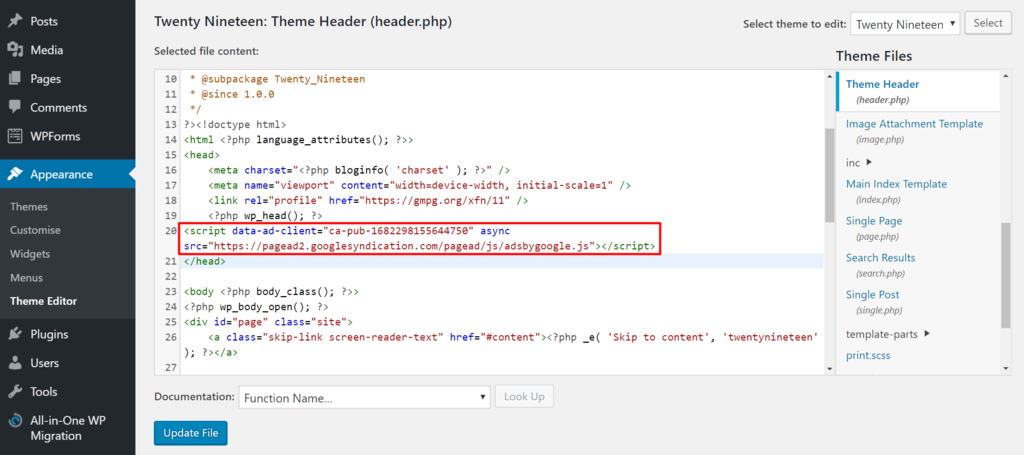
First, find the WordPress admin panel. Click on Appearance. Then choose Theme Editor. This opens the editor screen. Be careful here. Changes affect your site. Make sure to backup before editing. The editor shows different files. Each file has a role. Some files are for design. Others are for functions. Select the right file for your changes.
Theme files are on the right side. Find style.css for styles. Locate functions.php for functions. Each theme has unique files. Look for header.php for header changes. Check footer.php for footer edits. Open the file you need. Make changes carefully. Always save after edits. Check your site after saving. Ensure the changes work well.
Adding Code Via Ftp
First, you need an FTP client like FileZilla. It helps to connect to your website. You will need your FTP credentials. These are username, password, and host. You get these from your hosting provider. Open the FTP client and fill in these details. Click on the connect button. Now you are connected to your website.
Always make a backup of your files before editing. This will keep your data safe. Find the file you want to change. Right-click and select download. Edit the file on your computer. Use a simple text editor. Save your changes and upload the file back. Check your site to see the changes.
Utilizing Code Snippets Plugin
The Code Snippets Plugin is a helpful tool. It makes adding code easy. First, go to your WordPress dashboard. Click on “Plugins“. Then select “Add New“. In the search bar, type “Code Snippets“. You will see the plugin in the list. Click “Install Now“. Wait for it to finish. Then, click “Activate“. Now, the plugin is ready to use.
After installing, it’s time to add code. Go to “Snippets” in the sidebar. Click “Add New“. You will see a space to write code. Name your snippet for easy finding later. Paste your code in the box. Click “Save Changes“. Then, click “Activate” to use it. Keep snippets organized to avoid confusion.
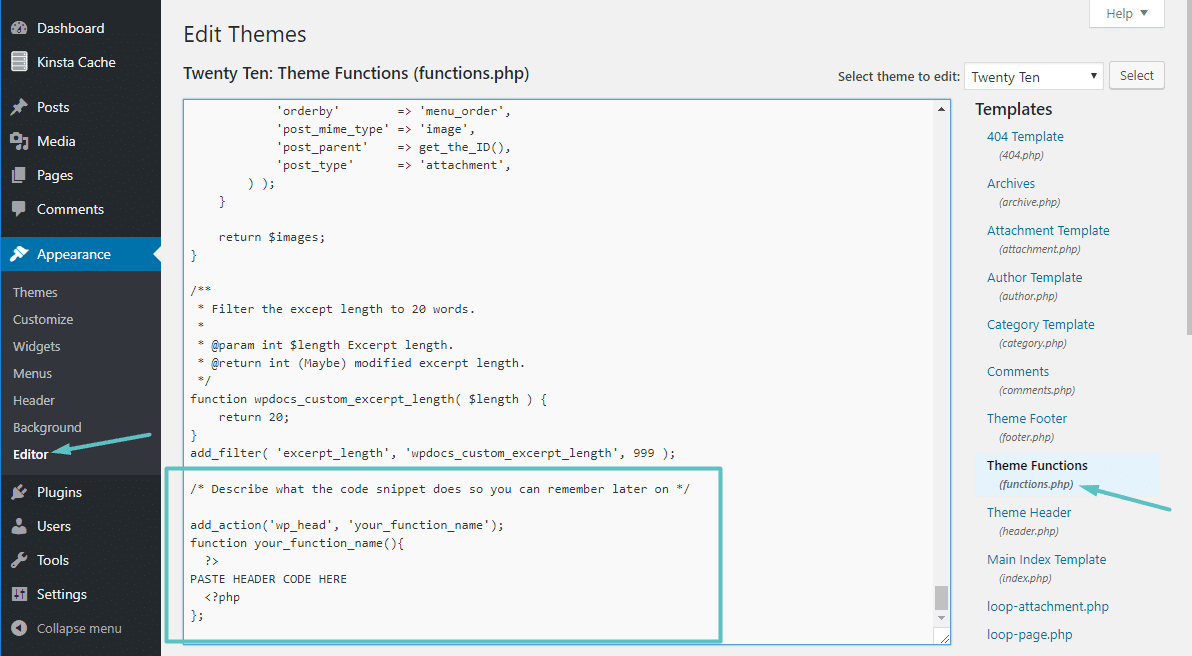
Customizing Functions.php
The functions.php file helps control your website. It is part of your theme. You can add custom code here. This makes your site unique. Be careful while editing. Mistakes can break your site.
Always back up your files. Use a child theme for changes. This keeps your main theme safe. Test your changes on a local server. This helps catch errors early. Keep your code clean and simple.
Credit: kinsta.com
Incorporating Custom Css
The Customizer is a helpful tool. It lets you add custom CSS easily. Open your WordPress dashboard. Click on Appearance, then Customize. Find the Additional CSS section. Here, paste your CSS code. This method is safe. It does not affect your theme files.
You can add CSS directly into theme files. Use a child theme to keep changes safe. Find the style.css file in your theme. Open it and add your CSS code. Save the file. This method needs caution. Wrong code may break your site. Always backup before changes.
Ensuring Code Compatibility
Inserting code into a WordPress theme ensures smooth compatibility and functionality. Access the theme editor via the WordPress dashboard. Carefully place your code snippets in the appropriate theme files. This approach maintains the integrity and performance of your website.
Testing Code Changes
Test each code change. This prevents problems in the future. Use a staging environment. It helps you see how changes look. Before updating the live site, test thoroughly. No one wants a broken website. Check for errors in every corner. Use tools for testing. Tools make the job easier.
Avoiding Common Errors
Avoid common errors. They can cause big troubles. Always backup your work. Backups save time in emergencies. Check for syntax errors. These are small mistakes in the code. Even a missing bracket can break things. Keep the code clean and organized. Clean code is easy to read. It reduces errors. Finally, keep learning. There is always something new to learn.
Credit: www.hostinger.com
Backing Up Before Modifications
Before making changes to your WordPress theme, create a backup. It protects your site from losing valuable data. Insert code carefully by navigating to Appearance, then Theme Editor, and selecting the right file to edit.
Importance Of Backups
Always back up your site before changing the theme. This protects your content from errors. Losing data can be very frustrating. A backup ensures you can restore your site. It’s like having a safety net. Rest easy knowing your hard work is safe.
Backup Methods And Tools
Several tools help in creating backups. Plugins like UpdraftPlus are easy to use. Some hosting services offer backup options. Check if your host has this feature. Save backups to a safe location. You can use cloud services or an external drive. Always have more than one backup. This adds extra safety. Regular backups keep your data secure.
Frequently Asked Questions
How To Add Custom Code In WordPress Theme?
To add custom code, access your WordPress dashboard. Navigate to Appearance > Theme Editor. Select the theme file where you want to insert the code. Use proper syntax to avoid errors. Always back up your theme before making changes. Alternatively, use a child theme or custom code plugin for safer modifications.
Where To Insert Javascript In WordPress Theme?
JavaScript can be added to the WordPress theme via the functions. php file. Alternatively, use the header. php or footer. php files for script placement. It’s recommended to enqueue scripts using wp_enqueue_script() in functions. php. This ensures better management and conflict avoidance with other scripts.
Can I Use Plugins To Insert Code?
Yes, plugins like Code Snippets or Insert Headers and Footers allow you to add code safely. These plugins provide a user-friendly interface. They help manage custom code without editing theme files directly. Using plugins reduces the risk of errors and maintains code even after theme updates.
Is It Safe To Modify Theme Files Directly?
Modifying theme files directly is risky. Changes may be lost during theme updates. It’s better to use a child theme or plugins to add code. Always back up your website before making any direct changes. This ensures you can restore your site if something goes wrong.
Conclusion
Adding code to a WordPress theme can seem daunting. But it’s manageable with the right steps. Follow the detailed methods provided. This ensures your site runs smoothly. Always back up before making changes. This precaution saves potential headaches. Use child themes to protect customizations.
They offer a safety net for updates. Remember, experimenting helps you learn. Don’t be afraid to try new things. Practice makes perfect in coding. With time, you’ll become more comfortable. Your WordPress site will benefit from your efforts. Happy coding!


