
Are you ready to give your WordPress site a fresh new look? You’ve just downloaded a stunning theme, but now you’re wondering how to get it onto your site without a hitch.
Don’t worry; you’re not alone, and you’re definitely in the right place. Importing a downloaded theme into WordPress might seem daunting, especially if you’re new to the platform, but it’s simpler than you think. By the time you’re done with this guide, you’ll be able to transform your site’s appearance with ease.
Unlock the potential of your website’s design and capture your audience’s attention with just a few clicks. Let’s dive in and discover how you can make your WordPress site truly stand out by importing that beautiful theme you’ve chosen.

Credit: m.youtube.com
Preparing For Theme Installation
Ensure your theme is compatible with your WordPress version. Check the theme’s requirements before installation. Make sure it supports your plugins and features. Themes can have different needs. Some need specific versions. Others might not work with certain plugins. Always verify compatibility.
Use the latest WordPress version for best results. It helps the theme run smoothly. Update WordPress regularly. New versions have better security. They fix bugs and improve performance. An updated site is a safe site.

Credit: wordpress.com
Downloading Your Theme
Choosing a good place to get themes is important. Many sites offer themes. Some are safe, others are not. Trusted websites are best for themes. Look for sites with good reviews. Check if the site is popular. A popular site is usually safe. Be careful with unknown sites. They may have bad themes. Bad themes can harm your website. Always check the source before downloading.
After downloading, check your theme files. Make sure they are complete and safe. Look for a zip file. It should have all the theme parts. Check for a readme file. It helps with theme setup. Use an antivirus to scan the files. This keeps your computer safe. If files are missing, the theme might not work. Missing files can cause errors. Ensure everything is there before installing.
Accessing WordPress Dashboard
Open your web browser. Type your website address. Add “/wp-admin” at the end. Press Enter. You will see the login page. Enter your username. Enter your password. Click “Login”. You are now in the WordPress Dashboard.
Find the left sidebar. Look for the word “Appearance”. Click on “Appearance”. You will see more options. Click on “Themes”. The Themes page will open. Here, you can add new themes. You can also manage installed themes. This is the place to import your theme.
Credit: support.jegtheme.com
Uploading Theme Files
First, go to your WordPress dashboard. Click on Appearance and then Themes. You will see an Add New button at the top. Click it. Now, choose the Upload Theme option. A button labeled Choose File will appear. Click it to find your theme file.
The theme is usually in a ZIP file format. Do not unzip it. Just upload it as is. WordPress will take care of the rest. After uploading, click the Install Now button. Wait a few moments. Once done, click on Activate to make it live. Your new theme is now ready to use.
Activating Your Theme
First, find your installed themes. Navigate to the WordPress dashboard. Look for Appearance in the menu. Click on it. You will see Themes listed. These are your installed themes. Choose the one you want.
Locating Installed Themes
Check under the Appearance section. Click on Themes. You will see all themes here. Pick the theme you downloaded. It should be visible.
Setting Active Theme
Click on the theme you want. Look for the Activate button. Click the button to set it active. Your new theme is now ready. It changes your site’s look. Enjoy your new design!
Customizing The Theme
Importing a downloaded theme into WordPress is simple. Go to your dashboard, click on “Appearance,” then “Themes. ” Choose “Add New” and “Upload Theme. ” Select your downloaded file and click “Install Now. ” Activate the theme to see changes.
Enjoy your new website look!
Using Customization Options
WordPress themes come with many customization choices. These allow you to change how your site looks. First, locate the customization menu in WordPress. Here, you can see many options. Change colors, fonts, or backgrounds easily. Try different styles to find what fits your site.
Some themes offer built-in tools for more changes. These tools can adjust the layout and design. Explore them to make your site unique. Remember to save changes often. This ensures you don’t lose your work. Experimenting with these settings can be fun and creative.
Adjusting Layout And Design
You can move sections around on your site. This is called adjusting the layout. Some themes let you drag and drop items. You can also change the design elements. This means you can choose different styles or looks.
Check if your theme supports widgets. Widgets are small tools you add to your site. They can display recent posts or a search bar. Find them in the WordPress dashboard. Adjusting layout and design helps make your site stand out.
Troubleshooting Common Issues
Importing a downloaded theme in WordPress can be simple. First, navigate to your WordPress dashboard. Select “Appearance” and then “Themes. ” Click “Add New” and upload your theme file. Finally, activate your theme to complete the process.
Resolving Installation Errors
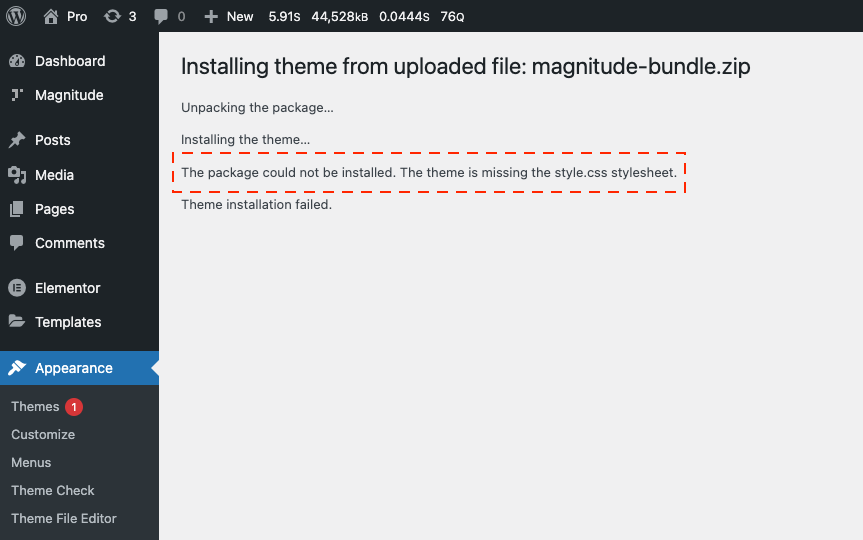
Sometimes, installing a theme can cause errors. Always check if the theme file is complete and not corrupted. Ensure the file is in a .zip format. This is important for WordPress to read it. If an error message appears, read it carefully. It often gives clues. Sometimes, the PHP memory limit is too low. Increase it through the wp-config.php file. Contact your hosting provider for help if you’re stuck.
Fixing Compatibility Problems
Themes may not work with all plugins. Disable all plugins first. Then, activate them one by one. This helps find which plugin is causing issues. Always ensure your WordPress version is up-to-date. Themes may not work with older versions. Check theme documentation for specific requirements. This includes PHP version and WordPress version. Some themes need extra plugins. Install them for the theme to work properly.
Maintaining Theme Updates
Installing a downloaded theme in WordPress is simple. Begin by logging into your WordPress dashboard. Navigate to “Appearance” and click “Themes. ” Select “Add New,” then “Upload Theme. ” Choose your downloaded theme file and click “Install Now. ” Finally, activate your new theme to see it in action.
Checking For Updates Regularly
WordPress themes need updates. New updates fix bugs. Updates add new features. It’s good to check for updates often. Visit the theme’s website. Look for a section called updates or news. WordPress dashboard shows updates too. Keeping themes updated is important. Updated themes are safer. They work better.
Applying Updates Safely
Backup your site before updating. Backups protect your work. Use plugins for backups. Update one theme at a time. This helps find problems easily. Test the theme after updating. Make sure everything works. Check your site pages. Ensure the site looks right. Safe updates keep your site running well.
Frequently Asked Questions
How Do I Upload A Theme To WordPress?
To upload a theme, go to your WordPress dashboard. Navigate to Appearance > Themes > Add New. Click the Upload Theme button, select your downloaded theme file, and hit Install Now. After installation, activate the theme to make it live on your site.
Can I Import A Theme Without Ftp?
Yes, you can import a theme directly from the WordPress dashboard. Navigate to Appearance > Themes > Add New. Use the Upload Theme option to select your downloaded theme file and install it without using FTP.
Why Is My Theme Not Uploading?
Your theme might not upload due to file size limits or incorrect file format. Ensure your theme file is a. zip file and within the allowed upload size. Check your server settings or contact your hosting provider for assistance if issues persist.
How Do I Activate A New Theme?
After installing the theme, go to Appearance > Themes in your WordPress dashboard. Find your newly installed theme and click the Activate button. Your site will immediately switch to the new theme, which you can then customize.
Conclusion
Installing a theme in WordPress can seem tricky at first. But with practice, it becomes simple. Just follow the steps outlined above. Download, upload, and activate your theme. Always choose themes from trusted sources. This ensures security and compatibility with WordPress.
Customize your theme to match your style. Explore the settings and options available. A well-chosen theme enhances your site’s look and feel. It provides a better experience for visitors. Remember, a good theme supports your content. Happy theming on WordPress!


