
Are you looking to enhance your WordPress site with dynamic content but not sure where to start? Imagine being able to effortlessly add complex features like galleries, forms, and interactive elements without writing a single line of code.
This is precisely what shortcodes can do for you. By learning how to insert shortcode into your WordPress theme, you can unlock a world of possibilities for your website. In this guide, we’ll walk you through the simple steps to seamlessly integrate shortcodes into your theme, empowering you to create a more engaging and functional site.
Keep reading, and discover how a few lines of code can transform your WordPress experience and captivate your audience like never before.

Credit: tonjoostudio.com
Shortcodes In WordPress
Shortcodes are small bits of code. They help you add features easily. WordPress uses them a lot. You can add galleries, videos, and more. Just type the shortcode, and it works. No coding skills needed.
Shortcodes are handy. They make tasks simpler. Many use them for contact forms. Others use them for social media buttons. You can even add custom content. Use shortcodes for maps and sliders too. They save time and effort.
Credit: tonjoostudio.com
Preparing Your Theme
Always backup your theme before changes. Mistakes can happen. Use a plugin or manual method. Copy theme files to your computer. Save them safely. Backups keep your site safe. You can restore if needed. It’s smart to backup regularly.
Find the right place for your shortcode. This could be a post, page, or widget area. Check your theme’s structure. Look at the code files. These include header.php, footer.php, and sidebar.php. Each has a purpose. Understand where each file fits. Pick the best spot for your shortcode. Sometimes, the content area is ideal. Other times, sidebar works better. Choose wisely for best results.
Inserting Shortcode
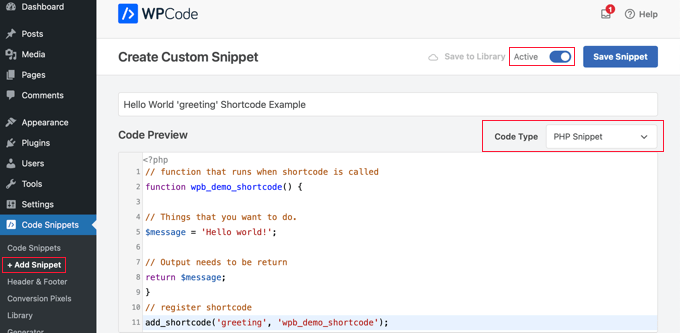
Shortcodes are small bits of code. They help add features to your site. Add a shortcode in the functions.php file. This file is in your theme folder. Open it with a text editor. Type the shortcode function. Save the changes. Now, use the shortcode in posts or pages. Be careful when editing this file. It is important for your site’s function.
Template files help display parts of your site. To use a shortcode, open a template file. This is usually a PHP file. Find the spot to insert the shortcode. Use the do_shortcode() function. Wrap your shortcode in it. Save the file. Now, the feature will show on your site. Use this method for special page parts.
Credit: www.wpbeginner.com
Using Widgets And Plugins
Shortcodes can easily fit into WordPress widgets. First, go to the widget area. Find the Text widget. Drag it to your desired sidebar. Place your shortcode inside this widget.
Make sure to save your changes. Check the front end. Your shortcode should display the desired content. This method is easy and quick.
Plugins make using shortcodes simple. Some plugins offer shortcode support. Install and activate the plugin. Navigate to the plugin settings. Look for options to add shortcodes.
Many plugins provide easy shortcode insertion. Check if your plugin supports this feature. It can save time and effort. Always ensure your plugin is updated. This keeps everything running smoothly.
Testing Shortcode Integration
Shortcodes are small pieces of code. They add special features to WordPress. Checking functionality is important. Make sure shortcodes do what they should. Insert them in different places. Try posts, pages, and widgets. Observe how they behave. Is the content showing up? Does it look right? Test thoroughly.
Check Functionality
Testing helps find mistakes early. Use shortcodes in different browsers. Make sure they work everywhere. Check mobile devices too. Does the shortcode look good on phones? Testing prevents surprises later. Keep notes on what you find. This helps with fixes.
Troubleshooting Issues
Problems might appear. Shortcodes can act funny. Troubleshoot to find solutions. Check the code for typos. Look for missing brackets. Sometimes plugins cause trouble. Disable them one by one. Check if the shortcode works now. Use forums for help. Other users might have answers.
Best Practices For Shortcodes
Insert shortcodes into a WordPress theme by adding them directly in template files using PHP tags. Use `do_shortcode()` function to execute shortcodes in theme files for custom functionalities. Ensure correct placement to maintain theme structure and functionality.
Organizing Code
Organizing code helps keep everything clear. Group your shortcodes in one file. This makes it easy to find. It also helps when you need to update. Keep your code clean. Remove any extra spaces or lines. Use comments to explain your code. This makes it easier for others to understand.
Maintaining Compatibility
Shortcodes should work with all themes. Always test them in different environments. This ensures they do not break your site. Update your shortcodes often. Check for any WordPress updates that may affect them. Keep a backup of your codes. If something goes wrong, you can easily fix it. Compatibility is key to a smooth experience.
Frequently Asked Questions
How To Add Shortcode In WordPress Theme File?
To add a shortcode in a WordPress theme file, use the `do_shortcode()` function. Place “ in the desired template file. Ensure the shortcode is registered and working. This method allows you to integrate dynamic content seamlessly into your theme.
Can Shortcodes Be Used In WordPress Widgets?
Yes, shortcodes can be used in WordPress widgets. Simply paste your shortcode into a text widget. WordPress processes the shortcode and displays the output. Make sure the shortcode is active and correctly formatted. This enhances widget functionality with dynamic content.
What Are WordPress Shortcodes Used For?
WordPress shortcodes are used for adding dynamic content easily. They allow users to insert complex elements with simple tags. Examples include galleries, forms, and custom features. Shortcodes simplify content creation and enhance website functionality without coding. They are essential for non-technical users.
Is It Safe To Use Shortcodes In Themes?
Yes, it’s generally safe to use shortcodes in themes. Ensure the shortcode source is trusted and secure. Untrusted sources might pose security risks. Always test shortcodes in a staging environment first. Keep your WordPress updated for optimal security and performance.
Conclusion
Inserting shortcodes into a WordPress theme is simple and effective. Shortcodes make your site more dynamic and engaging. First, understand where to place them in your theme files. Next, ensure your shortcode fits your design and function needs. Test your site to see the results.
Check for any errors or design issues. Regular updates and backups are essential to keep everything running smoothly. With practice, you’ll gain confidence. Your WordPress site will become more interactive. Enjoy the added functionality and improved user experience. Keep exploring new ways to enhance your site with shortcodes.


