
Are you struggling to customize your WordPress site because you can’t find the CSS file? You’re not alone.
Many WordPress users face the challenge of navigating through themes to locate that elusive stylesheet. But don’t worry—you’re about to discover how to easily access and modify the CSS file of your WordPress theme. Imagine having the power to tweak every design element to suit your brand perfectly.
By the end of this article, you’ll be equipped with simple, step-by-step instructions to unleash your creativity and take full control of your site’s appearance. Stay with us, and let’s unlock the potential of your WordPress theme together.
Credit: zellwk.com
Locating The Theme Directory
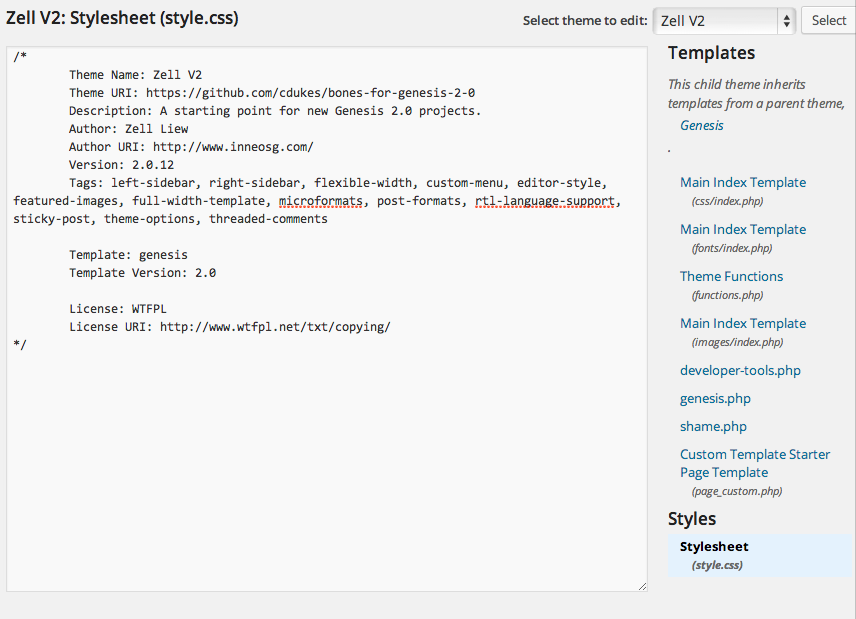
First, log in to your WordPress dashboard. Click on Appearance from the menu. Choose Theme Editor to see theme files. Files are stored on your web server. Use FTP to access them. FTP means File Transfer Protocol. Get FTP details from your web host. Connect using FTP software. FileZilla is a popular choice.
After connecting, look for the wp-content folder. Inside, find the themes folder. Open your active theme folder. Inside, locate files ending with .css. These are your CSS files. style.css is the main CSS file. Sometimes, other CSS files are present. Check each file carefully. You might find custom styles here. Download files for editing. Make a backup before changes. This prevents mistakes.
Identifying The Css File
The CSS file gives a theme its look. Common names include style.css, main.css, and theme.css. These files hold all the styles. They make the website look nice.
A theme might have more CSS files. Each might control a different part. Developers use names to help find them. Look for names that hint at their use. Names like responsive.css or custom.css are common.
Child themes often have their own CSS files. These files are in a separate folder. Look inside the child theme folder. The file might be named style.css again. This file changes the main theme’s look. It is important to check both parent and child themes.
Sometimes, the child theme has more than one CSS file. Each file changes something different. Finding these files helps in making website changes.
Downloading The Css File
FTP clients help access files from your website. First, install an FTP client like FileZilla. Then, use your login credentials to connect. Once connected, find the theme folder. Look for the style.css file. Right-click it and choose download. Your CSS file will now be on your computer.
File managers are available in your hosting account. Log into your hosting control panel. Navigate to the file manager section. Find the wp-content folder, then themes. Click on your theme’s folder. Locate the style.css file. Click download or save to copy it. You now have the CSS file on your device.
Credit: help.market.envato.com
Editing The Css File
Basic tools are enough for editing CSS. Use a simple text editor like Notepad. It is easy and free. More advanced users prefer code editors. Sublime Text and Atom are popular choices. They offer many helpful features. Syntax highlighting is one. It makes reading code easier. Auto-completion speeds up writing. These tools are free to download.
Web browsers can help too. Inspect the page to see CSS. Right-click on a webpage element and choose “Inspect”. This shows the CSS rules. Web developer tools are built into browsers. They can be used to test changes.
Testing changes is important. A staging site is useful. It is a copy of your live site. Make changes there first. This prevents mistakes on the real site. Backup files before editing. This ensures safety if something goes wrong. Save your CSS file often.
Use browser developer tools. They let you test CSS without saving. Changes appear immediately. This helps find errors quickly. Preview changes before going live. See how they look and feel. Test on different devices. This ensures good performance everywhere.
Uploading Changes
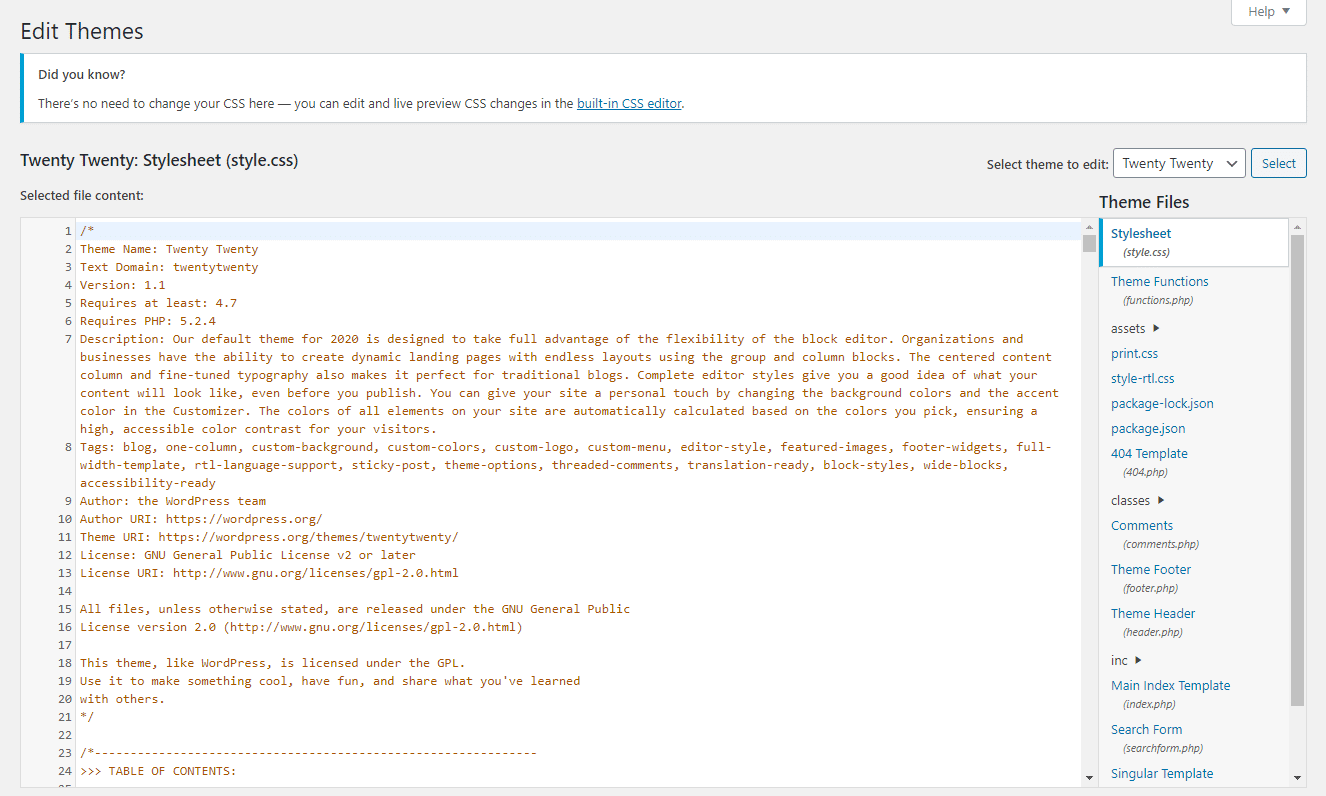
Discovering the CSS file in a WordPress theme involves accessing the theme editor. Navigate to Appearance, then Theme Editor, and find the style. css file on the right panel. Here, you can view and download the CSS file for your theme.
Re-uploading Via Ftp
Use an FTP client like FileZilla to upload files. First, connect to your website. Use your FTP details for this. Navigate to the wp-content/themes directory. Find the theme folder where your CSS file is located. Drag and drop the new CSS file into this folder. Ensure it replaces the old file. This updates the CSS on your site. Always back up your files first. Mistakes can happen. Be cautious while handling FTP.
Using WordPress Dashboard
Log in to your WordPress dashboard. Go to Appearance > Editor. Select the theme you want to edit. Find the style.css file in the right menu. Click to open it. Copy your new CSS code. Paste it in the file. Click Update File to save changes. Your site now uses the new CSS. This is simpler than using FTP. But both methods work well.
Credit: kinsta.com
Troubleshooting Common Issues
Sometimes, you can’t get the CSS file. The computer says no. This might be due to permissions errors. Your computer needs permission to see the file. Check the file settings. Do you have the right to see it? If not, ask the site owner. They can help you get the right access.
Changed the CSS and want the old one back? It is possible to revert to the original CSS. Go to your theme’s settings. Find the option for CSS. Look for “Reset” or “Restore”. Click it. This will bring back the old CSS. Now, your site looks like before.
Frequently Asked Questions
How Can I Locate Css Files In WordPress Themes?
To locate CSS files in WordPress themes, access your theme’s directory via FTP or the WordPress dashboard. Navigate to the “wp-content/themes/your-theme-name” folder. Look for files named style. css or similar. These files usually contain the CSS rules for your theme’s design and layout.
Where Is The Main Css File In WordPress?
The main CSS file in WordPress is typically named style. css. It is located in your active theme’s directory. You can find it under “wp-content/themes/your-theme-name”. This file contains the primary styling rules for your theme, including colors, fonts, and layout settings.
Can I Edit Css Directly In WordPress?
Yes, you can edit CSS directly in WordPress. Access the WordPress Customizer through Appearance > Customize, then select Additional CSS. Here, you can add or modify CSS rules without altering the theme’s core files. Remember to save changes and check your site for desired results.
How Do I Download A Theme’s Css File?
To download a theme’s CSS file, access your website’s files via FTP or cPanel. Navigate to “wp-content/themes/your-theme-name” and locate the style. css file. Download it to your computer. This file contains the CSS styling rules for your WordPress theme.
Conclusion
Getting a CSS file from a WordPress theme is straightforward. Start by accessing your WordPress dashboard. Navigate to “Appearance” and select “Theme Editor. ” Find the stylesheet named “style. css. ” It contains the CSS code for your theme. Download it for further customization.
Remember to back up your files first. Changes can affect your site’s design. Experiment and learn as you go. CSS tweaks can improve your site’s appearance. Always check your edits. Make sure your site looks good on all devices. Enjoy customizing your WordPress theme with ease.


