
Imagine having the power to customize your WordPress theme to perfectly fit your vision without the need for a domain. Yes, it’s possible, and you’re about to discover how.
Whether you’re a budding blogger or an aspiring web designer, learning to edit a WordPress theme without a domain can save you time and money while giving you creative freedom. This guide is crafted to turn you into a WordPress wizard, capable of transforming themes in a few simple steps.
By the end of this article, you’ll have the confidence to experiment and innovate without any domain-related constraints holding you back. Dive in, and let’s unlock the secrets to mastering WordPress theme editing, hassle-free.
Credit: www.hostinger.com
Setting Up A Local Environment
Choosing the right software is very important. You need a tool to create a local server. This software helps your computer act like the internet. Popular choices are XAMPP, WAMP, and MAMP. They are free and easy to use. Download and install one of them. Follow the instructions on the website.
Installing WordPress locally is the next step. Download WordPress from its official site. Find the ZIP file in your downloads. Extract it to the local server folder. This folder is in the software you installed. Open the software and start the server. Visit “localhost” in your browser. You will see the WordPress setup page. Follow the steps to install WordPress.
Accessing Theme Files
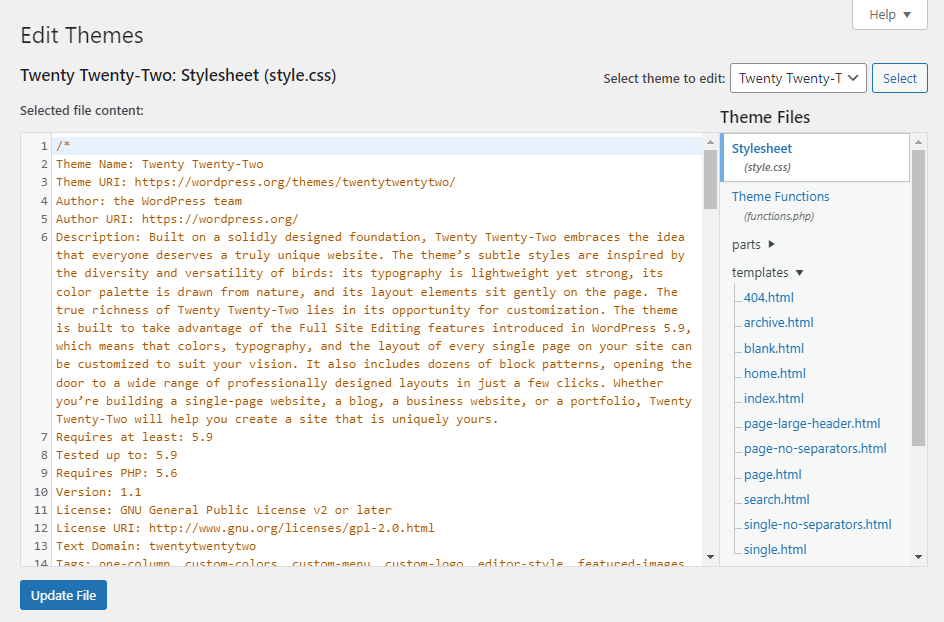
You need to find the theme directory. This is where themes live. It’s often in a folder named ‘wp-content/themes’. Use a file manager or FTP client to see it. Look for your theme’s folder. Each theme has its own folder. Inside, you will find files like style.css and functions.php. These files control how your theme looks and works.
Themes have a simple structure. Each theme has many files. The main file is style.css. It controls the site’s look. Another important file is index.php. This is often the main template file. Other files like header.php and footer.php control the top and bottom of pages. Knowing these files helps in editing themes.
Using A Code Editor
Choose an editor that feels right for you. Popular choices are Visual Studio Code and Sublime Text. They are easy to use and have many features. These editors help you see code better.
Find WordPress files on your computer. Open the code editor. Click on “Open Folder” and find the theme files. Open the folder to see files like style.css and functions.php. Edit these files to change how your theme looks.
Credit: www.wpbeginner.com
Making Theme Modifications
Stylesheets define how your website looks. You can change colors, fonts, or spacing. Open the stylesheet file and find the code. Make changes to match your design. Save the file after editing. Refresh your page to see changes. Use a text editor for easy edits.
Template files control layout. They set headers, footers, and sidebars. Locate the template file you want to change. Make edits to add or remove parts. Check the file for errors before saving. Small changes can make a big difference. Preview your site to check updates.
Functions add special features. They can change how things work. Write new functions in the theme’s function file. Use simple code to start. Test your functions for errors. Backup your work regularly. Experiment with small changes first.
Testing Changes Locally
Use a local server like XAMPP or MAMP. Install WordPress on your computer. This helps in making changes safely. Copy your theme files to the local WordPress folder. Open your theme in a text editor. Make changes and save them. Open your browser and go to localhost/yourwebsite. See the changes live. No internet needed.
Sometimes, things don’t work as planned. Clear your browser cache. This helps see new changes. If errors show up, check your code again. Look for missing brackets or semicolons. If a feature doesn’t work, check the plugin settings. Ensure your local server is running. Restart it if needed. Always back up your files before making big changes.
Saving And Backing Up
Edit your WordPress theme without a domain by saving and backing up your files locally. Use software like Local by Flywheel to create a safe environment on your computer. This method allows you to test changes risk-free before going live.
Version Control Options
Version control helps you keep track of changes. It allows you to go back to previous versions easily. Git is a popular option for version control. It is widely used by developers. GitHub is a platform to store and manage code. You can host your theme files there. Other options include Bitbucket and GitLab. They offer similar features. Using version control ensures your code remains safe. It helps in managing your theme efficiently.
Creating Backups
Backing up your theme is very important. It protects your work from being lost. Always create a backup before editing. Use tools like UpdraftPlus or BackupBuddy. These tools are easy to use. They save your files to the cloud. You can restore them anytime. Local backups are also helpful. Save copies on your computer. This ensures you always have access. Regular backups keep your theme safe.
Credit: www.templatemonster.com
Frequently Asked Questions
Can I Edit WordPress Theme Offline?
Yes, you can edit WordPress themes offline using local development tools like XAMPP or Local by Flywheel. These tools simulate a server environment on your computer. You can make changes to your theme and test them locally before uploading to your actual WordPress site.
How Do I Modify WordPress Theme Files?
You can modify WordPress theme files by accessing them through a local server setup. Use a code editor like Visual Studio Code to make changes. Always back up your theme files before editing. Once satisfied with your changes, you can upload them to your WordPress site.
What Tools Are Needed For Offline Editing?
For offline editing, you’ll need local server software like XAMPP, MAMP, or Local by Flywheel. You’ll also need a code editor like Atom or Visual Studio Code. These tools allow you to create a local WordPress environment for testing and development without a domain.
Can I Preview Changes Locally?
Yes, you can preview changes locally by using a local server setup. Local environments simulate your WordPress site, allowing you to test theme modifications. This ensures your changes work correctly before deploying them to your live site, minimizing errors and downtime.
Conclusion
Editing a WordPress theme without a domain is quite manageable. Use local servers like XAMPP or WAMP. These tools help you test changes safely. Explore theme files with an editor. Make backups before any changes. This prevents data loss. Always save your work often.
Testing locally saves time and effort. It also reduces errors on your live site. Practice these steps regularly. Gain confidence in customizing themes. Soon, you’ll edit themes easily. Enjoy the creative process without any stress.


