
Are you ready to take your WordPress website to the next level? Editing the source code of a WordPress theme can open up a world of possibilities, allowing you to customize your site exactly the way you envision it.
Whether you want to tweak your layout, change colors, or add new features, understanding how to modify the theme’s code is a powerful skill. But don’t worry—it’s not as daunting as it sounds. This guide will walk you through the process, step-by-step, so you can confidently make changes and achieve the perfect look for your website.
Dive in and discover how you can transform your WordPress site with just a few lines of code!

Credit: wpbuffs.com
Preparing Your Environment
Start by creating a safe place for your work. A local development environment is best. You need to install software like XAMPP or MAMP. These tools help run WordPress on your computer. This way, changes won’t affect the live site.
Always make sure to back up your theme before editing. This protects your original work. Use plugins like UpdraftPlus or Duplicator for backups. Store these backups in a safe location. If something goes wrong, you can easily restore your theme.
Accessing Theme Files
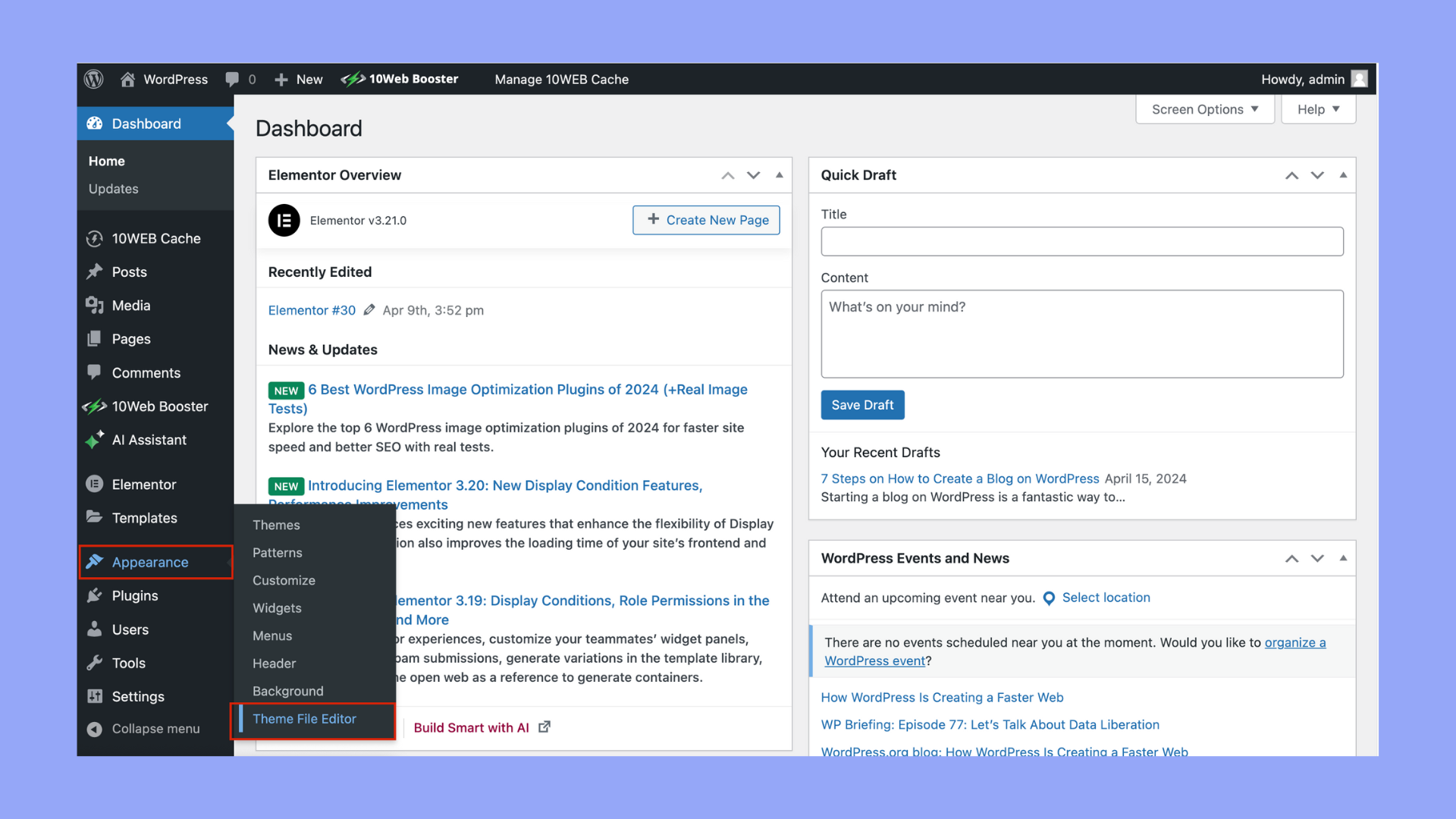
To edit a WordPress theme, first log in to your WordPress dashboard. Find the Appearance tab. Click on Theme Editor. Here you can see all theme files. Select the file you want to edit. Make changes to the code. Click Update File to save changes. Always be careful when editing code. It can break your site if not done correctly.
You can also access theme files using FTP. You need an FTP client like FileZilla. Connect to your server with FTP details. Navigate to the wp-content folder. Inside, find the themes folder. Select your theme folder. Here are all the theme files. Download a file to edit on your computer. Upload the edited file back using FTP. Always keep a backup before making changes.
Understanding Theme Structure
A WordPress theme has many important files. These files help your website look good. style.css is one of them. It controls how things look. index.php is another file. It shows the main page.
There is also functions.php. This file adds extra features. header.php is used for the top part. footer.php is for the bottom part. These files work together. They make the theme run smoothly.
WordPress follows a template hierarchy. This means it uses certain files first. For a homepage, it checks home.php first. If it’s not there, it uses index.php. For a single post, it looks for single.php. If missing, it uses index.php. This order helps WordPress decide which file to use.
Editing Html And Php Files
WordPress themes have files named header.php and footer.php. These files control the top and bottom parts of your site. You can change the site title or logo in the header. The footer often has copyright info. Open these files in a text editor. Look for the HTML code that shows your title or logo. Change the text inside the tags. Save your changes to see updates on your site.
Modifying Header And Footer
The header is at the top of every page. It has the site name and navigation links. The footer is at the bottom. It shows contact info and privacy links. To make changes, find the right PHP files. Modify the code to update links or text. Always save changes before checking your site.
Customizing Template Files
Template files control how pages look. They include index.php and single.php. These files decide the layout of blog posts and pages. To customize, find these files in your theme folder. Change the HTML or PHP code to adjust the layout. You can add new sections or remove old ones. After editing, check your website to see how it looks.
Styling With Css
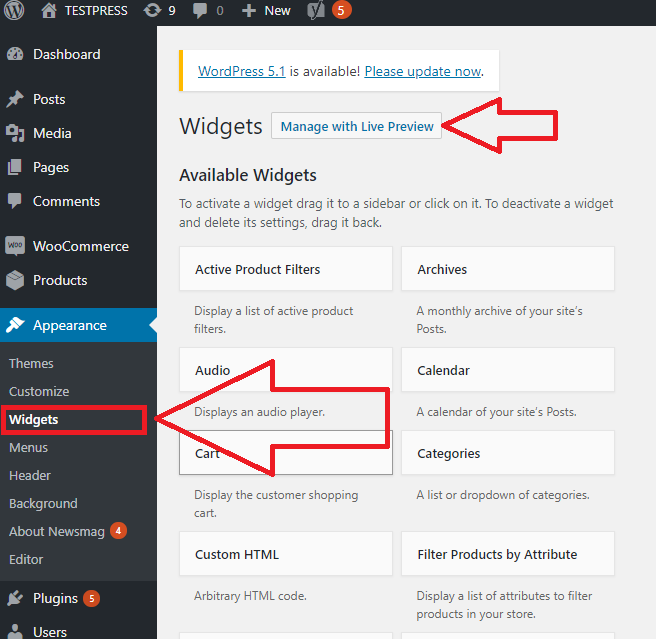
Stylesheets are files that control how your site looks. They have a `.css` extension. You can find them in the WordPress dashboard. Go to Appearance, then click Editor. Look for files named `style.css`. These are your theme’s stylesheets. Open them to make changes. Always keep a backup before editing.
Edit the stylesheets to change your site’s look. You can change colors, fonts, and sizes. For example, to change font color, find `color`. Then, change its value. Use a color code like `#ff0000`. To make text bigger, look for `font-size`. Change its number to make it larger or smaller. Try small changes first. See how they affect your site. This helps you learn and avoid mistakes.
Credit: learnwoo.com
Using Child Themes
A child theme is like a small helper. It keeps the main theme safe. You can make changes without breaking the original theme. Start by creating a new folder. Name it after your theme with “-child” at the end.
Inside the folder, make a style.css file. Write a few lines in it. These lines tell WordPress about your child theme. Next, make a functions.php file. This file helps the child theme use the parent’s features.
Child themes offer many benefits. They protect the main theme. You can update the main theme without losing changes. They make it easy to try new designs. If you make a mistake, the main theme is still safe.
Child themes are great for learning. You can play with code. See what happens. This is a fun way to learn about WordPress.
Incorporating Custom Functions
The functions.php file is important in a WordPress theme. It acts like a plugin. You can add new functions to your site. Always use a child theme when editing. This keeps your changes safe during updates. Copy the functions.php file into your child theme. Add your custom code there. Remember to save changes. Check your site for errors. A small mistake can break your site.
Custom hooks help add features to your theme. WordPress uses actions and filters. Use actions to add new code. Use filters to change existing code. You can add hooks in the functions.php file. Keep track of your hooks. This helps in future updates. Test your changes carefully. This ensures your site works well. Hooks make your site unique.
Testing Your Changes
After editing, always check your theme for errors. Use the browser’s developer tools. They help spot mistakes in the code. Fix any errors you find. This ensures your website runs smoothly. Errors can make your site slow or broken. It’s important to catch them early.
Make sure your theme looks good on all devices. Test it on phones, tablets, and computers. Check if images and text fit well. Responsiveness means it adjusts to different screen sizes. A good theme should work everywhere. Users like it when sites are easy to read. This keeps them happy and engaged.
Deploying Updates
Use FTP to upload changes to your website. First, connect to the server with an FTP client. Enter the server’s address, your username, and password. Once connected, find the WordPress theme folder. Drag and drop your edited files into this folder. Make sure the files go to the right place. This helps keep your site working well. Always back up your site before you upload changes. This way, you can restore it if something goes wrong.
Use version control to keep track of changes. Tools like Git can help. They save each change you make. This way, you can go back to old versions if needed. Always write clear comments when you save changes. This helps you remember what each change did. Share your code with others if you work in a team. They can see your changes and help improve them. Remember to back up your code often.
Credit: 10web.io
Frequently Asked Questions
How Can I Access WordPress Theme Files?
To access WordPress theme files, log in to your WordPress dashboard. Navigate to Appearance > Theme Editor. Here, you can view and edit the theme’s source code. Always back up files before making changes. Alternatively, use an FTP client like FileZilla for advanced access.
Is It Safe To Edit WordPress Theme Code?
Editing theme code can be risky if done incorrectly. Always back up your site before making changes. Consider using a child theme to avoid losing customizations during updates. If unsure, consult a professional or use plugins for minor tweaks.
What Tools Do I Need To Edit WordPress Code?
To edit WordPress code, use a text editor like Notepad++ or Sublime Text. Access your files via the WordPress dashboard or an FTP client. Consider using browser developer tools for live previews. Always back up your site before making edits.
How Do I Create A Child Theme?
To create a child theme, create a new folder in your themes directory. Add a style. css file with template details and an @import rule. Include a functions. php file for additional customizations. Activate the child theme in your WordPress dashboard under Appearance > Themes.
Conclusion
Editing WordPress theme code empowers your website creativity. You gain control over design. Customization enhances user experience. Start with small changes. Gradually, build your skills and confidence. Always back up your theme first. Mistakes can happen. Use child themes to protect original code.
Online resources can help with tricky parts. Practice makes perfect. Don’t shy away from experimenting. Learn from each edit you make. Your website will reflect your unique style. Keep exploring and improving. Soon, editing code will feel second nature. Enjoy crafting your WordPress site to match your vision.


