
You’re about to unlock the secret sauce to transforming your WordPress website from ordinary to extraordinary. Imagine having the power to customize your site to reflect your brand’s unique personality.
Wouldn’t that be incredible? Extending a WordPress theme allows you to do just that. Whether you want to add new features, tweak the design, or improve functionality, knowing how to extend a theme can give you the edge over competitors.
You might think it’s a daunting task, but with the right guidance, it’s easier than you imagine. Get ready to dive into a world where your website becomes a true reflection of your vision. Stay with us, and we’ll guide you step-by-step to make your WordPress theme uniquely yours.
Choosing The Right Theme
Start by listing what your site needs. Do you need a blog? Or maybe an online store? Write down everything. This helps you pick a theme that fits. A theme should match your site’s purpose. A simple blog theme might not work for a store.
Check if the theme works with your plugins. Some themes might not support all plugins. Make sure the theme is compatible with your tools. This saves time and trouble later. Also, see if the theme updates often. Regular updates keep your site safe and fast.
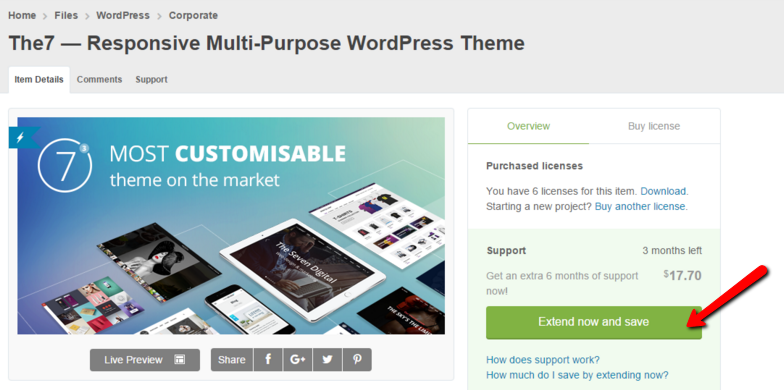
Credit: support.dream-theme.com
Child Theme Creation
A child theme helps you change a WordPress theme without losing updates. Start with a folder. Name it after your main theme. Create a style.css file inside. Add a line to link it to the main theme. Next, make a functions.php file. This file lets you add new features. Remember to include the parent theme’s styles. Use a code line for this. Check the WordPress dashboard. Activate your child theme. Now, you are ready to make changes without worry.
Change styles by editing the style.css file. Add your custom styles here. Want to change how a site works? Edit the functions.php file. Add PHP code snippets. These snippets can add new features. Be careful with changes. Always test them first. Use the WordPress admin area. This will help you see your changes live. By using these files, you keep your site updated and fresh.
Customizing Theme Files
Editing template files lets you change the look of your site. You can find these files in the theme folder. Make a backup before you start. This way you can fix mistakes easily. Use a plain text editor like Notepad or a code editor like VS Code. Open the file you want to change. Look for the part you want to edit. Make your changes and save the file. Refresh your site to see the changes. If something goes wrong, use the backup to restore the file.
Custom hooks help you add new features to your theme. They are simple to use. First, find the right place for your hook. This is done in the theme files. Add your code using add_action or add_filter functions. These functions help the hooks work. Save your changes and test your site. If the new feature works, you did it right! Use hooks to add widgets or change layouts easily.
Adding New Features
Plugins add extra features to your site. They are easy to use. First, find a plugin you like. Next, install it. Activate the plugin. Watch your site grow. Plugins can improve speed. They can also add new tools. Choose plugins wisely. Some may slow your site. Always check plugin reviews. Keep plugins updated. Updates fix bugs and add features. Your site will be safer and faster.
Custom post types help organize content. They make your site unique. You can create posts for different topics. Use them for events or products. Custom taxonomies group your posts. They sort content by category. This helps users find information. Use tools to create these types. Plugins can help too. Custom posts and taxonomies make sites special. They improve user experience. Visitors find what they need easily.
Enhancing Design Elements
Change colors in your theme with simple CSS tweaks. This makes your site unique. Adjust the font size for better readability. Use padding to space elements nicely. Play with margins to position items well. Don’t forget about line height. It helps with text clarity. CSS is fun and easy to learn.
Use advanced tools to improve your design. Install plugins for more features. These help with layout changes. Try page builders. They make design easy. Some tools offer drag-and-drop features. This is great for beginners. Experiment with different layouts. Find what works best for your site. Enjoy the process and see what you can create!

Credit: www.reddit.com
Performance Optimization
Enhancing a WordPress theme boosts site performance and user experience. Utilize child themes to customize without altering the original. Implementing efficient code and optimizing images further improves speed and functionality.
Improving Loading Speed
Improving loading speed is important for user happiness. Fast websites make users stay longer. First, compress images to reduce their size. Smaller images load quicker. Use tools like TinyPNG for this task. Next, enable browser caching. This saves parts of the site on the user’s computer. So, the site loads faster next time. Also, use a Content Delivery Network (CDN). A CDN helps deliver your site faster. It uses servers close to the user. Lastly, minimize CSS and JavaScript files. Smaller files load faster, improving speed.
Reducing Code Bloat
Reducing code bloat helps websites work better. Start by removing unused plugins. Too many plugins slow down the site. Also, clean up your database. Delete old files and data. This helps the site run smoother. Another tip is to use a lightweight theme. Heavy themes add extra code. Light themes are faster. Lastly, keep your code tidy and organized. Neat code is easier to read and faster to load.
Ensuring Security
Always update your themes for better security. New updates fix bugs and security issues. Back up your site before an update. This way, you can restore if something goes wrong. Use a child theme for custom changes. This keeps your changes safe during updates. Avoid editing the original theme files directly. It can break your site. Update themes from trusted sources only. This keeps your site safe from harmful code.
Keep your custom code secure. Use a child theme for custom changes. This keeps changes separate and safe. Test code in a safe environment before using it live. This avoids errors on your main site. Always back up your code. This helps in restoring if there are issues. Avoid using code from unknown sources. It may harm your site. Use tools to check code for security risks. This keeps your site safe.

Credit: www.youtube.com
Testing And Debugging
Sometimes, themes don’t work as expected. Fixing these problems can be tricky. Start by checking your theme settings. Ensure all plugins are updated. Conflicts often cause issues. Look at your error logs. Error logs help find problems fast. If you see a problem, search online. Many people have similar issues. Solutions might be already shared.
Debugging tools are very helpful. Use WP_DEBUG in WordPress. It shows errors in the code. Errors give clues to fix issues. Another tool is Query Monitor. It checks database queries. Slow queries can make the site slow. You can also use PHP Error Log. It records PHP errors. PHP errors help in pinpointing bugs.
Frequently Asked Questions
How Do I Customize A WordPress Theme?
Customizing a WordPress theme involves using the WordPress Customizer or editing theme files. You can change colors, fonts, and layouts via the Customizer. For advanced changes, use a child theme to safely modify code without losing updates. Always back up your theme before making any changes.
Can I Extend A WordPress Theme With Plugins?
Yes, extending a WordPress theme with plugins is common. Plugins add functionality like contact forms, SEO optimization, or social media integration. Choose plugins that are compatible with your theme to ensure smooth performance. Always check plugin ratings and reviews before installation.
Is It Safe To Modify WordPress Theme Files?
Modifying WordPress theme files can be risky if not done properly. Use a child theme to make changes safely. This way, your modifications remain intact during theme updates. Always back up your website before making any file changes to prevent data loss.
What Tools Help Extend A WordPress Theme?
Several tools help extend a WordPress theme effectively. Use page builders like Elementor or Beaver Builder for design flexibility. The WordPress Customizer aids in visual adjustments. Code editors like Visual Studio Code help in manual coding. Utilize these tools to enhance your theme’s functionality and appearance.
Conclusion
Extending a WordPress theme is simpler than it seems. Start small. Use child themes to safely modify your design. Plugins offer easy ways to add features. Experiment with custom CSS for style tweaks. Keep backups to avoid losing changes. Follow tutorials for guidance and inspiration.
Practice makes perfect. Your website can reflect your creativity with extended themes. Try different approaches. Learn from mistakes. Enjoy the process. Soon, your site will stand out from the crowd. Remember, patience and persistence are key. Extend your theme, enhance your site, and watch your online presence grow.


