
Have you ever wondered how you can host web pages on Google Drive without spending a dime on web hosting services? You’re not alone.
Many people are looking for cost-effective ways to share their creative projects, portfolios, or personal websites without the hassle of traditional hosting platforms. Imagine having the power to showcase your work or ideas to the world with just a few clicks, all while using a tool you’re probably already familiar with: Google Drive.
By the end of this article, you’ll learn how simple it is to turn Google Drive into your personal web hosting service. You’ll discover the steps to make your web pages go live and reach your audience effortlessly. Whether you’re a budding developer, a creative enthusiast, or someone curious about digital possibilities, this guide will open up new avenues for you to explore. Ready to dive in and unlock the potential of Google Drive as your web hosting partner? Let’s get started!

Credit: ecanarys.com
Setting Up Google Drive
Start by creating a Google Account. It’s free and easy. Go to the Google website. Click on “Sign Up” or “Create Account.” Fill in your details like name and email. Choose a strong password. Accept the terms and conditions. Now, you have a Google Account!
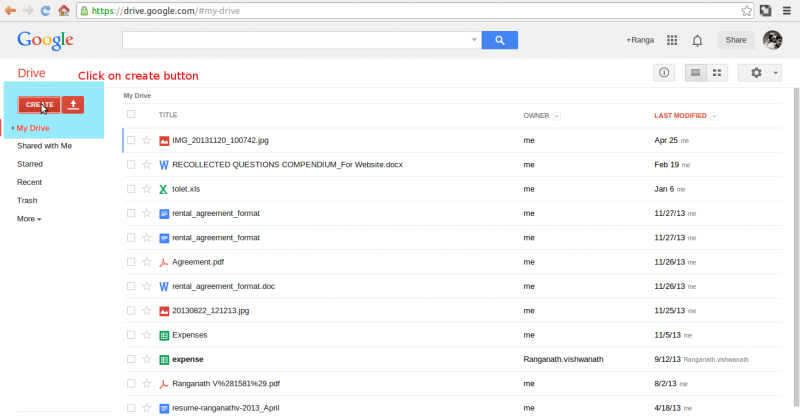
Go to drive.google.com. Log in with your Google Account. Once logged in, you see your Google Drive. It is like a big online folder. You can store files here. It’s safe and secure. You can access it from any device. Just need the internet.
Credit: ecanarys.com
Preparing Your Web Files
First, gather your web files in one folder. Name this folder clearly, like “MyWebsite”. Inside, create separate folders for HTML, CSS, and JavaScript. This keeps everything tidy. Place all HTML files in the HTML folder. Add your CSS files to the CSS folder. Put JavaScript files in the JavaScript folder. Keeping files organized helps you find them easily.
It’s smart to compress your files before uploading. Use a zip tool to make your files smaller. This saves space and speeds up the upload process. Select your main folder, right-click, and choose “Compress”. This creates a zip file of your folder. Name the zip file so you remember it easily. Now, your web files are ready for upload to Google Drive.
Uploading Files To Google Drive
Open your Google Drive. Click on the New button. Choose File upload. Select the files for your web page. Wait for the upload to finish. Once done, you will see your files in Google Drive.
Right-click your uploaded file. Select Share. Click on Change to anyone with the link. Now, anyone can view your file. This step is important. It ensures everyone can see your web page. Double-check the permissions. Make sure they are set to Anyone with the link.
Making Your Web Page Public
To make your web page public, start by uploading the HTML file to Google Drive. Open the file and click the “Share” option. Set the file’s visibility to “Public on the web”. This makes your web page accessible to anyone.
Generating A Shareable Link
After setting the visibility, a link will be generated. You can copy this shareable link to share your web page. Ensure the link is set to “Anyone with the link” to access it.
Publishing Settings In Google Drive
Check the publishing settings in Google Drive. Navigate to the file and confirm it is set to “Public”. This ensures the page is visible to everyone. Adjust settings if needed for privacy.
Accessing Your Hosted Web Page
To see your hosted web page, copy the Google Drive link. Paste it in your browser’s address bar. Press enter and your web page should appear. This link allows others to view your page. Ensure the link is public for everyone to see. You can share this link with friends and family.
Testing The Web Page Link
Test the link by opening it in different browsers. Check if all parts of the page load correctly. Try accessing the link from different devices. This ensures your web page works everywhere. Look for any missing images or broken links. Make sure every link on your page works.
Troubleshooting Common Issues
If your page does not load, check the link again. Ensure the permissions are set to public. Look at the file path for errors. Clear your browser cache and try again. If images do not show, verify their paths. Ensure all files are in the same folder on Google Drive. If the page is still not visible, consider re-uploading files.
Best Practices For Hosting
Google Drive allows hosting web pages with ease. Upload HTML files to Google Drive and enable sharing settings. Access the page through the provided URL link.
Maintaining Web Files
Keep web files organized in folders. Name folders clearly. Use simple names. Avoid special characters. Regularly check file versions. Ensure files are up-to-date. Backup important files. Store backups safely. Update files as needed. Reduce file sizes. Small files load faster. Compress images and videos. Ensure files are accessible. Test file accessibility often. Organized files are easy to manage.
Ensuring Security And Privacy
Secure files with strong passwords. Use Google Drive’s sharing settings. Limit file access. Share files with trusted people. Avoid sharing links publicly. Monitor file access. Check who views or edits. Enable two-step verification. Protect accounts with extra security. Keep personal information private. Avoid storing sensitive data. Encrypt files if needed. Regularly review security settings. Ensure settings are updated.

Credit: overdrive.io
Frequently Asked Questions
Can I Host A Webpage On Google Drive?
No, you cannot host a webpage directly on Google Drive. Google discontinued this feature in 2016. Use Google Sites or other web hosting services for webpage hosting.
Is Google Web Hosting Free?
Google offers free hosting through Firebase Hosting for small projects and static websites. For larger sites, Google Cloud Platform provides paid hosting services with advanced features. Evaluate your needs to choose the appropriate service.
Can I Use My Google Drive As A Server?
Google Drive can store and share files, but it isn’t designed to function as a server. You can host static websites using third-party tools, but it’s not suitable for dynamic server operations. For server-like functionality, consider using Google Cloud services.
How To Create A Website In Google Drive?
To create a website in Google Drive, upload your HTML files. Share the main HTML file publicly. Enable “Anyone with the link” access. Copy the file’s URL and replace “edit” with “view” for your website link. Use this link to share your website with others.
Conclusion
Hosting web pages on Google Drive is simple. Follow clear steps, and you’re set. Google Drive offers easy access and sharing. It’s a handy tool for beginners. No need for complex setups. Just upload your files and share the link.
Perfect for small projects or personal sites. Google Drive provides free storage. Secure and reliable too. Ideal for those with basic web needs. Explore and utilize its features. Start hosting today. Enjoy the benefits of simplicity and efficiency. Keep it straightforward.
Your web pages deserve it.


