
Are you ready to unlock the potential of your website? Developing a custom theme in WordPress can transform your site into a unique and powerful platform tailored just for you.
Imagine having total control over the look and feel of your site, perfectly aligning it with your brand and vision. This guide will walk you through the steps to create a theme that not only stands out but also captivates your audience.
Whether you’re a seasoned developer or a curious beginner, you’ll find that building your own WordPress theme is not as daunting as it seems. Dive in to discover how you can effortlessly craft a theme that enhances user experience and drives engagement, making your online presence truly unforgettable.
Choosing The Right Tools
Picking the right tools is important. You need a good code editor. It helps you write and edit code. Some popular ones are Visual Studio Code and Sublime Text. They are easy to use and have many features.
A local development environment is also needed. It lets you build and test your theme on your computer. Tools like XAMPP and Local by Flywheel are helpful. They make setting up a local server easy.
Code editors are like magic pens for coding. They let you write HTML, CSS, and PHP. With these, you can create amazing themes. Visual Studio Code is a favorite for many. It is free and has lots of plugins. These plugins add more power to your coding.
Testing themes on your computer is safe. A local environment helps with that. XAMPP is a great tool for this. It mimics a web server on your PC. This way, you can try things without going live. It saves time and prevents errors.
Credit: www.wpzoom.com
Setting Up A Development Environment
Create a WordPress theme by setting up a development environment. Install necessary tools like a code editor and local server. Customize themes using HTML, CSS, and PHP for unique designs.
Installing WordPress Locally
Start by downloading WordPress files. Use XAMPP or MAMP to set up a local server. This lets you run WordPress on your computer. Open the server and create a folder for WordPress. Place WordPress files inside this folder. Open your browser and type localhost/your-folder-name. Follow installation steps.
Configuring The Database
Open phpMyAdmin in your browser. Create a new database. Name it something easy, like wordpress_db. Write down the name. You will need it later. Connect WordPress to this database. Use wp-config.php file. Fill in database name, user, and password. Save the file.
Testing Server Setup
Check if WordPress is working. Open localhost/your-folder-name in your browser again. See if the WordPress site loads. If it does, your setup is correct. You can start developing your theme. Make sure server software is running. Check for any errors. Fix them before moving on.
Understanding WordPress Theme Structure
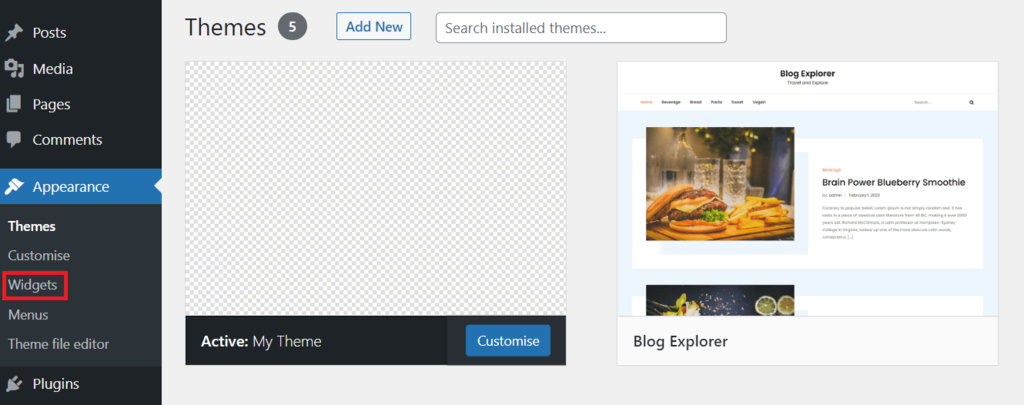
Every WordPress theme has a main folder. This folder holds all theme files. Inside, there are style.css and functions.php. These files control design and functions. Themes also use folders for images and templates. Each folder keeps things organized. This structure helps developers find files easily. Knowing where files are helps make changes quickly.
WordPress uses a template hierarchy. It decides which file to use for each page. The index.php is a fallback for missing files. Specific templates like single.php or page.php serve different needs. The hierarchy allows custom page designs. Understanding this helps developers make unique pages.
Every theme has core files. style.css sets the theme’s style. index.php is the main template file. functions.php adds extra features. These files are important for every theme. They let developers create and customize themes. Knowing these files helps in theme development.
Credit: www.hostinger.com
Creating A Basic Theme
The style.css file is very important. It tells WordPress about your theme. Start by adding a comment at the top. This includes the theme name, version, and author. Then, add your CSS. The CSS styles your theme. Use simple styles to make it look good. Keep your styles clean and neat. It helps later when you add more styles.
The index.php file is the main file. It shows your content. Start by using HTML structure. Add the WordPress loop. This loop shows posts and pages. Use PHP tags to start the loop. Make sure to close the loop too. This file is like the heart of your theme.
The header.php file contains the top part. This includes the logo and menu. Use HTML to add these elements. The footer.php file has the bottom part. This is where you add copyright and links. Both files help organize your theme. They make changes easier. Each change updates all pages at once.
Customizing Theme Functions
Customizing theme functions is key to developing a WordPress theme. It allows unique features tailored to user needs. Modify functions. php to enhance site functionality and design.
Functions.php Overview
The functions.php file is crucial in a WordPress theme. It allows you to add custom functions to your theme. This file can modify default behaviors and add new features. Every theme has its own functions.php file. It’s like a toolbox for developers. You can use it to make your theme unique. Adding code snippets here can enhance your theme’s functionality. Always back up your theme before editing this file.
Enqueuing Scripts And Styles
Enqueuing is important for loading scripts and styles correctly. This process makes sure files are loaded in the right order. Use wp_enqueue_script and wp_enqueue_style functions. This ensures compatibility with other plugins and themes. Always register scripts and styles before enqueuing them. This helps avoid conflicts. It’s a good practice to enqueue them in the functions.php file.
Adding Custom Theme Support
Themes can support various features like custom logos and menus. Use add_theme_support to enable these features. This function lets you declare support for specific features. Adding custom theme support can enhance user experience. It makes your theme more flexible and powerful. Always test new features after adding them.
Designing Theme Layouts
CSS helps make your theme look nice. It adds colors and styles. Use CSS classes to style many parts at once. This saves time. Make your text bold or italic with CSS. Change font size and colors. CSS makes your website look neat and fun.
Responsive design helps your site fit all screens. Big or small, it will look great. Use media queries in CSS. These queries change styles based on screen size. Users can view your site on phones, tablets, and computers. Everyone will have a good experience. It is easy to understand.
Flexbox and Grid help arrange items neatly. Flexbox lines up items in a row or column. Grid is like a table. It lets you put items in specific spots. Both are easy to use. They help make complex layouts simple. Your site will look organized and clean.
Adding Dynamic Content
The Loop is key in WordPress. It helps show posts. You can add it to your theme files. It displays posts one by one. This makes your site look dynamic. Use it to show blog posts or news updates. This is how WordPress works with content.
Create Custom Post Types to add different content. Not just posts or pages. This allows for more variety. You can create portfolios or testimonials. It’s easy to set up. WordPress offers tools for this. Custom Post Types make your site more interesting.
Custom Fields add extra info to your posts. They help display unique content. You can add details like author names or dates. It makes your posts special. Custom Fields are simple to use. They enhance the look of your site.
Enhancing With Plugins
Plugins enhance WordPress theme development by adding custom features. They simplify tasks, improve functionality, and help tailor themes to user needs. Efficient plugin use ensures themes are versatile and user-friendly.
Choosing Compatible Plugins
Select plugins that fit your theme. Check ratings and reviews. Read the plugin description carefully. Ensure the plugin is updated. Look for compatibility with your WordPress version. Consider plugins that are easy to use.
Integrating Plugin Features
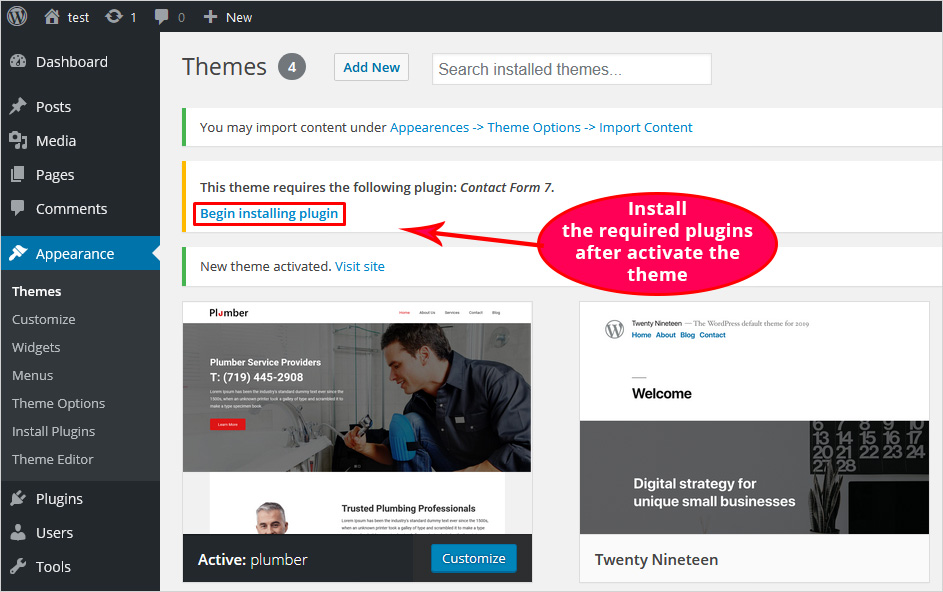
Install the plugin from the WordPress dashboard. Activate it to start using. Configure settings to match your theme. Explore features and options. Customize as needed. Make sure it blends well with your design.
Testing Plugin Functionality
Check if the plugin works well. Look for any errors. Test on different devices. Ensure it does not slow down your site. Verify that it adds value to your theme. Keep an eye on user feedback.
Testing And Debugging
Debugging tools help find errors. They make fixing easy. Use them in WordPress. WP Debug is popular. It shows errors. Errors are easy to spot. Fix them quickly. Plugins can help too. Query Monitor is one. It checks database queries. This finds slow parts. Fix them to speed up your site. Log files are helpful. They record errors. Check them often. This keeps your site safe.
Websites need to work on all browsers. Chrome, Firefox, and Safari are popular. Check your site on each one. Some things look different. Fix them for all browsers. Use tools to help. BrowserStack is one. It tests websites on many browsers. This finds problems. Fix them for better compatibility. Keep checking regularly. Browsers update often. Your site must stay compatible.
Many people use phones to browse. Sites must work well on phones. Responsive design helps with this. It changes site layout for screens. Test your site on phones. Check layout and speed. Use tools to help. Google Mobile-Friendly Test is good. It checks site performance on phones. Fix issues it finds. Keep your site fast and easy to use. Users will be happy.
Deploying The Theme
Ensure your theme is error-free. Test it thoroughly on different browsers. Use tools to check compatibility. Validate your code with HTML and CSS validators. Confirm all features work correctly. Optimize images and scripts for faster loading. Make sure the layout looks good on mobile devices.
Choose a reliable hosting service. Set up your domain and hosting account. Use FTP or your hosting panel to upload files. Check database connections. Set permissions for files and folders. Verify if everything displays correctly. Backup your theme files regularly.
Regularly update your theme for security. Fix bugs and add new features. Stay updated with WordPress changes. Monitor user feedback to improve design. Keep an eye on performance issues. Use analytics to understand user behavior. Backup before any major update.
Credit: blog.templatetoaster.com
Frequently Asked Questions
What Is A WordPress Theme?
A WordPress theme is a collection of templates and stylesheets used to define the appearance and display of a WordPress-powered website. Themes can change the design, layout, and features of your site, allowing you to customize it to your liking without altering the core software.
How Do I Start Developing A Theme?
Start by setting up a local development environment. Download WordPress and create a new theme folder in the “wp-content/themes” directory. Create essential files like “style. css” and “index. php”. Familiarize yourself with WordPress coding standards and theme development best practices to ensure quality and compatibility.
Can I Use A Starter Theme?
Yes, using a starter theme can speed up development. Starter themes provide a solid foundation with basic files and structure. They help you focus on customization and functionality, saving time and effort. Popular starter themes include Underscores, Sage, and FoundationPress.
What Tools Are Needed For Theme Development?
Essential tools include a code editor like Visual Studio Code, a local server environment like XAMPP or MAMP, and a browser for testing. Familiarity with HTML, CSS, PHP, and JavaScript is beneficial. Version control software like Git can help manage changes efficiently.
Conclusion
Creating a WordPress theme can feel challenging, but it’s rewarding. Start with planning your design and functionality. Use templates to guide your structure. Customize with HTML, CSS, and PHP. Test your theme on different devices. Ensure it’s responsive and fast.
Don’t forget SEO best practices. Search engines love fast and mobile-friendly sites. Keep learning and updating your skills. WordPress themes evolve, and so should your knowledge. Have patience and practice regularly. It takes time to build expertise. Soon, you’ll craft beautiful and functional themes with confidence.
Your journey in theme development begins now. Enjoy creating!


