
Imagine visiting a website and being instantly captivated by a stunning visual display that grabs your attention and guides you through its content. That’s the magic of sliders in WordPress themes.
If you’ve ever wondered how to create one for your own site, you’re in the right place. Creating a slider isn’t just about adding a fancy feature; it’s about enhancing the visitor experience, making your site more engaging, and ultimately driving more interaction.
This guide will walk you through the simple steps of creating a slider in WordPress, ensuring that your website stands out and leaves a lasting impression on every visitor. Ready to transform your site’s visual appeal? Let’s dive in!
Credit: www.wonderplugin.com
Choosing The Right Slider Plugin
Selecting the right slider plugin simplifies creating sliders in WordPress themes. Ensure your choice offers easy customization and responsive design. This enhances user experience across devices.
Popular Plugins
Many plugins can help create a slider. Some are very popular. These plugins are easy to use and are loved by many. They offer great features and are often updated. This ensures they work well with your theme.
Slider Revolution is one of these plugins. It has many options. With it, you can make your slider look just right. MetaSlider is another good option. It is simple and has a nice interface. This plugin can help beginners a lot.
Criteria For Selection
There are things to check before picking a plugin. Ease of use is important. A plugin should not be hard to understand. Compatibility with your theme is also key. It should work well with other plugins too. Support and updates matter. Choose a plugin that gets regular updates. This keeps your site safe and running smoothly.
Installing The Slider Plugin
Accessing the Plugin Repository is the first step. Open your WordPress dashboard. Look for “Plugins” on the side menu. Click on “Add New.” This takes you to the plugin repository. It’s like a store with many plugins.
Plugin Installation Steps
- Search for “Slider Plugin” in the search box.
- Find a plugin you like. Read its details and reviews.
- Click “Install Now” button for the chosen plugin.
- After installation, click “Activate” to use the plugin.
- Visit your plugins page to see your new slider.
Remember: Plugins can add features to your site. Choose wisely for a good slider. Check compatibility with your theme before installing.
Configuring Slider Settings
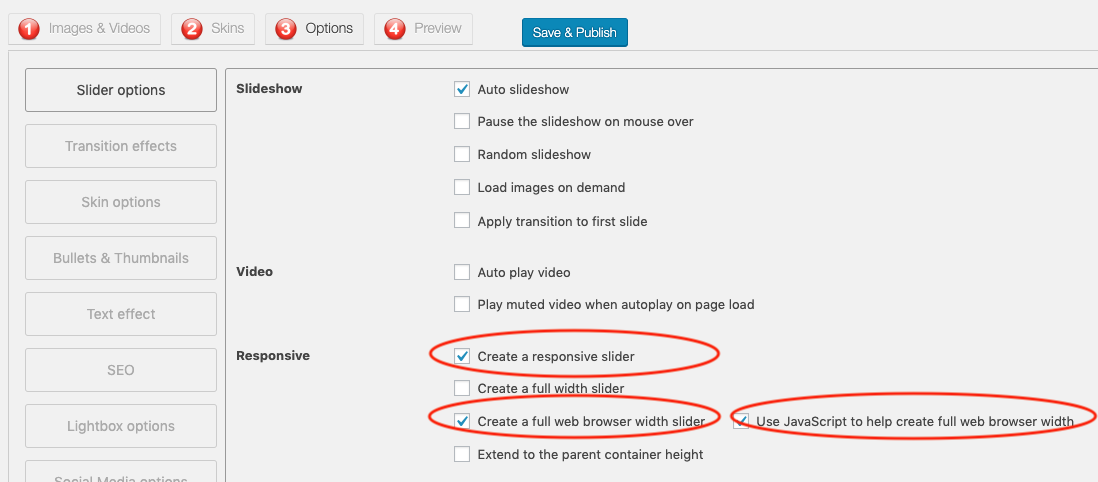
Explore the steps to configure slider settings in a WordPress theme. Adjust size, transition effects, and timing for a personalized display. Ensure visuals captivate your audience and enhance user experience.
Basic Configuration Options
To set up a slider, begin with the basic settings. Choose the desired slider type. Options include carousel, fade, or slide. Set the slider size to fit the theme. Adjust the width and height as needed. Add your images to the slider. Use images of high quality. Select the transition speed. This controls how fast slides change. Enable or disable navigation arrows. These help users move through slides. Add a caption if needed. This provides extra information.
Advanced Settings
Advanced settings allow more control. Set the slider’s autoplay option. Decide if it starts automatically. Choose the loop setting for endless slides. Adjust the pause on hover. This stops slides when hovered over. Set the delay time for each slide. Use custom CSS for unique styles. Enable responsive settings for mobile devices. This makes the slider look good on phones and tablets.
Adding Slides To The Slider
Easily add slides to your WordPress theme’s slider by navigating to the slider settings. Select ‘Add New Slide,’ upload your images, and set your desired order. Customize your captions and links for each slide to enhance user engagement. Save changes to update your slider display.
Uploading Images
First, find the upload button in your WordPress dashboard. Click it to choose images from your computer. Make sure your images are clear and bright. This makes your slider look nice. After selecting the images, press the “upload” button. Wait for them to load completely. You will see a preview of the images once they are uploaded. Make sure they are in the right order.
Setting Slide Titles And Descriptions
Each slide needs a title and a short description. Click on the image to add them. Use simple words for both. The title should tell what the image is about. The description can give more details. Keep them short and easy to read. This helps everyone understand your slides better. Double-check your text for mistakes before saving. Finally, save your changes to see them on the slider.
Customizing Slider Appearance
Creating sliders in WordPress themes involves customizing appearance for visual appeal. Adjust colors, fonts, and transitions to match your brand. Interactive elements can enhance user experience and engagement on your site.
Choosing Slide Transition Effects
Slide transitions make sliders fun. Choose effects like fade or slide. Fade is smooth. Slide moves left or right. Kids find it magical. Effects change how slides appear. Each effect feels different. Some effects are quick. Others are gentle. Effects keep viewers engaged. Select based on theme style. Try different transitions. See what looks best.
Adjusting Slider Dimensions
Size matters for sliders. Dimensions decide how big sliders are. Big sliders show more details. Small sliders fit neatly in spaces. Adjust width and height. Fit slider to your page. Make sure it’s visible. Too big can be overwhelming. Too small might miss details. Play with sizes. Test what looks nice. Resize for different screens. Make it work on phones and computers.
Integrating Slider Into WordPress Theme
Many WordPress plugins offer shortcodes. These are special codes. Use them to add sliders easily. Place the shortcode inside a page or post. First, copy the shortcode. Then, paste it where you want the slider. This makes adding sliders simple.
Sliders can also be added to template files. This requires some coding. Locate the template file where you want the slider. Use the PHP function do_shortcode(). This function lets you include shortcodes in PHP files. Here is an example:
php echo do_shortcode('[your-slider-shortcode]'); ?
Place this code in the desired location. Sliders will appear on the page. This method gives you more control. Choose the exact spot for your slider.
Testing And Troubleshooting
Creating a slider in a WordPress theme involves testing and troubleshooting for smooth functionality. Ensure all images load correctly, and check for responsive design. Debugging any errors is crucial to enhance user experience and maintain visual appeal.
Checking Responsiveness
Sliders must work on all devices. Test on phones and tablets. Check if images look good on small screens. Text should be readable. Buttons must be easy to click. Make sure slider does not break. A broken slider looks bad. Fix it fast.
Common Issues And Fixes
Sliders sometimes show blank images. Check image links. Fix broken links. Slow sliders can be annoying. Reduce image sizes. Large images take time to load. Use fewer animations. Too many animations slow things down. Sliders might not show on some browsers. Update your browser. Old browsers have issues. Keep plugins updated. Updates fix bugs.

Credit: www.ovationthemes.com
Optimizing Slider Performance
Creating sliders in WordPress themes can enhance website visuals. Focus on optimizing slider performance for faster load times. Use lightweight images and efficient coding practices to ensure smooth transitions and better user experience.
Image Optimization Tips
Images can slow down your slider. Make them smaller to improve speed. Use tools like TinyPNG or JPEGmini. They compress images without losing quality. Choose the right format. JPEG is good for photos. PNG is best for graphics with text. Consider using SVG for icons. It scales well and loads fast. Keep image dimensions consistent. This helps the slider run smoothly. Avoid high-resolution images. They take longer to load.
Improving Load Times
Fast load times are crucial. Use lazy loading for images. It loads images when needed. Minimize HTTP requests. Combine images into sprites. This reduces server calls. Use a content delivery network (CDN). It distributes images faster. Enable browser caching. It stores data locally. This decreases load times. Optimize your server response time. Check server performance regularly. Use plugins wisely. Too many can slow down your site.
Credit: www.wonderplugin.com
Frequently Asked Questions
How Do I Add A Slider To WordPress?
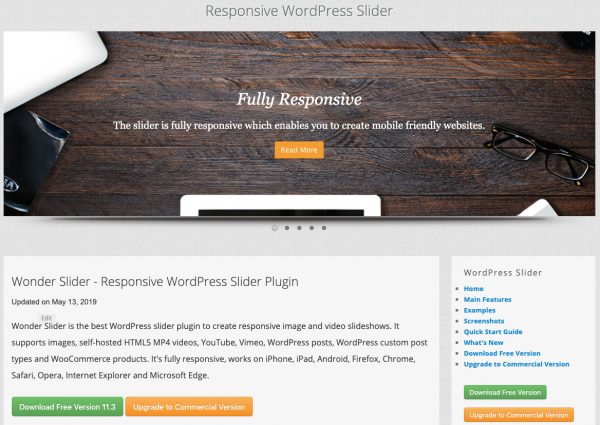
To add a slider, install a slider plugin from the WordPress repository. Activate the plugin and create a new slider by adding images. Customize the settings to match your theme’s design. Use the provided shortcode or widget to display the slider on your desired page or post.
What Are The Best Slider Plugins For WordPress?
Popular slider plugins include Slider Revolution, Soliloquy, and MetaSlider. These plugins offer responsive designs and various customization options. They are user-friendly, making it easy for beginners to create sliders. Each plugin provides unique features, so choose one that best fits your needs and design preferences.
Can I Create A Slider Without A Plugin?
Yes, you can create a slider without a plugin by adding custom code. Use HTML, CSS, and JavaScript to build the slider manually. This approach requires coding knowledge and is less user-friendly. It’s best for developers looking for a highly customized slider solution.
How To Make WordPress Sliders Responsive?
Most slider plugins offer built-in responsive features. Ensure the slider plugin you choose supports responsive design. Adjust settings for mobile and tablet views within the plugin. Test the slider on different devices to ensure it displays correctly. Responsive sliders enhance user experience on all screen sizes.
Conclusion
Creating sliders in WordPress themes is straightforward. Follow these steps for success. Choose a slider plugin that fits your needs. Install and activate it on your site. Customize settings for the perfect look. Add images and text to make it engaging.
Preview your slider before publishing. Check mobile responsiveness for a seamless experience. Sliders enhance your site’s visual appeal. They keep visitors engaged and informed. Practice these steps to create stunning sliders easily. Your WordPress site will benefit greatly from this feature.
Enjoy crafting your beautiful sliders!


