
Are you looking to switch up your WordPress website’s look and feel? Perhaps the current theme isn’t aligning with your brand anymore, or maybe you’re just ready for a change.
Deactivating your current theme might sound daunting, but it’s actually a straightforward process when you know the right steps. In this guide, we’re diving straight into how you can deactivate your current WordPress theme effortlessly. Imagine having the freedom to explore new designs, enhance your site’s functionality, and keep your audience engaged with a fresh appearance.
By the end of this article, you’ll not only know how to deactivate your current theme but also feel confident in making the switch without any hiccups. Ready to give your website the makeover it deserves? Let’s get started!
Credit: www.domain.com
Why Deactivate A WordPress Theme
Changing a theme can fix many website issues. Sometimes, a theme might slow down your site. It can also cause compatibility problems with plugins. Switching themes helps test site performance. It also ensures everything works well. Another reason is to improve design. New themes offer fresh looks and styles. They can make your site more appealing to visitors.
Deactivating can also boost security. Old themes may have vulnerabilities. These can be harmful. Updating to a new theme keeps your site safe. It’s important to ensure your site runs smoothly. Always back up before making changes.

Credit: www.accuwebhosting.com
Back Up Your WordPress Site
Backing up is very important. It protects your data from loss. Mistakes happen. Servers fail. A backup saves you from trouble. It ensures you don’t lose your site. You can recover everything easily. It gives peace of mind.
Many tools can help. UpdraftPlus is popular. It is easy to use. BackupBuddy is another option. It provides good features. Jetpack also offers backup services. These tools are reliable. They keep your data safe. You can choose any. It depends on your needs. Always check reviews first.
Accessing The WordPress Dashboard
Start by visiting your WordPress login page. Enter your username and password. Click the “Log In” button. This takes you to the Dashboard.
The Dashboard is the main screen. It shows your site’s overview. You can see posts, pages, and themes. On the left, there is a menu. Find the “Appearance” option. Click on it to manage themes. You will see your current theme here.
Switching To A Default Theme
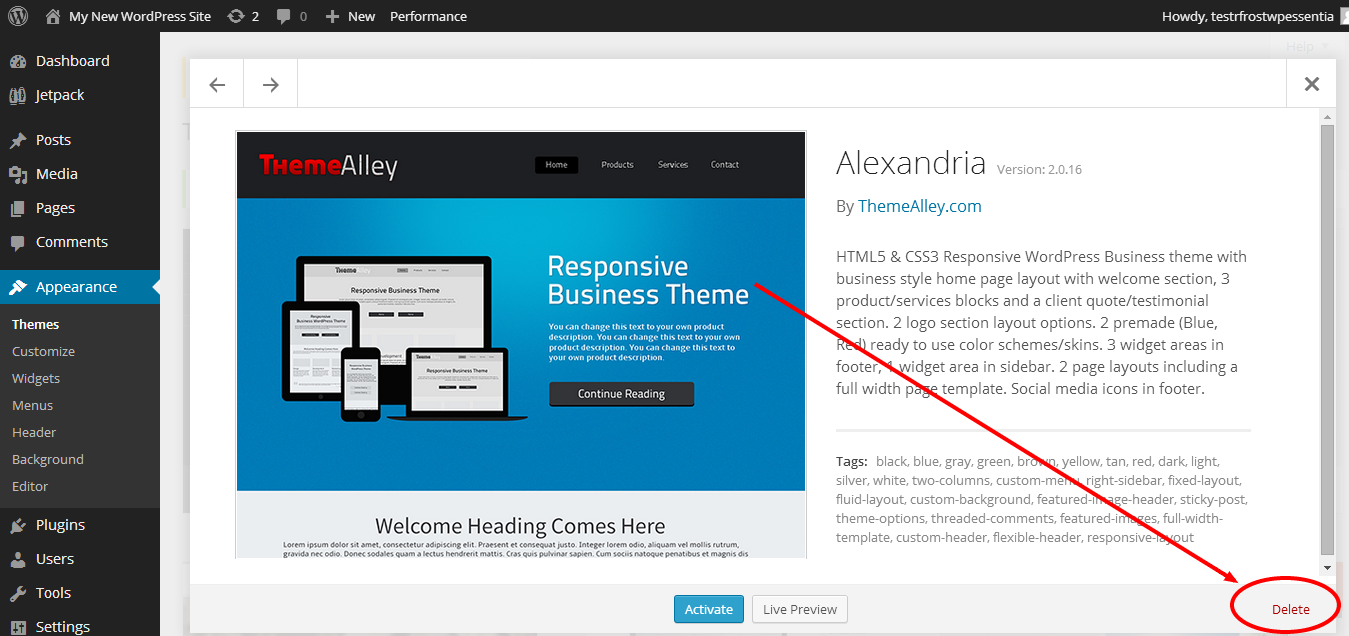
First, find the appearance menu on the left side. Click on it. A list of themes will appear. Look for the default themes. They are usually named like “Twenty Twenty-One” or “Twenty Twenty-Three”. These themes are simple and easy to use. Click on the theme you like. A preview will show how it looks. Make sure it fits your needs.
Click the activate button below the theme preview. This will make the new theme live on your site. Your old theme will be deactivated. Check your website to see the changes. Make sure everything looks good. Sometimes, you might need to adjust settings. Ensure your content appears correctly. Always keep a backup of your site. This helps if something goes wrong.
Deactivating The Current Theme Via Ftp
First, download an FTP client. FileZilla is a popular choice. Enter your server details in the FTP client. These include host, username, and password. Click “Connect” to access your server files. You will see your WordPress files. Navigate to the “wp-content” folder. This folder holds your themes.
Find the folder for your active theme. It will have the theme’s name. Right-click on the folder. Choose “Rename” from the options. Add a word like “inactive” to the folder’s name. This action deactivates the theme. WordPress will switch to a default theme. Your site will stay safe. Changes are easy to undo. Just rename the folder back.

Credit: www.wpbeginner.com
Using WordPress Cli For Deactivation
Quickly deactivate your current WordPress theme using the command line interface. Run `wp theme deactivate ` in your terminal to switch off the theme. This method offers a fast and efficient way to manage themes directly from your server.
Installing WordPress Cli
WordPress CLI is a tool. It helps manage WordPress sites. First, download and install it. Visit the WordPress CLI website. Follow the instructions there. Make sure your server supports it. It needs PHP and a Unix-like environment. Use the terminal to install. Type curl -O https://raw.githubusercontent.com/wp-cli/builds/gh-pages/phar/wp-cli.phar. Then, make it executable. Run chmod +x wp-cli.phar. Finally, move it to a path. Use sudo mv wp-cli.phar /usr/local/bin/wp. This completes the installation.
Running Deactivation Commands
Open your terminal. Navigate to your WordPress folder. Type wp theme list. This shows active themes. Note the current theme name. To deactivate, use wp theme deactivate theme-name. Replace “theme-name” with your theme. Wait for confirmation. The theme is now inactive. You can activate another theme. Use wp theme activate new-theme-name. Always check your website after changes. Ensure everything works well.
Troubleshooting Common Issues
Deactivating a WordPress theme involves navigating to the ‘Appearance’ section of the dashboard. Select ‘Themes’ and activate a different theme to deactivate the current one. This process ensures a smooth transition without disrupting your site’s functionality.
Error Messages
Seeing strange error messages? Themes can cause problems. Sometimes, they just don’t work well. Errors appear when code is not right. This can confuse users. Always check for updates. Updates can fix many errors. Try to deactivate the theme. Then check if errors disappear. Sometimes, changing the theme helps.
Theme Compatibility Problems
Themes can clash with plugins. This causes compatibility problems. Your site might not look right. Some features may not work. Always ensure themes match your WordPress version. Check plugin compatibility too. Deactivate the theme to test compatibility. If problems persist, consider changing the theme. A different theme might solve the issue.
Checking Site Functionality Post-deactivation
Explore how to deactivate your current WordPress theme smoothly. First, head to the dashboard. Then, navigate to ‘Appearance’ and select ‘Themes’. Choose an alternative theme to activate. This action ensures your site’s functionality remains intact post-deactivation. Always check site performance after making changes.
Verifying Site Appearance
After turning off a theme, the website might look different. Check each page to see if everything shows right. Some images or colors might be missing. This happens when themes have special styles. Compare the site with how it looked before. This helps spot any changes. Fix these changes by updating settings or using another theme.
Testing Features And Plugins
Plugins may not work as expected after a theme change. Test important plugins like contact forms or sliders. Some features might be part of the old theme. If they are missing, find new plugins to add them back. Check for errors on the website. This ensures everything runs smoothly. Ask for help if you can’t fix an issue.
Frequently Asked Questions
How Do I Change My WordPress Theme?
To change your WordPress theme, go to your dashboard. Navigate to ‘Appearance’ and click ‘Themes. ‘ Select ‘Activate’ on your new theme. Ensure your new theme is compatible with your plugins. Check your site after activation to confirm everything displays correctly.
Can I Deactivate A WordPress Theme?
Yes, you can deactivate a WordPress theme by activating another one. Go to ‘Appearance,’ click ‘Themes,’ and choose ‘Activate’ on a different theme. Your current theme will automatically deactivate. Always check your site’s functionality and appearance after the change.
What Happens When I Deactivate A Theme?
When you deactivate a theme, it stops being active. Your site uses the new theme you activate. Content remains unchanged but may look different. Deactivated themes are stored in your WordPress dashboard unless you delete them.
Is Deactivating A Theme Safe?
Deactivating a theme is generally safe. It doesn’t delete your content or settings. Ensure compatibility with your plugins and widgets on the new theme. Always preview and test your site after deactivating to ensure everything works correctly.
Conclusion
Deactivating a WordPress theme is straightforward and essential. Follow our guide to ensure smooth transitions. Changing themes can refresh your site’s look. Always back up your site before making changes. This prevents data loss. Consider testing new themes on a staging site first.
It helps avoid live site issues. Keep your WordPress experience stress-free and efficient. Regular updates and checks maintain your site’s health. Stay informed and proactive with your WordPress management. With these steps, you can confidently manage your themes. Enjoy customizing your site to better fit your needs.


