
Are you ready to transform your WordPress site into a unique digital masterpiece? Customizing a WordPress theme can seem daunting, especially if you’re working with an older version like the 2015 theme.
But fear not! With the right guidance, you can tailor every inch of your website to reflect your brand, style, and purpose. Imagine the power of having a site that not only looks stunning but also functions exactly how you want it to.
This guide will walk you through each step, ensuring you have the confidence and knowledge to make your website truly yours. Ready to dive in and unlock the full potential of your WordPress theme? Let’s get started!
Credit: wpmarmite.com
Choosing The Right Theme
Start by knowing what you need. A blog for sharing stories? A shop for selling? Each need guides you to the right theme. Think about colors. Do you like bright or soft tones? Consider the layout. Do you want one column or two? Knowing your needs helps you find the best theme.
Many themes are available. Some are free, others cost money. Free themes are good if you are on a budget. Paid themes often have more features. Look at the reviews. Do people like the theme? Does it work well with plugins? Explore all options before choosing one.
Each theme has features. Some have sliders for pictures. Others have custom fonts. Check if the theme is responsive. This means it looks good on phones and computers. Look for SEO features. These help your site show up in searches. Pick a theme that fits your needs and has good features.
Credit: www.proteusthemes.com
Setting Up Your WordPress Environment
Installing WordPress is simple. First, download WordPress from the official site. Next, upload it to your server. Use a tool like FileZilla for this. Finally, run the setup script. Follow the instructions on your screen.
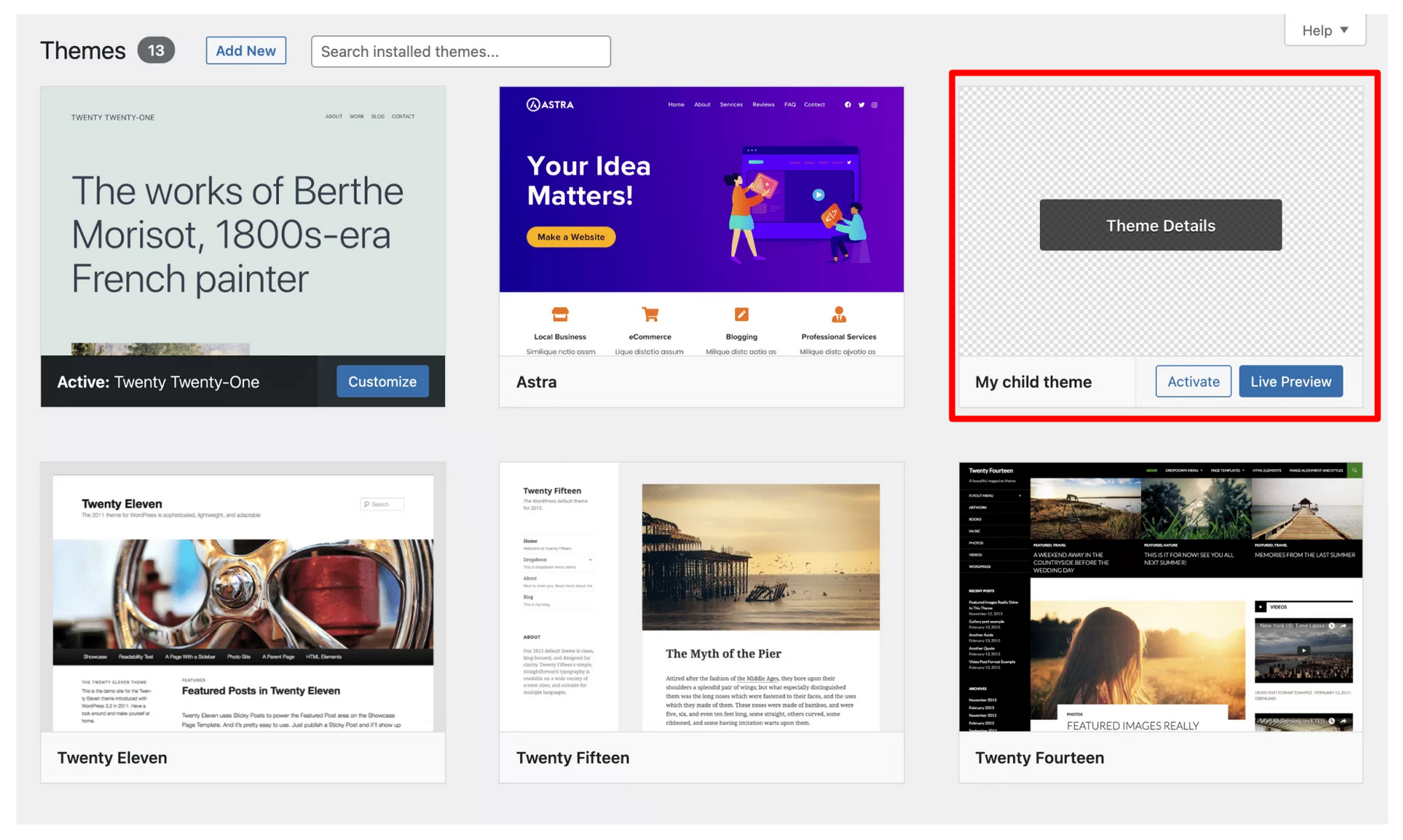
Creating a Child Theme is essential. It keeps your changes safe. First, make a new folder in the themes directory. Name it after your theme. Next, create a style.css file. Write a few lines to link it to the parent theme. This way, your changes won’t get lost.
Backing Up Your Site is very important. Use plugins like UpdraftPlus. They save your site’s data. Regular backups protect your work. Store these backups safely. Use cloud services like Google Drive. This ensures your site can be restored easily.
Customizing Theme Appearance
The WordPress Customizer is a simple tool. It helps change your theme’s look. You can find it in the dashboard. Click on “Appearance” and then “Customize.” Here, you can change colors, fonts, and more. Preview changes before saving them. This keeps your site safe. You can also add widgets. Widgets make your site more fun and useful.
CSS styles change how your site looks. It’s like painting your house. Find the CSS file in your theme’s folder. Make a backup first. This keeps your site safe. Use the WordPress editor to change styles. Change colors, fonts, and sizes. Small changes make a big difference. You can use a plugin like Simple Custom CSS. This helps if you are not a pro.
Theme layouts decide where things go. You can change this in the WordPress Customizer. Move widgets to new places. Change the number of columns. Try different layouts until you like one. Remember, always save your changes. This keeps your work safe. Some themes have layout options built-in. Check your theme for these options. It makes changing layouts easy.

Credit: make.wordpress.org
Enhancing Functionality
Plugins make your site better. They add new features. Think of them as tools. Choose plugins that fit your needs. Some plugins help with SEO. Others help with security. Always keep plugins updated. This keeps your site safe.
Widgets are small blocks. They add content to your site. They can show text or images. You can add widgets to your sidebar. Some themes let you add widgets anywhere. Drag and drop widgets to change them. This is easy to do.
Social media links help people share your site. Add buttons for Facebook and Twitter. This gets more visitors. Use plugins for easy setup. Add these buttons where people can see them. Like the top or bottom of pages.
Editing Theme Code
HTML and PHP are the main languages in WordPress themes. HTML creates the page layout. PHP brings dynamic features. Both work together to show content. Knowing these basics helps you edit themes easily. Start with simple changes. Make sure to save your work often. Mistakes can break your site. Always keep a backup before editing.
Template files control how pages look. They have HTML and PHP code. You can find them in the theme folder. Each file has a special job. For example, header.php controls the top part. footer.php manages the bottom. Carefully change these files to adjust your site. Always check your site after changes. It helps find errors quickly.
Code editors help you edit theme files. They make code clear and easy to read. Popular editors are Notepad++, Sublime Text, and Atom. They highlight HTML and PHP code. This helps you find mistakes. Save your changes often. Test your site after editing. A code editor is a great tool for beginners. It makes learning easier.
Optimizing For Performance
Improving Site Speed is vital for user satisfaction. Compress images to make pages load faster. Use caching plugins to store data temporarily. Minimize CSS and JavaScript to reduce page size.
Ensuring Mobile Responsiveness is crucial for reaching more users. Use responsive design themes for easy viewing on all devices. Test your site layout on different screens to ensure consistency. A mobile-friendly site boosts engagement.
Implementing SEO Best Practices enhances visibility in search results. Use relevant keywords in your content to attract visitors. Optimize meta tags to improve search engine ranking. Internal linking helps users navigate easily.
Testing And Launching
Testing helps find problems in the theme. Real users should try the theme. See how they navigate and use features. Check if everything works smoothly. Feedback is crucial. It shows what users like or dislike. Make notes on what needs fixing. Testing ensures a better experience for all users.
Bugs can ruin user experience. Fix them before launching. Go through each feature. Ensure everything functions correctly. Address user feedback. Make necessary changes to improve the theme. Fixing issues builds trust with users. A bug-free theme is more reliable and enjoyable.
Ensure everything is ready for launch. Check theme settings and content. Make sure everything is aligned and polished. Double-check design and features. Confirm all links work. Everything should be perfect before going live. Launch confidently knowing the theme is user-friendly and appealing.
Maintaining Your Customized Theme
Always keep your theme up-to-date. Updates fix bugs and add features. Check for new updates often. New updates might improve your site speed. Always back up your theme before updating. This prevents data loss.
Watch your site’s speed and loading times. Slow sites lose visitors. Use tools like Google PageSpeed for checking. Optimize images for better speed. Check plugin performance regularly. Remove plugins that slow down your site.
Security is important for your theme. Use strong passwords. Update plugins to fix security holes. Install a security plugin for extra safety. Monitor for unusual activity on your site. Always back up your data for safety.
Frequently Asked Questions
How Do I Change My WordPress Theme’s Colors?
To change your WordPress theme’s colors, navigate to the Customizer under Appearance. Select ‘Colors’ to modify the palette. Depending on your theme, you might have various color options. Always preview changes before publishing to ensure your website looks appealing and professional.
Can I Customize My Theme Without Coding?
Yes, you can customize your theme without coding using the WordPress Customizer. It allows changes to colors, fonts, and layouts. Many themes come with built-in customization options, making it easy for non-coders to modify their website’s appearance effectively.
What Plugins Help With Theme Customization?
Plugins like Elementor and Beaver Builder assist with theme customization. They offer drag-and-drop features to easily design your site. These plugins are user-friendly, allowing you to create unique layouts without coding knowledge. Explore plugin options to enhance your customization experience.
How Do I Safely Edit Theme Files?
To safely edit theme files, use a child theme. This prevents losing changes during updates. Always back up your site before making edits. Use FTP or the WordPress editor to access files. Ensure you understand basic coding before making any modifications.
Conclusion
Customizing a WordPress theme in 2015 can be simple. Start with understanding your theme’s settings. Use the WordPress customizer to make changes. Tweak colors and fonts to suit your style. Add widgets for more functionality. Remember to save your work often.
Test your site on different devices. This ensures it looks great everywhere. Seek help from forums if needed. Practice makes perfect, so keep experimenting. Your unique site will reflect your brand. Enjoy the process and have fun creating! Your personal touch can make your site stand out.


