
Imagine the thrill of turning your WordPress site into something uniquely yours, a digital space that perfectly reflects your vision. Customizing your WordPress theme with HTML can be your secret weapon to achieving this.
It might sound daunting, but it’s easier than you think, and it’s the key to standing out in the crowded online landscape. You’re not just limited to pre-built templates; you have the power to design a website that truly represents your brand and captivates your audience.
Are you ready to unlock the potential of your WordPress theme and take full control of your website’s look and feel? Let’s dive in and discover how you can seamlessly blend your creativity with HTML to craft a site that’s not only beautiful but also uniquely yours.

Credit: kinsta.com
Choosing The Right Theme
Selecting a theme is important. A good theme makes your site look nice. Check if the theme is easy to customize. Look for themes with simple code. This helps in making changes easily. Themes with good reviews are trustworthy. See if the theme is mobile-friendly. Many people use phones to view websites. Choose a theme that is SEO optimized. It helps in getting more visitors. Look for themes with support and updates. This ensures your site stays current. Check if the theme works with your WordPress version. Compatibility is key. A good theme will make your site stand out.

Credit: www.youtube.com
Setting Up A Child Theme
Child themes help you keep changes safe. Updates won’t erase your work. Customizations stay intact. Using a child theme protects original files. WordPress themes often update. Main themes change. Child themes do not. This ensures your site remains stable. Child themes are easy to use. They save time. They are perfect for beginners. No more lost edits after updates. Peace of mind for your site.
First, make a new folder. Name it like your theme. Add “-child” at the end. Create a style.css file. Add header info to it. Mention the parent theme. Create a functions.php file. Use it to enqueue the parent theme’s style. Don’t forget this step. It links the child to the parent. Your child theme is ready now. Customize safely. Make changes as you wish.
Accessing Theme Files
The WordPress Dashboard is easy to use for theme changes. Go to your dashboard. Find Appearance and click on Theme Editor. You will see theme files on the right. Click to open a file. Make sure to save changes after editing. Changes are instant on your site.
FTP is another way to access theme files. Use an FTP client like FileZilla. Connect to your site with login details. Open the wp-content folder. Then go to themes. Choose your theme folder. Download, edit, and upload files back. File Manager is similar. Access it from your hosting panel. It is easy and safe.
Editing Html In WordPress
To find the HTML files in WordPress, visit your dashboard. From there, go to the Appearance section. Click on the Theme Editor. Here, you see all the theme files. Look for files ending with .php. They contain the HTML code. Be careful while editing. Always make a backup first. It’s important to not make mistakes.
Basic edits can change the look of your site. Open the file you want to edit. Find the part of the code you want to change. Make your edits carefully. Save your changes once done. Refresh your site to see the changes. Small changes can have a big impact. Be sure to check everything looks right.
Customizing Theme Structure
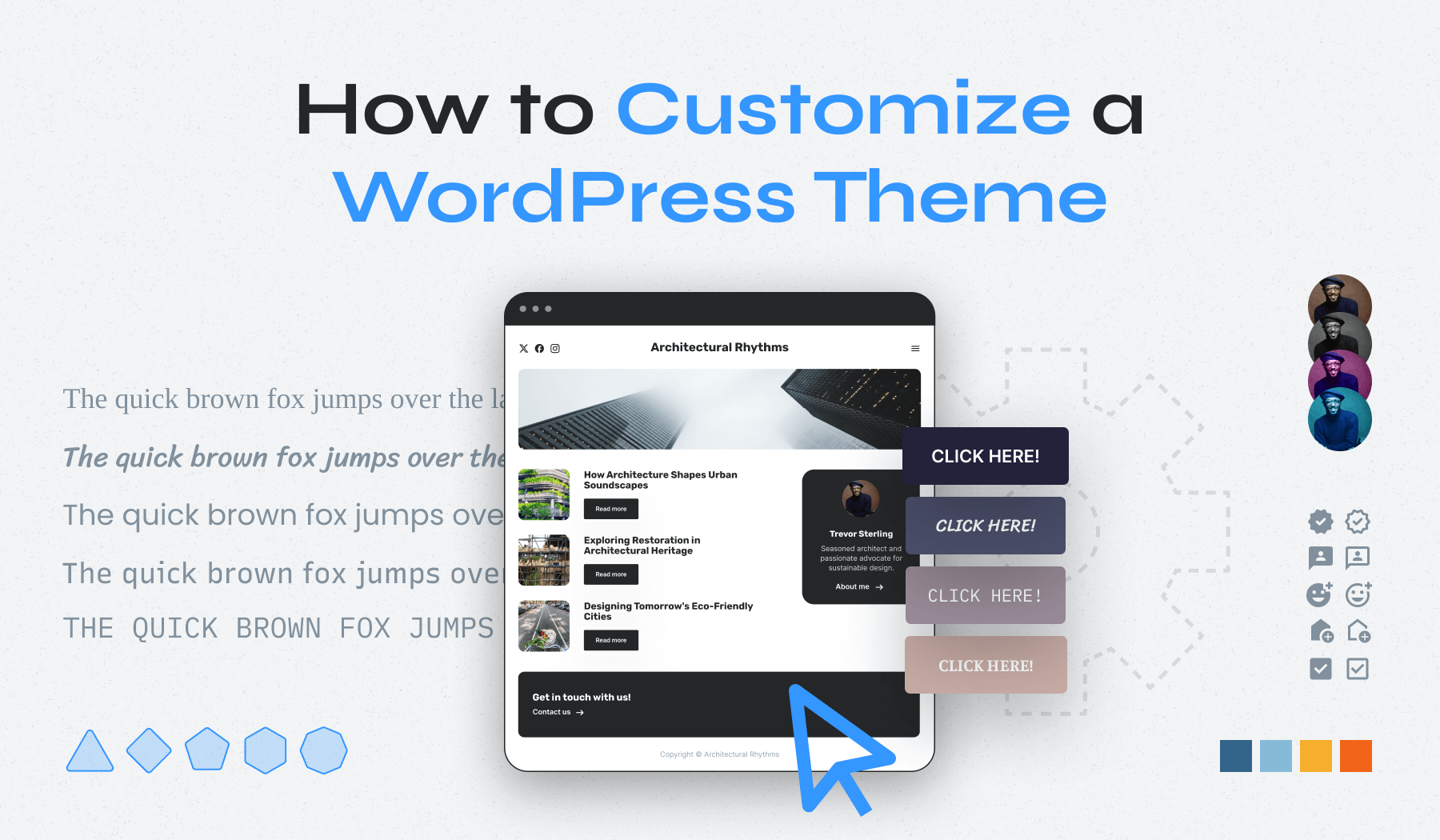
Customizing a WordPress theme with HTML allows for personalized design and functionality. Edit the theme’s HTML files to change layout, add elements, or modify styles. Ensure to backup files before making changes to avoid data loss.
Modifying Header And Footer
The header and footer are key parts of a website. You can change them with HTML. Look for the header.php file. It’s inside your theme folder. Edit this file to make changes. Add your text or links. The footer is in footer.php. Change this for a new look. Adding HTML here is simple. Remember to save your work. Refresh your site to see changes. It might take a few tries. But, that’s okay. Practice makes perfect. Try different things.
Adjusting Page Templates
Page templates shape how your pages look. Each template has a file. These files live in your theme folder. Find them there. Use HTML to change a template. Add or remove parts. Make your page special. You can use template tags. These tags help show content. Be careful with tags. They must be correct. Save your edits. Check your site often. Mistakes happen. Fix them quickly. This keeps your site nice. Keep trying new ideas. It’s fun to learn.
Adding Custom Html Elements
To add an HTML widget, go to your WordPress dashboard. Find the widget section. Click on “Add Widget” and select “HTML”. You can now type your code. This lets you add special features. HTML widgets are good for adding maps or videos. They make your site unique.
Shortcodes are small pieces of code. They make adding content easy. You can create a shortcode with HTML. Add it to your WordPress theme. This helps reuse code without typing it again. HTML shortcodes save time. Use them for buttons or special text boxes. They make your site look nice and clean.
Testing Changes
Open your browser to see the changes. Check each page. Does it look right? Make sure the layout is okay. Look for any broken links or images. Refresh your browser to see updates. This helps in catching mistakes early. Use different browsers for testing. Each one can show things differently. This makes sure your site works everywhere. Ask a friend to check too. They might spot something you missed.
Notice any problems? Check your HTML code first. Look for missing tags. They can break your layout. Ensure all links have the right path. Fix any broken images by checking their URLs. Use browser tools to find errors. Press F12 to open these tools. They help see what’s wrong. Look at the console for error messages. These messages give clues to fix issues. Make sure to save changes and refresh the page.
Credit: www.wpzoom.com
Best Practices
Customizing a WordPress theme with HTML enhances website design. Start by editing the theme’s HTML files. Make small changes to headers, footers, or page layouts to reflect your style.
Maintaining Code Cleanliness
Always keep your code neat and tidy. Use proper indentation and spacing. This makes it easy to read. Use comments to explain what your code does. This helps others understand it. Remove any unused code. It makes your site faster and cleaner.
Using Backups
Always make a backup before you change your theme. This saves your work if something goes wrong. Use a plugin for easy backups. Store backups in a safe place like the cloud. Check your backups regularly. Make sure they work. This keeps your data safe and sound.
Frequently Asked Questions
How Can I Edit WordPress Theme With Html?
You can edit a WordPress theme with HTML by accessing the theme files via your WordPress dashboard or FTP. Navigate to Appearance > Theme Editor, select the file you wish to edit, and make your HTML changes. Be cautious, as incorrect edits can break your theme.
Is It Safe To Customize WordPress Theme?
Customizing a WordPress theme is safe if done correctly. Always backup your site before making changes. Use child themes for customization to avoid losing changes during updates. Be mindful of coding errors, which can affect site functionality and appearance.
Can I Use Html To Change Theme Design?
Yes, you can use HTML to change your theme’s design. Access theme files via the Theme Editor or FTP. Modify the HTML structure within the template files. Ensure you understand HTML basics to prevent errors that could disrupt your site’s functionality.
What Tools Help Customize Themes With Html?
Several tools can help customize themes with HTML. Use the built-in WordPress Theme Editor for direct file access. FTP clients like FileZilla allow file uploads and edits. Code editors like Atom or Sublime Text offer advanced editing features, improving your workflow.
Conclusion
Customizing a WordPress theme with HTML enhances your website’s uniqueness. It allows you to tailor design elements to your taste. This process requires patience and attention to detail. Start with small changes to gain confidence. Use tutorials and forums for guidance.
Experiment, but back up your work regularly. Mistakes happen, so learn from them. Don’t rush; take your time to understand each step. Over time, you’ll improve your skills and creativity. HTML customization is a useful tool for personalizing your site.
Enjoy the journey of transforming your WordPress theme.


