
Are you ready to transform your WordPress website into a unique masterpiece that truly reflects your brand or personal style? Customizing a theme in WordPress might just be the game-changer you need.
Imagine the satisfaction of seeing your website not only stand out but also resonate perfectly with your audience. The good news is, you don’t need to be a tech guru to make it happen. With the right guidance, you can easily tweak and personalize your WordPress theme to suit your vision.
You’ll discover step-by-step strategies to customize your theme like a pro, ensuring your website is as captivating and functional as you’ve always wanted. So, let’s dive into the exciting world of WordPress customization and unlock the potential of your digital presence!
Credit: 10web.io
Choosing The Right Theme
Free themes are great for beginners. They are easy to use and cost nothing. But, they might have fewer features. Free themes can still look nice. Premium themes cost money. They often have more options and better support. Premium themes are usually updated more often. This keeps your site safe and fast.
A responsive theme works on phones and tablets. It makes your site look good on all devices. SEO-friendly themes help your site show up in searches. This means more people can find your site. Look for themes with clean code. Clean code helps your site load fast. Fast sites are better for users and search engines.
Installing Your Theme
Start by opening the WordPress Dashboard. Click on Appearance. Select Themes. You will see a list of themes. Choose Add New. Use the search bar to find a theme. Browse through options. Find one you like. Click Install on the theme. After installing, press Activate. Now the theme is live. You can start customizing it.
First, download the theme file. Save it on your computer. Go to your WordPress Dashboard. Click Appearance then Themes. Select Add New. Choose Upload Theme. Click Choose File. Locate the theme file. Upload the file. Click Install Now. Wait for the upload to finish. Press Activate to use the theme. Now the theme is ready.
Customizing Theme Settings
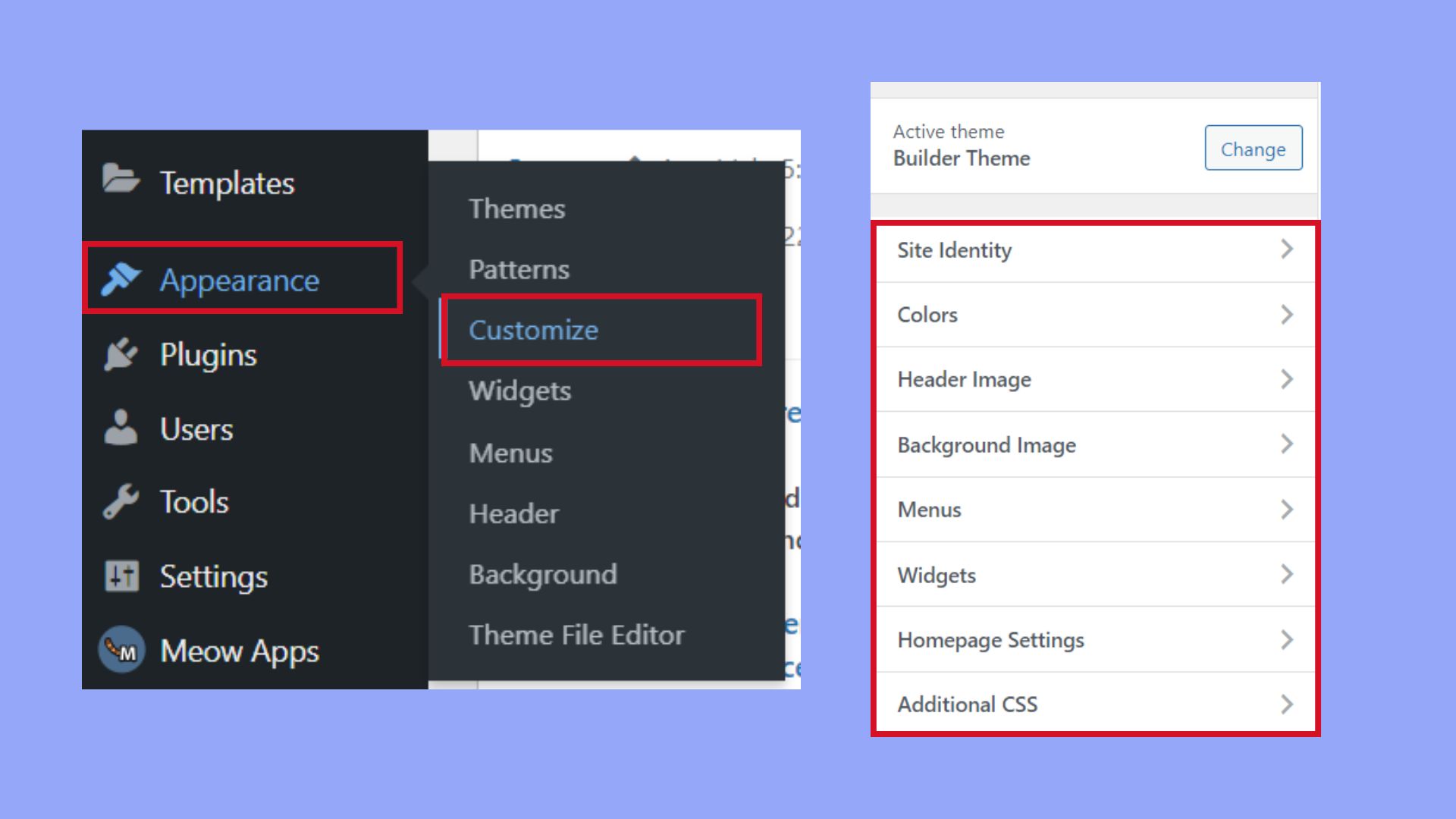
The WordPress Customizer is a powerful tool. It helps you change the look of your site. First, access it from your dashboard. Click on Appearance, then Customize. You will see many options. Here, you can modify your site’s appearance.
Colors make your site look lively. Choose colors that match your style. Fonts also matter. Pick fonts that are easy to read. The Customizer helps with this. You can see changes live. It’s fun to try different combinations.
Headers and footers are important parts. They frame your content. You can change their layout in the Customizer. Add or remove elements. Move items around. Make sure it looks neat and tidy. This helps visitors navigate your site easily.
Credit: www.cloudways.com
Editing Theme Code
Child themes are safe for theme changes. They keep the main theme unchanged. First, create a new folder in your theme directory. Add a style.css file and a functions.php file. Link it to the main theme. This helps in keeping updates without losing changes. Using child themes is a smart way to customize.
CSS changes are easy and fun. Use the Appearance > Customize option in WordPress. Add your CSS in the box. Use simple CSS to change colors, fonts, and sizes. Always check the website after changes. CSS makes the site look unique.
PHP and HTML changes can be tricky. Always back up your files first. Use the WordPress editor or a text editor. Make small changes to files like header.php or footer.php. Look for the right tags to edit. Small changes can make a big difference.
Adding Plugins For Customization
Enhancing functionality with plugins is easy. Plugins add features to your site. Some plugins create forms or add social media buttons. Choose plugins wisely for a better site.
Plugins for Page Builders help design pages. They make pages look pretty. You can move parts around easily. This makes your site unique.
Use plugins to add widgets and sidebars. Widgets show cool stuff on your site. Sidebars keep your site tidy. Customize them to fit your theme.
Testing And Previewing Changes
Staging environments offer a safe place to test changes. You can make tweaks without affecting your live site. It feels like a real website, but only you can see it. This helps catch errors before they go live. Always check changes here first.
Cross-browser compatibility is important. Websites can look different in each browser. Test your theme on popular browsers. These include Chrome, Firefox, and Safari. Make sure everything looks good. Different devices might show websites differently too. So, test on phones and tablets as well. A site should look nice everywhere.
Troubleshooting Common Issues
Customizing a WordPress theme often leads to common issues like layout problems or slow loading times. Resolving these can involve checking theme settings, updating plugins, or clearing cache. Regular backups ensure safe changes without losing data.
Dealing With Incompatibilities
Sometimes themes and plugins don’t get along. This can break your site. Check for updates regularly. Updates often fix these problems. Disable plugins one by one. This helps find the troublemaker. After finding it, search for a replacement. Or contact the plugin developer for help.
Restoring To Previous Versions
Sometimes changes don’t work out. Back up your site often. It’s like a magic undo button. Use plugins that help with backups. Restore your theme to an older version if needed. This can fix many issues. Always have a backup plan. It keeps your site safe.
Credit: www.wpzoom.com
Maintaining Your Custom Theme
Regular updates keep your theme fresh and safe. Update your theme whenever a new version is available. This fixes bugs and improves security. Always backup your theme before updating. Backups save your custom changes. Use plugins like UpdraftPlus for easy backups. Keep your site secure and running smoothly.
Check your site’s performance regularly. Slow sites lose visitors. Use tools like Google PageSpeed Insights. This helps you see what needs fixing. Security is also key. Protect your site from hackers. Use security plugins like Wordfence. They keep your site safe and sound. Always stay alert to new threats.
Frequently Asked Questions
How Do I Change A WordPress Theme?
To change a WordPress theme, go to your dashboard, select “Appearance,” then “Themes. ” Choose a new theme from the available options. Click “Activate” to apply the changes. Ensure your content and layout fit the new theme. Always preview before activating for a seamless transition.
Can I Customize WordPress Themes Without Coding?
Yes, you can customize WordPress themes without coding. Use the built-in Customizer tool in the dashboard. Change colors, fonts, and layouts easily. Some themes offer drag-and-drop page builders. Utilize plugins for advanced customization. Ensure you save your changes and preview them live.
What Are The Best Plugins For Theme Customization?
Some popular plugins for theme customization include Elementor, Beaver Builder, and WPBakery. These tools offer drag-and-drop functionality and advanced design options. Customize layouts, widgets, and elements effortlessly. Choose plugins compatible with your theme for seamless integration and optimal performance.
How To Safely Update WordPress Themes?
To safely update WordPress themes, create a backup first. Use a child theme to preserve customizations. Check theme compatibility with your plugins. Update themes via the dashboard under “Appearance. ” After updating, test your site for any issues. Regular updates ensure security and performance improvements.
Conclusion
Customizing a WordPress theme is easier than you think. Start small and explore your theme’s options. Change colors and fonts to match your style. Add images that tell your story. Use plugins to extend features. Keep your design simple and user-friendly.
Test your site on different devices. Make sure everything works smoothly. Remember, your website should reflect your brand. Spend time to perfect each element. Practice makes perfect, so keep trying new ideas. With patience, your site will look great. Enjoy the creative process and share your unique vision online.
Happy customizing!


