
Are you feeling overwhelmed by the clutter of unused themes on your WordPress site? You’re not alone.
Managing your WordPress themes efficiently is crucial for maintaining a streamlined, speedy, and secure website. But don’t worry, deleting an unwanted theme is easier than you might think. Imagine the satisfaction of clearing out the old, making way for the new, and enhancing your site’s performance all in one go.
In this guide, you’ll discover the simple steps to safely delete a WordPress theme, freeing up space and resources for what truly matters. Let’s dive in and tidy up your digital space!

Credit: blog.hubspot.com
Accessing The Admin Dashboard
First, log in to your WordPress admin dashboard. This is where you manage your site. The dashboard is usually at yoursite.com/wp-admin. Enter your username and password. This will take you to the main dashboard screen. Here, you can see all your site options.
Look for the Appearance option in the menu. It’s on the left side of the screen. Clicking this shows a dropdown list. Choose Themes from the list. This will display all installed themes. You can manage your themes here.
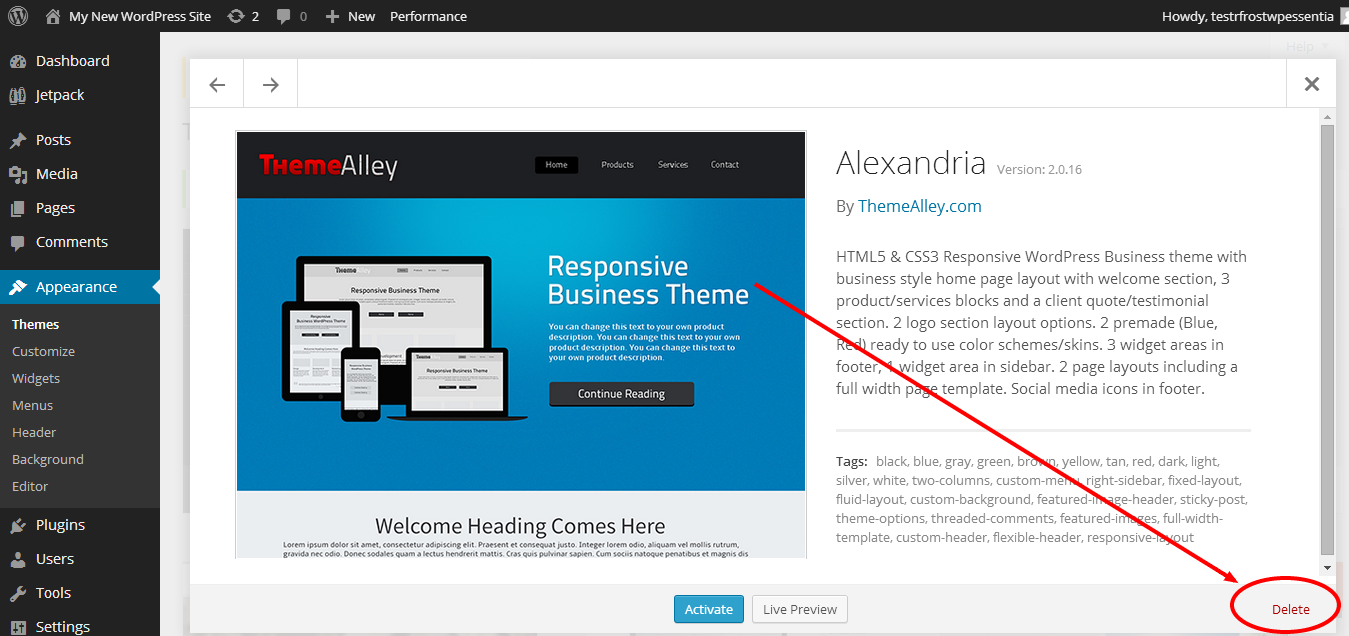
Credit: www.domain.com
Navigating To Themes Section
Find the WordPress dashboard first. It’s on the left side. There, click on Appearance. Next, select Themes. This opens the themes page. All your themes are listed there. You can choose the theme you want to delete. Hover over the theme. A button will appear. Click on Theme Details. This shows more information. The delete option is at the bottom. Click the Delete link. A warning will show. Confirm to remove the theme. The theme will be gone from your site.
Identifying The Active Theme
First, go to your WordPress dashboard. On the left menu, find Appearance and click. You will see Themes. The active theme shows a highlighted label. It says “Active” on the top.
Look for the theme’s name. It is often written in bold. This is your current theme. It cannot be deleted while active. You must deactivate it first. Choose another theme to activate. Then you can remove the old one.
Switching To A Different Theme
First, explore the WordPress theme library. It’s full of options. Look for a theme that fits your needs. Consider the layout and design. Ensure it’s responsive and works on all devices. Read reviews to learn about other users’ experiences. Check for regular updates. This ensures your site stays secure.
Go to the WordPress dashboard. Click on Appearance and then Themes. Find your chosen theme. Click on Activate to set it live. Your site will now use the new theme. Visit your site to see the changes. Ensure everything looks good.
Deleting An Unused Theme
First, access your WordPress dashboard. Look for the Appearance tab. Click on it. You will see a list of themes. Find the theme you want to delete. It’s usually not active. Check if it’s really the unused one. Make sure it’s not your current theme.
Once you find the theme, click on the Theme Details. Look for the Delete button. It’s at the bottom right. Click it. A pop-up will appear. It asks if you are sure. Confirm by clicking OK. The theme is gone. Your site remains safe.

Credit: wpmarmite.com
Managing Theme Files Via Ftp
Deleting a WordPress theme via FTP involves accessing your site’s files directly. Navigate to the ‘themes’ folder, select the unwanted theme, and delete it. This method ensures clean removal without using the WordPress dashboard.
Connecting To Your Server
To connect to your server, you need an FTP client. FileZilla is a popular choice. First, open the FTP client. Enter your host, username, and password. These details are provided by your web host. Click connect. You will see your site’s files on the right. Find the folder named wp-content. This folder contains your themes and plugins. Open it to see the themes folder. Here, all your themes are stored.
Deleting Theme Files Manually
Look for the theme you want to delete. Right-click on the theme folder. Select Delete. This will remove the theme from your server. Be careful. Deleting a theme cannot be undone. Always ensure you are deleting the right theme. Double-check the folder name before proceeding.
Ensuring Theme Backup
Always create a backup of your WordPress theme. It’s important. Use a plugin for backups. Many plugins are free. Choose a reliable one. Install and activate it. Follow the steps. Save your theme files securely. Keep them in a safe place. This prevents data loss. You can restore them later if needed.
Problems can happen. Themes might break. Restoring from a backup is helpful. Go to the plugin settings. Select the restore option. Choose your backup file. Click restore. Wait a few minutes. Your theme will come back. It’s good to have backups. They save you from trouble.
Troubleshooting Common Issues
Easily remove a WordPress theme with these simple steps. Go to your dashboard, click “Appearance,” then “Themes. ” Select the theme you want to delete and click “Delete” to remove it. Clean up your WordPress site efficiently by managing unused themes.
Handling Deletion Errors
Deleting a WordPress theme can sometimes cause errors. Error messages can appear if the theme is active. Always deactivate the theme before deleting it. Server errors might occur if files are missing. Check server permissions to ensure files can be deleted. Database errors may happen if the theme is linked to database entries. Use a plugin to clean these entries. If the theme refuses to delete, try using FTP. This bypasses WordPress and directly removes theme files.
Resolving Theme Dependency Problems
Some themes rely on specific plugins or settings. Theme dependencies can lead to deletion issues. Ensure all related plugins are deactivated. Backup settings linked to the theme before removal. Widget dependencies might cause layout changes. Check widgets linked to the theme. Shortcode dependencies can result in broken pages. Remove shortcodes from content before deleting. Always verify dependencies to avoid website errors.
Best Practices For Theme Management
Keeping your themes updated is very important. Updates fix bugs and improve security. They can also add new features. Always check for updates regularly. Use the WordPress dashboard to see if updates are needed. Click on the update button to install them. This keeps your site running smoothly. Updating themes can also enhance performance. It helps in maintaining a safe website environment. Never ignore update notifications. They are crucial for your site’s health.
Having too many themes can slow down your site. Only keep the active theme and one default theme. This helps your site load faster. It also makes managing themes easier. Delete unused themes from the dashboard. Go to Appearance, then Themes. Select the theme you want to delete. Click on Delete. This frees up space and improves site performance. A clean theme list is easy to manage. It reduces the risk of security issues.
Frequently Asked Questions
How Do I Remove A WordPress Theme?
To remove a WordPress theme, navigate to the admin dashboard. Go to “Appearance,” then “Themes. ” Select the theme you want to delete, click “Theme Details,” and finally, hit the “Delete” button. Always ensure you have another theme activated before deleting one to avoid site issues.
Can Deleting A Theme Affect My Site?
Deleting a theme won’t affect your site if another theme is active. Ensure your current theme is working before removing the old one. Backup your site to prevent any unforeseen issues. Removing unused themes can improve site performance and security, making it a recommended practice.
Is It Safe To Delete Unused Themes?
Yes, it’s safe and advisable to delete unused themes. They can pose security risks if left unattended. Unused themes take up server space and can lead to vulnerabilities if not regularly updated. Always back up your website before making changes to your theme settings.
How Can I Backup My Theme?
You can backup your theme using a plugin or manual download. Install a backup plugin like UpdraftPlus for automatic backups. Alternatively, download the theme files from your server using FTP. Regular backups ensure you can restore your site if issues arise during theme deletion.
Conclusion
Deleting a WordPress theme is simple. Easy steps make it straightforward. First, log into your dashboard. Next, go to the themes section. Find the theme you want to remove. Click on it, and choose “Delete. ” Confirm your choice. It’s done! Removing old themes can enhance site performance.
Unused themes slow down your site. Keep only active themes for a smoother experience. Regular maintenance ensures your WordPress site runs efficiently. It’s all about keeping it clean and fast. Try it today. Your site deserves it.


