
Are you struggling with an outdated or unwanted WordPress theme cluttering your site? Knowing how to delete an active WordPress theme can streamline your website’s performance, enhance security, and free up precious space.
You might feel a bit hesitant, wondering if you’ll accidentally disrupt your site, but fear not—you’re in the right place. In this guide, we’ll walk you through the simple steps to safely remove an active theme without jeopardizing your content or design.
Keep reading to discover how to keep your site clean, efficient, and perfectly tailored to your needs.
Backup Your Website
Backing up your website is very important. It keeps your data safe. If something goes wrong, you can restore it. No one wants to lose their hard work.
Websites can crash or be hacked. A backup helps you recover. It is like a safety net for your site. Without a backup, you might lose everything.
There are many ways to backup your site. You can use a plugin. Plugins are easy to install and use. Some popular plugins are UpdraftPlus and BackWPup. You can also backup manually. This takes more time but gives control. Another way is using your hosting provider. Many hosts offer backup options. Choose the method that suits you best.
Access WordPress Dashboard
First, open your web browser. Go to your WordPress site. Add /wp-admin after your site URL. Enter your username and password. Click the login button. You will see your dashboard.
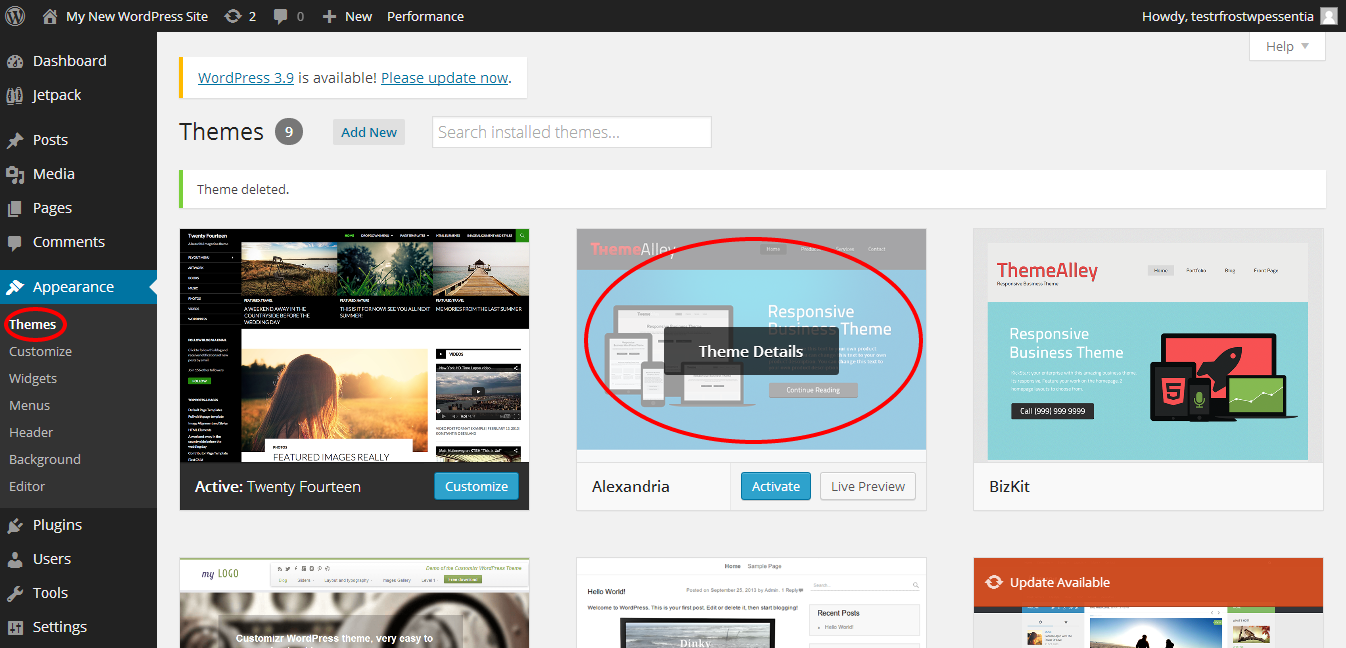
Look at the left menu. Find the Appearance tab. Click on it. A list will appear. Select Themes. Here you can see all installed themes. Your active theme is marked. Click on the theme you want to delete. Follow the instructions. Make sure to choose another theme before deleting.
Switch To A Different Theme
Choose a theme that fits your website’s style. Visit the WordPress dashboard and click on “Appearance.” Then, select “Themes” to explore options. Browse through the available themes and pick one you like. Always check the theme details and preview it before deciding. This ensures it meets your needs.
After selecting, it’s time to activate it. Go back to the “Themes” page in your WordPress dashboard. Find your new theme and click “Activate.” This makes it your site’s active theme. Your website now shows the new design. Always check your site after activation. Ensure everything looks good and works well.

Credit: www.wpbeginner.com
Delete The Active Theme
Locate the Theme in your WordPress dashboard. Go to the Appearance section. Click on Themes. Here, you will see all installed themes. The active theme will have a label. Make sure you have a backup before deleting. It’s important to not lose your website design.
Steps to Delete are simple. First, switch to another theme. Click on a different theme. Then, select Activate. Now, the old theme is inactive. Go back to the old theme. Click on Theme Details. Finally, click Delete in the bottom right. Confirm your choice. The theme will be gone.
Verify Theme Deletion
After deleting, see if your website looks good. The design should not be broken. Check the home page and other pages. Everything must load fine.
Test all buttons and links. They should work as before. Use different devices like phones and tablets. See if the site runs well on all.
Credit: www.domain.com
Troubleshooting Common Issues
Deleting an active WordPress theme involves accessing the dashboard and switching to a different theme first. Navigate to “Appearance” and select “Themes” to activate a new theme. Once changed, safely delete the unwanted theme by clicking “Theme Details” followed by “Delete”.
Error Messages
Sometimes, error messages appear when deleting a WordPress theme. This can be due to file permissions. Check if your files have the right permissions. Incorrect permissions can prevent deletion. Another common issue is a theme conflict. This happens if another theme relies on the one you want to delete. Always ensure your theme is not in use. Also, consider updating your WordPress. An outdated version might cause errors. If errors persist, seek help from forums.
Restoring From Backup
Always keep a backup of your site. Backups are lifesavers if things go wrong. Use a plugin to make regular backups. If something breaks, restore from your backup. This brings your site back to normal. Check your backup files often. Ensure they are complete and not corrupted. A good backup means peace of mind. If unsure, ask an expert for help.
Best Practices For Theme Management
Keeping your WordPress theme updated is crucial. Updates fix bugs and improve features. Outdated themes can cause performance issues. Always check for new updates. Use the latest version for better functionality. Updates also ensure compatibility with plugins. Regular updates make your site secure and fast.
Security should be a top priority. Themes can have security vulnerabilities. Always download themes from trusted sources. Avoid pirated themes as they can contain malware. Regularly check for theme updates. Updates often include security patches. Use a security plugin for extra protection. Backup your site before making changes. This helps in case something goes wrong.

Credit: wpmarmite.com
Frequently Asked Questions
How Do I Delete A WordPress Theme?
To delete a WordPress theme, go to your dashboard. Navigate to “Appearance” and click “Themes. ” Select the theme you want to remove, click “Theme Details,” and then click “Delete. ” Ensure you’ve activated a different theme before deleting an active one.
Can I Delete An Active Theme Safely?
Yes, but first activate another theme to avoid website disruption. Navigate to “Appearance,” select a new theme, activate it, and then delete the old one. This ensures your site remains functional and visually consistent.
What Happens If I Delete My Active Theme?
Deleting an active theme without activating a new one will disrupt your site. Activate a new theme before deletion to keep your site live. Your site’s layout might change, but content stays intact.
Is It Necessary To Back Up Before Theme Deletion?
Yes, always back up your site before deleting a theme. This prevents data loss and helps restore your site if issues occur. Use plugins or manual methods for backups to ensure data safety.
Conclusion
Deleting an active WordPress theme can be simple. Follow the steps carefully. Start with a backup to avoid losing data. Navigate to your WordPress dashboard. Deactivate the theme you want to delete. Find the theme in your Appearance section. Click on “Theme Details.
” Hit the “Delete” button to remove it. Ensure you activate another theme before deleting. This prevents site issues. Always check your website after changes. Confirm everything works well. Regular updates keep your site secure. Practice safe theme management. Enjoy a smoother WordPress experience.


