
Are you looking to make your WordPress site truly your own without the fear of breaking it? Customizing the code in your child theme is the perfect way to achieve a unique look and feel while keeping your site safe from updates.
Imagine the excitement of transforming your website into something that perfectly matches your vision, all while knowing that any changes you make are safeguarded against future WordPress updates. You’ll discover simple yet powerful techniques to customize your child theme, even if coding feels like a foreign language to you.
By the end, you’ll be equipped with the confidence and tools to tweak your site just the way you want it. So, are you ready to dive in and unlock the full potential of your WordPress site? Keep reading to find out how!
Credit: 10web.io
Child Theme Basics
A child theme helps you make changes to your site. You keep the main theme safe. Updates to the main theme won’t erase changes. This is a big benefit. Your site stays unique. You can try new designs and layouts. It’s a way to learn and grow. Mistakes won’t harm your main theme. Safe and secure.
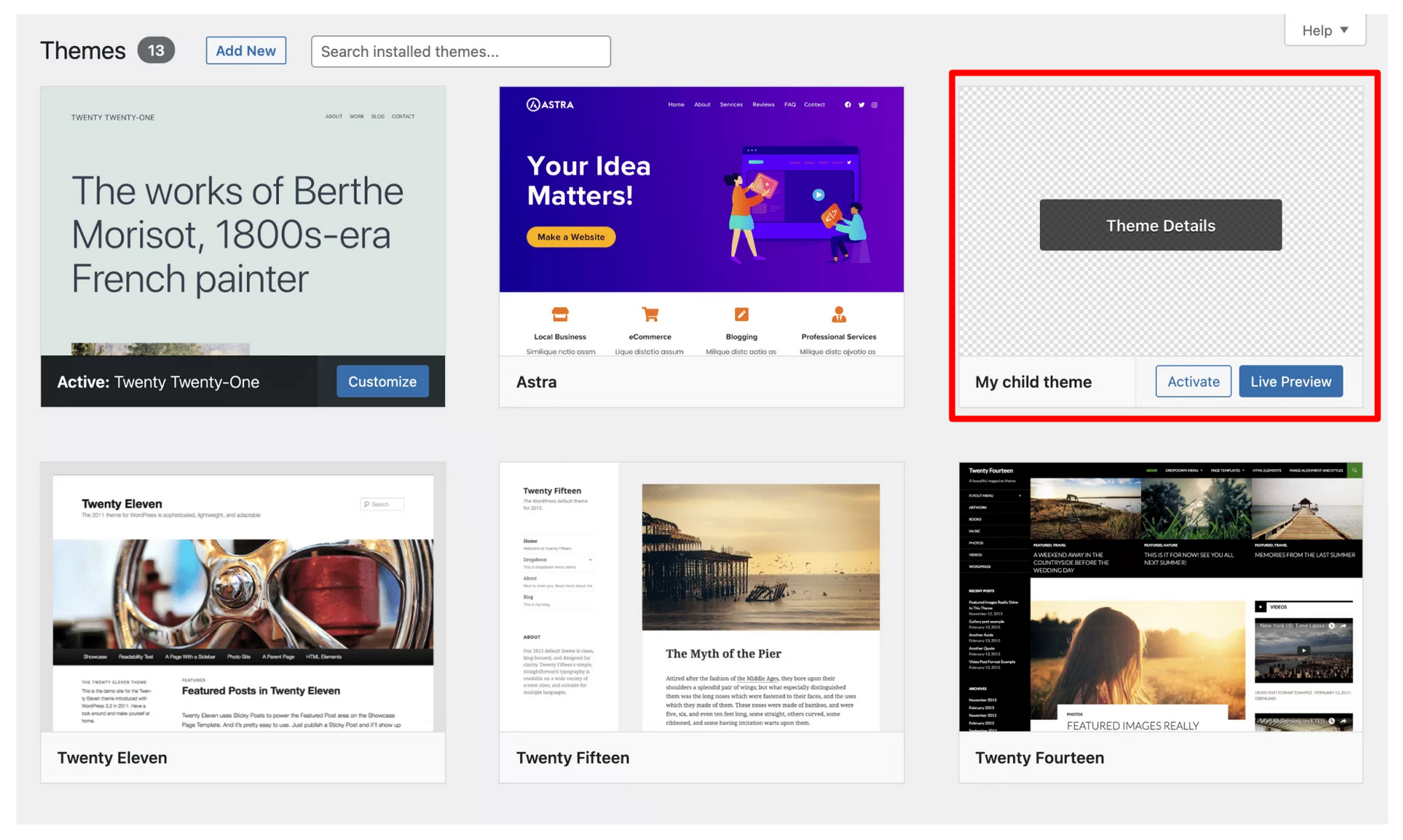
Start by making a new folder. Name it with the main theme’s name and add “-child”. Inside, create a style.css file. Add a few lines of code. This code tells WordPress about your child theme. Next, make a functions.php file. This file lets you add new features. Now, activate your child theme in WordPress. Check your site. Everything should look the same. Now, you can start customizing!
Setting Up Your Development Environment
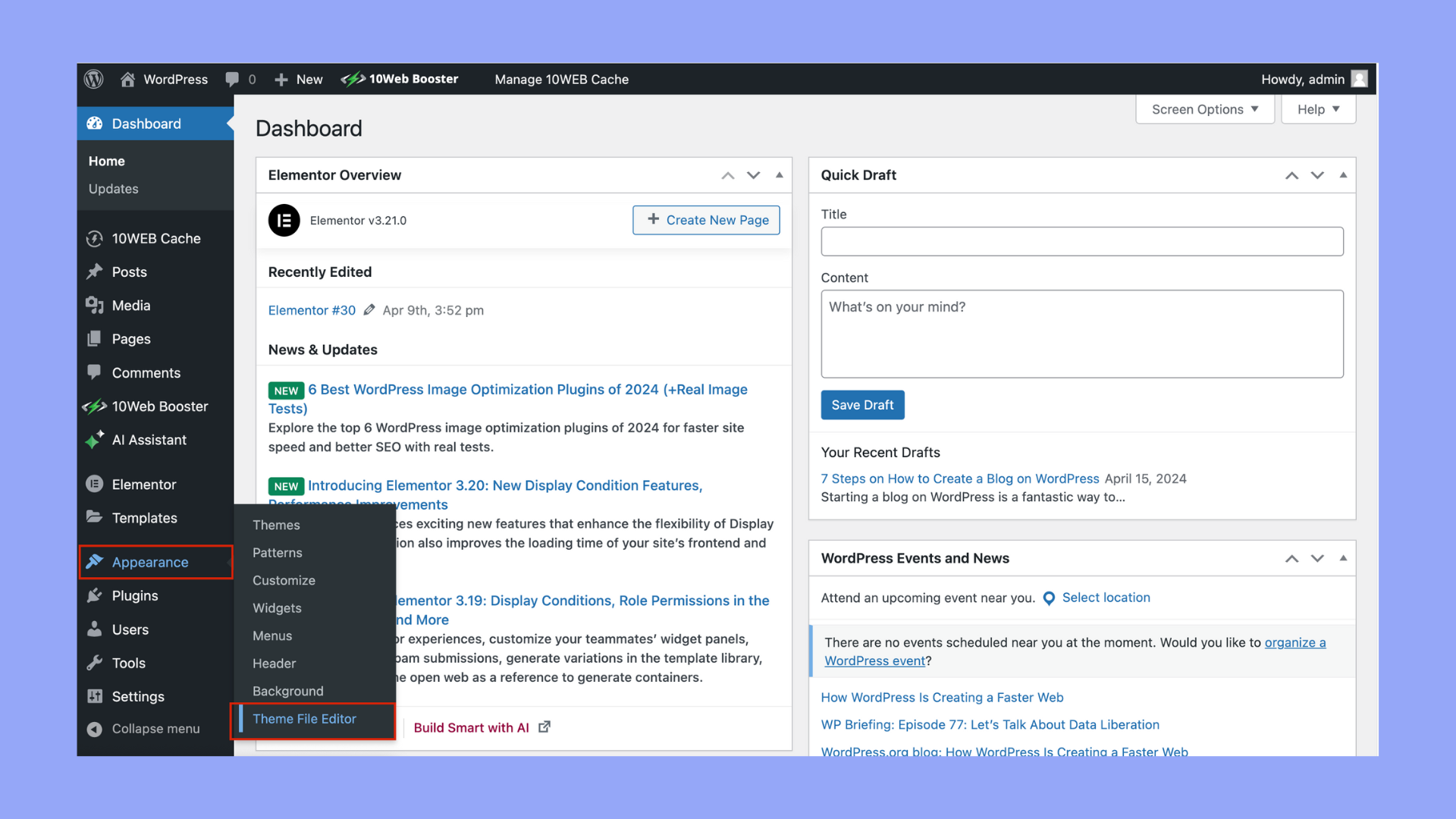
Customizing code in your child WordPress theme enhances your site’s uniqueness. Start by accessing your theme files through your development environment. Carefully edit CSS and PHP files to adjust design and functionality, ensuring your changes don’t affect the main theme.
Essential Tools
Choose the right tools for your work. Text editors like Visual Studio Code or Sublime Text are great. They help you write clean code. Use FTP clients to upload files to your server. FileZilla is a popular choice. Web browsers like Chrome or Firefox are helpful. They let you see changes on your site quickly. Install a local server like XAMPP or MAMP. This helps you test changes safely. Make sure to back up your site before starting. This keeps your work safe.
Local Vs. Live Sites
Local sites let you test changes safely. You can try new things without breaking your live site. On a live site, changes happen for everyone to see. It’s riskier. Use a local site for testing and learning. Once you’re happy, move changes to your live site. This keeps your work smooth and safe. Always make backups before moving changes. It protects your site.
Customizing Theme Files
The functions.php file is important. It holds theme functions. You can add new functions to it. This file is like a toolbox. You can also remove functions you don’t need. Be careful when editing this file. Mistakes can break your site. Always back up before making changes.
The style.css file changes how your site looks. You can change colors and fonts here. Want a different background? Edit this file. It’s simple to update. Use CSS rules to style your site. Make sure your changes are saved. Refresh your browser to see updates.
Template files help create new pages. You can add them to your theme. Custom templates can show different layouts. Copy an existing template to start. Edit the copied file. Change the name at the top. Use it for special pages. Now, your site is unique.
Using Hooks And Filters
Hooks let you add or change code in WordPress. They are like magic hooks. You can use them to change how a theme looks. Action hooks and filter hooks are the two main types. Action hooks let you add new things. Filter hooks let you change things. Using hooks, you can make a theme do what you want. They are easy to use once you know the basics.
Filters are like tools that change data. They can change text, images, or more. Filters work with functions. A function tells the filter what to do. You add your function to a filter hook. WordPress then runs your function. Filters are powerful and can make your website unique. With filters, you can change a lot without touching the main theme.
Adding Custom Scripts And Styles
Adding custom scripts to your child theme is easy. Use the enqueue function. Open your functions.php file. Write your script code. Use wp_enqueue_script. It loads your script correctly. Always give your script a unique name. This prevents errors.
Scripts can be in different places. They can be in the header or footer. Choose the right place. The header loads scripts first. The footer loads them last. This choice affects how your page works.
Stylesheets make your site look good. Use the wp_enqueue_style function. It loads CSS files. Go to your functions.php file. Write the code to load your styles. Always name your stylesheet uniquely.
Choose where to load your styles. Header is a common choice. The site looks better when styles load early. Be careful with order. Wrong order can change how things look. Keep things simple for best results.
Credit: wpmarmite.com
Testing And Debugging
Errors can slow down your website. Check your code for mistakes. Look for missing brackets or wrong words. A small error can stop your site. Fix them quickly for better performance.
Use a plugin to find errors. Plugins help you see what is wrong. They show where the error is. Fix the code and test again. Make sure all is working fine.
Debugging tools help find bugs. They show mistakes in your code. These tools help you fix problems faster. Many tools are free. Try using them for better code.
Best Practices
Customizing code in your child WordPress theme enhances your site’s functionality and appearance. Start by safely editing files, ensuring a backup exists. Focus on adding unique styles and features that align with your brand, while keeping the main theme intact for seamless updates.
Maintaining Code Integrity
Keep your code clean and organized. Use comments to explain your code. This helps others understand your work. Avoid changing core files. Instead, make changes in the child theme. This keeps the original theme safe. Always back up your site before changes. This way, you can restore if needed.
Updating Safely
Before updating, check for compatibility. Some updates might break your site. Test updates on a staging site first. This prevents live site issues. Update plugins and themes regularly. This keeps your site secure. Use a version control system. It helps track changes easily.
Credit: www.wpzoom.com
Frequently Asked Questions
What Is A Child Theme In WordPress?
A child theme in WordPress is a sub-theme that inherits the functionality of the parent theme. It allows you to modify your site without affecting the parent theme’s core files. This way, you can customize your site while ensuring future updates won’t overwrite your changes.
Why Customize A Child Theme’s Code?
Customizing a child theme’s code lets you add unique features and design elements. It ensures your changes are safe from theme updates. You can personalize your site to meet specific needs, enhancing user experience and maintaining functionality as required.
How Do I Safely Edit A Child Theme?
To safely edit a child theme, use a code editor and FTP client. Backup your site before making changes. Modify files within the child theme folder to preserve your customizations. Always test changes on a staging site to prevent live errors.
Can I Use Plugins For Customization?
Yes, you can use plugins for customization in a child theme. Plugins offer additional functionality without altering theme files directly. They simplify tasks like adding widgets, shortcodes, and scripts. Ensure plugins are compatible with your theme to avoid conflicts.
Conclusion
Customizing your WordPress child theme can be simple and rewarding. It allows your website to stand out. You gain control over the look and function. Start with small changes. Practice makes it easier. Remember to back up your site regularly.
This protects your work and ensures safety. Use reliable sources for guidance. Follow tutorials closely for best results. Always test changes before going live. This prevents errors and keeps your site running smoothly. Enjoy the process. Your site reflects your creativity and style.
Keep learning and experimenting. Your skills will grow over time.


