
Unlocking the full potential of your WordPress site lies in your ability to customize a responsive theme. Imagine transforming your website into a dynamic platform that not only looks stunning on every device but also aligns perfectly with your brand’s identity.
If you’ve ever felt limited by default settings or templates, you’re not alone. Many WordPress users face this challenge, but there’s good news: customizing your responsive theme is easier than you think. In this guide, you’ll discover simple, actionable steps that empower you to tailor your site to your unique vision.
Whether you’re a seasoned developer or a beginner, you’ll find insights that resonate with your needs. Ready to turn your WordPress site into a masterpiece that captivates every visitor? Keep reading to find out how.
Choosing The Right Theme
Check if the theme has the features you need. Look for SEO optimization and fast loading speed. See if it supports popular plugins. Make sure it’s easy to use for beginners. Some themes offer demo content. This helps in setting up a site quickly.
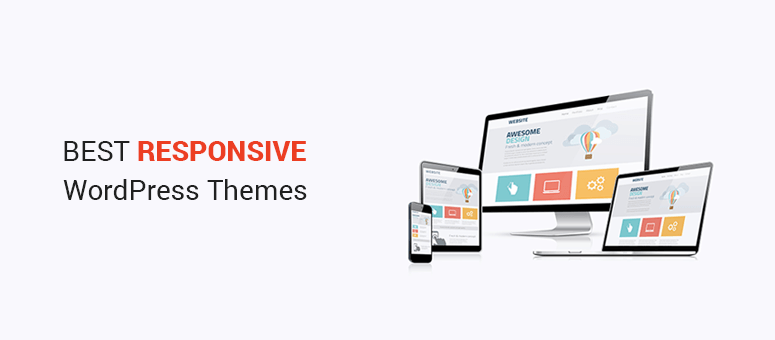
Responsive design is important. It makes your site look good on all devices. Check the theme on a phone. Also, test it on a tablet. Ensure all parts fit well. No text should be cut off. Images must resize correctly.
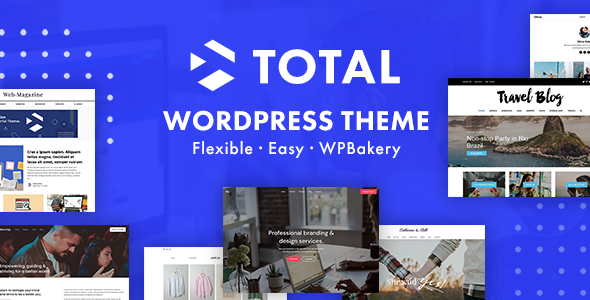
Look for easy customization. Some themes offer a drag-and-drop builder. You can change colors and fonts. Also, check if you can add a custom logo. Many themes allow header and footer edits. This makes your site unique.
Credit: themeforest.net
Setting Up Your WordPress Environment
Local installation helps you test changes without risks. Use tools like Local by Flywheel or XAMPP. They are easy to set up. Follow the steps they provide. This way, you can experiment freely.
Staging sites are safe spaces for testing. They mimic your live site. Changes here do not affect your main site. Most hosting services offer this feature. It is wise to use it for major updates.
Backups protect your site from loss. Use plugins like UpdraftPlus or BackupBuddy. Regular backups are crucial. They save your site if something goes wrong. Always keep a recent copy.
Customizing Theme Settings
First, go to your WordPress dashboard. Look for the Appearance option. Click on it, then select Customize. The theme customizer will open up. Here, you can see many options. Each option allows you to change different parts. Make sure to save your changes.
You can change the layout to your liking. Choose from different templates. Some themes have more options. You can also change the header and footer. Look for the menu that says Layout. Select the best option for your site.
Colors set the mood of your site. Use the Colors option in the customizer. Pick colors that match your brand. Fonts are important too. Go to the Typography section. Choose fonts that are easy to read. Make sure they look good on all devices.
Utilizing Custom Css
Custom CSS allows you to change the look of your responsive WordPress theme. Adjust colors, fonts, and layout without altering the core theme files. Enhance user experience by tailoring design elements to suit your needs and preferences.
Adding Custom Css In WordPress
You can add Custom CSS in WordPress through the Theme Customizer. This tool is found in the Appearance menu. Click on Customize, then select Additional CSS. Enter your custom styles here. Changes appear instantly on the preview screen.
Using Browser Developer Tools
Browser tools help you inspect and edit CSS easily. Right-click on any webpage element and select Inspect. A panel opens showing the HTML and CSS. Experiment with different styles in this panel. This does not affect the real site.
Testing Css Changes
Always test CSS changes before publishing. Use multiple browsers to see differences. Check how it looks on phones and tablets. Make sure the design stays responsive. This ensures a smooth user experience.
Incorporating Plugins For Customization
Selecting the Right Plugins is crucial for your WordPress theme. Some plugins add special features. Others make your site look better. Always check plugin reviews. Reviews tell you if a plugin is good or bad. Choose plugins that are easy to use. Easy plugins save time and make life simple.
Enhancing Functionality is important. Plugins can add many features. You can add contact forms. You can add social media buttons. Some plugins help with SEO. Better SEO means more visitors. More visitors make your site popular.
Improving User Experience is key. Good plugins make sites faster. Fast sites keep visitors happy. Happy visitors stay longer. Some plugins help with site design. Nice designs make sites easy to use. Easy sites attract more users.

Credit: wordpress.org
Optimizing For Mobile Devices
Use tools to check how themes look on phones. Google Mobile-Friendly Test helps. See if text is easy to read. Buttons should be big enough to click. Check images. They must fit on small screens.
Use CSS media queries to change styles for phones. Make text larger for easy reading. Use less space between elements. Hide parts not needed on mobile. Show only what users need.
Fast load times make users happy. Optimize images. Make them smaller. Use lazy loading. Load images only when needed. Minimize CSS and JavaScript. Less code means faster loads.
Testing And Debugging
Test your WordPress theme on different browsers. Chrome, Firefox, and Safari are popular ones. Each browser may show your theme differently. Check how it looks and works. Use browser developer tools for this. They can help you find layout issues. Fix these issues to make sure your site looks good everywhere.
Bugs are small errors in your theme. They can make your site look bad. Use debugging tools to find them. WordPress has a built-in debugger. Turn it on to find bugs. Check your code line by line. Fix errors one by one. Ask for help if you get stuck. Forums and online groups can be helpful.
Responsive design makes your site look good on all devices. Use tools like Google’s Mobile-Friendly Test. They help check your theme’s responsiveness. Adjust your theme’s settings if needed. Make sure texts and images fit well on screens. Keep testing until your site looks great on phones and tablets.
Credit: www.isitwp.com
Frequently Asked Questions
How Can I Make My WordPress Theme Responsive?
To make your WordPress theme responsive, use CSS media queries to adjust layouts for different screen sizes. Consider using a responsive framework like Bootstrap. Ensure images and videos scale correctly by using percentage-based widths. Test your design across multiple devices to ensure consistency and usability.
What Tools Help Customize WordPress Themes?
Several tools can help you customize WordPress themes. WordPress Customizer allows real-time edits. Page builders like Elementor provide drag-and-drop functionalities. CSS editors help with style adjustments. Plugins expand functionalities, while child themes ensure safe customization without altering core files.
Why Is Theme Responsiveness Important?
Theme responsiveness is crucial for user experience and SEO. Responsive themes ensure that your site looks good on any device. They improve mobile usability, reduce bounce rates, and boost engagement. Google favors responsive sites, improving search rankings and visibility.
Can I Customize A Theme Without Coding?
Yes, you can customize a theme without coding using WordPress Customizer and page builders like Elementor. These tools offer intuitive interfaces with drag-and-drop features. Plugins can also add functionalities without needing to write code, making customization accessible to non-developers.
Conclusion
Customizing a responsive WordPress theme is easier than it seems. Start with small changes. Test your theme on various devices. Ensure your site looks good everywhere. Use WordPress’s built-in tools. Explore plugins for extra features. Keep your design simple and clean.
Focus on user experience. A well-customized theme helps your site stand out. Remember, practice makes perfect. Experiment with different styles. Learn from feedback. Improve your theme over time. Your unique design will engage visitors. Enjoy the creative process. Your site reflects your brand.
Make it memorable. Happy customizing!


