
Are you ready to transform your WordPress website into a visually stunning masterpiece? If you’re using the Pique theme, you’re in luck!
Customizing this popular theme can elevate your site’s appearance and functionality, capturing your visitors’ attention from the moment they land on your page. Imagine a website that truly reflects your brand’s personality and engages your audience effortlessly. In this guide, you’ll discover step-by-step instructions on how to customize the WordPress Pique theme to create a unique and captivating online presence.
Dive in and unlock the potential of your website, because a few tweaks can make all the difference. Let’s turn your vision into reality!

Credit: wordpress.com
Pique Theme Features
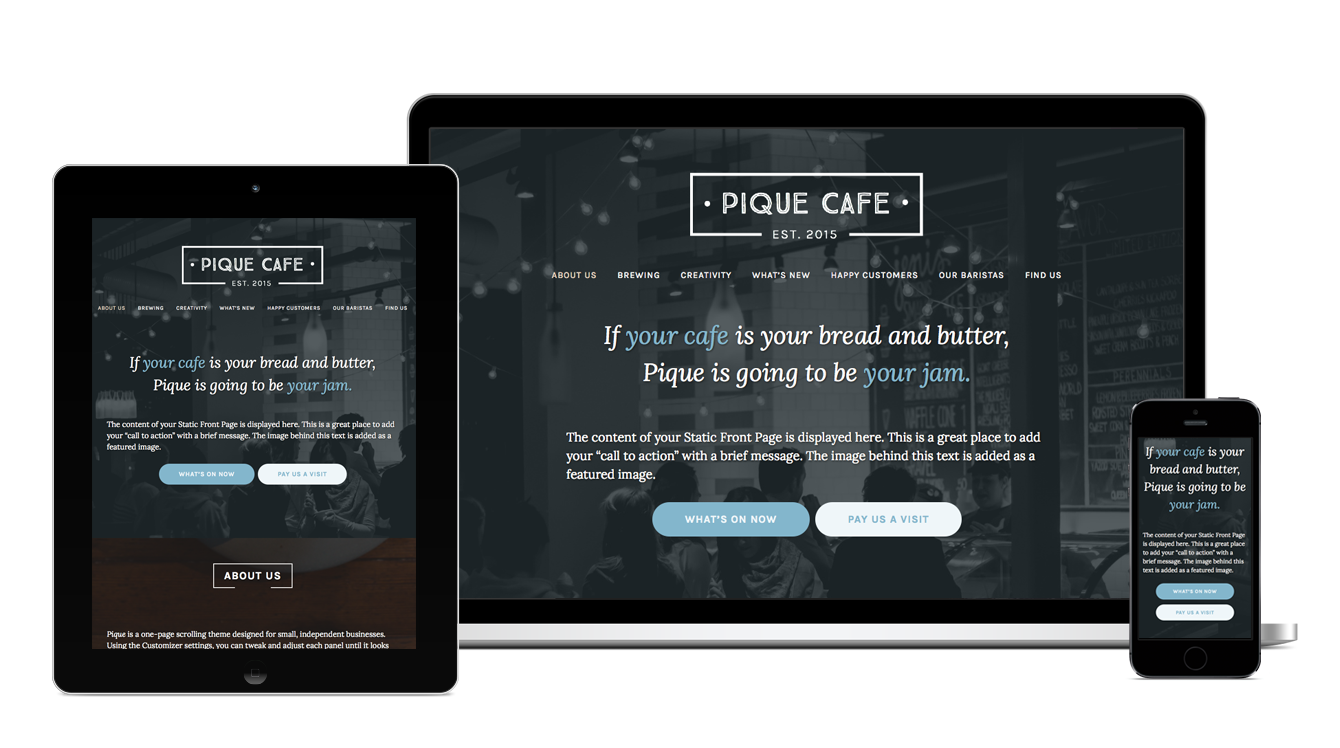
Pique Theme offers a clean and simple design. It is perfect for beginners. The layout is mobile-friendly, so your site looks good on phones. Users enjoy the one-page design. This means less clicking for them. The theme has a custom header feature. You can add your own image or text. The easy-to-use menu makes site navigation simple.
With custom colors, you can match your brand’s style. The footer widgets let you add extra info or links. It includes social media icons. Linking to your accounts is easy. The translation-ready feature helps reach wider audiences. Pique is great for small businesses and personal blogs. Its features make website building fun and simple.
Installation Process
First, log in to your WordPress dashboard. Go to the Appearance tab. Click on Themes. In the top corner, select Add New. Search for Pique Theme. Click on the Install button next to the theme. Wait for the installation to complete.
After installation, click Activate. Your theme is now ready. You can start customizing it. Explore the customization options. Change colors, fonts, and layouts. Create a unique look. Make your site stand out. Enjoy your new theme!
Theme Customizer Options
The WordPress dashboard helps you start. Find “Appearance” on the left. Click it. Select “Customize.” A new screen will open. This is the Customizer. You can change many things here. Save changes when done. It’s easy to undo them too.
Colors and fonts make your site pretty. In the Customizer, find “Colors.” Choose new shades. Make sure they match. Then, go to “Fonts.” Pick a style you like. It should be easy to read. Save your choices. See how your site looks better.
The layout is how things are arranged. In the Customizer, find “Layout.” Change the header, footer, and sidebar. Try different styles. Make your site unique. Remember, keep it simple. Save your work often. Enjoy your new design.
Credit: mwender.com
Customizing The Header
Start by uploading a custom logo. Go to the theme settings. Click on ‘Site Identity.’ There, you will find the option to upload your logo. Make sure it is clear and easy to see. Next, change the site title and tagline. These show up in the browser tab. Keep them short and to the point. This helps people know what your site is about.
Adjusting the navigation menu is simple. Go to the ‘Menus’ section in the theme settings. Here, you can add or remove pages. You can also change the order. Make sure the menu is easy to use. People should find what they want quickly. Try to keep the menu items short. This helps with readability.
Homepage Sections
Start by opening the WordPress dashboard. Click on Appearance, then Customize. Choose the Pique theme. Find the section labeled Homepage. Click on Add Section. You can choose from many options. Add text or images to your new section. Make sure everything looks good. Don’t forget to save your changes. Each section is customizable. Try different styles. Explore the options.
Go to the Customize area. Find the sections you want to change. Click on the section you want to move. Use the up and down arrows to reorder sections. Want to remove a section? Click the remove button. This button is easy to find. Removing a section is quick. You can always add it back later. Changes are simple with this tool. Always preview before saving.
Background And Images
Changing the background image is easy in the Pique theme. Go to the WordPress dashboard. Click on Appearance, then Customize. Find the Background Image section. Choose your image. Make sure it fits the style. Save your changes.
Images are important. They make your site look good. Use small-sized images. They load faster. Large images can slow down your site. Use images that are clear and bright. They catch the eye. Always check the image quality. Your site needs to be fast and look nice.
Custom Css For Advanced Users
Customizing a theme with CSS is fun. You can change the look easily. Use the WordPress Customizer to add your CSS. This is found under Appearance. Click on Customize. Then, click on Additional CSS. Type your CSS here. Changes appear on the right side.
Make sure to save your changes. This keeps your new style. Want to change colors? Use CSS like background-color and color. Want different fonts? Use font-family. CSS gives you control. Enjoy making your site unique.

Credit: wordpress.com
Plugins For Enhanced Functionality
Enhance your WordPress Pique theme with plugins that add custom features. These tools help tailor the design and functionality to your needs. Enjoy a personalized website experience with ease.
Recommended Plugins
Using plugins can make the Pique theme better. They add new features and make your site work well. Yoast SEO helps your site appear in search results. WooCommerce lets you sell products online. Contact Form 7 makes it easy to add forms. These plugins are easy to use with Pique.
Integrating With Pique Theme
Plugins fit well with the Pique theme. They work together to improve your site. Jetpack secures your site and boosts speed. Elementor lets you design pages without coding. Wordfence protects your site from bad people. These plugins help your site run smoothly. Choose the ones you need for your site.
Responsive Design Considerations
Websites look different on each device. Smartphones, tablets, and laptops all have unique screens. It’s important to check how your site looks. Use tools to preview the site. Make sure it is easy to read. Images should not be cut off. Text should fit well. Test on as many devices as you can. This ensures the best experience for everyone. Clear and simple designs work best across devices.
Mobile users need quick loading times. Use small images. Reduce large files. Buttons should be easy to tap. Make text large enough to read. Avoid clutter. Clean pages load faster. Test your site often. Make changes if needed. Easy navigation helps users find what they need. Keep important info at the top. Prioritize a smooth experience. Happy users will return.
Troubleshooting Common Issues
Customizing the WordPress Pique Theme often brings challenges. Common issues include layout errors and widget misplacements. Understanding these problems helps you create a smoother, personalized website experience.
Theme Update Problems
Many face issues during theme updates. Themes might not update correctly. This can cause errors in your site. Always backup your theme before updates. Use a child theme for changes. This protects your settings. Check the theme version. Ensure it is compatible with your WordPress version. Use the latest version of WordPress. This helps in smooth updates. Clear your cache after updates. This fixes many display problems. If issues persist, contact support.
Fixing Display Errors
Sometimes pages don’t look right. This might be a display error. Check your browser settings. Ensure JavaScript is on. Disable plugins one by one. Some plugins cause conflicts. Test your site on different browsers. This shows if the error is browser-specific. Check your CSS settings. Ensure no mistakes in your code. Look for missing elements in the theme. Update your theme if needed. Contact the theme support for guidance.
Frequently Asked Questions
How To Change Colors In Pique Theme?
To change colors in Pique Theme, navigate to the WordPress Customizer. Select ‘Colors’ from the menu. Here, you can adjust primary, secondary, and background colors to match your brand. Save changes to update your website’s appearance instantly.
Can I Add A Custom Logo In Pique?
Yes, you can add a custom logo in Pique. Access the WordPress Customizer, then go to ‘Site Identity. ‘ Upload your logo image and adjust its size. Save changes to display your logo on your site.
How Do I Customize Fonts In Pique?
To customize fonts in Pique, use the WordPress Customizer. Select ‘Typography’ to change font styles and sizes for headings and body text. Preview changes live and click ‘Save’ to apply them to your site.
Is Pique Theme Mobile-friendly?
Yes, Pique Theme is designed to be mobile-friendly. It automatically adjusts to different screen sizes, ensuring a seamless browsing experience. Test your site on multiple devices to confirm its responsiveness and make necessary adjustments.
Conclusion
Customizing the Pique theme in WordPress is simple. You can create a unique website. Start by changing colors and fonts. Add images that reflect your style. Use widgets to enhance functionality. Always preview changes to see the effects. Experiment with layout options for best design.
Remember, customization is about personal touch. Make your site user-friendly and visually pleasing. The Pique theme offers flexibility and creativity. Explore features to bring your vision to life. Enjoy the process and watch your website transform. Happy customizing!


