
Are you ready to transform your website with a touch of personal flair? Customizing your WordPress theme, especially one as versatile as Kale, can be the key to making your site stand out.
Imagine your website not only looking unique but also reflecting your personality and brand identity. This is not just about aesthetics; it’s about creating an engaging experience for your visitors. By the end of this guide, you’ll not only know how to customize the Kale theme but also feel empowered to make your website truly yours.
So, let’s dive in and start unlocking the full potential of your WordPress site!

Credit: mhthemes.com
Choosing The Right Child Theme
Child themes are like a safety net for your site. They help you keep the original design intact. This is important when you make changes. Using a child theme, you can update the main theme. Your changes will not be lost. This keeps your site safe and secure. It also helps in keeping things organized. You can experiment with different looks. All without fear of losing your work.
- Create a new folder in the themes directory.
- Name it something like “kale-child”.
- Create a file named style.css inside the folder.
- Add theme details and import parent styles.
- Create a functions.php file.
- Add a function to enqueue the parent theme style.
- Activate the child theme in your WordPress dashboard.
Installing And Activating Kale
Find the Kale theme in the WordPress Theme Directory. Click on the download button. Save the zip file on your computer. Go to your WordPress dashboard. Choose Appearance. Select Themes. Click on Add New. Upload the zip file. Wait for the installation to complete.
Once installed, locate the Kale theme in your themes list. Click on Activate. Your site appearance changes instantly. Check the live preview to see the changes. Customize settings to suit your style. Kale is now ready for use.
Customizing The Header
The logo is key to your site’s look. To change it, go to the customize section. Click on site identity. Here, you can upload your logo. Choose a logo that fits your site. Also, add a site title. This is important for visitors. They see it first. Make it clear. Add a tagline if needed. This tells more about your site. Keep it short and sweet.
The navigation menu helps users find their way. Go to the menu settings to adjust it. Add or remove menu items easily. Use simple words for menu labels. This helps visitors understand. Arrange items in order. Important pages should be at the top. Use the drag and drop feature to sort items. Preview changes before saving. This ensures everything looks good.

Credit: www.lyrathemes.com
Adjusting The Layout
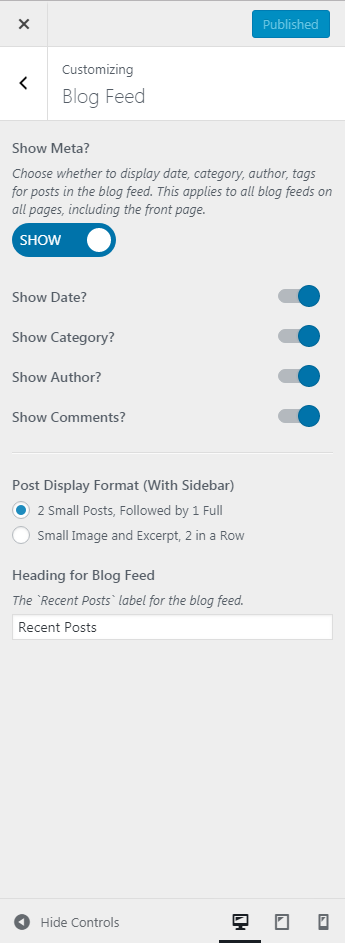
Kale theme offers various homepage layout options. You can choose a grid or list style. This helps in displaying your posts. To select, go to the theme settings. Find the layout section. Pick your desired style. This gives your site a unique look. Changing layouts is easy. It takes just a few clicks. Try different styles. See what suits your content best.
Sidebars and footers are important. They add extra content. In Kale, you can customize these areas. Add widgets in the sidebar. This could be recent posts or a search bar. Footers can have contact info or links. Personalize them to fit your brand. Use the WordPress customizer for this. It’s simple and user-friendly. Make your site more engaging with these customizations.
Tweaking Colors And Fonts
Changing colors in Kale is easy. First, go to your dashboard. Find the theme customizer. Select the color settings. Use the color picker to choose your favorite shades. Try bright colors for a lively look. Or pick soft hues for a calm feel. Make sure your text is readable. Check contrast between background and text. Bold colors can make your site stand out. Subtle tones create a gentle vibe. Experiment with different combinations.
Fonts help your site look great. Kale offers many fonts to choose from. Find the typography settings in the customizer. Adjust font sizes for headings and paragraphs. Pick a font that matches your style. Serif fonts are classic and elegant. Sans-serif fonts are modern and clean. Choose bold fonts for strong statements. Use lighter fonts for softer messages. Ensure text is easy to read. Test different fonts to find the best fit.
Credit: www.csshero.org
Adding Custom Css
Customizing the WordPress theme Kale is simple by adding custom CSS. It allows you to change colors, fonts, and layout to match your style. Access the WordPress dashboard, navigate to Appearance, then Customize, and find the Additional CSS section to paste your custom code.
Using The WordPress Customizer
Open WordPress Customizer. Choose “Additional CSS” from the menu. This section lets you add your own styles. You can change colors, fonts, and layout. Type your CSS code into the box. Save your changes. Your site will update with new styles. You can preview changes before saving. This helps you avoid mistakes. The Customizer is user-friendly. It’s great for beginners.
Best Practices For Custom Css
Keep CSS simple. Use clear and readable code. This helps others understand your changes. Comment your code. Explain why you added each style. Use specific selectors. This targets exact elements. Avoid global changes. They can break your site. Test on different devices. Check how your site looks on phones and computers. Update your CSS regularly. Fix errors and improve styles.
Integrating Plugins For Extra Features
Plugins add cool features to your Kale theme. Some plugins work very well with Kale. Yoast SEO helps your blog show up in search results. Jetpack offers security and site management. WooCommerce is great for online stores. Contact Form 7 makes contact forms easy. These plugins improve your site’s look and feel. They are popular choices among many users. Try them for better site performance.
Always check if plugins work with your theme. Check plugin details for compatibility information. Sometimes, plugins can cause issues. Keep your plugins updated to avoid problems. Update the Kale theme too. This helps in fixing bugs and improves site functions. Backup your site before adding new plugins. This way, your data stays safe. Be careful and read user reviews. They help in choosing the right plugins.
Optimizing For Performance
Fast websites keep visitors happy. Reduce image sizes to make pages load quickly. Use tools like TinyPNG or Smush. Choose a good hosting provider. This helps your site run faster. Enable caching for your WordPress site. Plugins like W3 Total Cache can help. Use a content delivery network (CDN). CDNs deliver your content faster to users. Remove unused plugins and themes. They slow down your site.
Manage images well to save space. Use JPEG for photos and PNG for graphics. Always use compressed images. Lazy load images to improve speed. This loads images only when needed. Use plugins like Lazy Load by WP Rocket. Limit video files on your site. Host videos on platforms like YouTube. Then embed them. This keeps your site light and fast.
Ensuring Mobile Responsiveness
Customizing the Kale WordPress theme ensures mobile responsiveness. Adjust layout settings and use responsive design tools. This helps your site look great on any device.
Testing On Different Devices
Testing your WordPress theme on different devices is very important. Devices like phones, tablets, and laptops display websites differently. Always check how your site looks on each type of device. This ensures your site looks good everywhere.
Adjustments For Mobile View
Adjustments may be needed for better mobile viewing. Make sure buttons and links are easy to click. Text should be readable without zooming. Images must fit the screen properly. Use tools like Google’s Mobile-Friendly Test to see your site’s performance. It helps you find and fix any issues easily.
Maintaining And Updating The Theme
Customizing the WordPress theme Kale involves maintaining and updating its elements regularly. Change colors, adjust fonts, and modify layouts to keep your site fresh and engaging. Regular updates ensure compatibility with the latest plugins and enhance site security.
Regular Updates And Patches
Updating your Kale theme is important. Updates fix bugs and add features. Check for updates often. Use the WordPress dashboard to update. Always read the update notes first. They tell you what’s new or fixed. After updating, check your site. Make sure everything works fine.
Backing Up Customizations
Back up your theme changes. This saves your custom work. Use plugins like UpdraftPlus or Duplicator. They help you back up easily. Save your backups in a safe place. Cloud storage is a good option. Before updating, back up your site. This keeps your custom changes safe. If something breaks, you can restore it. Regular backups are smart.
Frequently Asked Questions
How Do I Change Kale Theme Colors?
To change colors in Kale, access the WordPress Customizer. Navigate to “Appearance” > “Customize” > “Colors. ” Here, you can modify various color settings. Preview changes in real-time and save when satisfied. It’s an easy way to personalize your site’s look.
Can I Add Custom Fonts In Kale?
Yes, you can add custom fonts in Kale. Use the WordPress Customizer. Go to “Appearance” > “Customize” > “Typography. ” Select desired fonts from the available options. You can also add Google Fonts for more variety. This enhances the visual appeal of your site.
How To Modify Kale Theme Layout?
Modify the Kale theme layout via the WordPress Customizer. Access “Appearance” > “Customize” > “Layout Options. ” Adjust settings like sidebar position and column layout. Experiment with different configurations to suit your site’s needs. Changes are previewed live before saving.
Is Kale Theme Responsive?
Yes, Kale theme is responsive. It automatically adjusts to different screen sizes. This ensures a seamless experience across devices like phones, tablets, and desktops. You don’t need extra plugins for responsiveness. This feature is built into the theme for user convenience.
Conclusion
Customizing the Kale theme boosts your WordPress site’s appeal. Easy steps guide you through the process. Change colors, fonts, and layouts to match your style. Enhancing your site’s design can attract more visitors. A well-tailored theme offers a unique user experience.
Don’t hesitate to experiment with different options. Explore the customization settings to find what works best. Practice makes perfect, so keep trying new ideas. Your site will stand out with a personalized touch. Dive into the customization journey and watch your website transform.


