
Are you ready to elevate your WordPress skills and showcase your theme in the best possible light? Creating a WordPress theme demo site is your ticket to impressing potential users and clients.
Think of it as the perfect stage where your theme can strut its stuff, capturing attention and sparking interest. Imagine the impact of a beautifully crafted demo site, enticing viewers to engage and explore more. In this guide, you’ll discover straightforward steps to build a demo site that not only highlights your theme’s features but also enhances user experience.
Whether you’re a seasoned developer or a budding designer, this process will empower you to present your theme with confidence and clarity. So, why leave your theme in the shadows? Let’s dive in and learn how to create a WordPress theme demo site that stands out and captivates your audience.
Choose The Right Hosting
Shared hosting is when many websites use the same server. It’s cheaper but can be slow. Managed hosting is faster and safer. The provider takes care of updates and security. This is better for beginners.
Some hosting providers work well with WordPress. Bluehost is popular and easy to use. SiteGround offers good speed and support. DreamHost provides free domain names. Choose one that fits your needs.
Set Up A WordPress Installation
Creating a WordPress theme demo site involves selecting a reliable hosting provider and installing WordPress. Customize your theme settings to showcase features effectively. Use demo content to illustrate the theme’s potential.
Installing WordPress Manually
Start with downloading the WordPress package. Visit the official site and click download. Open your computer’s file manager. Find the downloaded package. Extract the files to a folder. Use an FTP client to upload the files to your server. Navigate to your hosting control panel. Create a new database. Remember the database name, username, and password. Open your browser. Type your site URL with /wp-admin/install.php. Follow the prompts to complete the setup.
Using One-click Installers
Log into your hosting account. Find the control panel. Look for the one-click installer section. Select WordPress from the list. Click the install button. Follow the instructions on the screen. Fill in the required fields. Choose your site name and admin details. Click the complete installation button. Wait for the process to finish. Your WordPress is ready to use.
Select And Install A Theme
Picking the right WordPress theme is key. Think about the site’s purpose. A blog needs a clean layout. An online store needs a theme with a shop feature. Look for themes with good ratings. Check if they are updated often. Free themes are great for beginners. Paid themes offer more features. Choose a theme that matches your style. Make sure it works on phones too. This is called being mobile-friendly.
Installing a theme is simple. First, go to your WordPress dashboard. Click on “Appearance”, then “Themes”. You will see a button called “Add New”. Click it. Now, you can search for your chosen theme. Once you find it, click “Install”. After installation, click “Activate”. Your theme is now live. If you have a theme file, click “Upload Theme”. Then, select your file and click “Install”. Activate it the same way. Now your site has a new look!
Credit: www.youtube.com
Customize The Theme
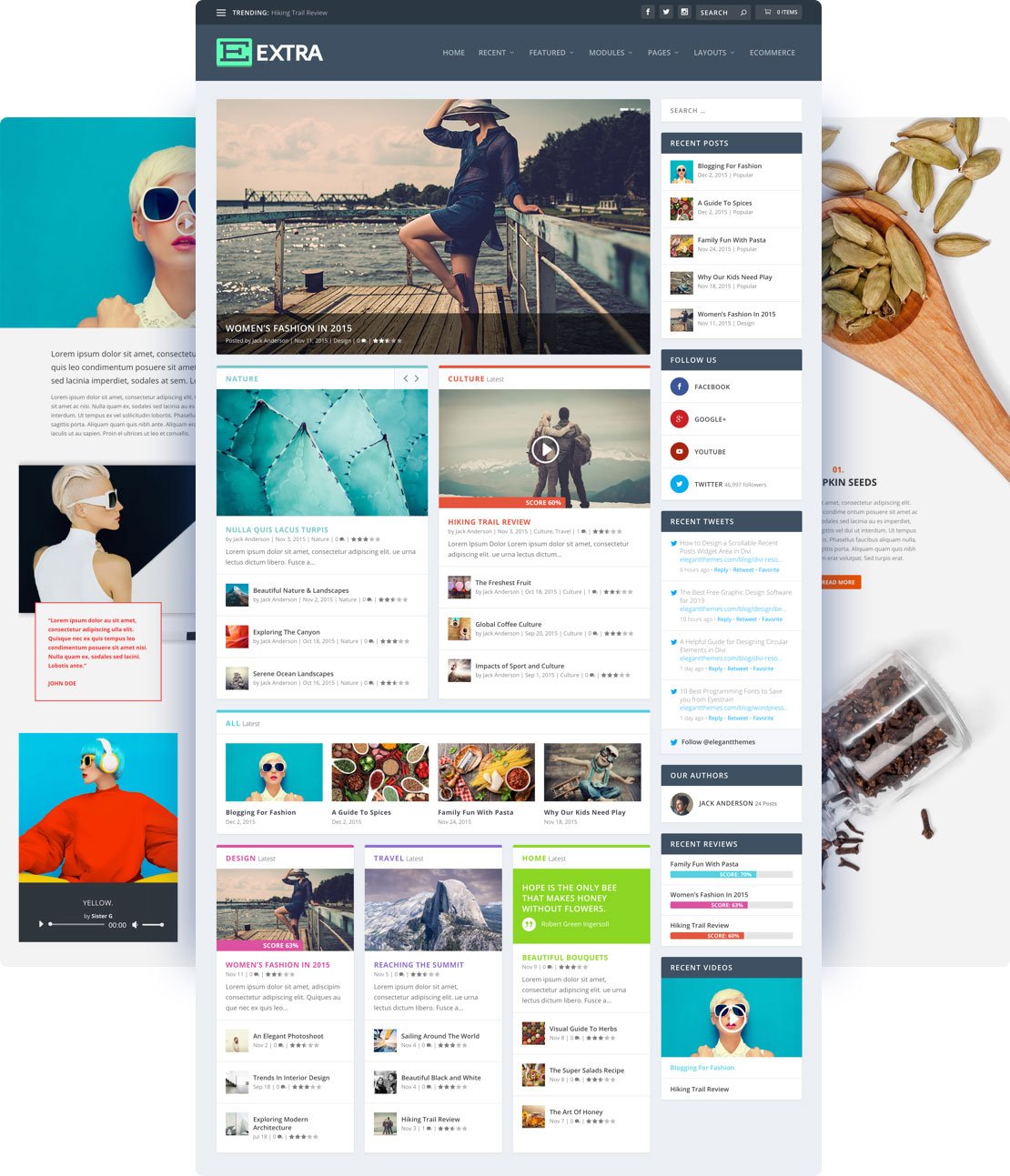
Creating a WordPress theme demo site involves customizing your theme to showcase its features effectively. Start by setting up a test environment to experiment with various layouts and styles. Use theme customization tools to adjust colors, fonts, and design elements, ensuring the demo site reflects your theme’s capabilities.
Using The WordPress Customizer
Open the WordPress Customizer to change your theme. The Customizer is easy to use. You can change colors, fonts, and layouts. Use the menu on the left side. Click on “Colors” to pick new colors. Choose “Fonts” to set font styles. Adjust the “Layout” for page structure.
Adjusting Theme Settings
Click on the “Settings” option in the Customizer. Here, you can modify site identity. Change the site title and tagline. Add a site logo or icon. Check the “Homepage Settings” to select a homepage. Choose between latest posts or a static page. Ensure changes look good by previewing them. Save all changes when you are done.
Create Essential Pages
The Home Page is the first thing visitors see. Make it clear. Use bright colors and big text. Add a welcome message. Show the best features of your theme. Add images to make it look nice. Link to other pages for easy navigation.
The Contact Page lets users reach you. Add a simple form. Include your email and phone number. The About Page tells your story. Share why you made the theme. Include a short history and your goals. Use photos to show your team. Keep the text short and clear. Make sure every visitor can understand.
Add Sample Content
Start by making a few sample posts. Use the WordPress dashboard. Click on “Posts” and then “Add New”. Add a title and some text. You can add images too. Next, create some sample pages. Click on “Pages” and “Add New”. Make pages like “About” or “Contact”. This helps show how your theme looks with real content.
Install a demo content plugin for more sample content. These plugins fill your site with posts and pages. They save time and effort. One popular plugin is “One Click Demo Import”. It adds content with a single click. These plugins are perfect for testing themes. They make your site look full and active.
Configure Plugins
Plugins make your demo site better. They add features and help things work smoothly. Choose plugins that show off the theme’s best parts. A page builder can make creating layouts easy. Try to use SEO and security plugins too. They keep your site safe and easy to find. Always pick reliable plugins with good reviews. This ensures your demo site runs well.
Configure plugins correctly to avoid problems. Check each plugin’s settings. Make sure they fit your demo needs. Don’t use too many plugins. This can slow down your site. Keep plugins updated for the best performance. Backup your site before changing settings. This protects your work if something goes wrong.

Credit: themeforest.net
Optimize Site Performance
Fast websites are loved by users. They rank better on search engines. Minimize CSS and JavaScript files. Use plugins that help with caching. They save data and load it faster. Reduce server response time. Choose a good hosting service. It makes a big difference.
Images can slow down a site. Compress images to reduce their size. Use formats like JPEG and PNG. They are better for the web. Lazy loading is useful. It loads images only when needed. Limit external assets like fonts and scripts. They can slow down page load.
Ensure Mobile Responsiveness
Designing a WordPress theme demo site? Ensure it looks great on all devices. Test your site on phones and tablets. Adjust layouts and images for smaller screens. This keeps users happy and engaged.
Testing On Mobile Devices
Mobile users need a smooth experience on your site. Testing on different mobile devices is vital. Each device has unique sizes and settings. Try using your phone or tablet to check your site. This helps find any issues quickly. Also, consider using online tools. These tools show how your site looks on various devices. Fix any problems you see. The goal is a site that looks great everywhere.
Responsive Design Adjustments
Making your site responsive is important. This means it should look good on all screens. Start by checking your site’s layout on a phone. Are the buttons easy to tap? Is the text readable? Ensure images resize correctly. Sometimes, you need to adjust font sizes or spacing. Use WordPress plugins to help. They offer many options for responsive design. Always aim for a neat, user-friendly site.
Credit: www.elegantthemes.com
Secure Your Demo Site
Creating a WordPress theme demo site ensures a secure environment for testing themes. Protect your demo with login credentials. Regular updates keep your site safe and running smoothly.
Basic Security Practices
Protecting your demo site is crucial. Use strong, unique passwords for all accounts. Update WordPress regularly. Always back up your site data. Avoid using common usernames like “admin.” Limit login attempts to prevent unauthorized access. Keep your themes and plugins updated. Disable file editing in WordPress. Regularly check for malware and vulnerabilities. These steps help keep your site safe.
Using Security Plugins
Security plugins add an extra layer of protection. Install plugins like Wordfence or Sucuri. They scan your site for threats. Monitor login activity and block suspicious users. Some plugins offer firewall protection. They prevent hacking attempts. Choose plugins that fit your needs. Ensure plugins are updated frequently. Use plugins to manage user permissions. This ensures only trusted users access sensitive areas.
Promote Your Theme Demo
Share your theme demo on Facebook, Twitter, and Instagram. Use eye-catching images and simple words. Ask your friends to like and share your post. This helps more people see it. Join groups related to WordPress. Share your demo there too. Use simple language in your posts. People understand it better.
Connect with bloggers who write about WordPress. Send them a friendly email. Share your theme demo with them. Ask if they can write about it. Offer them a free trial of your theme. Bloggers love trying new things. Be polite and thank them for their time.
Frequently Asked Questions
How Do I Set Up A Demo Site?
To set up a demo site, install WordPress locally or on a server. Choose a theme, import demo content, and configure settings. Use plugins to enhance functionality. Ensure your demo site is accessible by optimizing performance and security. Regularly update content to reflect accurate features.
Which Plugins Are Best For Demo Sites?
Popular plugins for demo sites include WP Demo Builder, WPBakery, and Elementor. These plugins offer customization, drag-and-drop features, and easy setup. They help create interactive, engaging demo sites. Choose plugins that align with your theme and enhance user experience. Regularly update them for improved functionality and security.
Can I Use Free Themes For Demos?
Yes, free themes can be used for demos. Many free themes offer customizable features suitable for showcasing. Ensure they are responsive and compatible with demo content. Free themes are a cost-effective way to create appealing demo sites. Regularly check for updates to maintain compatibility and enhance features.
How To Optimize Demo Site Speed?
Optimize demo site speed by using caching plugins, compressing images, and minimizing scripts. Choose a reliable hosting provider. Regularly update your WordPress version and themes. Use a Content Delivery Network (CDN) for faster content delivery. Monitor performance with tools like Google PageSpeed Insights for ongoing improvements.
Conclusion
Creating a WordPress theme demo site is straightforward. Follow the steps carefully. Choose hosting that fits your needs. Install WordPress and set up your demo. Customize the theme to showcase features. Use plugins to enhance functionality. Test everything thoroughly to ensure smooth performance.
Your demo site reflects your theme’s potential. It helps users understand design and features better. Keep the site updated with new content. Regular updates maintain user interest. With practice, you’ll create impressive demo sites easily. Engage your audience with clear, functional demos.
Build trust and attract potential users.


