
Are you looking to make your WordPress site stand out with a personalized touch? Customizing the Total Theme could be your perfect solution.
This versatile theme offers a wealth of options that let you transform your website into a unique digital space that mirrors your brand or personal style. Imagine having a site that not only looks professional but also feels like an extension of you.
It’s possible, and not as hard as you might think. In this guide, you’ll uncover step-by-step strategies to effortlessly customize the Total Theme, ensuring your website grabs attention and keeps visitors engaged. Ready to dive in and start crafting a site that truly represents you? Let’s get started!
Credit: totalwptheme.com
Installing Total Theme
Start by downloading the Total Theme from a trusted source. Next, go to your WordPress dashboard. Click on Appearance, then Themes. Select the Add New button.
Now, click on Upload Theme. Choose the Total Theme file you downloaded. Press Install Now. Wait for the installation to complete.
Once installed, activate the theme. This makes it live on your site. Check your site to see the new look. Enjoy the fresh design!
Setting Up Basic Theme Options
Choosing the right layout is important. It helps your site look good. Total Theme offers many layout options. You can pick a full-width layout. Or a boxed layout. Each layout has its own style. Make sure your choice matches your site’s purpose. This will make your site user-friendly. A good layout can help with site navigation. It makes it easier for visitors to find what they need.
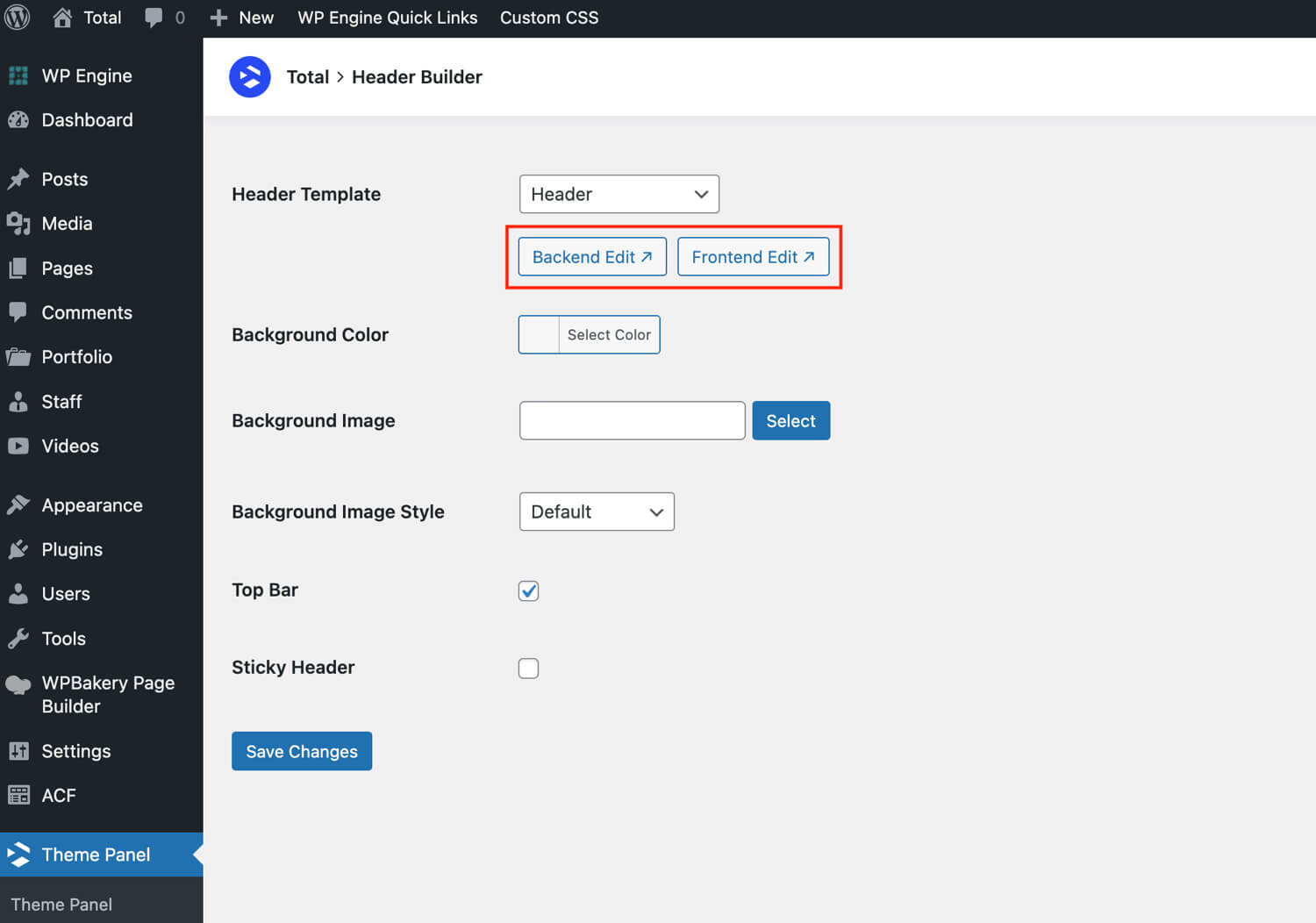
Headers and footers are key parts of a website. They hold important info. Total Theme lets you customize these easily. You can change colors and fonts. Add logos or images to your header. Footers can have links to social media. Or your contact info. This makes your site look professional. A well-configured header and footer guide users. They make browsing your site easy.
Customizing Appearance
The WordPress Customizer helps you change your site’s look. It’s easy to use. You can find it under “Appearance” in the dashboard. Preview changes in real-time. This makes it simple to adjust until satisfied. Each setting updates right away.
Choose colors that match your brand. Click on Colors in the Customizer. Select from the color wheel or input a color code. Make sure the text is easy to read. For typography, go to Typography Settings. Pick fonts that suit your style. Adjust size, weight, and spacing for better readability.

Credit: totalwptheme.com
Creating Custom Templates
The Template Builder helps in creating custom templates easily. Start by accessing it from the dashboard. Choose a layout that fits your needs. Drag and drop elements into place. You can add text, images, and buttons. Adjust each element to fit your style. Preview your template as you go. This ensures everything looks good. Finally, save your work regularly. This prevents losing any changes.
Saving your template is simple. Click the save button at the top. Give your template a name. This helps you find it later. Once saved, you can apply it to any page. Go to the page editor. Choose your template from the list. Click apply and see your page transform. Repeat this process for other pages. Custom templates make your site unique. They give it a personal touch.
Enhancing With Plugins
Many plugins can make your WordPress site better. Some plugins are very popular. They add new features to your site. Yoast SEO helps with search engines. Contact Form 7 lets users send messages. Elementor helps design pages easily. Each plugin is easy to install. They come with guides to help you. Always keep plugins updated. This keeps your site safe and fast. Choose plugins that fit your needs.
WooCommerce is a good tool for selling things online. It turns a simple site into a store. Products can be added easily. Payment options are many. Customers can pay with cards or PayPal. The design of the store can be changed. Use themes that work with WooCommerce. It helps in making the store look nice. Plugins can add more features to the store. They help in managing stock and orders. Always check reviews before adding plugins.
Optimizing For Performance
Fast websites are important. Users leave if pages load slowly. First, check your images. Big images slow down loading. Use tools to compress them. Smaller images load faster. Next, look at plugins. Too many plugins slow down sites. Use only the ones you need. Update them often. Updates fix bugs and improve speed.
Choose a good hosting service. It affects speed a lot. Some hosts are faster than others. Look for ones with good reviews. Use a caching plugin. It stores data. This helps pages load quicker. Clean up your database. Remove old data you do not need. A clean database is faster.
Good SEO helps people find your site. Use short titles. Short titles are easier to read. Include keywords in your titles. Keywords help search engines understand your content. Write clear meta descriptions. They tell users about your page. Use headings to organize content. Headings make reading easier. They also help search engines.
Use alt text for images. Search engines cannot see images. Alt text describes them. Alt text helps with SEO. Link to other pages on your site. Links keep users on your site longer. They also help with SEO. Update your content regularly. Fresh content attracts more visitors. It also helps with search rankings.
Utilizing Theme Demos
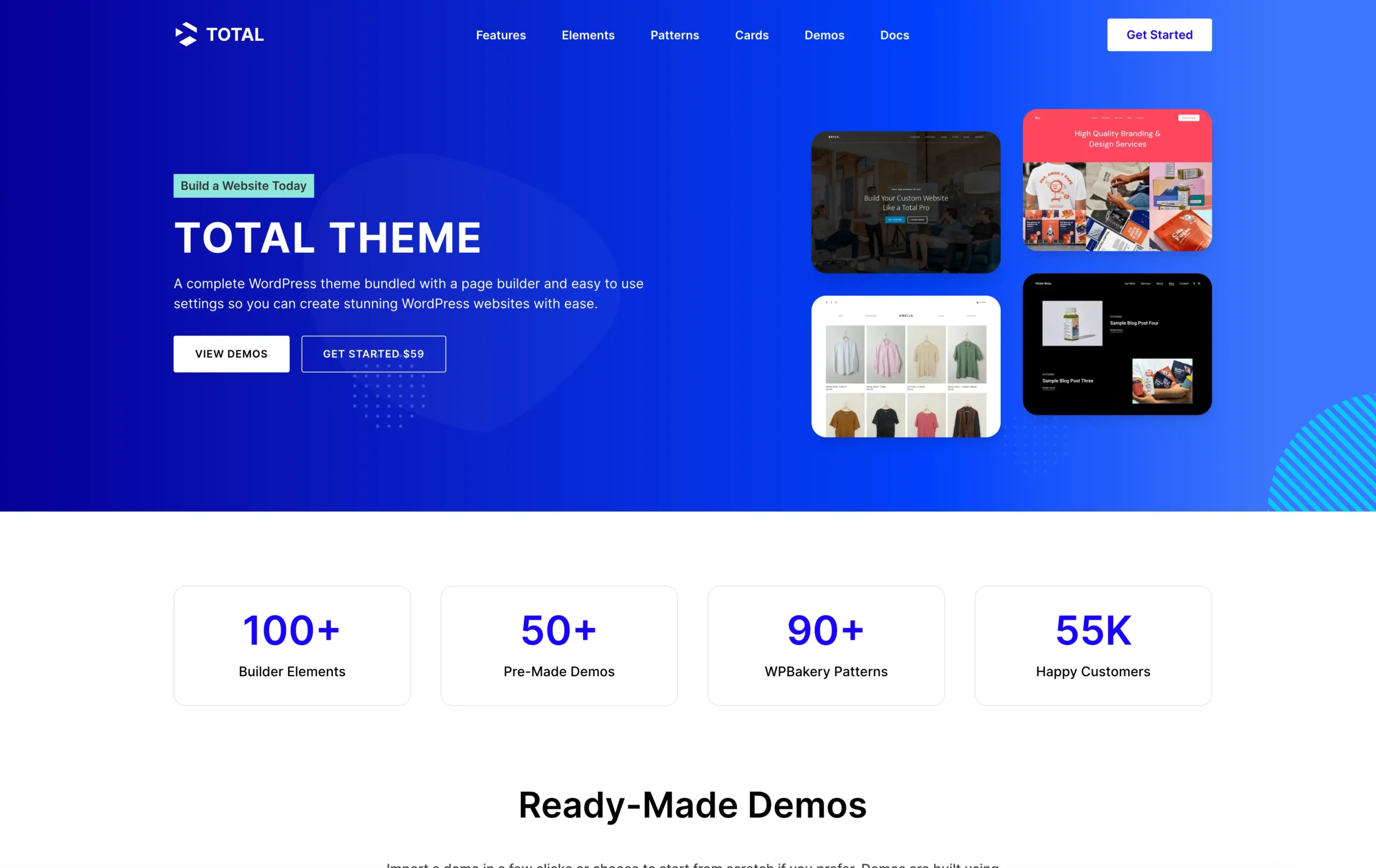
Total Theme makes website building easy. You can use demo content to start. This means using pre-made designs. First, go to the theme panel. Find the import section. Choose your favorite demo. Click import. It will load on your site. Now you have a base to work with. This saves lots of time.
After importing, you can change the demo. Use the WordPress customizer tool. It is easy to find. Click on “customize” in the dashboard. Pick colors, fonts, and styles. Change the layout to fit your needs. Make the site look unique. Add your own pictures and text. This makes the site truly yours.
Credit: www.wpexplorer.com
Managing Theme Updates
Easily manage theme updates by customizing the Total Theme in WordPress. Adjust colors, fonts, and layouts to suit your style. Regular updates ensure compatibility and security without losing your customizations.
Backing Up Your Theme
Always create a backup before updating your theme. This step is crucial. It saves your work from being lost. Use a plugin for easy backups. Many plugins are free and simple. Download the backup to your computer. Keep it safe. You will thank yourself later.
Handling Updates Safely
Always check for updates in the dashboard. Updates fix bugs and add features. Make sure your site is ready. Test the new update on a test site first. This helps find any problems. Once sure, update the live site. This keeps your site running smoothly.
Frequently Asked Questions
How To Change Total Theme Colors?
To change colors in Total Theme, navigate to Appearance > Customize > Colors. Here, you can modify the color settings for different elements like backgrounds, text, and links. Utilize the color picker to select your desired shades. Preview changes instantly, ensuring the theme aligns with your brand identity seamlessly.
Can I Add Custom Fonts In Total Theme?
Yes, you can add custom fonts in Total Theme. Go to Appearance > Customize > Typography. You can upload custom fonts or use Google Fonts. Select the font for various sections like headings and body text. This feature helps you maintain a consistent visual style across your website.
How To Modify Total Theme Header Layout?
Modify the header layout by visiting Appearance > Customize > Header. Choose from pre-designed layouts or create a custom design. Adjust elements such as logo position, navigation style, and header height. These options let you create a header that enhances user experience and fits your website’s design.
Is Total Theme Mobile-friendly?
Yes, Total Theme is mobile-friendly. It automatically adjusts to fit screens of all sizes, ensuring a seamless user experience on desktops, tablets, and smartphones. Responsive design is integrated into the theme, optimizing loading speed and functionality across all devices, crucial for mobile traffic retention.
Conclusion
Customizing the Total Theme WordPress is simple and rewarding. It offers flexibility to match your style and needs. Follow the steps to make your site unique. Experiment with colors, fonts, and layouts. Add features that enhance user experience. Keep your design clean and functional.
Regular updates ensure smooth performance. Always preview changes before going live. This approach guarantees a professional look without complications. Enjoy crafting a website that stands out. Embrace creativity and make your vision come to life. Your website is ready to impress visitors with its tailored design.


