
Are you finding your current WordPress theme no longer fits your website’s needs or aesthetic vision? Maybe it’s slowing down your site or doesn’t support the features you want.
Whatever the reason, knowing how to delete a WordPress theme can be a game-changer for your online presence. You might feel a bit anxious about making this change, worried about affecting your site’s performance or appearance. But don’t worry, you’re not alone, and it’s simpler than you think.
In this guide, you’ll discover an easy and straightforward way to remove unwanted WordPress themes safely. By the end of this article, you’ll have the confidence and knowledge to make your website run smoother and look sharper. Let’s get started!
Credit: www.malcare.com
Backup Your WordPress Site
Always backup your site before making changes. This keeps your data safe. Use a reliable plugin for backups. Some plugins are easy to use. They save a copy of your site. Store this copy in a secure place. It can be on your computer or in the cloud. This step is very important. If something goes wrong, you can restore your site. Backups can save you from many problems. Never skip this step.
Some popular plugins are UpdraftPlus and BackupBuddy. They are user-friendly. Set them up with just a few clicks. Regular backups are a smart habit. They keep your site safe and sound. Always check your backups. Ensure they are up-to-date. This way, you have the latest version ready.
Credit: www.hostinger.com
Access Your WordPress Dashboard
To delete a theme, first log into your WordPress Dashboard. Look for the sidebar on the left. It’s easy to find. Click on Appearance. Then choose Themes. This is where all themes are listed.
Select the theme you want to delete. Make sure it’s not active. You can’t delete an active theme. Click on Theme Details. Look for the Delete button at the bottom right. Click it. Confirm your choice. The theme will be gone.
Deleting themes you don’t use is good. It keeps your site clean. It also makes your site safer. Less themes mean less risk. Your site will run better too. Always keep your dashboard tidy.
Navigate To Themes Section
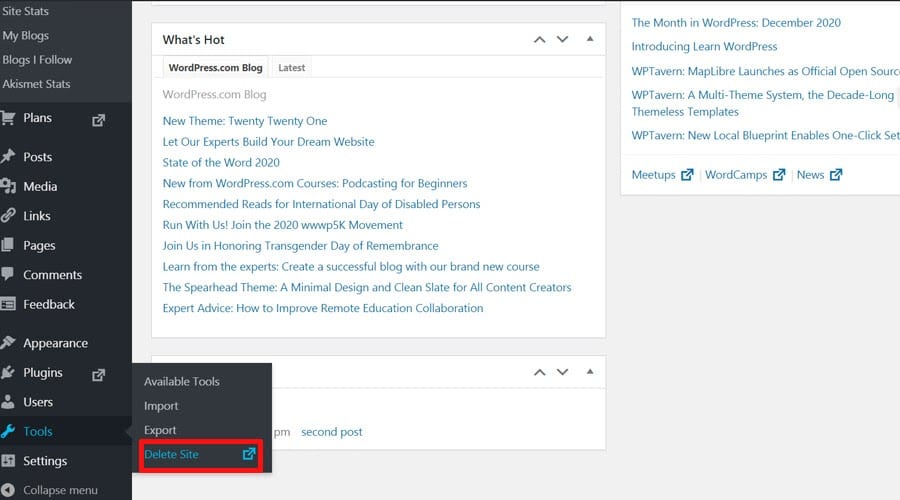
First, log into your WordPress dashboard. Find the Appearance option on the left menu. Click it to open more options. Now, choose Themes. Here, all installed themes are displayed. To delete a theme, hover over it. A Theme Details button appears. Click the button. A new window opens with theme details. Look for the Delete option at the bottom right. Click Delete to remove the theme. Confirm your choice if prompted. The theme is now gone from your site.
Credit: www.fixrunner.com
Select The Active Theme
To delete your WordPress theme, first switch to a default theme. Find your theme settings in the dashboard. Go to Appearance and then Themes. This page shows all your themes.
Look for a default theme like Twenty Twenty-One. Click on it to activate. Make sure your website looks fine with the new theme. If everything is okay, you can delete the old theme. This way, you avoid problems on your site.
Delete The Inactive Theme
First, open your WordPress dashboard. Click on Appearance and then Themes. Look at the list of themes. Find the theme you want to delete. It should be inactive. Only one theme should be active. It’s usually marked as Active.
Click on the theme you want to remove. A delete option appears at the bottom right. Click on it. You will see a confirmation message. Press OK to confirm. The theme will disappear from the list. No more clutter!
Verify Theme Removal
Ensure the theme is no longer active. Go to the WordPress dashboard. Click on “Appearance” and then “Themes.” You should see the list of installed themes. The deleted theme should not be there. Check if the active theme is different from the deleted one. If the theme is still there, try removing it again. Refresh the page to confirm the changes.
Check your website for any changes. Make sure everything looks fine. If something seems off, there might be issues with removal. Verify that the site functions as expected. No broken links or missing images should be present. If everything is fine, your theme removal is successful.
Troubleshoot Common Issues
Removing a WordPress theme can solve various problems. Go to your dashboard, click ‘Appearance’, then ‘Themes’. Select the theme you want to delete, click ‘Theme Details’, and choose ‘Delete’. Ensure your site is using a different theme before deletion to avoid errors.
Handling Theme Deletion Errors
Sometimes, deleting a theme causes errors. One common issue is file permissions. Ensure you have the right permissions to delete files. Check your server settings. Another issue is active theme deletion. Always switch to another theme first. This avoids errors during deletion. If the problem persists, reach out to your hosting provider. They can provide help with server-related issues.
Restoring From Backup
Always have a backup before deleting themes. Backups help in restoring lost data. Use plugins or hosting services for backups. They make the process easy and safe. If something goes wrong, you can restore your site. This saves time and stress. Regular backups keep your site secure and reliable.
Frequently Asked Questions
How Can I Delete A WordPress Theme?
To delete a WordPress theme, go to your dashboard, click on ‘Appearance’, then ‘Themes’. Find the theme you want to remove, click ‘Theme Details’, and select ‘Delete’. This process will permanently remove the theme from your WordPress site.
Is It Safe To Delete Unused Themes?
Yes, deleting unused themes is safe and recommended for better site performance. It frees up server space and reduces potential security risks. Ensure you have a backup before deletion to avoid any loss of data.
Will Deleting A Theme Affect My Site?
Deleting an inactive theme won’t affect your site’s active theme or content. It only removes the unused theme files. Ensure you’re not deleting the active theme. Always verify the current theme before proceeding with deletion.
Can I Recover A Deleted Theme?
Yes, you can recover a deleted theme by reinstalling it from WordPress or uploading a backup. Always keep theme backups for quick recovery. Check your WordPress repository or theme provider for easy access to the theme files.
Conclusion
Deleting a WordPress theme is simple and important. It helps keep your site clean and fast. Follow the steps carefully to avoid errors. Always back up your site before changes. Choose the right theme for your needs. Unused themes can slow down your website.
Regular updates improve security and performance. Stay organized by removing themes you don’t use. This practice saves space and reduces clutter. Keep your site running smoothly with these tips. Your WordPress journey becomes easier over time. Remember, a well-maintained site attracts visitors and enhances user experience.


