
Have you ever found yourself overwhelmed by the number of themes you’ve downloaded on your WordPress site? It happens to the best of us.
You try out a new theme, hoping it will be the perfect fit, only to end up with a cluttered dashboard and a sense of confusion. You’re not alone. Many WordPress users face this challenge and are unsure how to efficiently remove unwanted themes.
But here’s the good news: deleting a downloaded theme on WordPress is easier than you might think. And doing so can lead to a cleaner, faster, and more secure website. Imagine having a streamlined dashboard that enhances your focus and productivity every time you log in. It’s all within your reach. In this guide, we’re going to walk you through the simple steps to tidy up your WordPress site by deleting those unused themes. Plus, we’ll explain why it’s crucial for your site’s performance and security. Ready to take control of your WordPress themes and optimize your site? Let’s get started!
Credit: www.wpbeginner.com
Accessing The WordPress Dashboard
First, log in to your WordPress account. Use your username and password. Once logged in, you will see the WordPress dashboard. This is your main control area. Look for the menu on the left side. It has many options for different tasks.
Find the option called Appearance. Click on it. A dropdown menu will appear. Choose Themes from this menu. Now, you are in the Themes section. Here, you can see all your installed themes.
Navigating To The Themes Section
Start by logging into your WordPress dashboard. Once there, look at the side menu. You will find a section named Appearance. Click on it. A list will appear. Find Themes and click on it. This takes you to the themes page. You can see all your installed themes here. Check the theme you want to delete. Make sure it is not active. You cannot delete an active theme. Click on the theme to see details. Look for the Delete button. It’s usually at the bottom right. Click it to remove the theme.
Identifying The Active Theme
First, open your WordPress dashboard. Look at the left menu. Find and click on Appearance. Next, click on Themes. Here, you can see all your themes. The active theme will have a label saying Active. This theme is the one your site is using now. Do not delete this theme. Always keep one extra theme. It helps if something goes wrong. Themes you are not using can be safely removed. This frees up space and keeps your site neat. Remember, only delete themes you are sure you won’t use. Keeping your site tidy helps with its performance.

Credit: wpfactory.com
Switching To A Default Theme
Deleting a downloaded theme on WordPress is easy. First, go to your WordPress dashboard. Click on Appearance and then Themes. Find the theme you want to delete. Make sure it is not active.
Activate a default theme like Twenty Twenty-One. This ensures the site stays visible. After activating, hover over the unwanted theme. Click the Theme Details button. A new window will pop up.
Look for the Delete button at the bottom right. Click it, and a confirmation message will appear. Confirm the deletion. The theme is now removed from your list. Always keep a backup before making changes.
Locating The Theme To Delete
First, go to your WordPress dashboard. Look on the left side menu. Find Appearance and click on it. Now, click on Themes. Here, you see all your installed themes. Identify the theme you want to delete. Make sure it is not the active theme. If it is active, switch to another theme first. Click on the theme thumbnail. You will see a few options. Look for the Theme Details button and click it. A new window will appear. Check the theme name and version. Confirm this is the theme you want to remove.
Deleting The Selected Theme
First, log in to your WordPress dashboard. Find the “Appearance” menu on the left side. Click on “Themes”. You’ll see all your themes here. Locate the theme you wish to delete. It’s not active, right? Good. Only inactive themes can be deleted. Hover over the theme’s thumbnail. A “Theme Details” button will appear. Click it. A new window will show theme details. Look at the bottom-right corner. See the red “Delete” link? Click it. A pop-up will ask you to confirm. Choose “OK” to remove the theme. Done! The theme is now gone. Your site is safe and clean.
Verifying Theme Removal
Check if the theme is gone from the themes list. Visit the WordPress dashboard. Click on Appearance. Go to Themes. Find the theme you deleted. Ensure it’s not there.
Next, clear your browser cache. This helps to see changes. Sometimes, themes appear due to cache. Use a new browser or incognito mode. This ensures the theme is truly deleted.
Ensure there are no errors on your site. Visit the homepage. Check pages load correctly. If something’s wrong, review the theme removal steps. Fix any problems you find.
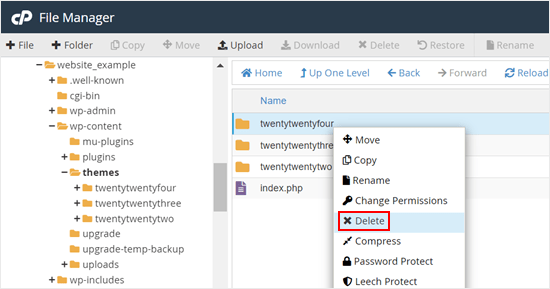
Lastly, visit the site’s files. Check if theme files remain. Use FTP or your hosting panel. Delete files if they exist. This ensures a clean removal.

Credit: wpfactory.com
Troubleshooting Common Issues
Deleting a downloaded theme on WordPress is straightforward. Navigate to Appearance, select Themes, and activate a different theme. Find the unwanted theme, click Theme Details, and hit Delete. This removes it completely from your site, freeing up space and simplifying theme management.
Theme Not Deleting
Sometimes, themes refuse to delete. This can be frustrating. First, check theme permissions. Ensure they are not locked. You may need to reset them. Some plugins might block theme deletion. Disable all plugins and try again. Refresh your WordPress dashboard. This often solves the problem.
Access Denied Errors
Access errors can stop theme removal. Incorrect file permissions often cause this. Adjust these settings in your hosting panel. FTP access might be required. Change file permissions to 755 or 644. Check user roles in WordPress. Admin access is necessary for theme changes. Contact hosting support for persistent issues. They can help reset permissions.
Tips For Managing Themes
Always create a backup of your website. This helps you if something goes wrong. Use a plugin to save your site data. A backup keeps your work safe. It’s like an extra copy of your theme. If you make a mistake, you can fix it. A backup is your safety net.
Check your themes often. See which themes you use. Remove themes you don’t need. This makes your site faster. Fewer themes mean less clutter. It’s good to keep your site clean. Think of it like cleaning your room. Less mess, more space!
Frequently Asked Questions
How Can I Delete A Theme In WordPress?
To delete a theme in WordPress, go to your Dashboard. Navigate to Appearance > Themes. Hover over the theme you want to delete and click “Theme Details. ” In the bottom right corner, click “Delete. ” Confirm the deletion to remove the theme completely.
Can I Delete A WordPress Theme Safely?
Yes, deleting a theme in WordPress is safe if it’s not active. Ensure you have another theme activated first. Deleted themes are removed from your site without affecting the active theme or your content. Always back up your site before making changes.
Why Should I Delete Unused WordPress Themes?
Unused themes can pose security risks and occupy server space. They may have vulnerabilities that hackers exploit. Removing them helps maintain a clean and secure WordPress installation. Regularly deleting unused themes ensures better performance and easier management.
What Happens After Deleting A Theme?
After deleting a theme, it’s permanently removed from your WordPress installation. It won’t affect your active theme or site content. You can always reinstall the theme later if needed. Ensure you have a backup of any customizations before deletion.
Conclusion
Deleting a theme on WordPress is simple and quick. Follow the steps carefully. Ensure you back up your site first. This prevents losing important data. After deletion, your site will run smoothly. Avoid unnecessary themes to keep it fast. Regularly check for unused themes.
This helps maintain performance. It’s crucial for security, too. Unused themes may pose risks. Keep your WordPress clean and updated. Enjoy a faster and safer website. Always be proactive in managing your site. It enhances user experience and boosts efficiency.
Stay informed and keep your site in top shape.


