
Unlocking the full potential of your website starts with personalization, and if you’ve purchased a Themeforest theme for your WordPress site, you’re already on the right path. But what if your theme isn’t quite there yet?
Imagine the power of transforming a generic layout into a stunning, unique masterpiece that reflects your brand’s identity perfectly. This isn’t just about aesthetics; it’s about making your visitors feel at home, encouraging them to stay longer, and engage more.
You might be wondering where to start or how to ensure you’re getting the most out of your investment. Don’t worry, you’re not alone, and customizing your Themeforest theme is easier than you might think. Dive into this guide, and you’ll discover simple, effective strategies to tailor your theme to your exact needs, making your website not just another URL, but a vibrant digital experience.
Themeforest Theme Installation
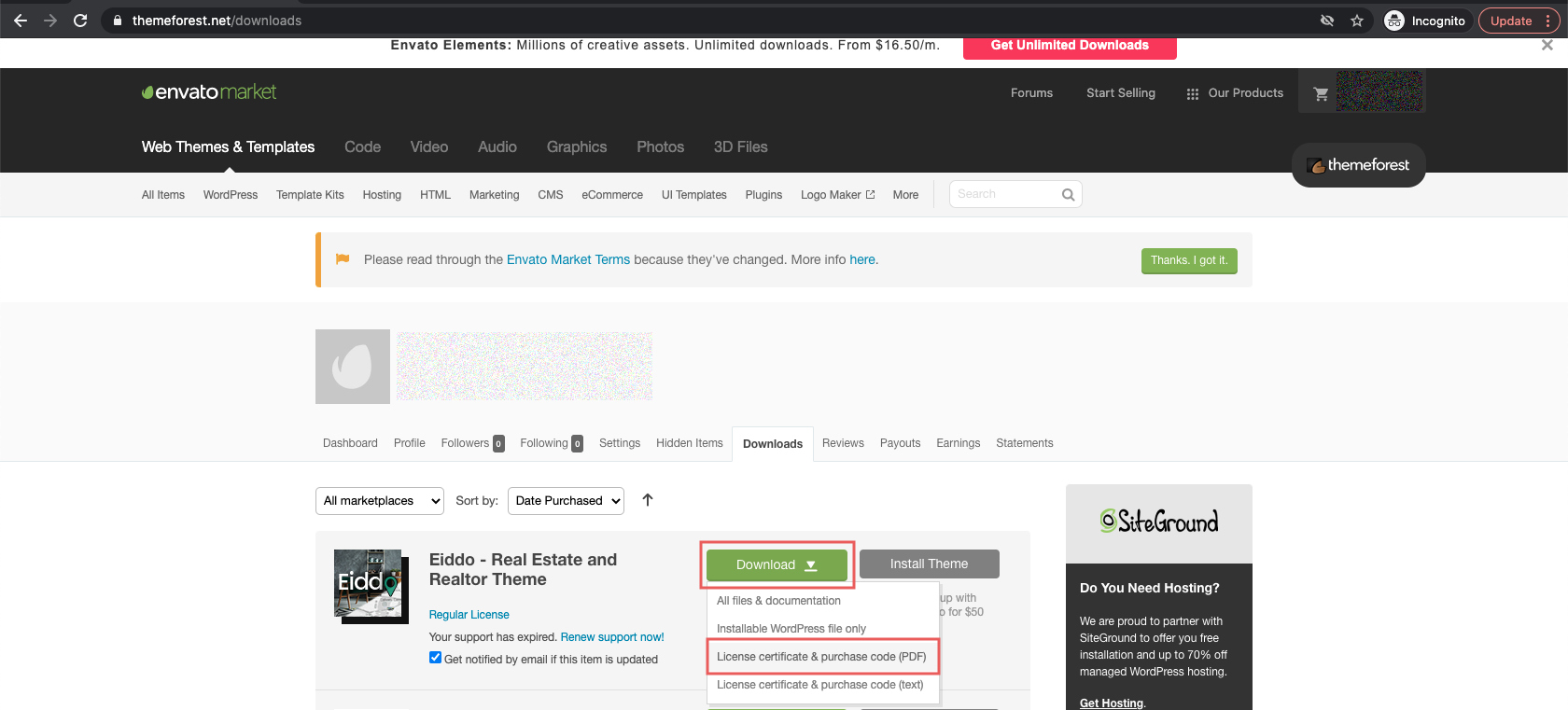
First, log into your Themeforest account. Go to the Downloads section. Click the Download button next to your theme. Choose “Installable WordPress file only” for a quick download. Save it to your computer. Remember the file location.
Log into your WordPress dashboard. Find the Appearance tab on the side menu. Click on Themes. Then, select Add New and press Upload Theme. Click the Choose File button. Select the theme file from your computer. Press Install Now. Once done, click Activate to use the theme.
Activating Your Theme
First, find your license key. It is in your purchase email. Go to your WordPress dashboard. Click on Appearance. Then, select Themes. Choose your theme and click Activate. Enter your license key. This step ensures your theme is ready to use.
Check if the theme is compatible with your WordPress version. Go to the theme’s settings. Look for a compatibility note. Update WordPress if needed. This keeps things running smoothly. Make sure all plugins are up to date. Compatibility is key for a seamless experience.
Exploring Theme Options
The WordPress dashboard is your control center. It’s where you manage your site. You’ll see many menu items on the left side. The Appearance section is crucial. It holds your themes and customization tools. Click on Appearance to explore your theme options. You can switch themes or customize them here.
The customization panel lets you change your theme’s look. It’s easy and user-friendly. You can adjust colors, fonts, and layouts. Look for Custom CSS for advanced tweaks. Some themes have special options. These might include sliders or custom widgets. Always remember to save your changes. This keeps your site updated with your new settings.
Customizing Layout And Design
Explore customizing your Themeforest theme on WordPress with simple tweaks. Adjust layouts and design settings effortlessly. Make your site unique with easy-to-use tools and options.
Adjusting Header And Footer
Begin by accessing the WordPress dashboard. Navigate to the Appearance section. Click on Customize. Find the Header and Footer settings. You can change the logo. Or, modify the text. Some themes offer widget areas. Add or remove widgets as needed. Save changes to see updates.
Modifying Color Schemes
Open the Theme Customizer from the dashboard. Look for Color Options. Here, you can change primary and secondary colors. Choose colors that match your brand. Preview changes before saving. Some themes let you customize background colors too. Always click Publish to save.
Incorporating Widgets And Plugins
Enhancing your Themeforest theme on WordPress involves adding widgets and plugins. These tools offer additional functionality and design options. Easily customize your site’s appearance and features to better suit your needs.
Selecting Essential Plugins
Choose plugins that add important features to your website. Look for plugins that improve security and speed. Also, pick plugins that help with SEO and analytics. A good plugin should be easy to use. It should also offer great support. Read reviews before installing any plugin. Check compatibility with your theme. Too many plugins slow down your site. So, select wisely.
Widget Placement Strategy
Widgets give your site extra features. Place them where they are most needed. For example, a search widget fits well in the header. Contact forms are useful in the footer. Think about your site’s layout. Use widgets to fill empty spaces. Widgets should improve user experience. Rearrange widgets to make your site look neat. Keep important widgets easy to find. This helps visitors navigate your site.
Credit: helpcenter.qodeinteractive.com
Content Management
Create a new page by clicking the Add New button. It’s easy to find. Type a name for your page. Then, click Publish. Want a new post? Click Add New under Posts. Write your words. Click Publish when done.
The visual editor helps you see changes live. Click on the editor. Add your text and images. Use buttons to bold or change colors. You can make lists too. Want a link? Highlight text, then click the link icon. It’s simple to use.
Optimizing For Performance
Customizing your Themeforest theme on WordPress enhances performance. Adjust settings in the WordPress dashboard for better speed. Optimize images, and use plugins wisely to streamline your site’s functionality.
Image Optimization Techniques
Large images can slow down your site. Make images smaller for faster load times. Use tools like TinyPNG or JPEGmini. These tools compress images without losing quality. Choose the right file format. Use JPEG for photos and PNG for graphics. Always add alt text to images. It helps with search engines and accessibility.
Caching And Minification
Caching keeps your site fast. It stores copies of your pages. Visitors see pages quicker. Use plugins like W3 Total Cache or WP Super Cache. Minification reduces file sizes. It removes extra spaces and lines in code. Smaller files load faster. Use plugins like Autoptimize for this task. Always back up your site before changes. This keeps your data safe.

Credit: forums.envato.com
Ensuring Mobile Responsiveness
Testing is important. Use different devices like phones and tablets. Make sure your theme looks good on all screens. Check buttons and menus. They should work well. Adjust settings if needed. Look for problems and fix them. Mobile users should have a smooth experience. They will visit your site more if it is easy to use.
Make small changes to fit screens. Use WordPress tools for this. Media queries can help. They change styles for different screens. Adjust font sizes. This helps readability. Don’t forget images. They should not be too big. Use flexible layouts. This makes content fit well. Keep testing and adjusting. Your theme should be perfect.
Troubleshooting Common Issues
Plugin conflicts can be tricky. First, deactivate all plugins. Then activate them one by one. Watch for any errors. This helps find the problem plugin. If the error returns, note the plugin name. Some plugins may not work well together. Choose plugins that are compatible. Check plugin documentation for compatibility details.
Layout problems can spoil the design. Check theme settings first. Sometimes a small change fixes the layout. If not, use the browser’s inspect tool. Look for any CSS errors. This helps identify misaligned elements. Another tip: clear the browser cache. Sometimes cached data causes issues. Refresh your page after clearing the cache.

Credit: themeforest.net
Backing Up And Securing Your Site
Customizing your Themeforest theme on WordPress ensures a unique website look. Start by accessing the WordPress dashboard, then navigate to the Appearance menu. Use the Customize option to modify colors, fonts, and layouts according to your preferences. Regularly back up your site to protect your changes.
Regular Backup Practices
Backing up your site is important. It helps to keep your data safe. Use a plugin to make backups easy. Schedule backups regularly. Store backups in different locations. This prevents data loss from accidents or attacks. Always have a backup copy ready to use.
Implementing Security Measures
Protect your site from hackers. Install security plugins. They help to block threats. Keep your plugins updated. Use strong passwords for your accounts. Avoid using easy passwords. Enable two-step verification for extra safety. Check your site often for problems. Fix issues quickly to keep your site secure.
Frequently Asked Questions
How Do I Install My Themeforest Theme?
To install your Themeforest theme, log into your WordPress dashboard. Navigate to ‘Appearance’ > ‘Themes’ > ‘Add New’. Click ‘Upload Theme’, choose your theme file, then click ‘Install Now’. Activate your theme once installation completes. Ensure your theme supports your WordPress version for optimal performance.
Can I Customize Themeforest Themes Easily?
Yes, customizing Themeforest themes is straightforward. Use the WordPress Customizer under ‘Appearance’ > ‘Customize’. It allows you to change colors, fonts, layouts, and more. Most themes also offer additional settings or page builders for deeper customization. Always refer to the theme’s documentation for detailed instructions.
What Tools Help Customize WordPress Themes?
WordPress themes can be customized using the Customizer, page builders like Elementor, and custom CSS. These tools offer flexibility in design and functionality. Many Themeforest themes include built-in customization options. Consider plugins for additional features, ensuring compatibility with your theme for seamless integration.
How Do I Update My Themeforest Theme?
To update, download the latest theme version from Themeforest. In WordPress, go to ‘Appearance’ > ‘Themes’, deactivate and delete the old version. Upload and install the new version via ‘Add New’. Backup your site before updating to prevent data loss or compatibility issues.
Conclusion
Customizing your Themeforest theme on WordPress is simple. Start with the basics. Explore theme settings. Adjust colors and fonts. Add your unique touch. Use widgets and plugins wisely. Test changes thoroughly. Keep user experience in mind. Stay updated with WordPress trends.
Seek help from online forums. Embrace creativity in design. Your website reflects your brand. Make it visually appealing and functional. Enjoy the process. Celebrate your digital space. Your journey in customizing themes is rewarding. Every tweak makes a difference. Happy customizing!


