
Are you feeling overwhelmed by your current WordPress theme? Perhaps it’s outdated, cluttered, or simply doesn’t resonate with your brand anymore.
Whatever the reason, knowing how to delete a WordPress theme and reinstall a new one can be a game-changer for your website. Picture this: a fresh, sleek design that captivates your visitors and boosts your online presence. You’re not alone in wanting a change, and the good news is, it’s easier than you think.
By following a few simple steps, you can give your site a brand-new look without losing any of your valuable content. Ready to transform your website into something you’re truly proud of? Let’s dive in and discover how you can effortlessly revamp your WordPress theme today.
Backup Your WordPress Site
Backing up your WordPress site is very important. It keeps your data safe. If something goes wrong, you can restore it. Your posts, images, and settings stay safe. A backup is like a safety net. It helps you avoid losing your hard work. Accidents happen. Be prepared with a backup.
Many tools can help you backup your site. UpdraftPlus is popular. It’s easy to use. BackWPup is another good tool. It can save your backup in the cloud. Jetpack also offers backup features. Choose a tool that fits your needs. Make backups regularly. It’s simple and saves you trouble.

Credit: www.youtube.com
Access WordPress Dashboard
Start by entering your website URL. Add /wp-admin at the end. The login page will show up. Type in your username and password. Click on the login button. Now, you can see your dashboard. The dashboard is the control center. It helps you manage your site easily.
The dashboard has many sections. Each section has different functions. On the left, there is a menu. This menu has options like Posts, Pages, and Appearance. Click on Appearance to find themes. Here, you can choose, delete, or install themes. Be careful when deleting. You might lose custom settings. Always check before taking action.
Identify Active Theme
Check which theme is active in your WordPress. Go to the dashboard. Click on Appearance, then Themes. The active theme will have a label. This is the theme you see on your site. Write down its name. You’ll need this later.
Before deleting, save your settings. Go to Theme Options or Customizer. Look for settings like colors, fonts, or layouts. Take screenshots of these settings. Write down any custom codes or changes. This will help you later. You can easily set them up again after reinstalling.
Credit: www.wpbeginner.com
Deactivate Current Theme
Removing a WordPress theme starts with deactivating the current one. Head to the “Appearance” section in your dashboard. Choose another theme temporarily, then safely delete the unwanted theme.
Activate A Default Theme
It is important to activate a default theme before deleting the current theme. This ensures your site remains active. Go to the Appearance tab in your WordPress dashboard. Choose a default theme like Twenty Twenty-One. Click on the Activate button to make it live. This step is crucial. It prevents your site from breaking during the process.
Why Deactivation Is Necessary
Deactivating the theme is a key step. It ensures no conflicts arise when reinstalling. Old themes can carry bugs or errors. Deactivating clears these issues. This helps in keeping your site clean. New installations work smoother this way. It’s a small step with big benefits. Protects your site from unnecessary issues.
Delete WordPress Theme
Go to the WordPress Dashboard. Click on Appearance. Find the Themes section. All installed themes will show here. Click on the theme you want to delete. Make sure it’s not active. Active themes can’t be deleted. Always switch to another theme first. This way, you can avoid problems.
Open your FTP client. Connect to your website. Go to the wp-content folder. Find the themes folder. All theme files are here. Locate the theme you want to remove. Right-click and delete it. Be careful not to delete the wrong files. Double-check before deleting. This step is important for safety.
Download New Theme
Easily delete and reinstall a WordPress theme to refresh your site’s look. Navigate to your dashboard, click “Appearance,” then “Themes,” and select “Delete. ” Download your new theme, install, and activate it to give your website a fresh start.
Finding A Reliable Source
Choose a trusted website for your theme. Ensure the site has good reviews. Popular sites include WordPress.org and ThemeForest. They offer safe and secure downloads. Be wary of free sites. They can be risky. Viruses or malware might hide there. Always check the theme rating. User feedback is important. It shows if the theme works well. Avoid themes with low ratings. These might have problems. Look for recent updates. Themes that update often are usually better. They fix bugs and improve features.
Considerations For New Theme
New themes should fit your website needs. Check the design. Does it match your brand? Ensure it’s responsive. It should work on all devices. Look at the loading speed. Fast themes are better for users. Compatibility is key. The theme should work with your plugins. Customer support is important. They help if you have issues. Choose themes with active support teams. Always read the theme details before downloading. This ensures it meets your needs.
Upload And Install Theme
To install a theme, first log into your WordPress Dashboard. Then, click on Appearance and select Themes. Next, click on Add New at the top. You can search for a theme or click Upload Theme if you have a theme file. After choosing your theme, click Install and then Activate. Your theme is now ready to use.
First, download the theme to your computer. Connect to your FTP client. Navigate to wp-content/themes on your server. Upload the unzipped theme folder there. After uploading, go to your WordPress Dashboard. Click on Appearance then Themes. You will see your new theme. Click Activate to use it.
Activate New Theme
Setting as Active Theme is easy. Go to your WordPress dashboard. Click on “Appearance”. Then select “Themes”. You will see all your themes here. Find the theme you want. Click “Activate”. This will set it as your active theme. Your website will now use this theme.
Customizing Theme Settings is fun. After activation, go to “Customize”. You will find this under “Appearance”. Here, you can change colors, fonts, and layouts. Make sure to save your changes. You can also preview them. This helps in seeing how your site looks. You can change it anytime. Themes make your site unique and special. Enjoy the new look!
Test New Theme
Checking Website Functionality is very important. First, see if the pages load fast. Slow pages can annoy users. Click every link. They should all work correctly. Make sure images appear clearly. Broken images look bad.
Look at the site on a phone. It should look good there too. Some themes break on small screens. Check forms on your site. People need to fill them out. They should submit easily.
Troubleshooting Common Issues is easy. First, clear your browser’s cache. Sometimes old data causes problems. If a page is blank, check the theme settings. Ensure all are correct.
If your site looks strange, deactivate plugins. One might cause the issue. Reactivate them one by one. Find which one breaks the site. Contact the theme developer if you can’t fix it. They can help with theme-related problems.
Restore Backup If Necessary
Deleting and reinstalling a WordPress theme can solve various issues. Always restore a backup to prevent data loss. This ensures your site remains intact during theme changes.
When To Restore
Sometimes themes break your site. Restoring the backup helps. If a theme crashes your site, restore it. Errors may occur during updates. Restore if this happens. Always backup before changes. It keeps your site safe. Restoring is needed if your site looks wrong. Backup is your safety net. Never skip this step. Themes can cause problems. Restore when they do.
Steps To Restore
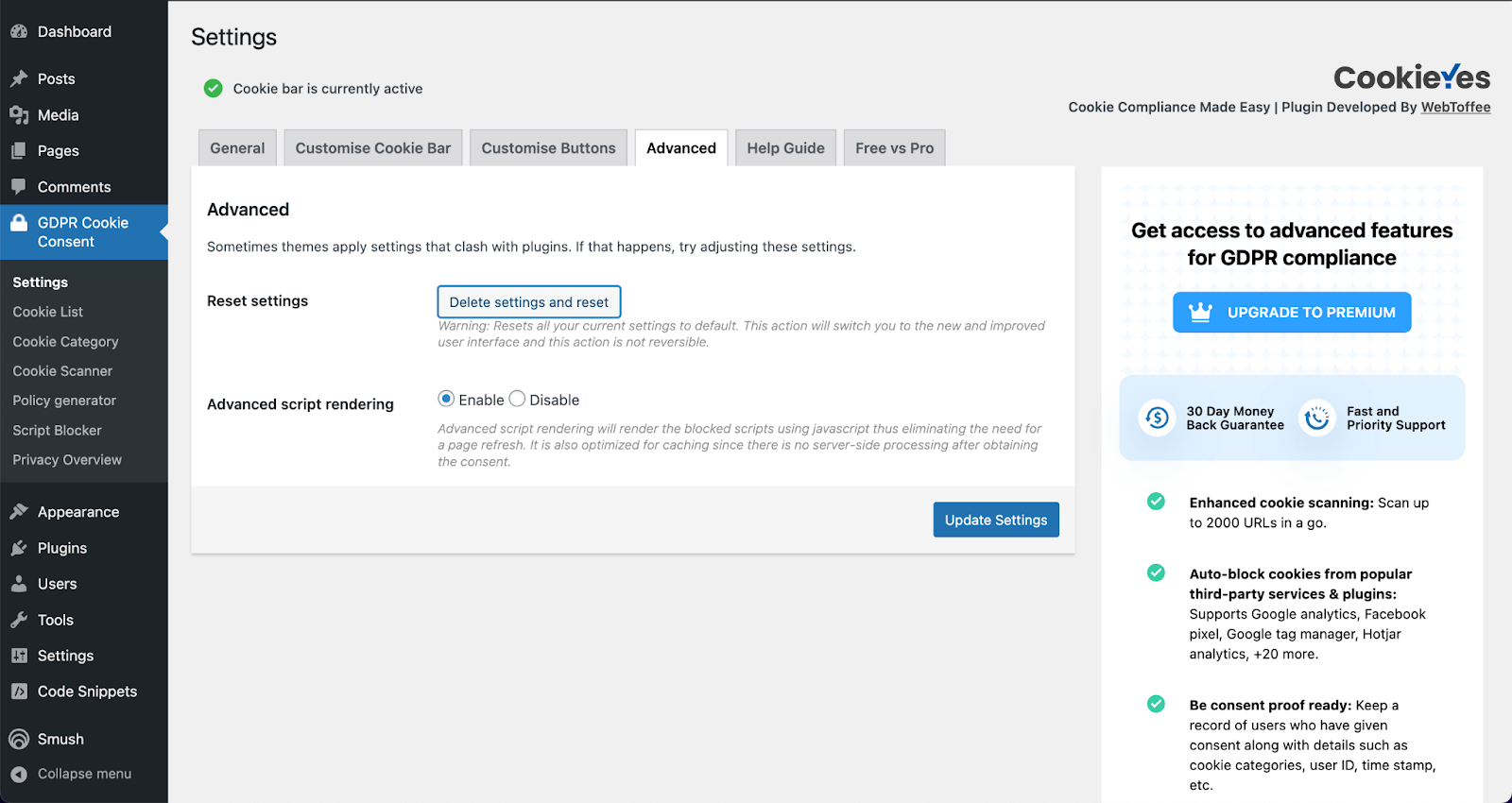
First, locate your backup file. Use a plugin to restore it. Follow on-screen instructions. Some plugins automate this. It’s easy and quick. Check your site after restoring. Ensure everything works fine. Restoring fixes broken sites. Always have a backup ready. Regular backups are important. They protect your site. Restoring isn’t hard. Plugins make it simple. Always backup before big changes.
Credit: www.cookieyes.com
Frequently Asked Questions
How Do I Delete A WordPress Theme?
To delete a WordPress theme, navigate to the dashboard. Go to Appearance > Themes, and select the theme. Click “Delete” at the bottom-right. Confirm the deletion. Ensure you have a backup before proceeding. This process helps free up space and improve site performance.
Can I Reinstall A Deleted WordPress Theme?
Yes, you can reinstall a deleted WordPress theme. Go to Appearance > Themes > Add New. Search for the theme or upload it from your computer. Install and activate it. Make sure to back up your site’s data before making changes.
Why Delete Unused WordPress Themes?
Deleting unused WordPress themes improves website performance and security. Unused themes can be vulnerable to security risks. They also consume server resources, slowing down your site. Regularly review and remove themes you no longer use to maintain an optimized WordPress environment.
Will Deleting A Theme Affect My Website?
Deleting a theme won’t affect your website if it’s not active. Ensure your current theme is active before deleting others. Always back up your site before making changes. If the deleted theme had custom settings, those settings will be lost.
Conclusion
Deleting and reinstalling a WordPress theme is straightforward. First, back up your site data. This prevents loss. Next, deactivate your current theme. Use the WordPress dashboard for this step. Then, delete the theme. Choose a new theme from the WordPress repository.
Ensure it fits your website needs. Install and activate the new theme. Check your site for errors. Make adjustments as needed. This process enhances your website’s look. It also improves functionality. Regular updates keep your site fresh. Always prioritize security.
Maintain your site’s health for better performance. Happy blogging!


