
Unlock the potential of your website with the Encore theme on WordPress. You might be wondering how to make your site stand out.
Customizing your WordPress Encore theme is the key to creating a unique online presence that captivates your audience. Imagine turning your website into a true reflection of your brand or personal style. It’s easier than you think, and you don’t need to be a tech wizard to do it.
In this guide, you’ll discover simple, actionable steps to personalize your Encore theme and make it your own. Whether you’re looking to tweak the design, adjust the layout, or add engaging features, this article will empower you to transform your site effortlessly. Dive in and see just how straightforward customization can be. Your perfect website is just a few clicks away.
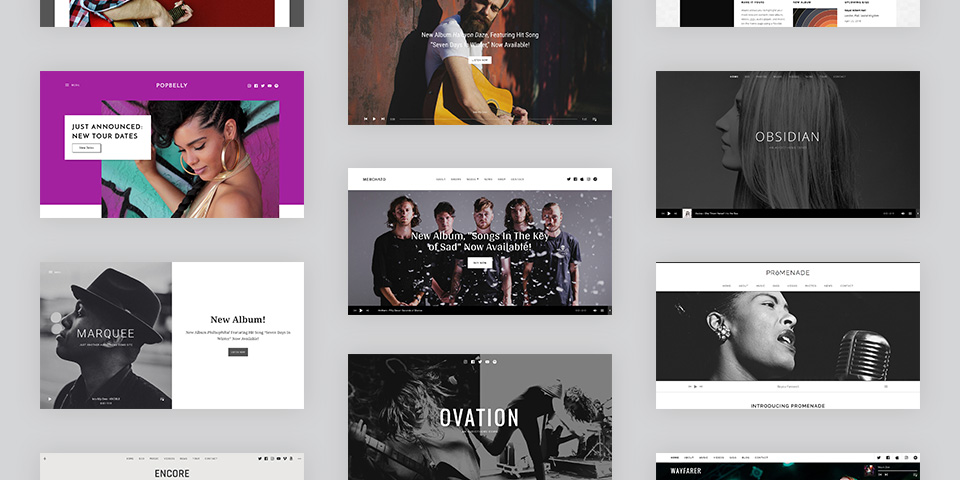
Credit: audiotheme.com
Installing Encore Theme
First, open the WordPress dashboard. Find the Appearance tab on the left side. Click on Themes under Appearance. Next, press the Add New button at the top. Use the search bar to find the Encore Theme. Once found, click on the Install button. Wait for the installation to finish. Then, click Activate to use it. Now, Encore is your active theme. Ready to customize!
Setting Up Basic Options
Start with the general settings in your WordPress dashboard. Change the site title to match your blog name. Use a short tagline that explains your blog. Don’t forget to set your timezone correctly. This helps to schedule posts.
Site identity is important. Add a logo to your site. It makes your blog look unique. Use a favicon for browser tabs. This small icon represents your site. Choose colors that match your brand. Make sure your site is easy to recognize.
Customizing Header And Footer
Customizing the header and footer in WordPress Encore Theme adds a personal touch to your site. Access the WordPress dashboard, navigate to Appearance, then Header or Footer to make changes. Adjust colors, fonts, and layouts to fit your brand style easily.
Editing Header Layout
Changing the header layout is fun and easy. First, visit the WordPress dashboard. Then, click on Appearance and select Customize. You will see many options. Choose Header from the list. Now, you can start changing things. Move the logo to the left or right. Change the background color. You can also add a new menu. It will make your site look fresh and new.
Adding Custom Footer Widgets
Adding custom footer widgets gives your site a unique touch. Go to Appearance in the dashboard. Click on Widgets. You will see a list of options. Drag and drop any widget you like to the footer area. Add a text widget to say something special. Or, use a social media widget to link your profiles. It’s simple and makes your site better.
Modifying Colors And Fonts
Colors make your site look nice. Pick colors that match your brand. The Encore theme lets you change colors easily. Go to the customizer in your WordPress dashboard. Here, you can see options to change the background and text colors. Try different shades to find what looks best. Remember, good colors make your site friendly.
Fonts help show your style. The Encore theme offers many font options. You can pick from Google Fonts or other styles. Go to the customizer, then click on Typography. Try different fonts to see what fits your site. Keep it simple so people can read it easily. A good font makes reading fun.
Personalizing Homepage Layout
Page builders help to make your site unique. They offer drag-and-drop features. This means you can move items easily. You can add text, images, and buttons. Change the size and color too. Making changes is simple. Just click and drag. No coding needed. Save your work often. This keeps changes safe.
Featured sections show important content. Adjusting them is easy. Choose what to show. This can be articles or products. Change the order if needed. Highlight special parts. Use bold or colors. Make sure it looks neat. Visitors see these first. Keep it simple. This helps them find things fast.
Adding Custom Widgets
Custom widgets make your site look nice. You can add them to the sidebar. First, go to the WordPress dashboard. Click on Appearance and then Widgets. You will see a list of available widgets. Drag the widget you like to the sidebar area. You can also arrange them in any order. Each widget has settings. Click on the widget to see these settings. You can change the title or add text. After making changes, hit Save. Your sidebar now has a custom widget.
The footer is at the bottom of the page. You can add widgets here too. Just like with the sidebar, go to Appearance and then Widgets. Find the footer widget area. Drag your chosen widget to this area. You can add things like contact info or social links. Adjust the settings if needed. Remember to click Save when done. Now, your footer looks more useful and engaging.
Optimizing For Mobile
Customizing the WordPress Encore Theme for mobile involves adjusting responsive settings. Ensure images and text fit small screens. Use plugins to enhance mobile navigation. Optimize load speed by compressing images. Test changes on various devices to guarantee a smooth user experience.
Responsive Design Settings
Responsive settings help your site look good on phones. Choose a flexible layout in the theme settings. Check your fonts and colors. They should be easy to read on small screens. Look for the mobile preview option in the WordPress dashboard. This shows how your site appears on phones. Adjust the settings until it looks nice and clear. Ensure buttons are big enough to tap easily. Add images that fit the screen without scrolling. Keep an eye on loading times. Fast sites make users happy.
Testing Mobile Performance
Test your site’s mobile speed often. Use tools like Google PageSpeed Insights. They show how fast your site loads. Check for any errors or slow parts. Fix them quickly. Test on different devices. Each phone or tablet might show your site differently. Ask friends with various phones to check your site. Make sure everything works smoothly. Slow sites make people leave. Make sure navigation is simple. Users should find what they want fast. Keep improving for the best mobile experience.
Enhancing With Plugins
Plugins make your website better. Choose plugins that suit your needs. Some plugins add features. Others improve speed. Security plugins keep your site safe. Performance plugins help your site load quickly. Contact form plugins allow users to message you. Pick wisely. Too many plugins slow down your site. Only use what you need.
SEO tools help your site rank higher. Use them to find keywords. Optimize your content with these tools. Some plugins suggest better titles. Others check your links. Meta tags are important for SEO. Tools help manage them. Plugins can also improve images. Make sure your images load fast. Fast images help your site’s SEO.
Custom Css And Advanced Features
Custom CSS lets you change how your site looks. It is like adding your own style. You can make text bold or change colors. Go to your WordPress dashboard. Find the Appearance section. Click on Customize. Look for Additional CSS. Here, you can type your own CSS code. Try simple changes first. Like changing the background color. This makes your site unique and personal.
Advanced settings are hidden options. They give you more control. To access, go to the Appearance menu. Look for Theme Options. You might find settings for fonts and layouts. Some themes have extra settings. Check them out. They can help improve your site. Make sure to save your changes. Always preview before publishing.
Credit: themeforest.net
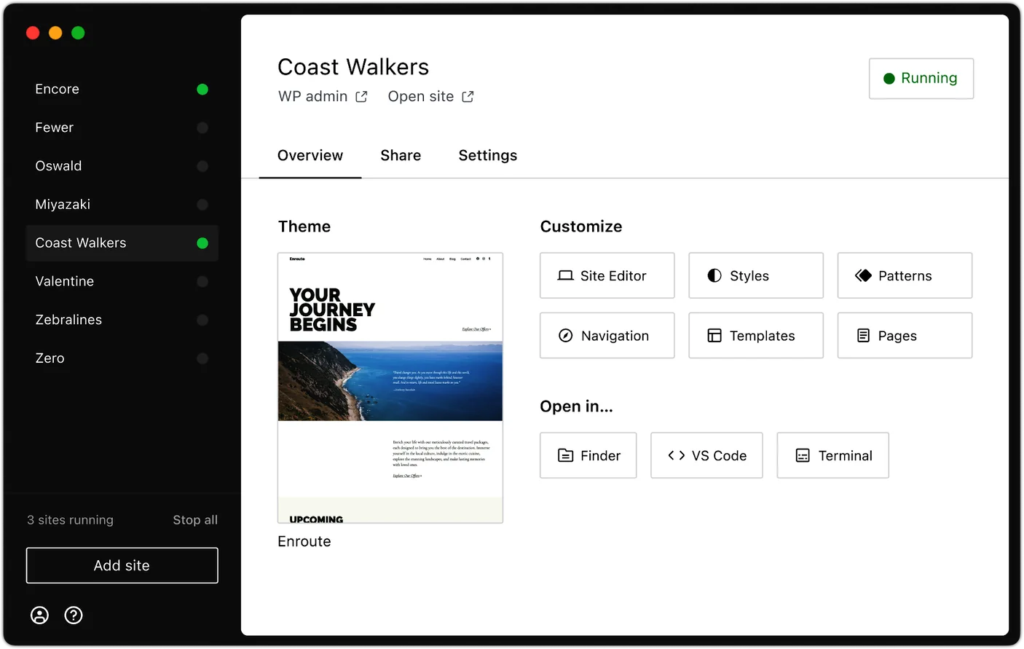
Credit: www.codeable.io
Frequently Asked Questions
How Do I Install Encore Theme On WordPress?
To install Encore Theme, log into your WordPress dashboard. Navigate to ‘Appearance’ and click ‘Themes’. Select ‘Add New’ and search for Encore Theme. Click ‘Install’ and then ‘Activate’. Ensure your WordPress version is compatible for a seamless installation.
Can I Change Encore Theme Colors Easily?
Yes, customizing colors in Encore Theme is simple. Go to ‘Appearance’ and select ‘Customize’. Click on ‘Colors’ to choose your preferred palette. This section allows you to modify background, text, and accent colors to match your brand identity.
How Do I Add Widgets To Encore Theme?
To add widgets, go to ‘Appearance’ and select ‘Widgets’. Drag and drop your desired widgets into available sidebar or footer areas. Encore Theme supports various widgets, enhancing functionality and user experience. Customize their settings to fit your needs.
Is Encore Theme Mobile-friendly?
Yes, Encore Theme is fully responsive and mobile-friendly. It adjusts seamlessly to different screen sizes and devices, providing a consistent user experience. This feature is crucial for maintaining engagement and optimizing your site for search engines.
Conclusion
Customizing the WordPress Encore theme is simple and rewarding. You gain control over your site’s look and feel. Choose colors that match your brand identity. Adjust fonts to make text easy to read. Organize your layout for better navigation. Add widgets to enhance functionality.
Personalize images for a unique touch. Test changes to ensure smooth performance. Keep your site updated regularly. These steps help your site stand out. Engage visitors with a fresh design. Explore more customization options as you grow. Enjoy the process and watch your site thrive.


