
Are you tired of your website looking like everyone else’s? Do you want to make your site stand out from the crowd?
Customizing your WordPress theme can be a game-changer. The 2019 WordPress theme is a great starting point, but personalizing it can truly make it your own. In this guide, you’ll discover simple yet effective ways to tweak and transform your theme to reflect your brand and style.
Imagine your website capturing your audience’s attention with its unique look and feel. Stay with us, and by the end of this article, you’ll have the tools and confidence to customize your theme like a pro. Let’s dive into the world of theme customization and bring your vision to life.
Credit: codecanyon.net
Choosing The Right Theme
Start by thinking about what your website needs. Make a list of important features. Consider your audience and what they like. Do you need a blog or a shop? Decide on colors and style.
Think about your content. Will you use lots of photos or videos? Write down your goals. This helps you choose a theme that fits your needs. Remember, a theme should make your site look good and work well.
Look at theme features before picking one. Some themes have special tools. Drag-and-drop builders help you design easily. Responsive design is important. It makes your site look good on phones and tablets.
Check for customization options. Can you change colors and fonts? See if it supports plugins. Plugins add more features to your site. Test different themes to find the best one for you.
Installing The 2019 Theme
Start by visiting the WordPress Repository. Search for the 2019 theme. Click on the download button. Save the file to your computer. Keep it in a safe place.
Go to your WordPress dashboard. Look for the Appearance menu. Click on Themes. Select Add New. Upload the theme file you saved. Click on Activate to use your new theme. Check your site to see the changes.
Customizing The Header
Explore the 2019 WordPress theme by customizing the header to fit your style. Adjust colors, fonts, and logos easily. Enhance your site’s look with personalized header settings.
Adding A Logo
Start by going to the WordPress Dashboard. Click on Appearance, then Customize. In the menu, find Site Identity. Here, you can add your logo. Click on Select Logo. Choose an image from your library or upload a new one. Make sure the image is clear and fits well. This will make your site look professional. Once done, click Publish to save changes.
Adjusting Header Layout
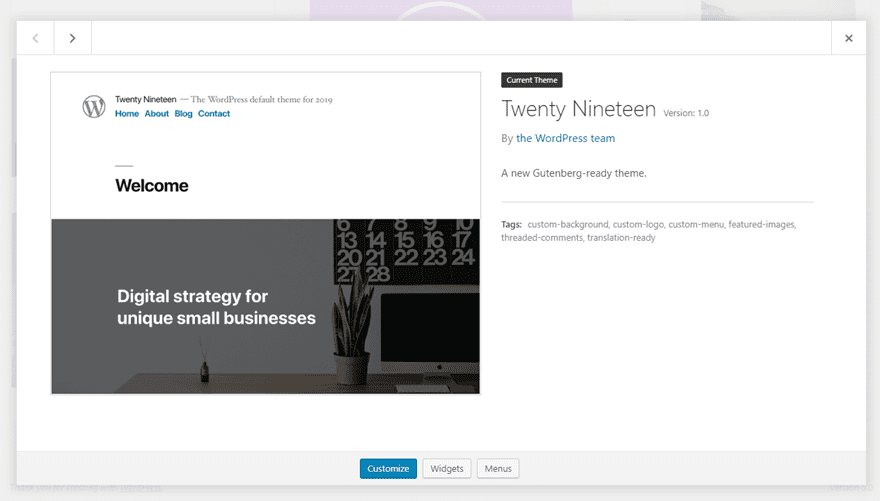
Navigate to the Customize section again. Look for Header Options or similar. Here, you can adjust the header layout. Choose from different styles. Some themes offer a centered logo. Others offer a logo on the left. Try different options to see what looks best. Adjust the size if needed. Always preview changes before saving. This helps ensure everything looks good.
Credit: www.elegantthemes.com
Editing The Homepage
Set a static page as your homepage. Go to the WordPress dashboard. Then click on Settings. After that, select Reading. Find the option for Front page displays. Choose a static page. Pick a page from the list. Save your changes. Now, your homepage shows this page.
Content blocks make your homepage look nice. Use the WordPress editor to change them. Add blocks by clicking the plus icon. Choose from many types. Like text, images, or videos. Drag blocks to move them. Change text with the edit tool. For images, click on the block. Then upload or select a picture.
Save your changes often. This keeps your work safe. Preview your page to see changes. Make sure it looks good. Then publish when ready.
Adjusting Color Schemes
The WordPress Customizer helps change colors easily. Open your dashboard. Find the Appearance section. Click on Customize. Choose the Colors option. Pick a color you like. Save your changes. You can see how it looks instantly. This tool is simple. It makes your site look unique. Try different colors. Find what suits your style best.
Make sure your colors match. Use no more than three colors. This keeps your site tidy. Choose a main color. Add two more for accents. Look at color wheels online. They help find colors that go well together. Test your palette on your site. Does it look good? If yes, use it. Keep your colors the same on all pages. This creates a consistent look.

Credit: crocoblock.com
Typography Adjustments
Explore the art of typography adjustments to personalize the 2019 WordPress theme. Change fonts and sizes with ease, enhancing readability and design. Create a unique look that matches your brand’s personality.
Choosing Fonts
Picking the right font is key. Fonts change how your site feels. Sans-serif fonts are clean and modern. Serif fonts look classic. Use Google Fonts for more options. They are free and easy to use. Choose a font that is easy to read. Your audience will thank you.
Adjusting Font Sizes
Font size affects readability. Body text should be 16px or larger. This size is easy on the eyes. Use larger fonts for headings. It makes them stand out. Keep sizes consistent across the site. Test on different devices. Make sure text is readable everywhere.
Managing Widgets
Widgets add extra features to your site. They are easy to use. Go to the dashboard. Find the Appearance tab. Click on Widgets. You will see a list of available widgets. Choose one you like. Drag it to the sidebar or footer. Drop it where you want it. This will add the widget to your site. Widgets can include calendars, search bars, or recent posts. Make sure you save your changes.
Sidebars make your site look nice. They keep things organized. Drag and drop widgets to change their order. This will change how they appear on your site. Remove a widget if you don’t need it. To do this, drag it back to the list of widgets. Remember to save your changes. Your site will look fresh and clean.
Configuring Menus
Personalize the 2019 WordPress theme by configuring menus effortlessly. Create custom navigation menus to enhance user experience and guide visitors smoothly. Adjust menu locations to suit your website’s layout and design preferences easily.
Creating Custom Menus
Start by clicking on the Appearance tab in the dashboard. Select Menus from the dropdown list. A new page will appear. Here, you can create a new menu. Give your menu a simple name. Click the Create Menu button. Your menu is now ready for items.
Adding Menu Items
Look at the left side of the menu page. You will see different options like Pages, Posts, and Categories. Choose the items you want in your menu. Check the box next to each item. After selecting, click the Add to Menu button. The items will appear on the right side. Arrange them by dragging. Click the Save Menu button to finish. Your menu is now customized!
Implementing Custom Css
Accessing the Additional CSS Section is simple. First, open your WordPress dashboard. Next, find the Appearance menu. Click on Customize. A new page will open. Look for the Additional CSS option. Select it. This is where you can add your own CSS code. Make sure to save changes.
Writing Basic CSS Rules is fun. Start by choosing what you want to change. Use selectors to target it. Then, write the CSS rule. For example, change text color with color: blue;. Make text bold with font-weight: bold;. These rules will change how your site looks.
Testing Theme Customizations
Make sure your theme looks good on all devices. Use your phone and tablet to check it. Content should fit well on screens. Images must not be too large or small. Menus should be easy to click. Check buttons. They need to work on touch screens. This helps users have a good experience.
Test your theme on different browsers. Use Chrome, Firefox, and Safari. Web elements must appear the same. Check fonts and colors. Links should work correctly. Make sure videos play well. Users might use different browsers. So your theme needs to be compatible with all.
Frequently Asked Questions
How To Change Colors In 2019 WordPress Theme?
To change colors, navigate to the WordPress dashboard. Click on “Appearance” and select “Customize. ” Under “Colors,” adjust the color settings to your preference. You can change background, text, and link colors. Save your changes to see them live on your site.
Can I Add Custom Fonts To 2019 Theme?
Yes, you can add custom fonts. Use the “Customizer” in the WordPress dashboard. Go to “Fonts” and select “Custom Fonts. ” Upload your desired font files and apply them. Ensure your fonts are web-friendly for optimal performance. Review changes in the preview before saving.
How To Modify Header Layout In 2019 Theme?
To modify the header layout, go to “Appearance” and select “Customize. ” Click on “Header” settings. Choose from available layout options or add custom CSS. You can adjust logo position, menu alignment, and header size. Preview changes before saving them to ensure your design looks perfect.
Is It Possible To Customize Footer In 2019 Theme?
Yes, customizing the footer is possible. Access the “Customizer” via the WordPress dashboard. Navigate to “Footer” settings to edit footer text and widgets. You can add social media links, contact info, or additional menus. Preview your adjustments to ensure they fit your website’s style.
Conclusion
Customizing the 2019 WordPress theme can be simple. Follow the steps and tips shared. You will create a unique and personal website look. Use themes and plugins that fit your style. Adjust layouts to improve user experience. Experiment with colors, fonts, and widgets.
Keep your design clean and easy to navigate. Regularly update your theme for new features. Your site will become more attractive and functional. Always consider your audience’s needs. Make sure your changes enhance their experience. With practice, you will get better at customization.
Enjoy your creative process and watch your site grow.


