
Are you looking to give your website a unique edge without overwhelming complexity? Customizing a one-page WordPress theme might be your perfect solution.
Imagine a sleek, streamlined site that captures your brand’s essence all on a single page. Whether you’re a seasoned web designer or just starting out, personalizing your theme can seem daunting. But fear not! You’re about to discover how simple tweaks can transform your site into a powerful marketing tool.
This guide will walk you through the steps to make your one-page WordPress theme not just functional, but a true reflection of your vision. Ready to captivate your audience and boost your online presence? Let’s dive in!
Choosing The Right Theme
Choosing between free and premium themes is important. Free themes are a good start. They help you save money. But, they may have limited features. Premium themes often have more customization options. They also offer better support and updates. This means fewer bugs and problems. Consider your needs and budget. Then, make a choice that fits you best.
A responsive design is crucial today. More people use phones to browse. Your theme must look good on all devices. This means computers, tablets, and phones. Responsive design helps with user experience. It also helps with SEO. Search engines favor mobile-friendly sites. So, choose a theme that adjusts to any screen size.
Credit: visualmodo.com
Installing Your Theme
Select the WordPress dashboard to begin. Choose Appearance and then click Themes. Find the Add New button on the page. You can search for one-page themes using the search bar. Look through the options available. Click Install next to the theme you like. Wait until the installation finishes. Press Activate to make your theme live.
First, download the theme file to your computer. Access the WordPress dashboard. Click Appearance then Themes. Press Add New followed by Upload Theme. Choose the file from your computer. Click Install Now to upload. Wait for the upload to complete. Click Activate to use the theme. Ensure the theme is compatible with your version of WordPress.
Setting Up Theme Options
Start by opening the WordPress dashboard. Find the Appearance menu. Click on Customize. Look for Site Identity settings. Here, add your site title. Also, add a tagline if needed. Upload a logo. Choose an icon for your site. This icon shows in browser tabs. Make sure your logo is clear. It should represent your brand.
Go to the Layout section. Choose a layout style. Options may include full-width or boxed. Decide on the header and footer style. You can choose different styles. Make sure it fits your content. Check the sidebar options. You might want a left or right sidebar. Pick what looks best.
Creating Custom Menus
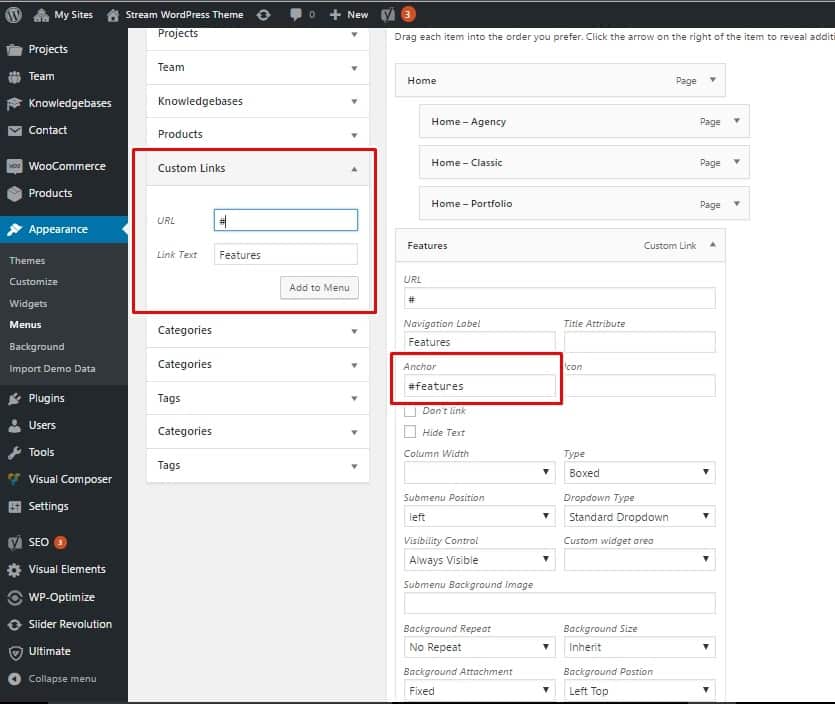
Adding menu items is simple. Begin by opening your WordPress dashboard. Find the Appearance section and click on Menus. Here, you can see a list of pages, posts, and categories. Select the items you want to add to your menu. Click the Add to Menu button. This will move your selected items to the menu structure. Make sure you save your changes.
Organizing your menu is important. It makes your site easy to navigate. Drag and drop items to rearrange them. You can create sub-menus by moving items slightly to the right. This creates a dropdown effect. Remember to click Save Menu once you are done. Your changes will then appear on your website.
Customizing Header And Footer
Editing the header makes your site unique. You can change the logo. Add a new one that fits your brand. Edit the menu items. Choose simple words so everyone understands. Adjust the colors. Use colors that match your style. You can also add a tagline. Make it short and catchy. Change the font size. It should be easy to read. The header is important. It is the first thing people see. Make it look good.
The footer is at the bottom of your site. It holds important info. Add your contact details. Include email and phone number. You can also add social media links. Let visitors connect with you. Include a copyright notice. Protect your content. Add a back-to-top button. It helps users navigate. You can also add a newsletter sign-up. Invite visitors to stay in touch. The footer should be clean. Simple and easy to read.
Styling With Css
Customizing a one-page WordPress theme with CSS enhances design flexibility. Adjust colors, fonts, and layouts for a unique look. CSS allows precise control over elements, ensuring your site stands out while maintaining usability.
Adding Custom Css
Custom CSS helps you change the look of your theme. It allows you to add unique styles. This means you can make your website special. Start by opening the WordPress Customizer. Find the “Additional CSS” option. There, you can add your custom codes. Use simple selectors to change colors or fonts. For example, to change text color, use color: blue;. Always check your changes before saving. This ensures everything looks good. Remember, small changes can make a big difference.
Using Css For Responsive Design
Responsive design helps your site look good on all devices. Use CSS media queries for this. They check the screen size. Then they apply the right styles. For example, use @media (max-width: 600px) to target small screens. Change font sizes or layout for better viewing. This keeps your site user-friendly. A responsive site is important for mobile users. They can easily navigate and read your content. Always test your site on different devices. This ensures a smooth user experience.
Integrating Plugins
Essential Plugins for One Page Sites can make your site better. They add features like contact forms and image sliders. Using a plugin like Elementor helps you design pages easily. Another good choice is Yoast SEO for search engine help. Try to pick plugins that fit your needs best. Keep the number of plugins low to ensure speed.
Plugin Compatibility Issues can cause problems. Some plugins might not work together. This can slow your site or break it. Always check plugin details before adding them. Read reviews and test plugins in a safe setting. Update your plugins regularly to fix bugs and improve security. If a plugin causes issues, disable it to see if that helps.
Optimizing For Seo
SEO plugins make your site better. They help with keywords and tags. You can use plugins like Yoast SEO or All in One SEO Pack. These plugins guide you. They suggest improvements. They also check for errors on your site. This makes your site more visible. Remember, a good SEO plugin is like a friend. It helps your site grow.
Page speed is very important. It helps users stay on your site. A fast site makes them happy. Use tools like Google PageSpeed Insights. This tool shows what slows down your site. You can fix these issues. Try to compress images. This saves space. Also, use a good hosting service. Good hosting makes your site load faster. A fast site is a good site.
Testing And Launching
Testing the customized one-page WordPress theme ensures everything functions smoothly. Launch the site to showcase your unique design.
Cross-browser Testing
Ensure your site looks good on all browsers. Test on Chrome, Safari, and Firefox. Each browser may show your site differently. Check for any layout issues. Make sure all buttons and links work. Fix any problems you find. This helps everyone see your site correctly.
Launching Your Site
Double-check everything before you go live. Ensure all images load properly. Test your contact forms. Make sure your content is easy to read. Set up analytics to track visitors. This helps you know who visits your site. Finally, hit the publish button. Now your site is live for the world to see.

Credit: themeforest.net

Credit: colibriwp.com
Frequently Asked Questions
How Do I Install A One-page Theme?
To install a one-page theme, navigate to WordPress dashboard. Click ‘Appearance’, then ‘Themes’. Search for your desired theme, click ‘Install’, and activate it. Ensure compatibility with your WordPress version. Customization options are usually found under ‘Appearance’ or specific theme settings.
Can I Customize The Theme Without Coding?
Yes, most one-page WordPress themes offer customization without coding. Use the built-in theme customizer to change colors, fonts, and layouts. Drag-and-drop page builders like Elementor or WPBakery simplify design adjustments. Always preview changes before publishing to ensure a seamless look.
What Plugins Should I Use For Customization?
For customization, consider plugins like Elementor for design, Yoast SEO for optimization, and WPForms for contact forms. These enhance functionality without overwhelming your site. Always check plugin compatibility with your theme and WordPress version before installation.
Is A One-page Theme Good For Seo?
A one-page theme can be SEO-friendly if optimized correctly. Use descriptive headings, alt text for images, and meta descriptions. Ensure fast loading times and mobile responsiveness. Integrate keywords naturally throughout the content to enhance search engine visibility.
Conclusion
Customizing a one-page WordPress theme is simple and rewarding. Start with understanding theme options. Adjust colors, fonts, and layout. Use the WordPress Customizer for live previews. Add personal touches with custom CSS. Don’t forget to optimize images for faster loading.
Keep mobile users in mind; ensure your design is responsive. Regularly update plugins and themes. This keeps your site secure and functioning well. With these steps, your one-page theme will reflect your style and needs. Enjoy the creative process and make your website truly yours.


