
Are you tired of your WordPress blog looking like everyone else’s? Do you wish your posts could stand out and truly reflect your unique style?
You’re not alone. Many bloggers and website owners feel the same way. The good news is, you have the power to change that. With a few tweaks, you can customize how posts show up on your WordPress theme, giving your site the personality and flair it deserves.
Imagine your readers being captivated from the moment they land on your page, eager to explore more. This article will guide you through easy steps to tailor your posts, making them not only aesthetically pleasing but also strategically engaging. Ready to transform your WordPress site into a visual masterpiece that resonates with your audience? Let’s dive in.
Credit: www.wpxpo.com
Choosing The Right Theme
Picking the best theme is crucial. Themes must have features you need. Check if they support different layouts. Look for easy navigation features. Does it allow you to change colors? Can you change fonts? These are important. Some themes give many options. Others, not so many.
Compatibility with Customization is also key. Can you customize without coding? That’s a big plus. Make sure the theme works with plugins. Some plugins help change how posts look. Not all themes support them. Choose a theme that is flexible. It’s better if it is easy to use.
Using The Customizer
Explore the WordPress Customizer to adjust how posts appear on your theme. Modify layouts and styles easily. Enhance readability and engagement by selecting fonts and colors that align with your brand.
Accessing The WordPress Customizer
Find the WordPress Customizer in your dashboard. Click on Appearance. Then, select Customize. It will open the settings panel. This panel helps you change your theme. Make sure your theme is active. If not, change the theme first. The Customizer is easy to use. It shows changes live. This helps you decide quickly.
Adjusting Display Settings
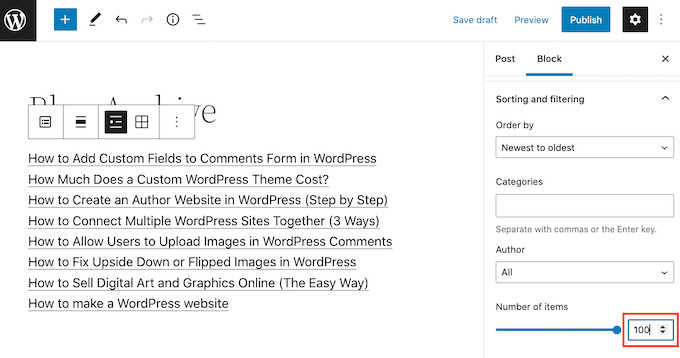
In the Customizer, go to Display Settings. You can change how posts show up. Change the layout if needed. Choose how many posts show on one page. You can also change the post order. Make sure to save your settings after changes. This keeps your changes safe. You can come back anytime to change again.
Modifying Post Layouts
Different post formats can make your blog look unique. You can choose a gallery format for pictures. Or a video format for videos. This makes it easy for readers to know what to expect. It also keeps your blog interesting. Text format is great for stories and articles. Quote format is perfect for sharing famous words. Using the right format is fun and makes the blog look good.
Page builders help you design your blog. They let you move things around. You can add images and text easily. You don’t need to know coding. Just drag and drop. Some popular page builders are Elementor and Beaver Builder. They offer many templates to choose from. This makes your blog special and easy to read.
Credit: www.wpbeginner.com
Editing Css For Custom Styles
WordPress themes often have a spot for custom CSS. Custom CSS is like a special set of rules for your site. To find it, go to your WordPress dashboard. Click on “Appearance” and then “Customize.” Look for a section called “Additional CSS.” This is where you can add your own styles. These styles can change how your site looks. It’s a simple way to make your site unique.
Once you find the Custom CSS box, you can type in new styles. Want your text to be blue? Type color: blue; in the box. To make your site fun, you can change lots of things. Try using different fonts or colors. Always click “Save” after you make changes. This way, your changes will show up on your site. Remember, you can always go back and change things if you like.
Using Child Themes For Advanced Customization
Child themes offer a safe way to modify how posts appear on WordPress without altering the main theme. Customize layout, design, and functionality with ease, ensuring updates don’t erase your changes. Perfect for beginners wanting to tweak their site’s appearance.
Creating A Child Theme
A child theme helps you make changes safely. It keeps your original theme untouched. First, create a new folder in your theme directory. Name it something unique. Inside, make a file named style.css. Add a header comment to link it to the parent theme. Include details like Theme Name and Template. Next, create a functions.php file. This connects your child theme with the parent theme. Use the wp_enqueue_style() function to load the parent style.
Customizing Templates Safely
To change templates, copy files from the parent theme. Place them in your child theme folder. Edit these copies to fit your needs. This way, updates won’t erase your changes. You can tweak layouts and designs easily. No risk of losing work. Always backup before big changes. Small tweaks are simple and safe.
Leveraging Plugins For Additional Features
Enhance your WordPress posts by using plugins for additional features. Customize layout and style effortlessly. Discover a variety of plugins to tailor how posts appear on your theme. Transform your content presentation without complex coding.
Plugins For Layout Control
Plugins can help control the layout of your posts. They offer many options for arranging content. You can change the look with a few clicks. This makes your site look unique. Elementor and Beaver Builder are popular choices. They are easy to use. Both are great for beginners. They allow you to drag and drop elements.
Incorporating Dynamic Elements
Dynamic elements add life to your site. These elements change over time. They make the site feel fresh. Slider Revolution lets you add slideshows. WPForms helps you create forms quickly. These plugins are simple and effective. They make your site interactive. Adding these features keeps visitors engaged.
Testing And Previewing Changes
Customize your WordPress theme by testing and previewing changes. Adjust how posts appear to enhance user experience. Experiment with layout, font, and color to find the best look.
Using Preview Mode Effectively
Preview mode helps check changes before going live. This tool shows how your post looks. It keeps your site safe from mistakes. Always use preview before publishing changes. It is a safe way to test designs. You can see colors, fonts, and images. Make sure they fit well. Preview mode gives a real view of your site. This helps catch errors early. It is a smart step in customizing your WordPress theme.
Cross-device Testing
Websites should look good on all devices. Test on phones, tablets, and computers. Each device shows your site differently. Ensure your site is easy to read. Text, images, and buttons must fit the screen. Cross-device testing improves user experience. It helps your site reach more people. Make sure your site loads quickly everywhere. This keeps visitors happy and engaged.
Ensuring Seo And Performance
Customizing post appearance on WordPress enhances SEO and site performance. Adjust settings in the theme’s dashboard for better visibility. Optimize images and layout to speed up loading times and improve user experience.
Optimizing For Speed
Fast websites keep users happy. Use light themes for quicker loading. Minimize images and videos. Compress files to save space. Choose reliable hosting services. Use caching plugins to store data. This reduces loading times. Remove unused plugins and themes. They can slow down your site. Keep your WordPress updated. Updates fix bugs and improve speed.
Maintaining Seo Best Practices
SEO helps people find your site. Use keywords in your content. They should match what users search. Write short and clear titles. Use headings to organize content. Add alt text to images. This helps search engines understand them. Use internal links to guide users. They keep people on your site longer. Monitor your website’s performance. Tools like Google Analytics can help. They show which pages need improvement.

Credit: elementor.com
Frequently Asked Questions
How Do I Change Post Layout In WordPress?
To change the post layout, access your WordPress theme settings. Navigate to the theme customizer or use a page builder. Select the layout options you prefer. You can also modify the layout by editing theme files. Always back up your site before making changes to the code.
Can I Customize WordPress Posts Without Coding?
Yes, you can customize without coding using WordPress page builders. Plugins like Elementor and WPBakery offer drag-and-drop interfaces. They provide easy customization options for posts. You can adjust layouts, colors, and fonts effortlessly. This approach is user-friendly and requires no coding skills.
How To Make Posts Look Professional?
To make posts professional, focus on formatting and design. Use consistent fonts and spacing. Incorporate high-quality images and media. Utilize headings and subheadings for better readability. Ensure your theme is responsive. A professional appearance enhances user experience and engagement on your site.
What Plugins Help In Post Customization?
Several plugins assist in post customization. Elementor, WPBakery, and Beaver Builder are popular options. These plugins provide drag-and-drop features. They allow you to design posts without coding. Additionally, plugins like Jetpack offer customization tools and widgets. Choose one that suits your needs and theme compatibility.
Conclusion
Customizing your WordPress theme enhances your site’s look. It attracts more visitors. Adjust your post display settings. Make your content shine. A few simple tweaks can improve readability. Your audience stays engaged longer. Every setting matters. Take time to explore them.
Experiment with different layouts. Choose what fits your style. Keep your content fresh. It keeps readers coming back. Remember, a well-designed site leaves a lasting impression. Happy customizing!


