
Are you looking to give your WordPress site a unique flair that truly represents your brand or personal style? Customizing the Gillion theme might just be the solution you need.
Known for its versatility and user-friendly interface, the Gillion theme offers endless possibilities to craft a website that stands out. But where do you start, and how can you ensure your customizations effectively capture your vision? In this guide, we’ll walk you through the simple steps to personalize the Gillion theme, ensuring your website isn’t just another face in the crowd.
Discover how easy it is to transform your site into something extraordinary, and keep your visitors coming back for more. Stay with us, and let’s unlock the full potential of your WordPress site together.
Installation Process
Installing the Gillion theme is quite easy. First, download the theme files. Save them on your computer. Go to your WordPress dashboard. Click on “Appearance”. Then click “Themes”. Now, click “Add New” at the top. Next, click “Upload Theme”. Select the downloaded Gillion file. Click “Install Now”. WordPress will install the theme for you.
After installation, activate the theme. Find the “Activate” button. Click it. Your Gillion theme is now active. Ensure you have all required plugins. Check the theme documentation. Follow instructions for best results. Customize settings as per your needs. Enjoy your new website look!
Theme Activation
First, find the Gillion theme in your WordPress dashboard. Click on Appearance then Themes. Here, you will see many themes. Look for the Gillion theme. Click on it to activate the theme. Make sure the theme is installed first.
Next, go to Theme Options. This is in the WordPress dashboard. You can change colors and fonts. Choose options that you like. Save your changes. Your theme is now active.
If you face issues, check your theme version. It should be the latest one. Update it if needed. This helps fix many problems. Enjoy your new theme.
Navigating Theme Options
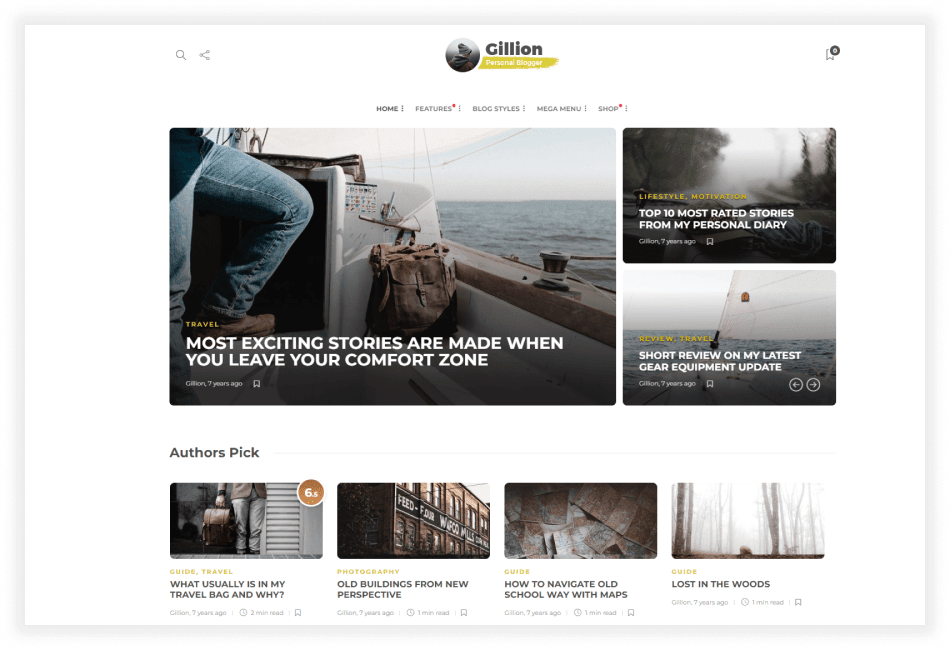
Gillion theme offers many options for customization. The dashboard is user-friendly. You can find options easily. Colors and fonts can be changed with a click. Layouts are flexible and adaptable. Choose from many pre-built designs. Each design is unique. Widgets can be added to different sections. This enhances the website’s functionality. The drag-and-drop feature is simple to use. It requires no coding skills. Adjust the header and footer for a personal touch. You can also customize the sidebar with ease.
The theme allows for easy integration. It works well with popular plugins. Plugins like WooCommerce and Yoast SEO. This helps in building a powerful site. Explore the settings for more options. Experiment with different styles. Save your changes as you go. Preview the website before making it live. This ensures everything looks good. Your website will stand out with Gillion theme.
Credit: electronthemes.com
Customizing Layouts
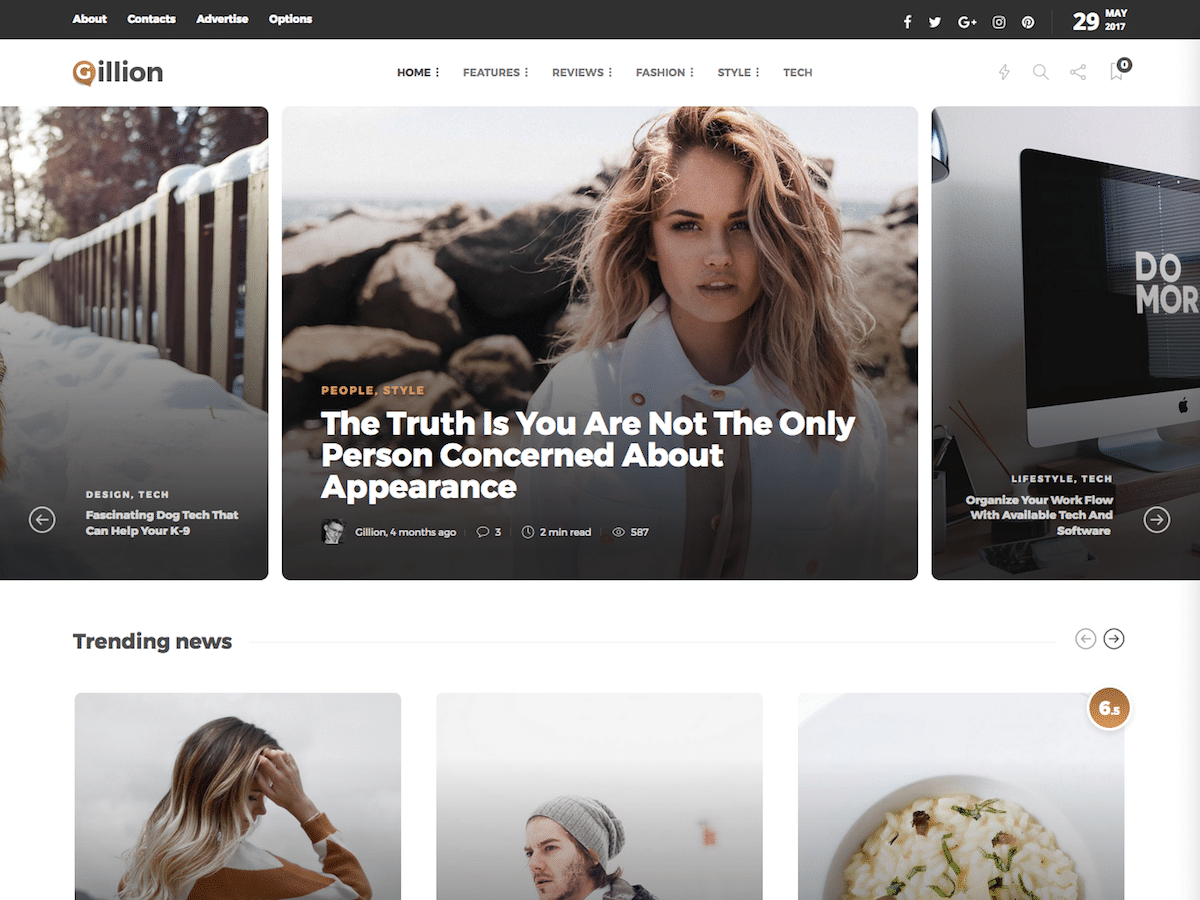
The header is at the top of your page. It holds your site’s title. You can change the font to make it look nice. Add a logo if you have one. Use the color picker to match your style. The footer is at the bottom. It can show links and contact info. Make sure it’s neat and tidy. Keep both simple for better user experience.
The sidebar can hold many things. You might add a search bar. Or a list of recent posts. It helps users find things quickly. You can add widgets to the sidebar. These widgets are like small tools. Choose what is most helpful to your visitors. Keep it organized so it’s easy to use.
Styling And Colors
Colors make your website look nice. Pick colors that match your style. Use bright colors for fun sites. Use dark colors for serious sites. You can mix colors too. Make sure the text is easy to read. Use contrast to help. High contrast makes text clear.
Fonts change how text looks. Choose simple fonts for clear reading. Fancy fonts can be hard to read. Change the size of the font too. Big text is easy for kids to read. Small text can be hard to see. Make sure your font matches your style. Fonts can make your site feel friendly or formal.
Using Widgets
Widgets are small tools. They make your site better. Adding widgets is easy. Go to the dashboard. Click on “Appearance.” Then click “Widgets.” Drag the widget to the right spot. Removing widgets is simple too. Find the widget you want gone. Click it. Then, click “Delete.” Widgets can be fun. They make your site unique.
Custom widget areas give more choices. You can add them anywhere. This is how you do it. Go to “Appearance.” Then, click “Widgets.” Look for “Custom Widget Area.” Click “Add New.” Name your new area. Now, drag widgets to this space. Enjoy your new look!
Creating Menus
Menus help visitors navigate your website easily. They show where to find information. Good menus make a site user-friendly. Start by choosing the “Appearance” tab in the WordPress dashboard. Click on “Menus” to begin. Give your menu a name. Click “Create Menu” to start building.
Menu Structure
Organize your menu items in a clear way. Place the most important pages at the top. Use sub-items for related pages. This creates a hierarchy. Drag and drop items to arrange them. Keep it simple. Avoid too many layers. Too many items can confuse users.
Adding Menu Items
To add items, find the “Add Menu Items” section. Select pages, posts, or custom links. Click “Add to Menu” to include them. Once added, arrange them as needed. Save changes by clicking “Save Menu”. Your menu is now ready!
Credit: mhthemes.com
Setting Up Blog Posts
Gillion theme supports different post formats. Each format has its own style. You can choose from standard, video, audio, gallery, and more. Standard is best for regular posts. Video format highlights your videos. Audio format is perfect for podcasts. Gallery format showcases your images. Pick the format that suits your content.
Featured images make your posts stand out. They are the first thing people see. Choose a high-quality image that fits your post. It should be clear and relevant. Upload the image in the post settings. Check how it looks on your blog. A good image attracts readers.
Integrating Social Media
Customize the Gillion Theme on WordPress to effortlessly integrate social media. Adjust settings to match your brand’s style. Enhance engagement by adding social sharing buttons and widgets, ensuring your content reaches a wider audience.
Social Media Buttons
Adding social media buttons is easy. These buttons help visitors share your content. Gillion theme has built-in options for this. You can find these in the theme settings. Choose the social platforms you want. Facebook, Twitter, Instagram, and more. Drag and drop them into place. Make sure they fit your website’s style.
Social Sharing Features
Social sharing features are important. They help spread the word about your site. In the Gillion theme, these features are customizable. You can pick where you want sharing buttons to appear. Posts, pages, or both. Test different options to see what works best. This helps in engaging more users.
Optimizing For Seo
SEO is very important for your website. Keywords help search engines find your site. Use them in titles, headers, and text. Meta descriptions are short summaries of your pages. They should include keywords too. Alt text is for images. It helps search engines understand pictures. Add keywords in alt text.
Internal links connect your pages. They help users and search engines. External links point to other sites. They show your site is trustworthy. Mobile optimization is key. Make sure your site works on phones and tablets. Fast loading speeds are crucial. No one likes slow sites.
User-friendly design is important. Easy navigation keeps visitors happy. Readable content matters. Short sentences and clear words help. Regular updates keep your site fresh. Search engines like new content.
Troubleshooting Common Issues
Sometimes, things don’t work as planned. Pages may not load. Or, images won’t appear. This can be frustrating. First, check your internet connection. A slow connection can cause problems. Next, clear your browser cache. This can fix loading issues. If these steps don’t help, check for theme updates. An old version might cause errors. Updates often fix bugs.
Plugins can cause issues too. Try deactivating plugins. Activate them one by one. This helps find the problem. If all else fails, contact customer support. They can help you fix issues. Remember, patience is key. Troubleshooting takes time.
Credit: perfectwpthemes.com
Frequently Asked Questions
How To Install Gillion Theme In WordPress?
To install the Gillion theme, navigate to your WordPress dashboard. Click on ‘Appearance,’ then ‘Themes. ‘ Choose ‘Add New,’ upload the Gillion theme zip file, and click ‘Install Now. ‘ After installation, activate the theme to start customizing your website with Gillion’s unique features and designs.
What Customization Options Are Available In Gillion Theme?
Gillion offers extensive customization options like color schemes, typography settings, and header layouts. You can also customize blog post formats, widgets, and social media integration. Use the live customizer for real-time edits and preview changes before publishing. These features help tailor your site to fit your brand perfectly.
Can Gillion Theme Support Plugins?
Yes, Gillion theme supports various plugins to enhance your website’s functionality. It is compatible with popular plugins like WooCommerce, WPBakery Page Builder, and Slider Revolution. These plugins allow you to add e-commerce features, create custom layouts, and interactive sliders, improving user experience and website performance.
Is Gillion Theme Mobile-friendly?
Absolutely, Gillion theme is designed to be fully responsive and mobile-friendly. It ensures your website looks great on any device, including smartphones and tablets. The theme automatically adjusts layouts and images for smaller screens, providing an optimal viewing experience for mobile users, improving engagement and accessibility.
Conclusion
Customizing the Gillion theme is simple and fun. Explore its features and options. Experiment with colors and layouts. Make your site unique and appealing. Focus on user-friendly navigation. Engage visitors with attractive images and content. Remember, a well-designed site boosts user experience.
Regular updates keep it fresh and relevant. Personalize according to your brand and audience needs. Follow these steps to create a dynamic website. Enjoy the process of making your site stand out. Keep learning and adapting as your site grows.


