
Are you looking to give your WordPress site a personalized touch without diving deep into code? Creating a theme option panel is your golden ticket.
Imagine having the power to tweak your website’s appearance and functionality effortlessly, all from a user-friendly dashboard. This not only saves time but keeps your site looking fresh and engaging. In this guide, you’ll discover how to craft a theme option panel that puts you in control.
Whether you’re a seasoned developer or a curious beginner, this step-by-step approach will empower you to enhance your site’s user experience. Ready to transform your WordPress site into a dynamic digital space that truly reflects your brand? Let’s dive in and unlock the secrets to a seamless theme customization experience.
Credit: www.elegantthemes.com
Setting Up The Environment
First, set up a local server using tools like XAMPP or WAMP. Install WordPress to start building your theme. Make sure your system has PHP and MySQL installed. Create a new folder for your theme in the wp-content/themes directory. This folder will hold all theme files. Use a text editor like Notepad++ or Sublime Text for coding.
Next, check that you have a basic theme structure. This includes files like style.css and index.php. These files are essential for your theme to work. Ensure you are familiar with WordPress functions. This helps in creating dynamic and flexible themes.
Finally, set up a version control system. Git is a popular choice for this. It helps track changes and collaborate efficiently. Always test your changes locally before deploying.
Credit: visualmodo.com
Understanding Theme Options
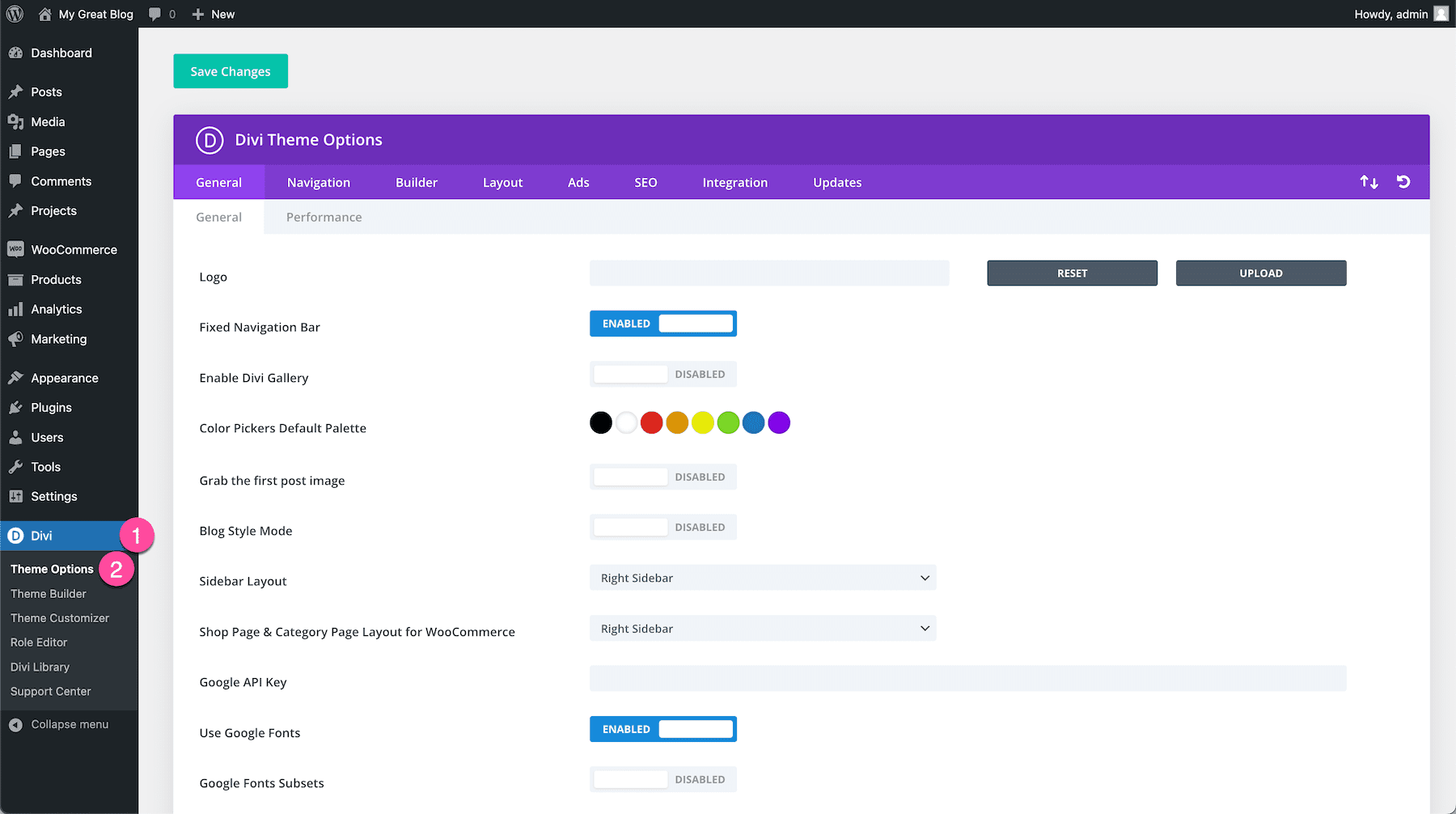
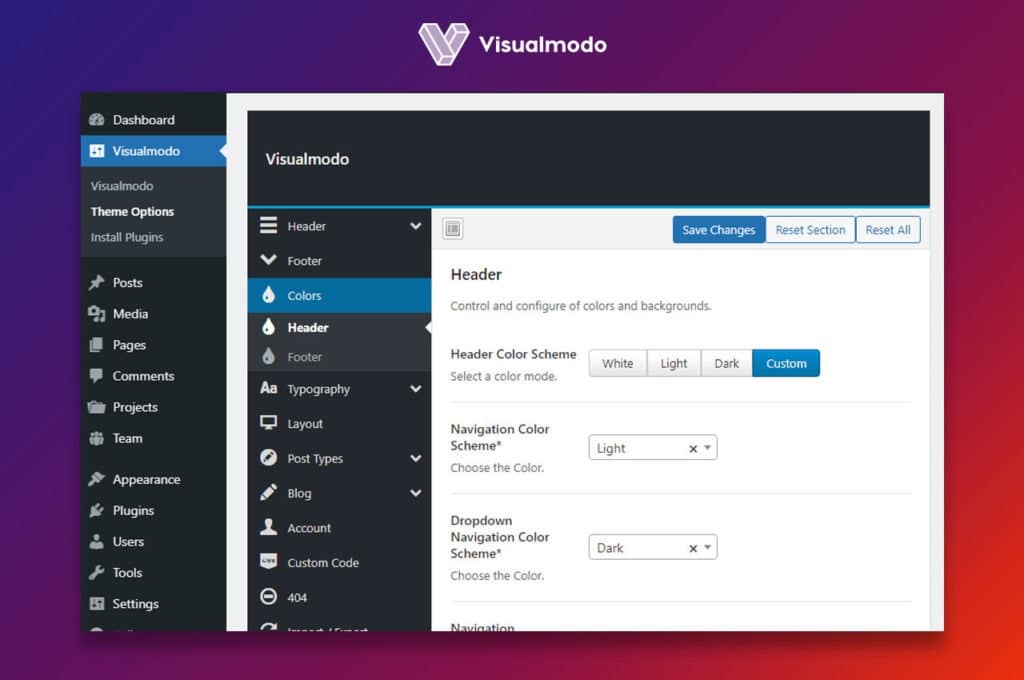
Creating a theme option panel in WordPress is useful. It helps customize and control website settings easily. Users can change colors, fonts, and layout without coding. Theme options offer a user-friendly interface. They make the process simple for website owners.
Developers use WordPress functions to build these panels. Functions like add_theme_page() and register_setting() are common. These functions add options and save changes. A theme option panel adds flexibility. It enhances user experience for site visitors.
Designing the panel takes planning. Focus on what users need. Too many options can confuse. Keep the panel clean and organized. This ensures users find settings easily. A well-designed theme panel boosts site management. Users enjoy a seamless experience.
Creating A Basic Theme Option Panel
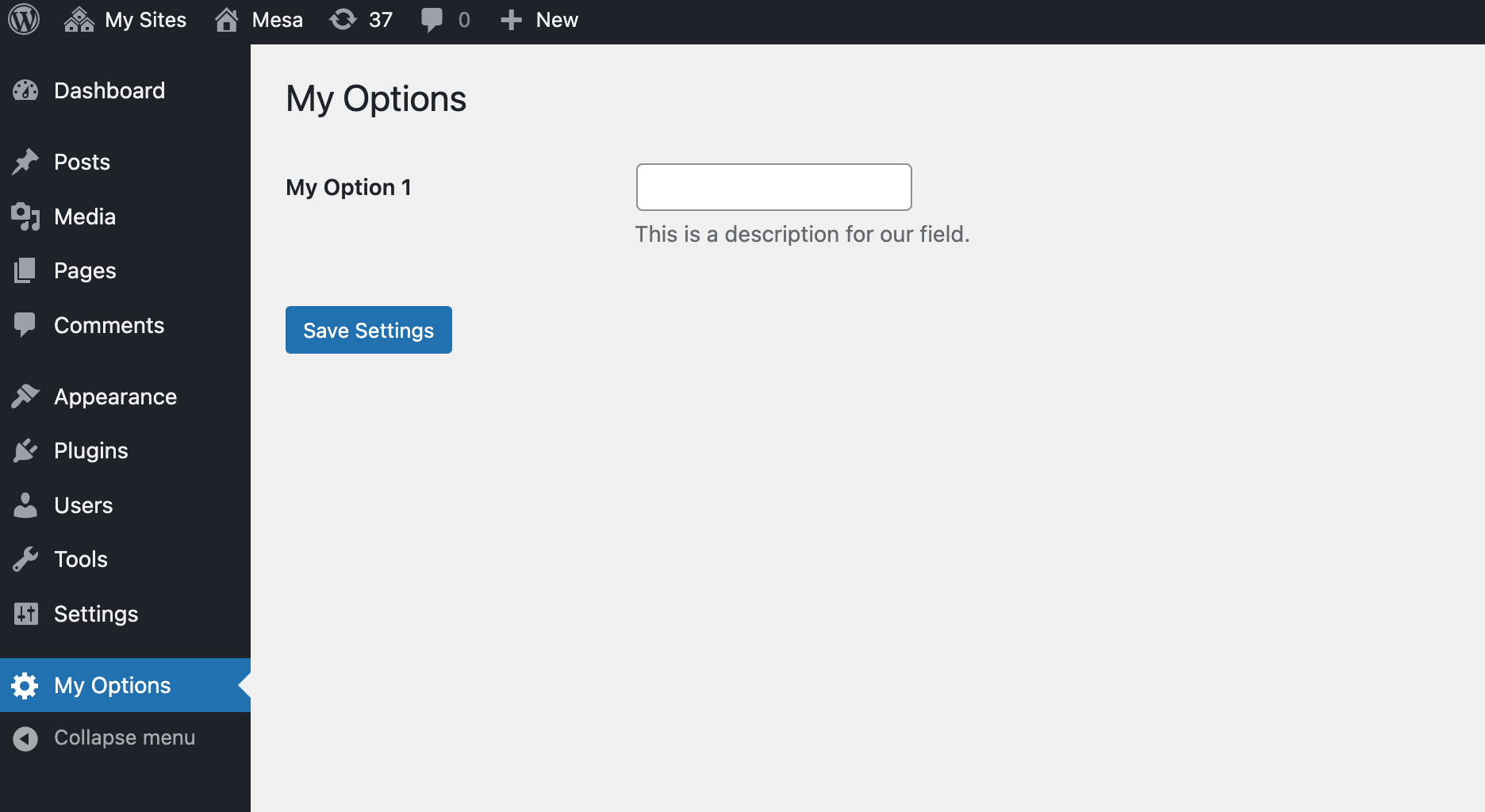
First, add an options page for your theme. Use the add_menu_page() function. This function helps create a menu in the WordPress dashboard. Choose a title, menu slug, and capability. Ensure the capability matches the user’s role. This way, only authorized users can see it.
Add callback function to display the content of the page. Write HTML and PHP code inside this function. The code will show the options for your theme. Make it user-friendly and clear. Save changes to see the new menu in the dashboard.
Next, register settings to save user options. Use the register_setting() function. This function connects settings to a specific option group. Validate input to keep data safe. Create a settings section using add_settings_section(). This section can contain multiple settings fields.
Add settings fields with add_settings_field(). Each field should have a unique ID. Design fields to collect the necessary data. Ensure fields are easy to fill out. Test your settings to confirm they work. Save and refresh to see changes.
Implementing Custom Settings
Creating a Theme Option Panel in WordPress helps customize settings without coding. Users can easily adjust themes to match personal preferences. This feature enhances user experience by offering intuitive design control.
Using WordPress Settings Api
The WordPress Settings API helps create options for themes. It makes the process simple and organized. First, register a new setting with register_setting(). This function saves your settings. Next, add a new section using add_settings_section(). This groups related settings together. Lastly, use add_settings_field() to add fields. These fields are where users enter their data.
Defining Custom Fields
Custom fields make themes unique. Start by choosing a field type. It could be a text box, checkbox, or dropdown. Each field must have a unique ID. This ID helps identify the field in your code. Use get_option() to retrieve values. This function fetches the user’s input. Remember, clear labels help users. Labels tell users what to do.
Styling The Theme Option Panel
CSS is key to make the theme panel look nice. Styles like colors and fonts help make the panel easy to use. Use background colors to highlight sections. Choose font styles for clear text. Add padding to give space around elements.
Align text and boxes properly. This keeps the layout clean. Make buttons big enough to click easily. Use hover effects for interactive feel. Users like panels that look neat and work well.
User-friendly panels are simple to navigate. Use icons for quick recognition. Group similar options together. Help users find things fast. Use clear labels. Avoid clutter. Less is more.
Responsiveness matters. Panels should fit all screens. Test on phones and tablets. Make adjustments as needed. Keep the design consistent. Users appreciate smooth interactions.
Credit: www.wpexplorer.com
Testing The Theme Option Panel
Exploring theme option panels in WordPress enhances customization. These panels allow users to adjust settings effortlessly. Testing ensures functionality, providing a seamless user experience.
Debugging Common Issues
Check for any broken links or incorrect settings. Ensure all buttons work as expected. Inspect the panel for any missing options. Sometimes, themes can have errors due to coding mistakes. Always double-check your code for typos. Use the WordPress debug tool for help. This tool finds problems you might miss. Remove any unused code to avoid clutter. This helps make the panel cleaner.
Ensuring Compatibility
Make sure the theme works with the latest WordPress version. Test it on different devices and browsers. This includes phones and tablets. Compatibility is key for user satisfaction. Ensure the theme doesn’t conflict with plugins. Sometimes, plugins can cause display issues. Try using different plugins to test compatibility. This guarantees a smooth experience for users. Keep the theme updated to fix any issues.
Advanced Customization Techniques
Adding Conditional Logic makes your theme smart. It shows options only when needed. Use conditional statements like if and else in your code. This keeps the panel clean and user-friendly. For example, show a background color option only if a certain style is chosen. This way, users see only what they need. It reduces clutter and confusion.
Integrating Third-Party Libraries can enhance your theme panel. Libraries offer extra features and tools. They help in adding sliders, color pickers, or other UI elements. Use popular libraries like jQuery or React. These make your panel more interactive. Always check the library’s compatibility with WordPress. Ensure it does not slow down the site. Test thoroughly before going live. This ensures a smooth user experience.
Best Practices For Theme Option Panels
Creating a theme option panel in WordPress enhances customization. Use clear navigation and intuitive design for ease. Include essential settings like colors, fonts, and layouts.
Optimizing Performance
Speed is crucial for websites. Fast sites keep users happy. Use lightweight code for your theme options. Avoid too many scripts. Too many scripts can slow down your site. Use asynchronous loading for scripts. This helps in loading faster. Compress images to speed up loading. Smaller images load quickly. Use only essential features in the options panel. Extra features can make the site slow. Always test performance after changes.
Maintaining Security
Security is very important. Protect your theme options panel from threats. Use strong passwords for admin areas. Keep your WordPress version up to date. Updates fix security issues. Use trusted plugins only. Unsafe plugins can harm your site. Sanitize user inputs to prevent attacks. Check for vulnerabilities regularly. Backup your site often. Backups save your site in case of attacks.
Frequently Asked Questions
What Is A Theme Option Panel In WordPress?
A theme option panel in WordPress is a user-friendly interface allowing customization of theme settings without coding. It enables users to modify site elements like colors, fonts, and layouts easily. This panel enhances flexibility and personalization, making it easier to tailor the website to specific needs.
How Do I Add A Theme Options Panel?
Adding a theme options panel involves coding a custom options page in the WordPress admin area. You use functions like `add_menu_page()` to create a new menu item. Then, utilize settings API to register and display options fields, enabling users to customize theme settings efficiently.
Can I Customize My Theme Without Coding?
Yes, you can customize your theme without coding using the theme options panel. It provides a graphical interface to adjust various settings. You can change colors, fonts, and layouts easily. This feature is especially useful for beginners who want to personalize their site without technical knowledge.
Are Theme Option Panels Mobile-friendly?
Theme option panels are typically designed to be mobile-friendly. Developers ensure they are responsive and accessible on various devices. This allows users to manage theme settings conveniently from smartphones or tablets, ensuring a seamless user experience across all platforms.
Conclusion
Creating a theme option panel in WordPress is a valuable skill. It enhances website customization. With this guide, you can build user-friendly panels. They make websites more appealing and flexible. Remember to test your panel thoroughly. Ensure compatibility with different themes and plugins.
Use clear labels and instructions for easy navigation. Always prioritize user experience. This approach keeps visitors engaged and satisfied. As you practice, you’ll improve your WordPress skills. Enjoy the creative freedom and functionality it offers. Building a theme option panel can be rewarding and fun.
Keep learning and experimenting with new features.


