
Imagine this: you’ve been exploring different themes for your WordPress site, trying to find the perfect look. You’ve uploaded a few options, maybe more than a few, and now your dashboard feels cluttered.
The themes you aren’t using are just sitting there, taking up space and potentially slowing things down. Sound familiar? You’re not alone, and the good news is, there’s a simple fix. You’re about to learn how to delete those unwanted themes swiftly and safely.
This guide will take you step-by-step through the process, ensuring your WordPress site remains streamlined and efficient. By the end of this article, you’ll have a cleaner, faster, and more organized dashboard, allowing you to focus on what truly matters: creating great content. Let’s dive in and get your WordPress site back in top shape!
Credit: www.wpzoom.com
Accessing The WordPress Dashboard
First, log in to your WordPress site. Use your username and password. Once logged in, you see the WordPress Dashboard. It is the main screen. From here, you can manage your site. Find the menu on the left side.
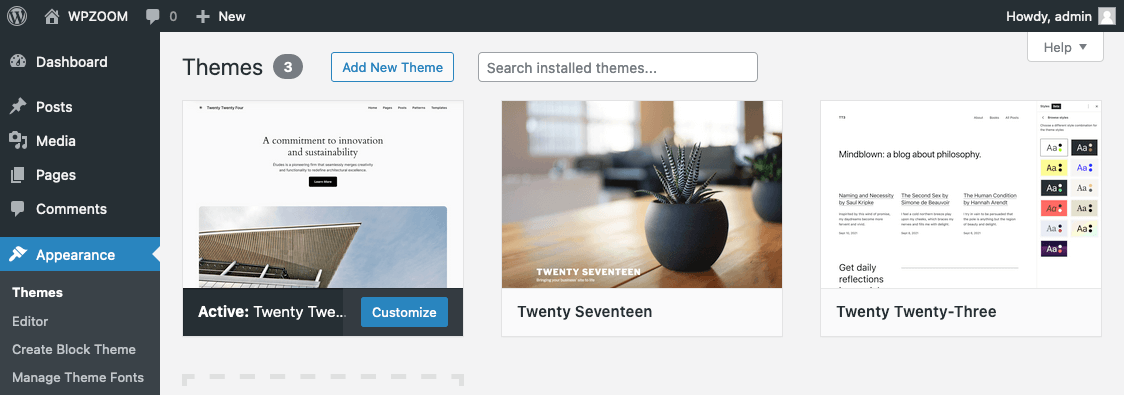
In the menu, look for Appearance. Click on it. A list will appear. Choose Themes from this list. Now, you are in the Themes page. Here, you see all uploaded themes. You can manage them easily.

Credit: wpmarmite.com
Navigating To The Themes Section
Start by logging into your WordPress dashboard. On the left side, find the menu. Click on Appearance. This will open a new page. Look for the Themes option. Click it to see all installed themes. You might see themes you don’t use. These themes take up space.
Find the theme you want to delete. Hover over it. A Theme Details button will appear. Click this button. This opens a new window. At the bottom-right, find the Delete button. Click it to remove the theme. Make sure you don’t delete your active theme.
Deleting themes helps keep your site clean. It also saves space. Always check before deleting.
Identifying The Installed Themes
To find your themes, go to the WordPress dashboard. Click on “Appearance” in the menu. Next, select “Themes”. All installed themes will appear here. The active theme shows first. It has a label on it. You can also see other themes below. Each theme has a name and picture. You can hover over a theme to get more options. Options include “Activate” or “Delete”. Be careful with the active theme. Do not delete it without a plan. Always have a backup theme ready. A backup theme ensures your site stays online. Check all themes before deleting. This helps avoid mistakes.
Switching The Active Theme
First, go to your WordPress dashboard. Look for the Appearance tab. Click on it. Then, select Themes. You will see your list of themes. Choose a default theme. It could be Twenty Twenty-One or another. Click Activate to switch. Your site will now use this theme.
After activating, check your site. Make sure everything looks normal. Visit different pages. Test links and buttons. This ensures the theme works well. If you find issues, you can easily switch back. Just activate your previous theme.
Deleting The Unwanted Theme
First, log into the WordPress dashboard. Go to the Appearance tab. Click on Themes. Here, you will see all your themes. Find the theme you want to delete. Hover over the theme. You will see a Theme Details button. Click on it.
Locating The Theme
Inside the theme details, you will find options. Look for the Delete button at the bottom right corner. Make sure this is the theme you want to remove. Double-check the theme name. Confirm its version.
Confirming Deletion Prompt
Click the Delete button. A prompt will appear. It will ask if you are sure. Confirm your choice by clicking OK. The theme will be removed from your site. Now, it won’t take up space.
Verifying Theme Removal
Check the WordPress dashboard for your theme list. Navigate to Appearance and click on Themes. Ensure the theme is no longer listed. If it appears, it wasn’t deleted. Refresh the page to confirm.
Inspect the website. Look for changes in design. A removed theme won’t affect the site. If design changes, the theme might still be active. Check for missing theme files in the file manager. Access cPanel or FTP. Look in wp-content/themes. Ensure the theme folder is gone.
Test the site performance. A removed theme won’t slow the site. If the site is slow, check for leftover files. Deleting a theme should improve speed. Review the error log. Errors might indicate incomplete removal. Fix any errors for smooth operation.
Troubleshooting Common Issues
Removing an uploaded theme in WordPress can solve storage issues. Navigate to Appearance, click on Themes, and delete the unwanted theme. This simple process frees up space and helps maintain a clutter-free website.
Dealing With Permission Errors
Permission errors can stop theme deletion. Check your file permissions. Set permissions to read and write. Use FTP software for this task. You may need help from your hosting provider. They can change permissions for you.
Handling Missing Delete Option
Sometimes the delete option is missing. Go to the theme section in WordPress. Check if the theme is active. You can’t delete active themes. Switch to another theme first. Then, the delete option will appear. Make sure you are logged in as an admin. Only admins can delete themes.

Credit: themelooks.com
Best Practices For Theme Management
Keeping themes updated is very important. Updates help fix bugs and improve security. Check for updates often. Use the WordPress dashboard to find them. Click on the update button when needed. Always keep your themes fresh.
Always create a backup before deleting a theme. Backups save your data and settings. Use plugins like UpdraftPlus for easy backups. Store the backup in a safe place. This way, you won’t lose any important information.
Frequently Asked Questions
How Can I Delete A Theme In WordPress?
To delete a theme in WordPress, go to the dashboard. Navigate to Appearance > Themes. Hover over the theme you want to remove, click Theme Details, then click Delete at the bottom right. Confirm deletion when prompted to permanently remove the theme from your site.
Is Deleting A Theme Safe For My Site?
Deleting a theme is safe if it isn’t active. Ensure you have a backup of your site. The active theme can’t be deleted. Removing inactive themes helps improve site performance and security by reducing clutter and potential vulnerabilities.
Can I Delete Multiple Themes At Once?
WordPress doesn’t support bulk theme deletion directly. You can delete themes one by one through the dashboard. Alternatively, use FTP or a file manager for bulk removal. Ensure you only delete themes not in use to avoid site disruptions.
Does Deleting A Theme Affect Site Speed?
Yes, deleting unused themes can improve site speed. It reduces server load and frees up resources. With fewer themes, your WordPress site can operate more efficiently. Regularly clean up unused themes to enhance performance and security.
Conclusion
Deleting a WordPress theme is simple. Follow the steps carefully. Start by accessing your WordPress dashboard. Locate the “Appearance” section. Find and click “Themes. ” Choose the theme you wish to delete. Click “Delete” and confirm the action. This ensures a clean, organized site.
Removing unwanted themes frees space and improves site speed. Remember, a clutter-free WordPress enhances performance. Regular maintenance is key. Always keep your site updated. This boosts user experience. Keep exploring WordPress features. Stay informed. Make your site better every day.
Happy blogging!


